If your smartphone displays the message “not registered on the network,” it implies your SIM card is unable to connect to your carrier’s network. The “Not Registered on the Network” error will appear if your Android fails to recognize the SIM card in its slot. If the device fails to identify the SIM card, the service provider is unable to connect with the IMEI and, as a result, the handset is not connected.
There’s a good chance you won’t be able to make or receive phone calls or text messages. Because this problem may affect any Android phone, the procedures to resolve it are the same regardless of the brand or model.
Why Is It That My Phone Says It’s Not Registered On The Network?
When you encounter this issue, you are unable to make calls to anybody, which is a very annoying condition. And if you’re wondering why your phone claims it’s not registered on the network, here are some of the most prevalent causes:
This type of warning might appear when a new update does not support the device. You’ll have to wait for an official fix if the problem occurs after the update.
Another issue with the error message is the IMEI number.
When you move to a new SIM card, your smartphone may fail to keep up with provider updates, resulting in error popups.
When the firmware on your Android phone or OS is out of date.
If the SIM card has been damaged or is no longer functional.
When your provider is experiencing a service interruption.
Your phone is Carrier Locked
Ways How To Fix Not Registered On The Network
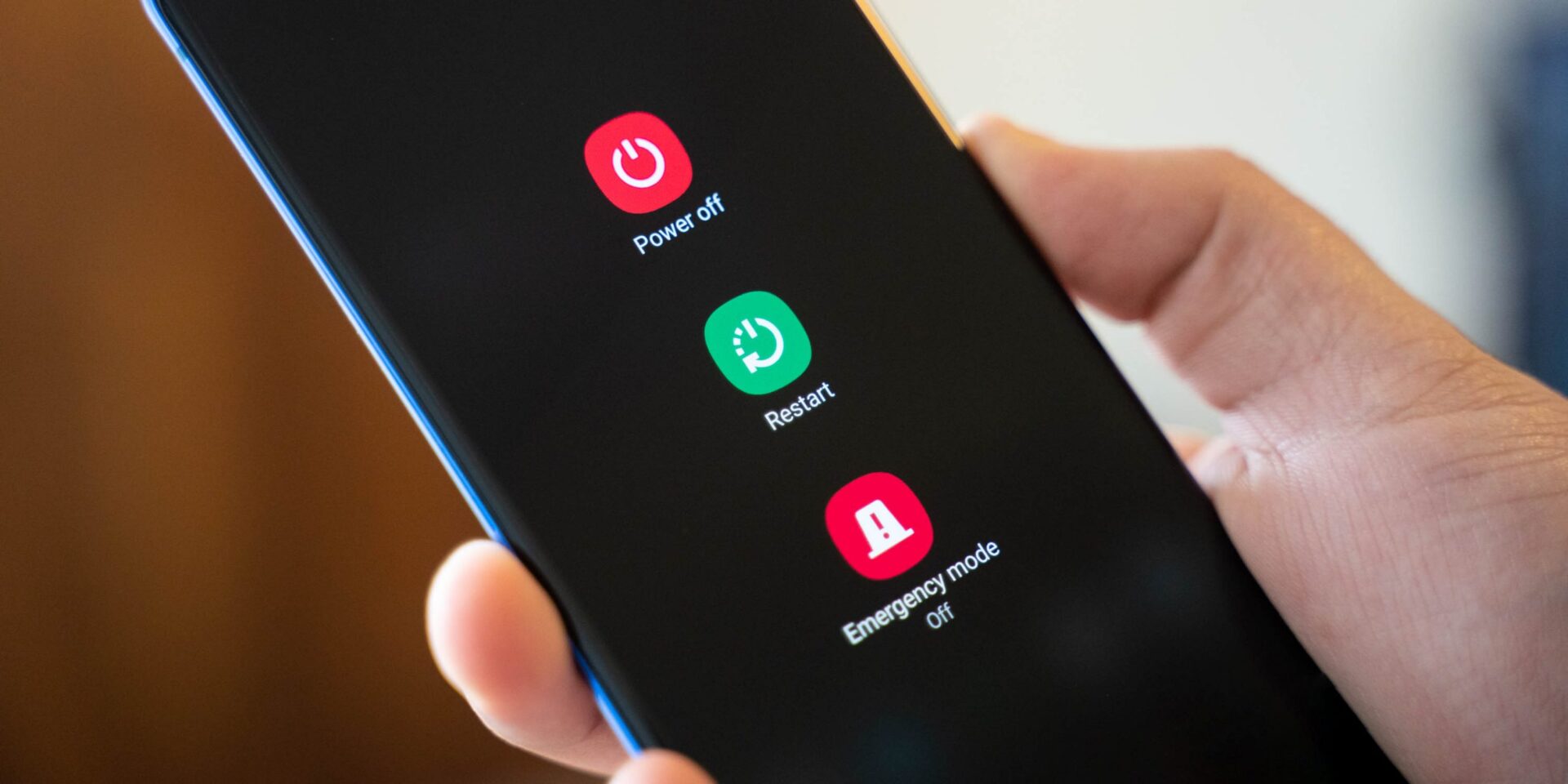
Restart Device
After restarting your phone once, the network problem should be resolved. There might be a number of defects that cause such unanticipated problems, but there’s no reason to be concerned. The problem can be resolved with a simple restart.
Manually select a network
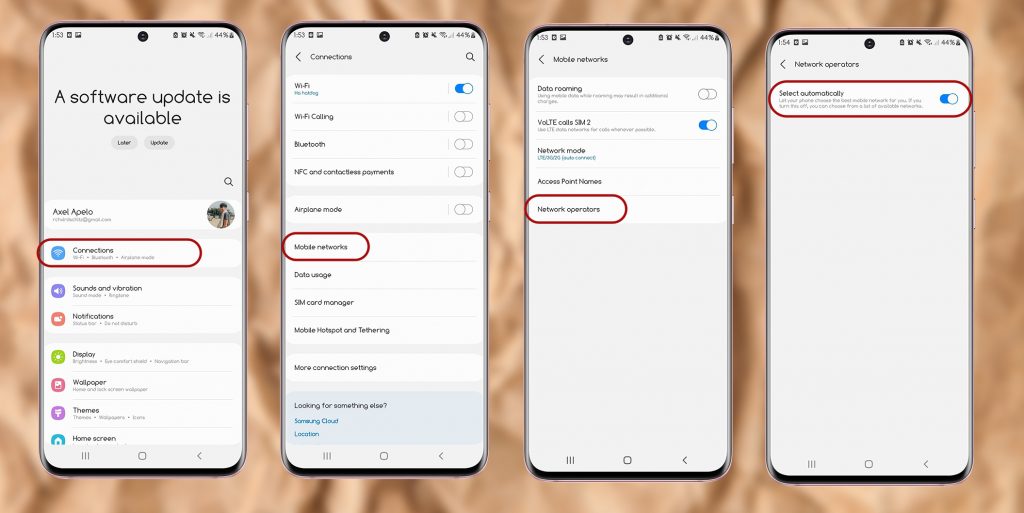
Make sure you’re using the right carrier in your settings. Select your carrier’s network by going to
Settings > Connections > Mobile Networks > Network Operators > Search now and select your carrier’s network
Disconnect wireless connections.
Turn off Wi-Fi on your phone for 30 seconds before turning it back on. This will re-establish your connection and may help to address any temporary technical issues.
Replace the SIM card / Change your SIM card
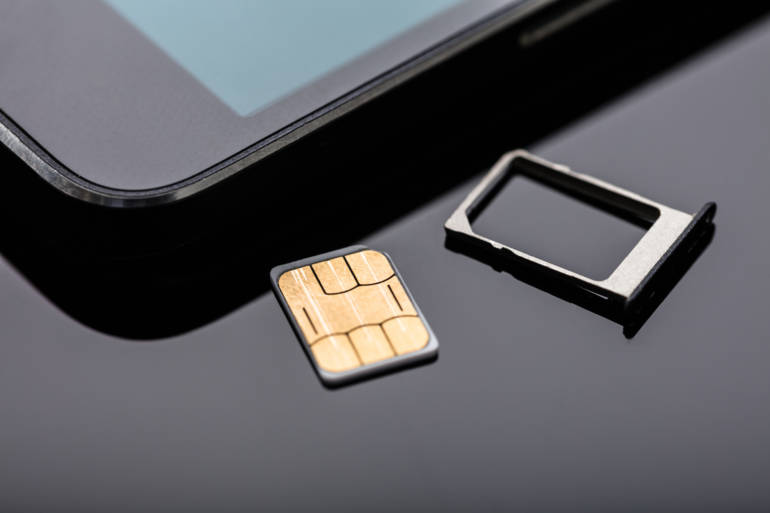
Close-up Of Nano Sim Card Ready To Insert In Smart Phone Over The Desk
Remove your SIM card and inspect it for damage before reinstalling it. Check that the card is correctly seated in the tray and that the metal pins are in the correct position or,
Switch out a spare active SIM card to test if your phone can connect to the network. If it can, something is wrong with the SIM card.
Update APN Settings
You may need to alter the Access Point Name (APN) settings if you have switched service providers. This is a more sophisticated remedy, so proceed with caution and make a note of the default APN settings so you can revert if something goes wrong.
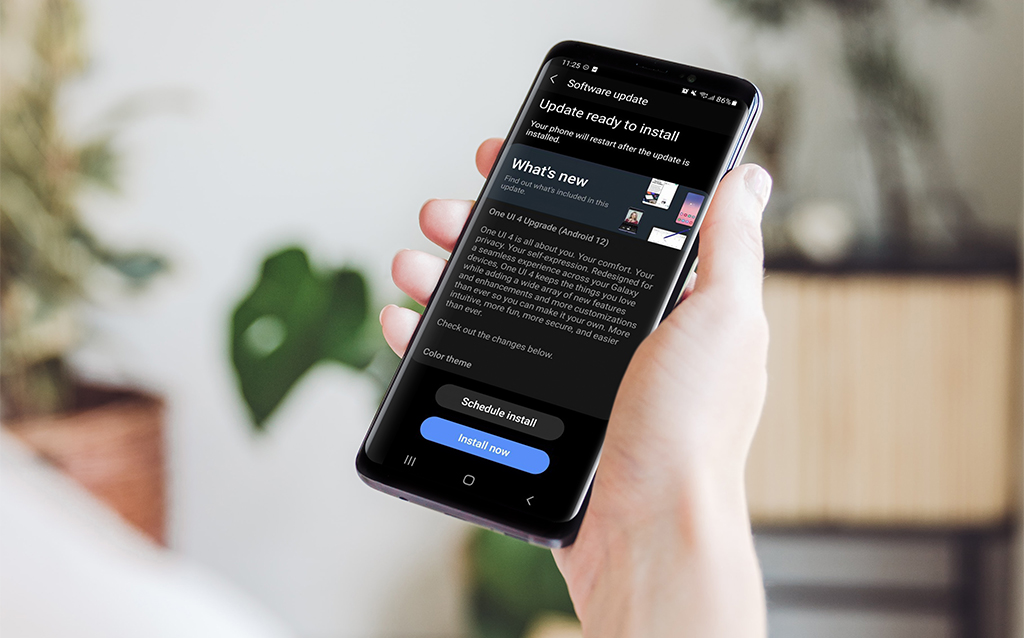
Update Your Phone’s Software
Ensure that your operating system and firmware are up to date so that you get the most recent upgrades for your phone.
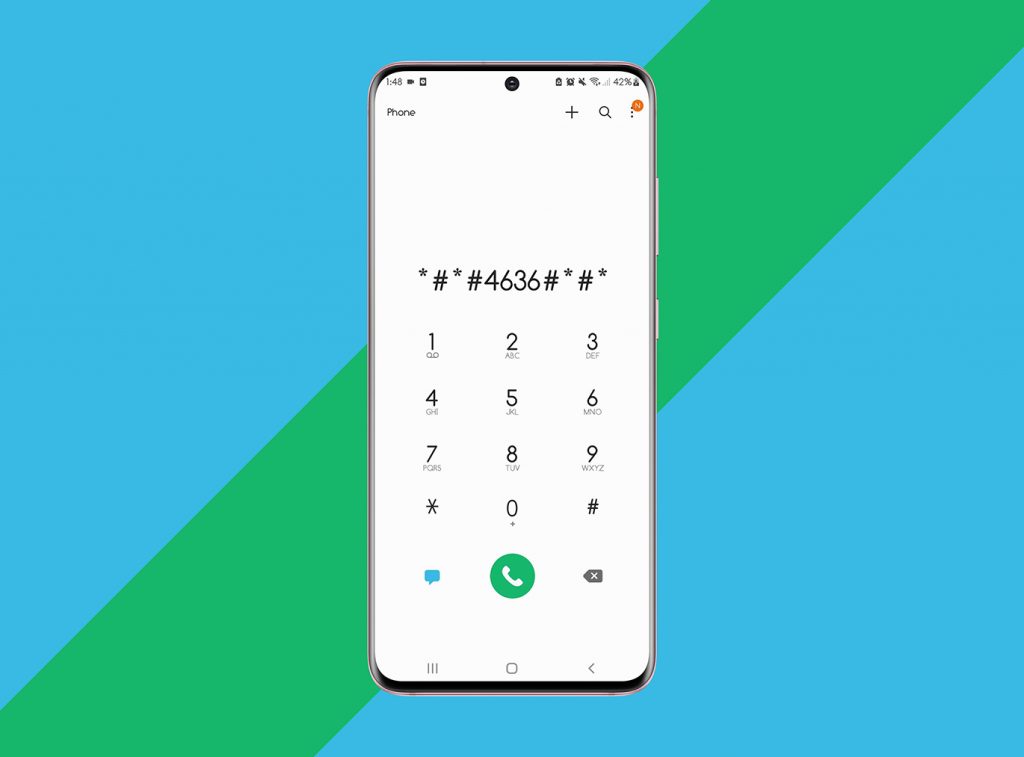
Go into Service Mode For Samsung Devices
It’s possible that if you’re a Samsung user and you see this error, it’s because your wireless signal is switched off. When there is an issue with Wi-Fi or GPS, this occurs.
As a result, in this case, you must do the following steps:
Type (*#*#4636#*#*) onto the dial pad.
A dialogue will appear, prompting you to enter Service Mode; click it.
Then select “Device information” or “Phone information” from the drop-down menu.
Then select “Run Ping Test.”
Now press the “Turn Radio Off” button to restart your smartphone.
Select the Reboot option if required.
Change Network Mode
If you’re in a low reception area that doesn’t support 5G or 4G, it’s best to switch to 3G or 2G.
Reset Network Configuration
A new connection to your carrier’s network can resolve issues that a reboot cannot. All Wi-Fi passwords and Bluetooth connections will be erased if you reset your network settings, so use it only as a last option.
Unlock your device!
If none of these ways to fix your device You may need to unlock your phone with the previous carrier if you recently acquired a phone or are switching to a network from another network.
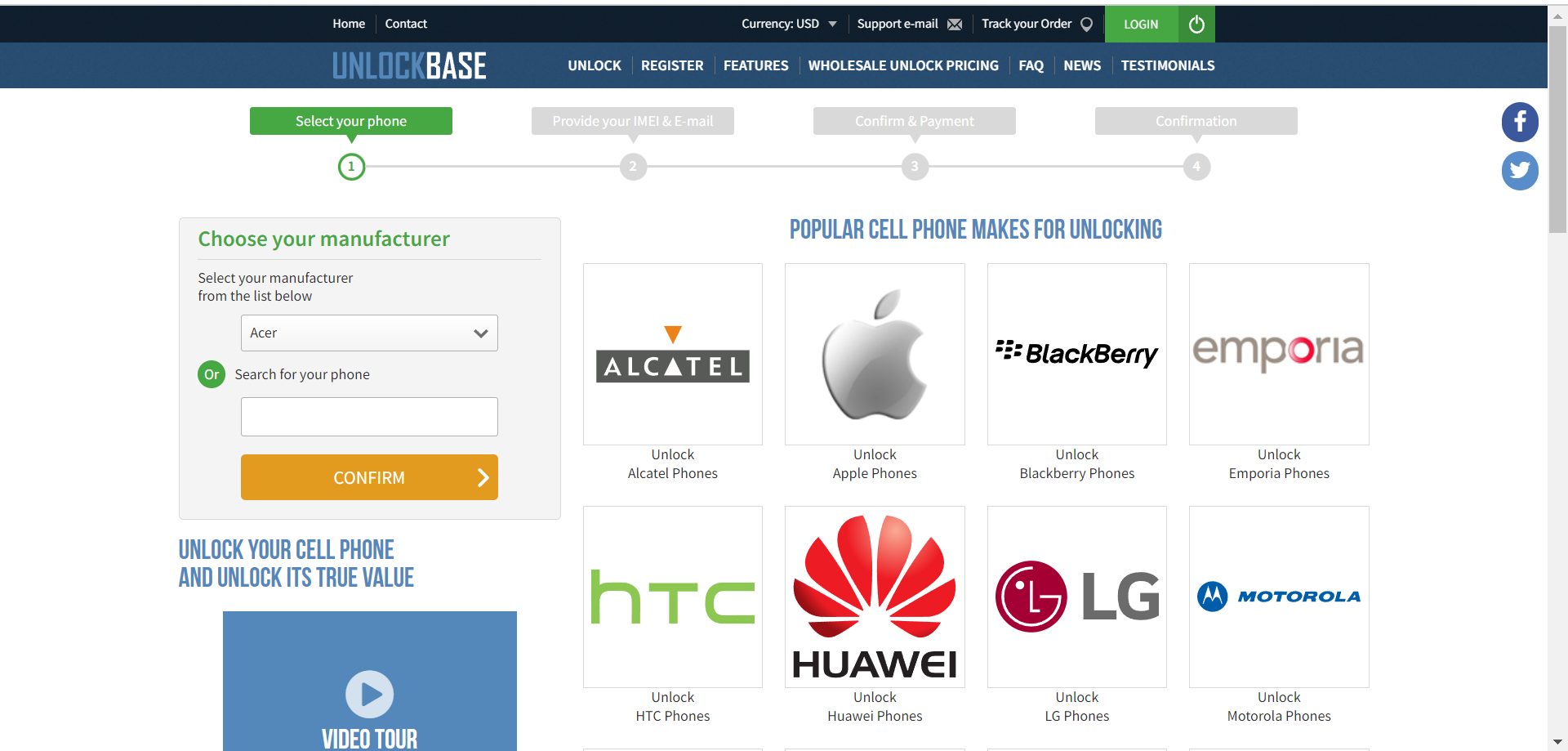
Unlock your phone now and unlock its true value with UnlockBase A safe, quick, and clever way to dig yourself out of the problem you are currently stuck with.
Unlock your phone here: https://www.unlockbase.com/unlock-phone/
Conclusion
You can’t make any calls if your Android phone isn’t registered on the network since you’re not linked to your carrier. To potentially cure this problem and register a phone on a network, use the techniques listed above. These are the techniques for resolving the Not Registered On the Network issue on Android, and perhaps, after using them, the problem will be fixed. Did we resolve your problem? Let us know in the comments below!
All products, and company names, logos, and service marks (collectively the "Trademarks") displayed are registered® and/or unregistered
trademarks™ of their respective owners.
The authors of this web site are not sponsored by or affiliated with any of the third-party trade mark or third-party registered trade mark owners,
and make no representations about them, their owners, their products or services.
Android 12 is now available for download. Android 12 is a huge update to the operating system that includes plenty of new features. After Google’s Pixel presentation , the new OS was released.
Android 12 is the most significant redesign of the operating system in years. Customizable color palettes, enhanced alerts, and speedier, battery-saving performance are all expected in Android 12. Google’s Pixel 6 and Pixel 6 Pro phones, which are powered by Google’s own Tensor processors, were introduced alongside the new OS.
Is my smartphone Android 12 compatible?
It’s impossible to identify all of the Android phones that will support the upgrade to Android 12 because there are so many. However, you can anticipate the Google Pixel 3 and later, as well as newer phones from Samsung, Huawei, LG, Nokia, Motorola, OnePlus, Oppo, and other manufacturers, to be compatible with Android 12.
Where can I get Android 12?
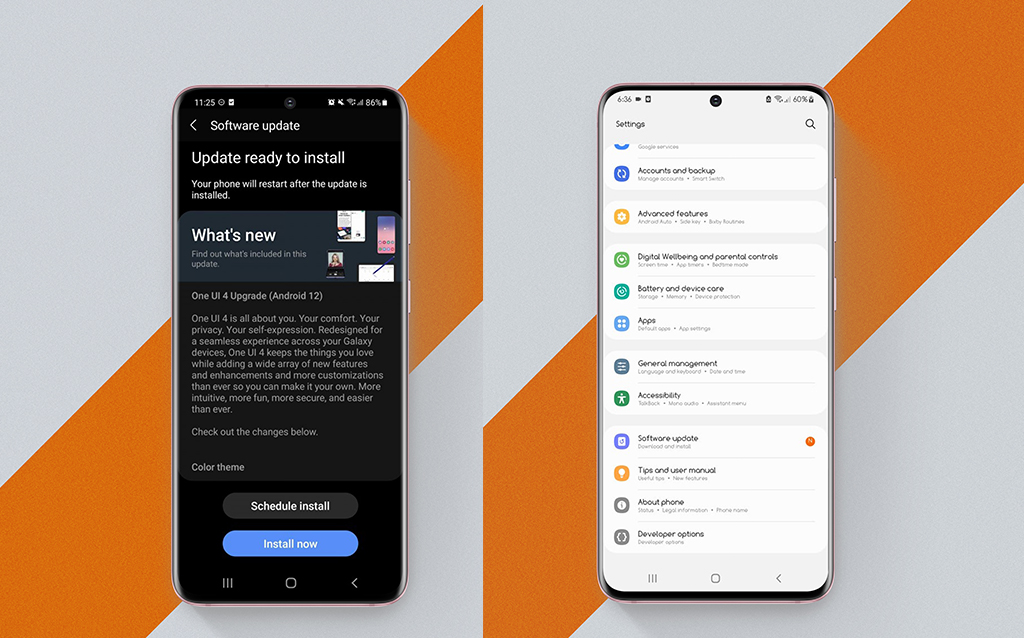
The exact method and timing of the update will be determined by the manufacturer of your device, such as Google, Samsung, OnePlus, or Xiaomi. However, once the update is available, you should go to System > Advanced > System update > Check for update If you’re still waiting for your phone to get the Android 12 or you’re interested to switch on using Android when you saw this update you can also Read Latest Apple iOS 15
Android 12 Features
Material You
https://blog.google/
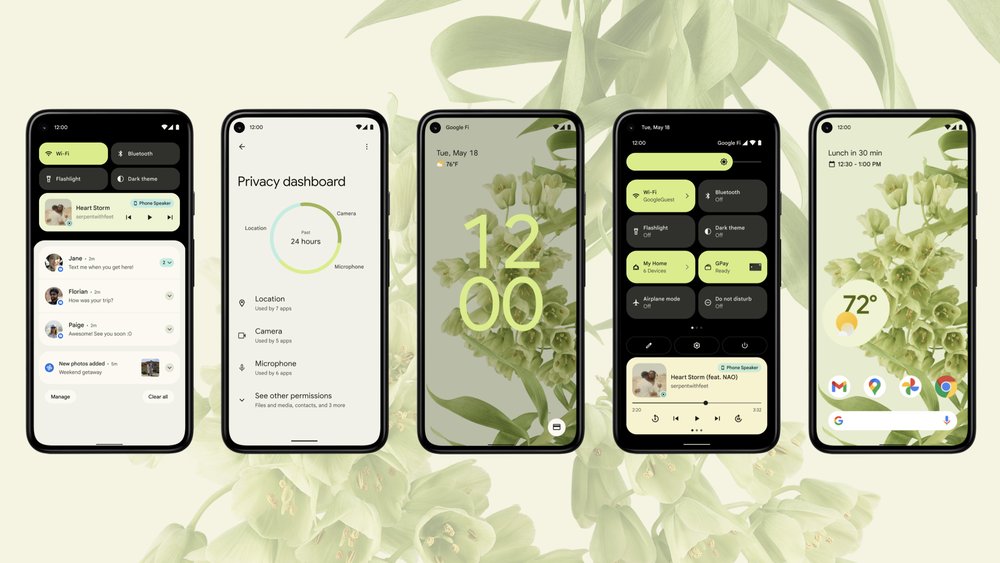
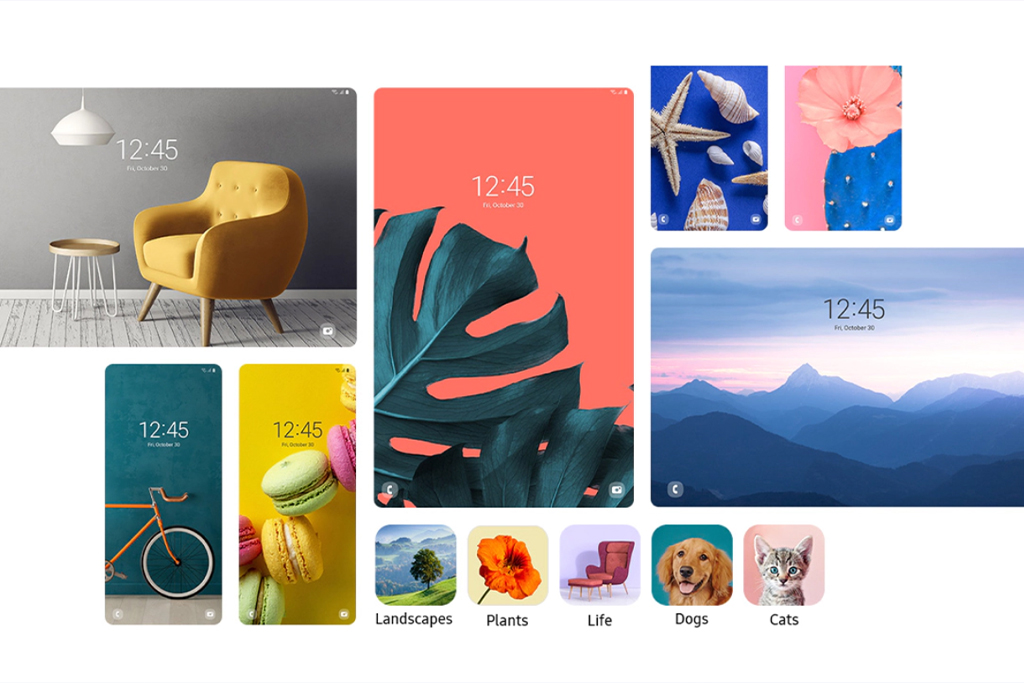
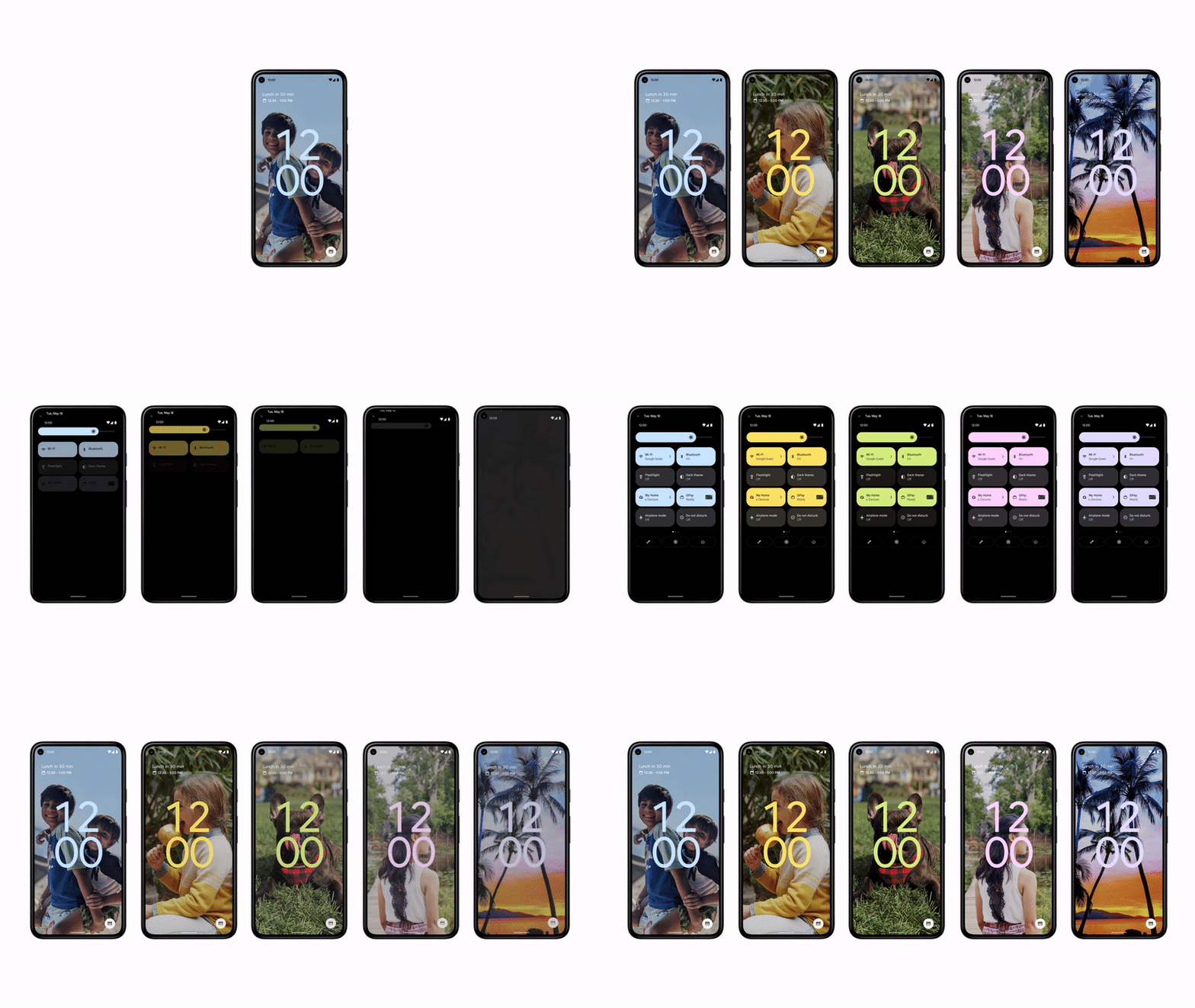
Android 12 introduces a new design language called Material You, helping you to build more personalized, beautiful apps. The new design combines many aspects into a single, clear and concise design language that operates across the OS. The color changes occur throughout the OS, including in Settings, Quick Settings tiles, and any app that supports Material You.
Redesigned notifications and widgets
https://blog.google/
Google is revamping its notification interface to make it more trendy and convenient. Instead of going through an intermediate provider to initiate an activity, tapping on a notice will lead you straight to the app or action you wish to do. Everything should run more quickly as a result of this.
App widgets have been updated to make them more helpful, attractive, and discoverable. With new interactive controls, mobile-friendly layouts, and dynamic colors, you can create a unique yet consistent design.
Face-based auto rotate
For years, auto-rotation was determined by the accelerometer on your phone. When your phone is flipped on its side, it detects it, and the screen follows suit. Face recognition for auto-rotation is now available in Android 12. Basically, your phone looks at your face and rotates only if it detects that the phone’s orientation has changed. As a result, you may do things like sleep on your side in bed and the phone will not rotate.
Performance
Faster, more efficient system performance. For quicker app loading, improved app startup times and streamlined I/O, and increased Cursor Window by up to 49x for big windows while doing database queries. Optimized foreground services, Android 12 prevents apps from starting foreground services while in the background More responsive notifications. Faster machine learning gets the best possible performance through the Neural Networks API.
Privacy
New features in Android 12 give you more visibility into which applications are accessing your data and additional controls so you can make educated decisions about how much personal information your apps may access.
Users now have more control over whether your app receives microphone, camera, and location data thanks to a new dashboard in Settings. Users have even more control over their location data, and they can give your app access to an estimated position even if it asks for a precise location. Indicators in the status bar notify users when your app is utilizing the device camera or microphone. Without requiring location permission, your app may search for and link with nearby devices using new permissions.
Conclusion
Android 12 is a major update to the OS with a number of new features, marking a significant shift in Google’s mobile strategy. While Android 12 may be out of reach for the time being, you explore more your Android’s recent Update! Android 12 marked a significant shift in Google’s mobile strategy. Let us know your thoughts in the comment below!
All products, and company names, logos, and service marks (collectively the "Trademarks") displayed are registered® and/or unregistered
trademarks™ of their respective owners.
The authors of this web site are not sponsored by or affiliated with any of the third-party trade mark or third-party registered trade mark owners,
and make no representations about them, their owners, their products or services.
Typically, you root your Android smartphone if you want to get beyond constraints imposed by your phone’s manufacturer. Rooting Android effectively grants your operating system privileged authority over various Android components. Rooting, on the other hand, is not the same as SIM or bootloader unlocking.
What is Rooting?
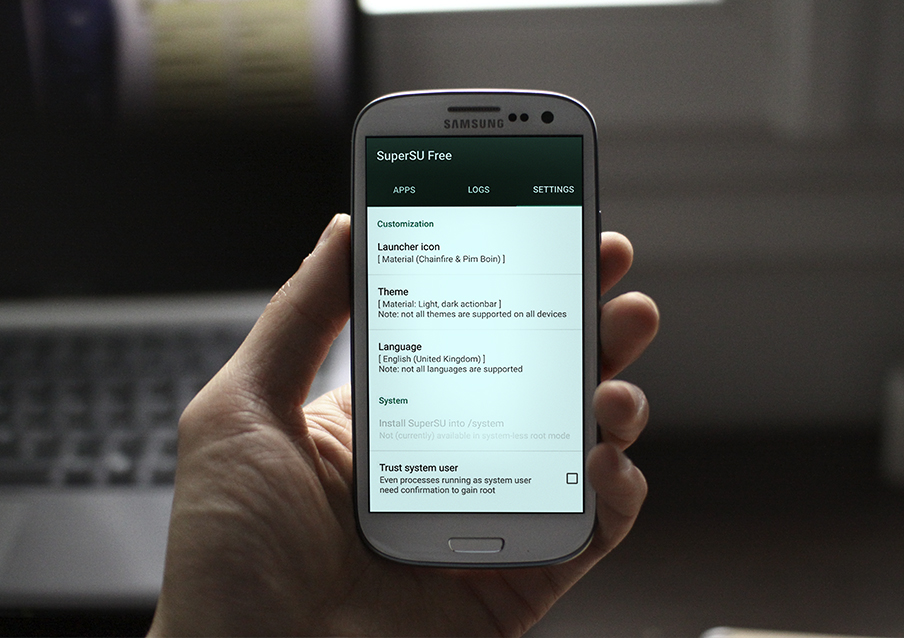
The process of getting root access or privileged control over devices, most often Android smartphones and tablets, is known as rooting. Rooting is also possible on devices that run on the Linux operating system. Although rooting sounds similar to phrases like unlocking and jailbreaking, it is essentially distinct. Rooting allows a non-administrative user to have administrator-level access to the operating system. In the case of Android devices, it aids in the circumvention of security architecture, but if done incorrectly, it may cause issues. It is a method of unlocking an Android smartphone in order to offer the user privileged control, or root access. It is not to be confused with jailbreaking (on iOS devices). It’s similar to having administrator rights on a Windows or Linux-based operating system.
Disadvantages of Rooting Android Phone
The following are the main drawbacks of rooting your Android phone:
The phone’s warranty is voided. A phone that has been rooted is no longer covered by the manufacturer’s warranty.
There’s a chance you’ll “brick” your phone. A phone that has been bricked is utterly useless.
The phone contract is broken. This is dependent on how you bought the phone. If you lease the device or pay for it, rooting it will undoubtedly violate your carrier’s contract.
This was a poor performance. The goal of rooting a phone is to increase the performance of the device. However, some users who root their phones in order to increase performance or add new features discover that their phones lose both performance and features.
Malware may quickly compromise the security of your mobile device. Gaining root access also includes getting over the Android operating system’s security constraints. Worms, viruses, adware, and Trojans may all infiltrate rooted Android software if it isn’t protected by a good Android mobile antivirus.
Also, terrible news if you’re a Netflix user or use Google Pay. These, as well as a number of other apps, will not operate on a rooted Android smartphone. So, consider if it’s worthwhile to give it a shot.
Advantages of Rooting Android Phone
Rooting your Android phone has a number of advantages, including:
Getting rid of pre-installed programs. When you root a phone, you may get rid of the pre-installed apps that you don’t want.
Memory is being freed. When you download an app on your phone, it is saved in the memory of the device. Rooting your phone allows you to relocate installed programs to an SD card, freeing up system capacity for other files or apps.
ROMs that have been customized. The most powerful feature of rooted phones is this. There are hundreds of custom ROMs available that boost the processing speed of a phone while also changing the appearance and feel.
Rooting your phone allows you to run apps that you wouldn’t be able to run otherwise. Many of these applications provide additional customization and power management choices, as well as more control over the phone.
Almost every theme and image may be fully customized. Any program, regardless of where it’s available, may be downloaded. additional performance and increased battery life If your smartphone is old and no longer gets updates from the manufacturer, you can upgrade to the newest version of Android.
Will Rooting Android Phone also unlock the service provider’s lock?
It’s important to realize that rooting an Android phone is different from unlocking it. Unlocking a phone enables it to be used on several networks.
The procedures of rooting and removing a carrier lock are fundamentally different. Superuser permissions, such as access to Android’s internal folders and control over your whole filesystem, are obtained via rooted Android phones. These rights may be used to flash a custom ROM, a custom kernel, underclock or overclock your GPU, and much more. However, getting your smartphone carrier unlocked is not included in the package.
It’s so easy to unlock your phone with UnlockBase.com you will wonder why you spent months locked into an unattractive contract. Make extortionate roaming rates a thing of the past, or escape from the fees and charges.
Conclusion
It’s absolutely acceptable if you still want to root your Android device. However, be certain that you made the best warranty and security option possible. Please leave a comment in the box below if you have any additional recommendations for rooting Android phones!
All products, and company names, logos, and service marks (collectively the "Trademarks") displayed are registered® and/or unregistered
trademarks™ of their respective owners.
The authors of this web site are not sponsored by or affiliated with any of the third-party trade mark or third-party registered trade mark owners,
and make no representations about them, their owners, their products or services.
Trying to turn on your smartphone and finding that nothing occurs is every smartphone owner’s worst fear. Your phone isn’t working. A dark screen with no indication of life is a tragedy waiting to happen. What are the possible causes of your Android device won’t turn-on? Let’s look at some of the causes and potential remedies.
1. Check your cord, charger, outlet, and case for problems. – Android device won’t turn-on
Make sure your cord and charger are in good working order. Try them on a different device. Make sure the charger and your phone are both properly linked with the wire. Make sure there’s no debris, such as dust or dirt, in your phone’s port. Make sure your outlet is functioning. Connect the charger to a power outlet. Check that no accessories, such as covers or battery packs, are covering or pressing your phone’s sensors or buttons.
2. Check your battery’s charge.
Wait one minute after plugging in your phone with a functional cable, charger, and outlet. Your phone is switched down and charging if you see a battery icon. You can immediately restart. Your battery is entirely depleted if you see a red light. There isn’t enough electricity to turn on if the red light is blinking. Before restarting your phone, make sure it’s fully charged. If you plug in your phone and don’t see a battery indication or a red light, the problem might be with your screen. Battery symbols and lights may differ depending on the phone. Contact the manufacturer of your phone for further information.
3. Hold Power Button and Check Battery
A power cycle is one option for an Android device won’t turn-on. It’s as simple as pulling out the battery, waiting a few seconds, and replacing it with older devices with a detachable battery.
Press and hold the device’s power button for several seconds on more recent phones that don’t have a detachable battery. You may need to hold it down for anywhere between 10 and 30 seconds, depending on your manufacturer.
4. Check your Screen
Your phone might be turned on without your knowledge. A damaged screen might make it appear as though there is no power. Fortunately, determining if your screen is to blame is simple. Hold the Power button for 30 seconds to make sure your phone is turning on, then wait at least two minutes for the boot process to finish. Simply dial your own number from a different phone. If your phone rings, it’s because of your screen. If it doesn’t, you must continue. You may occasionally change the screen yourself, but this will void your warranty once more.
5. Fix with advanced steps
Use Your Computer to Troubleshoot Allow 15 minutes for it to charge. Remove the cord from the device (not the computer). Within 10 seconds of unplugging the cable, reconnect it. Allow another 30 minutes to charge your smartphone. For five seconds, press and hold the Power button. On your screen, tap Restart. Hold the power button down for another 30 seconds if you don’t see Restart.
Reset Your Android Device
Your smartphone may power on, but you won’t be able to go past the boot process to your home screen. It’s possible that a corrupted upgrade or a custom ROM is to fault. You might attempt to reset your smartphone in this scenario.
For a few seconds, press and hold the Power and Volume Down buttons until the Android logo appears on the screen. (Some manufacturers use a different key combination.)
To go to Recovery Mode, use the Volume Up and Volume Down keys. Activate the power switch. Select Wipe Data/Factory Reset using the Volume keys and then click the Power button. Finally, hit the Power button after selecting Yes—Erase All Data. It will take several minutes to finish the reset procedure.
If none of the preceding methods work, you may be dealing with a hardware problem that you are unable to resolve. At that point, I would contact the manufacturer or the retailer that sold you the item for assistance. It’s probable that the gadget has a hardware problem that can’t be fixed without significant manufacturer troubleshooting.
You successfully boot your phone and make it work but you can’t use your phone’s full potential due to your carrier’s restriction?
Unlock your phone today at UnlockBase.com! It’s so easy to unlock your phone with UnlockBase.com you will wonder why you spent months locked into an unattractive contract. Make extortionate roaming rates a thing of the past, or escape from the fees and charges.
Conclusion
So, what’s the deal with my phone not turning on? We hope that this guide has assisted you in determining all of the reasons for the problem and their remedies! Do you have any other way to fix the same problem above? Let us know in the comments below!
All products, and company names, logos, and service marks (collectively the "Trademarks") displayed are registered® and/or unregistered
trademarks™ of their respective owners.
The authors of this web site are not sponsored by or affiliated with any of the third-party trade mark or third-party registered trade mark owners,
and make no representations about them, their owners, their products or services.
Selling your old phone or just wanting to have a ‘fresh start’? If you want to ensure you your data is securely wiped out before you sell it to the marketplace or for any other purpose, then this is the guide for you. In this guide, we will be showing you how to do a factory reset and back up your data correctly on your Android phone.
What does Factory Reset mean?
As the term itself defines, factory reset is a method of restoring your phone’s original manufacturer settings. After doing a complete factory reset on your phone, you will realize that everything you have customized in it, like wallpapers, themes, languages, etc. will now be gone and the phone’s interface is back to when you had set it up the first time.
A factory reset doesn’t involve tinkering on your phone’s hardware. It only resets the software and you can definitely do it correctly on your own through the Settings app on your phone.
A factory reset will erase all the data you have on your phone. That includes apps and all the data in those apps, pictures, music, downloaded files, etc. And that is the main reason why it is necessary for you to back up your data.
Android phones have a different settings place and terms used. If you are not familiar with your phone’s Settings app, you may visit this list of Android phone manufacturers and check out your phone’s UI (user interface).
Note that a Factory Reset is not the same as Factory Unlock. Factory unlock is a service that is also known as sim unlock where a certain service provider, like UnlockBase, removes the lock your carrier put on your phone so you can use another carrier’s sim card.
Types Of Reset
Aside from a factory reset, there are other types of resets that are available in many Android phones. In some Android phones you will have 3 different options for ‘reset’ and none of them directly uses the term ‘factory reset,’ and they are:
Reset Network Settings
Resetting network settings means deleting all the saved WiFi, Bluetooth, and Mobile Data information in your phone and restoring the default manufacturer network settings. If you are trying to resolve connectivity or internet issues on your phone, this is the option for you.
Reset All Settings
This type of reset restores system default settings without erasing any data. Its purpose is to help you go back to your phone’s default theme, keyboard, language, etc. This doesn’t erase your downloaded apps, pictures, contacts, messages, etc.
Erase All Data
This is the new term for Factory Reset, and as the term itself defines, going in this direction erases all the data in your phone. This includes your Google Account, downloaded apps, saved passwords, albums, downloaded files, etc.
It will completely wipe out everything that’s on your phone and restores your phone back to its default system state. If you are selling your phone, there’s no need to log back in again to your Google Account, because unless your account’s deleted, the new user won’t be able to use it.
Ways To Back Up Your Phone’s Data
If there’s anything more important than your phone itself, it’s the data it contains. There are three ways to back up your data: (1) Google Account, (2) Using external memory or another computer device (3) phone manufacturer’s Cloud account.
(1) Google Account Back up
What type of information does your Google (Gmail) Account save/back up for you? It will save your calendar, contacts, and other similar Google developed Android apps. It will automatically sync and back up every data from all the synced apps on your phone.
However, you have to make sure your Google Account is synced with your phone.
To know your Google account:
Go to Settings
Go to Accounts
Open Account username (email)
Tap on the “>” icon next to your email address and you will see all the synced apps under that account.
(2) MicroSD, External Memory Card Backup
What type of information can you save via an external memory card or computer?
You can saveseveral phone-based apps such as Gallery/Albums, Notes, Contacts, Music, Recorded audio, and other downloaded files. If your phone has a memory card with an ample amount of space, you can move your albums and other downloaded files in this location.
To move files from your internal storage to your SD card:
From your Home screen, open “File Manager” or go to “Local Storage”. Tap on the “Internal Storage” to open files saved in your phone’s own storage.
Select all the items you want to “move” or save on your SD card or memory card.
After selecting all items, scroll down and tap the “Move” option at the bottom of the screen.
And then from the Local Storage section, go to “Memory Card” and tap the “Move Here” option.
If you want to save them to your computer, you can hook it to the computer via USB cable. Allow USB debugging (option will pop up) and then just copy and paste all the file on your selected folder from your phone to your computer.
Internet-based apps like Netflix and Spotify most often save your data using their own secure server.
Samsung Smart Switch
For Samsung users, it’s more convenient to use Smart Switch. Samsung Galaxy S7 and later has this pre-installed, but if you don’t have it, you can download it on the Google App Store and the Galaxy Store. It allows you to transfer files Galaxy to Galaxy using a USB connector. According to their website, these are the ways on how to use the Smart Switch:
Galaxy to Galaxy via a USB cable and connector.
Android to Galaxy via WiFi Direct.
iOS to Galaxy using a USB connector.
iOS to Galaxy through iCloud.
Samsung Smart Switch offers a hassle-free file transfer between Galaxy phones, Android, and iOS.
(3) Cloud Account Backup.
What kind of data can you save on your phone manufacturer’s cloud account?
It will save many phone-based apps such as mentioned earlier. Most Android phone manufacturers have their own complimentary secure cloud-based storage service for free.
If you had signed up for it, you will be able to save your phone’s information through it but you will need a stable internet connection to do this successfully.
There are of course storage limitations, for example, Samsung Cloud only allows up to 1GB of data to be saved and specific file types. It is accessible through the Settings app on your phone and can save contacts, calendars, documents, Home Screen, Apps, Settings, Messages, Music, etc.
If you are selling your phone, log out of your phone’s cloud account and remove that phone from your account’s device list to prevent the new owner from accessing it without your knowledge.
Are you ready to reset your Android phone?
If you have already backed up your data, you are now ready to reset your phone. If you have plans on restoring the data back on the same phone, there are two things you need to remember:
Your Google Account’s login information.
Your phone’s unlock pin/password/pattern.
Make sure you have both information correctly. To confirm your Google account’s password, try logging in with your email and password on another device. If you can’t log in, you might need to request changing your password. Simply click on ‘Forgot Password?’ option and just follow the instructions after.
NOTE: If you just changed your password, you have to wait 24 hours before doing a factory reset.
So, are you ready to reset? Here’s how to do it:
Go to Settings
Click ‘Advanced’, in other phones ‘More Settings’
Backup and Reset
Erase All Data
Tap on “Clear now” and wait for it to process the reset.
After the reset, you may restart your phone and restore your backed up files or just let it be if you have plans on selling it. You may still use it, but without logging in to your Google account you may not be able to fully utilize all Android apps and features.
Hard Reset: What Is It And How To Do It
There’s soft reset and then there’s hard reset. Soft reset means a factory reset via the Settings app. If you can’t do that because your phone’s software is malfunctioning, your screen is unresponsive, or for any other reasons, you can still do a factory reset using its power and volume buttons. This type of reset is called the “hard reset.”
The process may be different for each type of Android make and model, but with most here’s how to do it:
Make sure you have enough battery power.
Turn off your phone.
Simultaneously press Power and Volume Up button. If the Android System Recovery screen is not up, you have to simultaneously press Power + Volume Up + Home Key button until the screen appears.
From the options, tap on wipe data/factory reset.
Tap on Yes (delete user data)
Tap Reboot System Now.
Your phone will boot up on its own and you can proceed from there.
Summary
If you’re selling your phone, it is imperative to perform a factory reset to erase all your data because you run the risk of being hacked. There are a lot of horror stories over the years about people who sold their phones only to become the target of others who take advantage of their now compromised personal information.
Even if you’re just giving it to a family member, there will still be important information that could be stored somewhere you might have unchecked; like your saved passwords, bank information, messages, etc. A factory reset does not only delete photos, files, etc. it deletes synced account data that is stored in cloud-based servers either with Google or with your phone’s maker and only a factory reset can delete all of your secure login information successfully.
All products, and company names, logos, and service marks (collectively the "Trademarks") displayed are registered® and/or unregistered
trademarks™ of their respective owners.
The authors of this web site are not sponsored by or affiliated with any of the third-party trade mark or third-party registered trade mark owners,
and make no representations about them, their owners, their products or services.
Before performing an unlock via the USB cable, USB Debugging (also known as Android Debug Bridge, or ADB) needs to be turned on first, in order for the computer to be able to communicate with the phone. This how-to will guide you on how to turn it on.
There is a YouTube video below that supplements this guide:
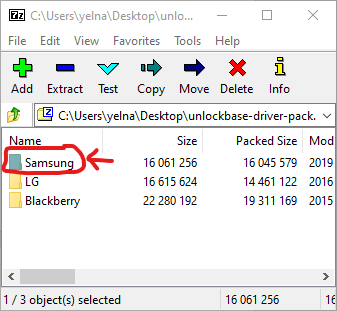
Open the ZIP archive once the download is completed.
Double Click on the “Samsung” folder.
Drag the installer (SAMSUNG_USB_Driver_for_Mobile_Phones.exe) to the desktop.
Click on the installer.
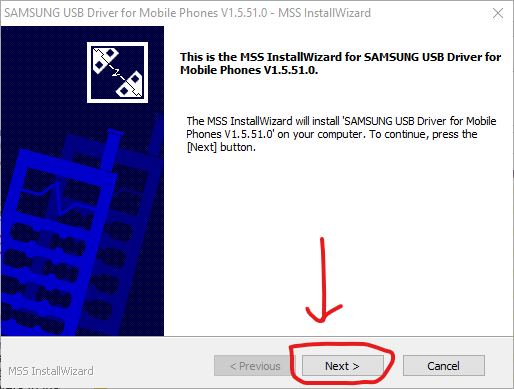
Click “Next” two times, and then click “Install”.
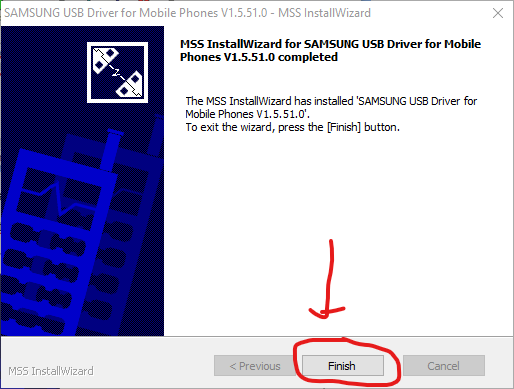
Wait for the drivers to install. Once done, Click “Finish”.
Enabling USB Debugging
Go to “Settings”.
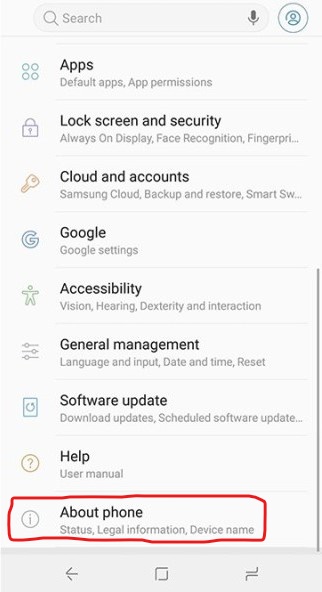
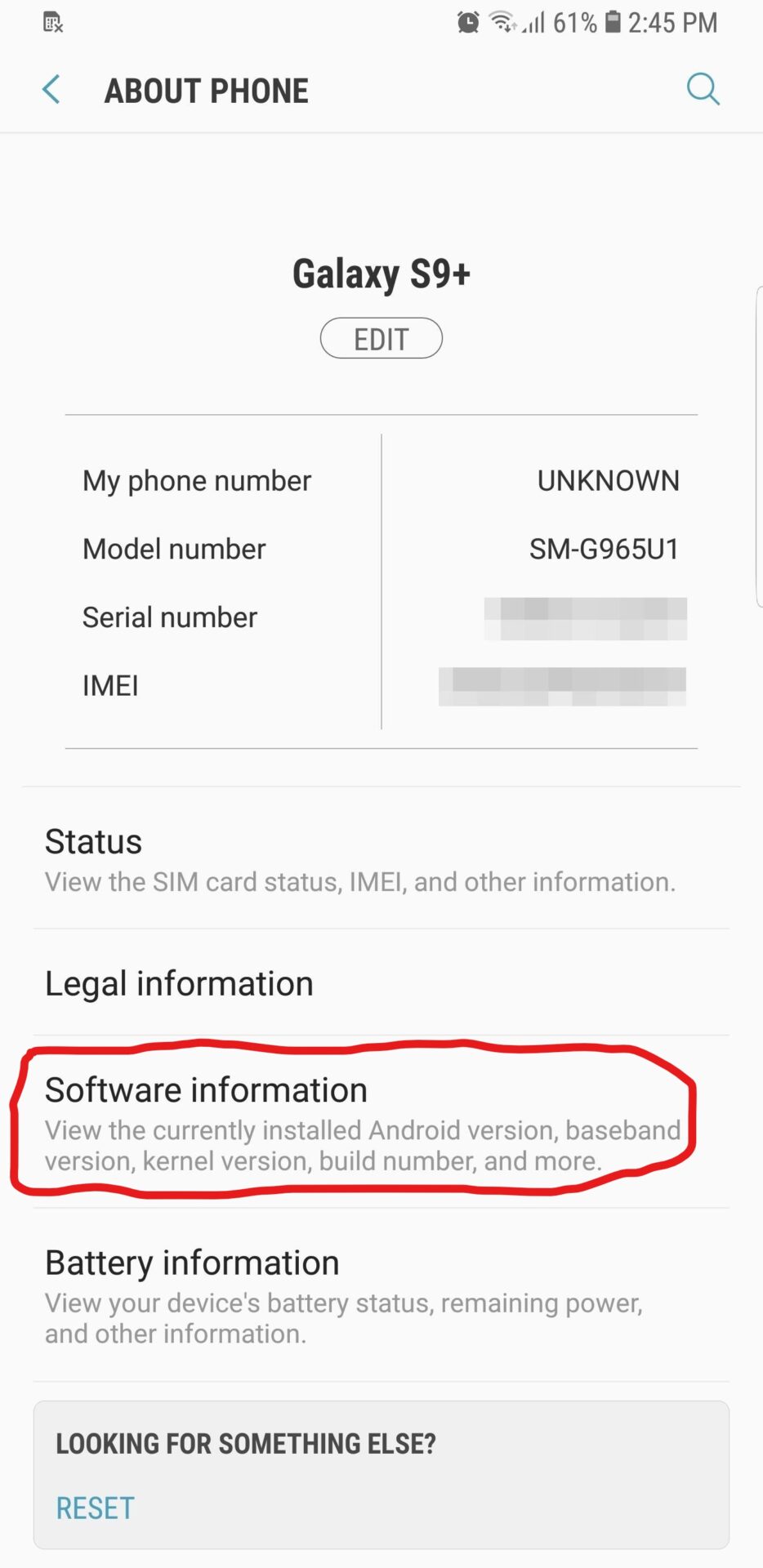
Scroll down, and go to “About Phone”.
Scroll down, and go to “Software Information”.
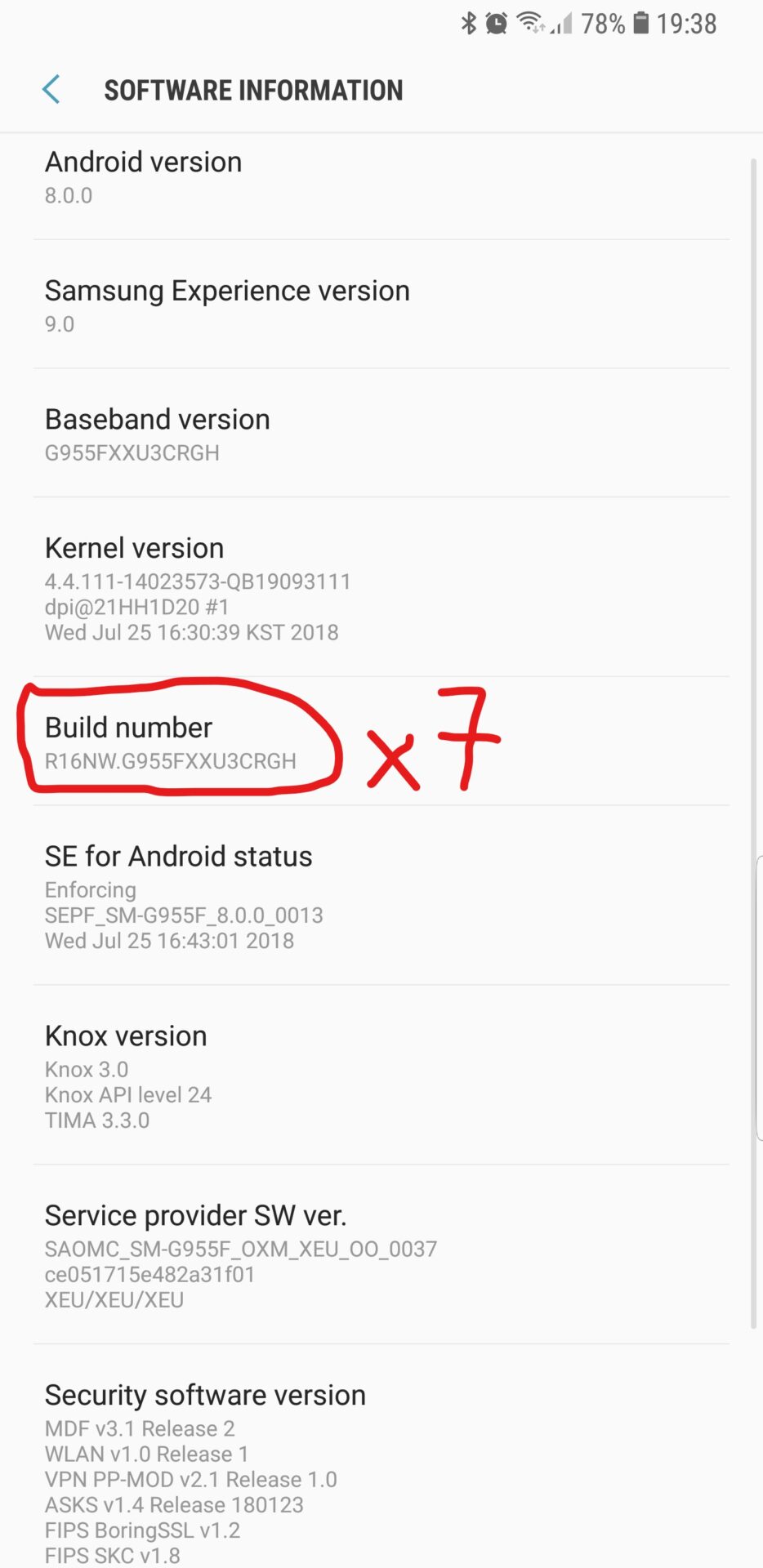
Tap the “Build number” seven times.
When prompted, enter your PIN number. Then press “Done”.
At this point, it should say “Developer mode has been turned on”.
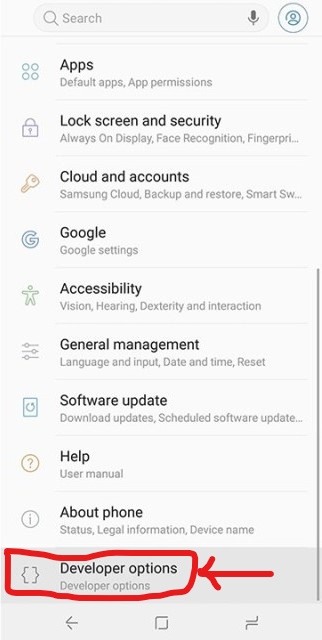
Press the back button, two times.
Scroll down, and go to “Developer Options”.
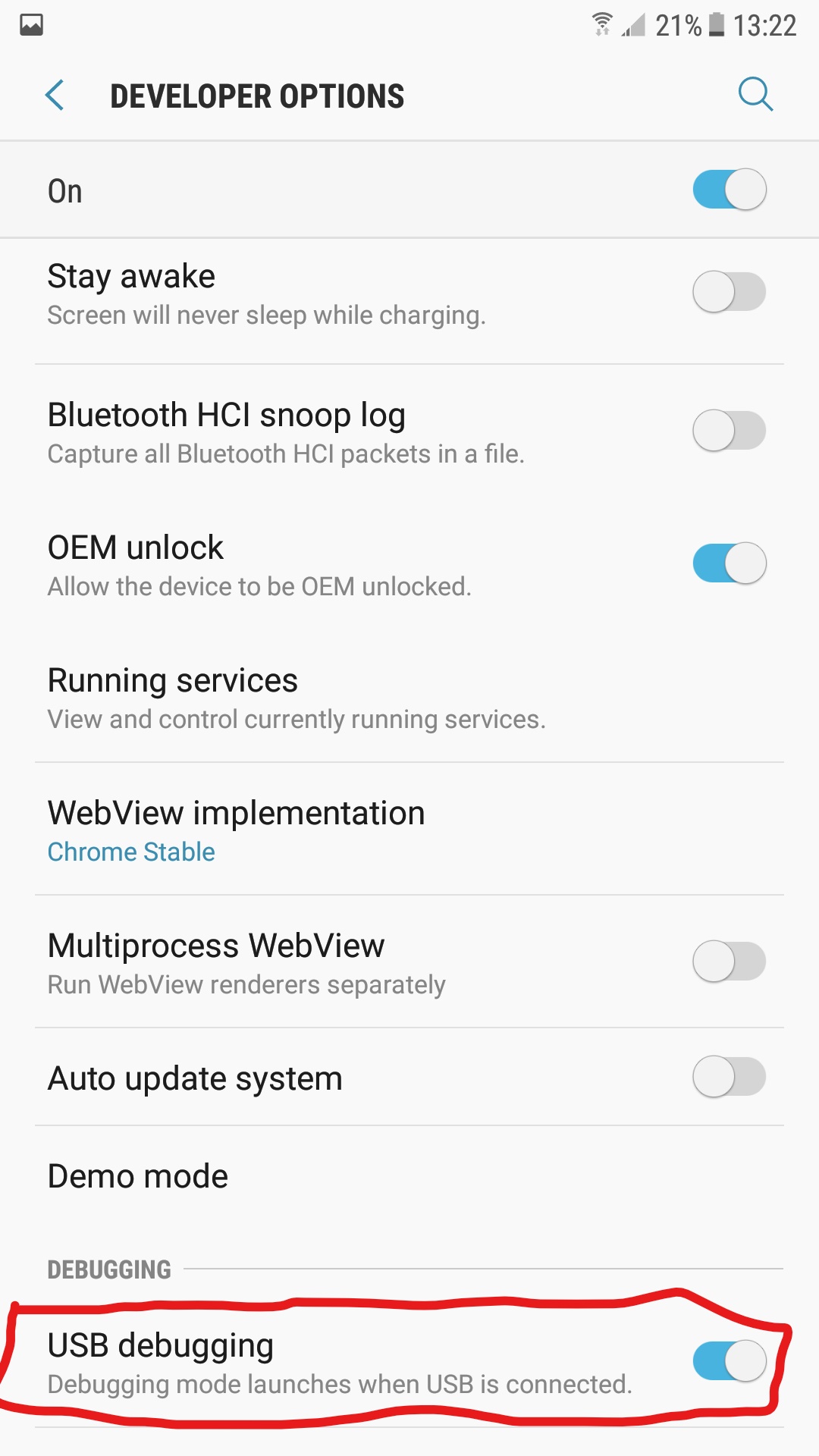
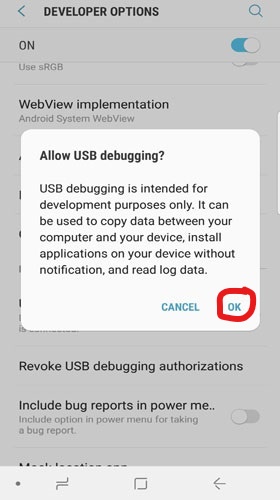
Scroll down, and turn on “USB Debugging”.
Press “OK”.
Connecting the phone to the computer.
Connect the USB cable to the computer’s USB port, and the other end to the phone.
NOTE: To avoid connectivity problems, connect it directly to the computer’s USB port. Do not use USB hub, USB extension, and if using a desktop computer, use the USB ports on the back.
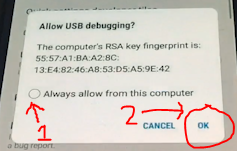
When prompted, check the checkbox beside “Always allow from this computer”, then tap “OK”.
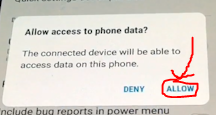
When prompted, tap “Allow”.
All products, and company names, logos, and service marks (collectively the "Trademarks") displayed are registered® and/or unregistered
trademarks™ of their respective owners.
The authors of this web site are not sponsored by or affiliated with any of the third-party trade mark or third-party registered trade mark owners,
and make no representations about them, their owners, their products or services.
This guide will show you how to bypass Google account on a Xiaomi phone. You may need to do this if you forget the password on your Google account and had reset the device using recovery mode. You don’t need a computer to accomplish this. Doing this process may or may not work depending on the model and/or software version running in your Xiaomi phone.
At the time when I wrote this guide and filmed the how-to video (that supplements this guide), it worked for me using a Xiaomi Mi Mix 2S running the latest MIUI 10.3.2.
Screenshot Guide: Bypass Google Account Xiaomi
From the “Verify your account” screen. Go back, until you see the list of WiFi networks.
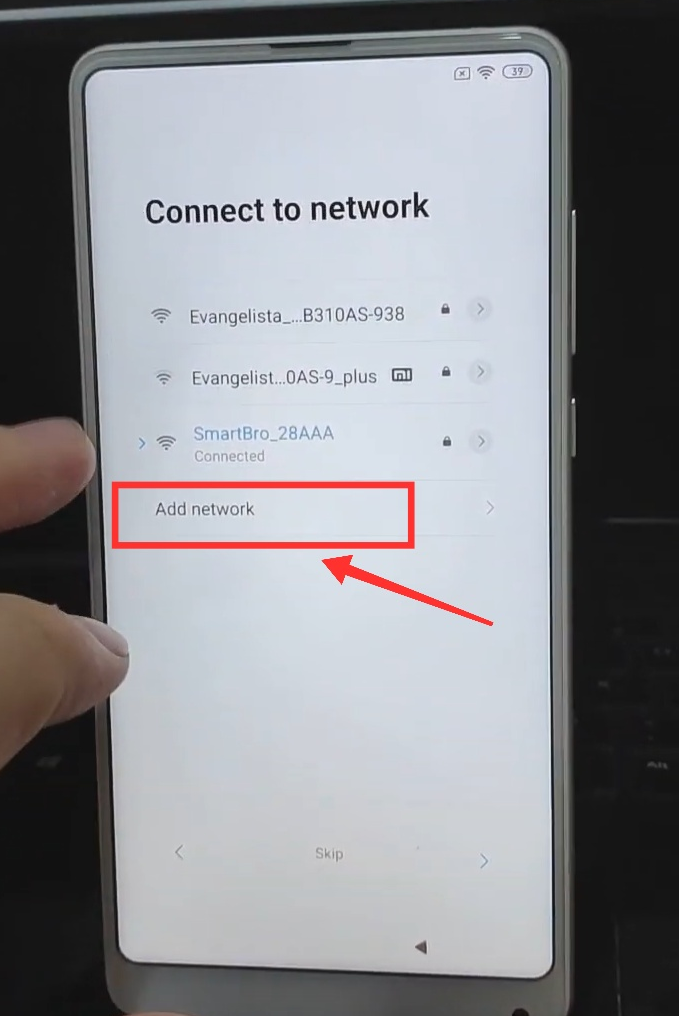
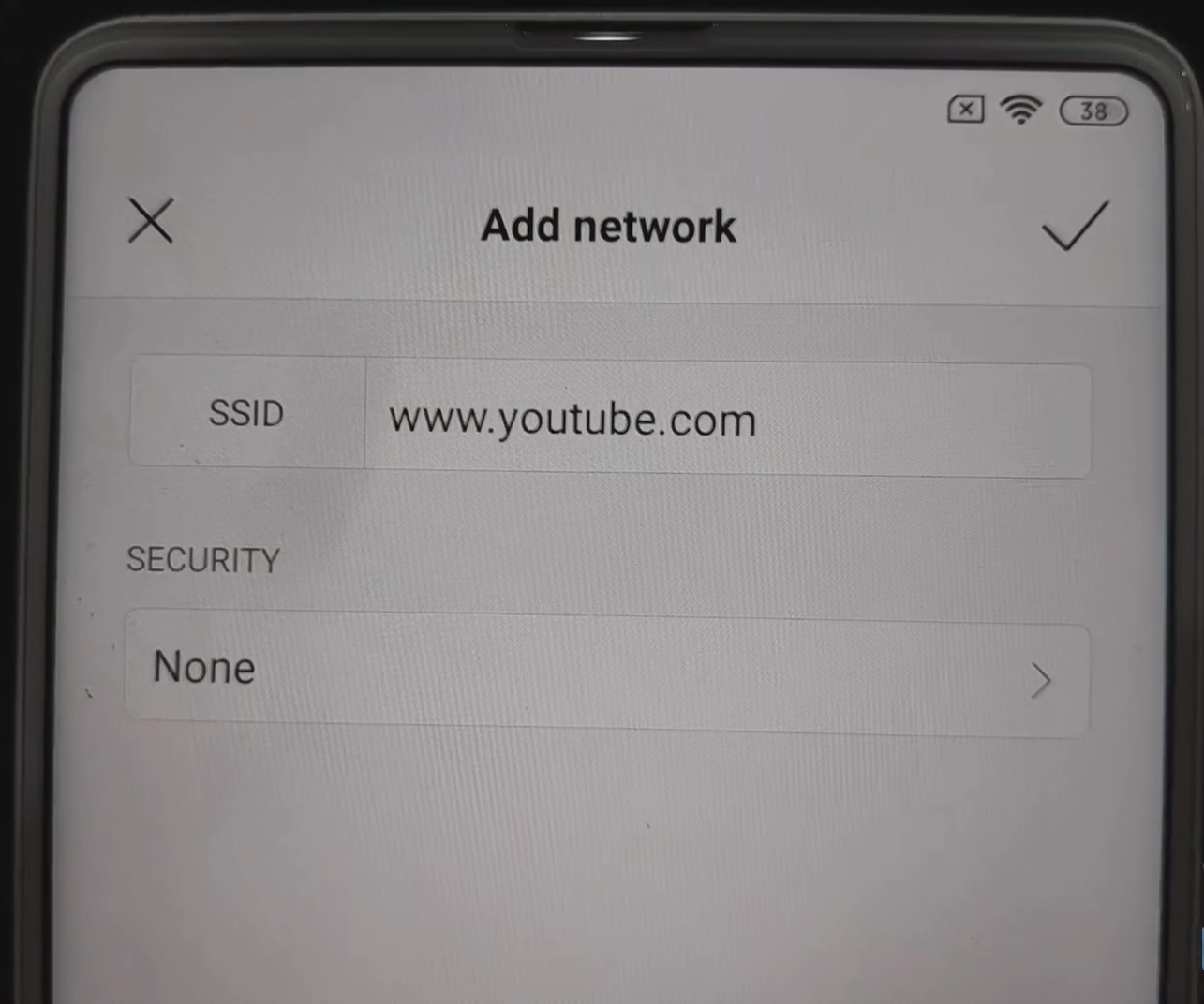
Tap on “Add Network”.
Type “www.youtube.com” under “SSID”.
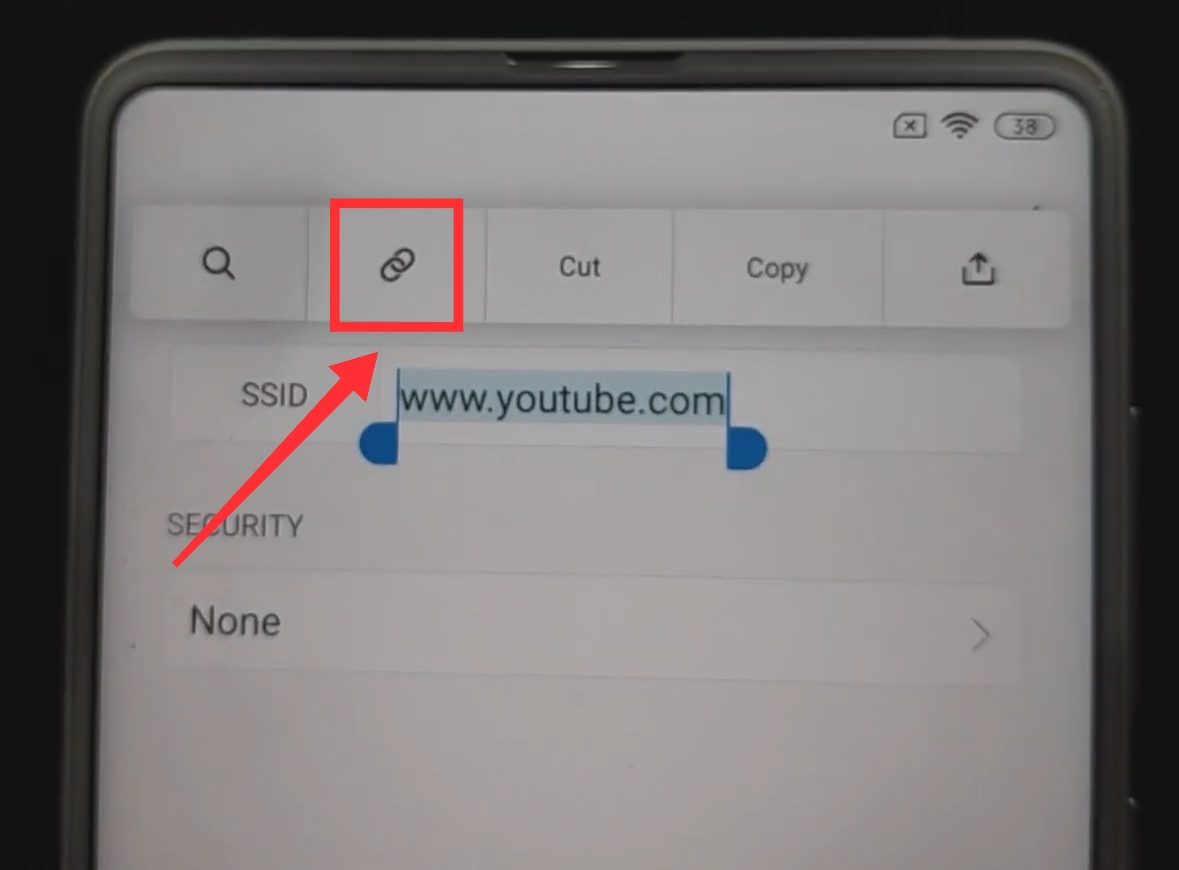
Long press “www.youtube.com”, until it’s highlighted in blue.
Above it, tap the second option.
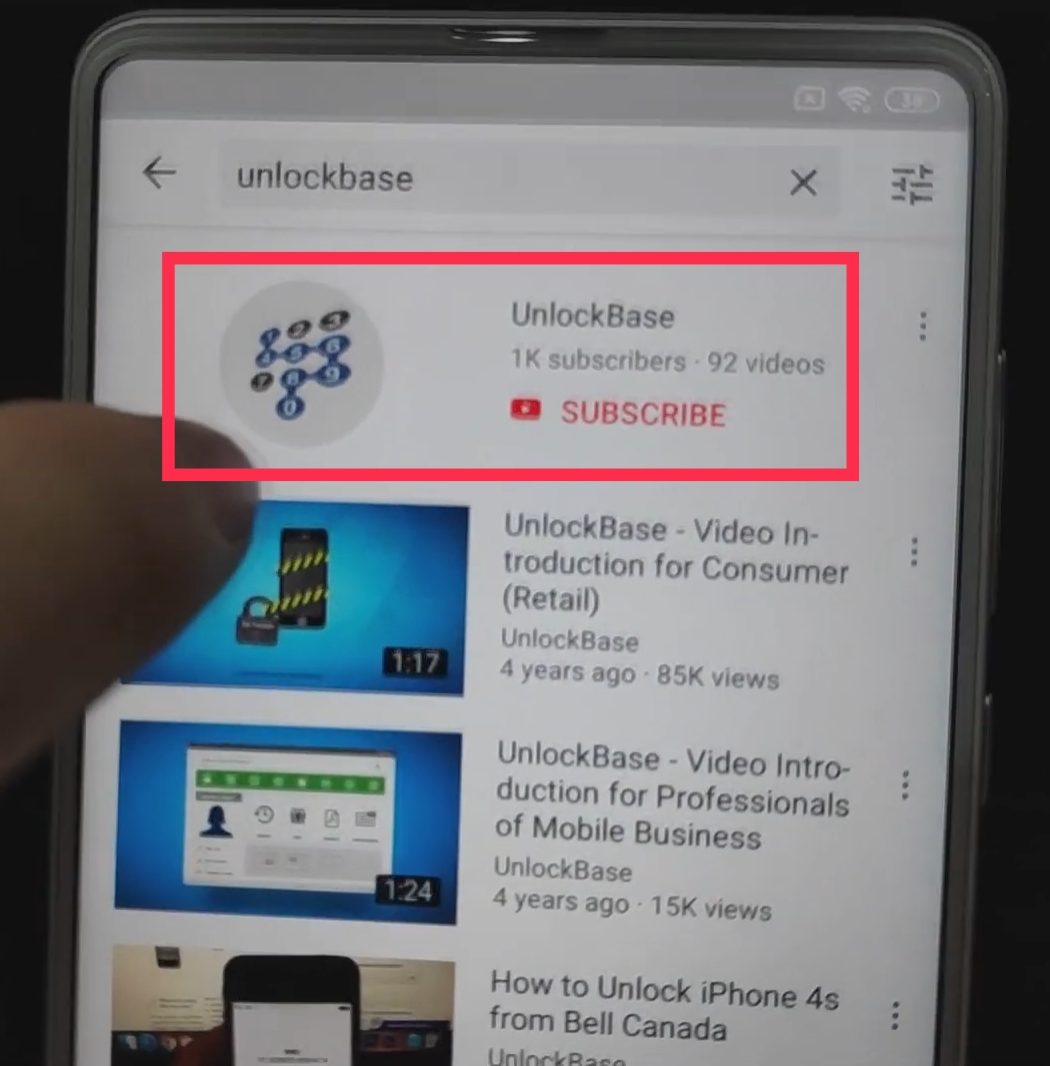
The YouTube app should open. Search for “UnlockBase”.7. Select “UnlockBase”. From the results list.
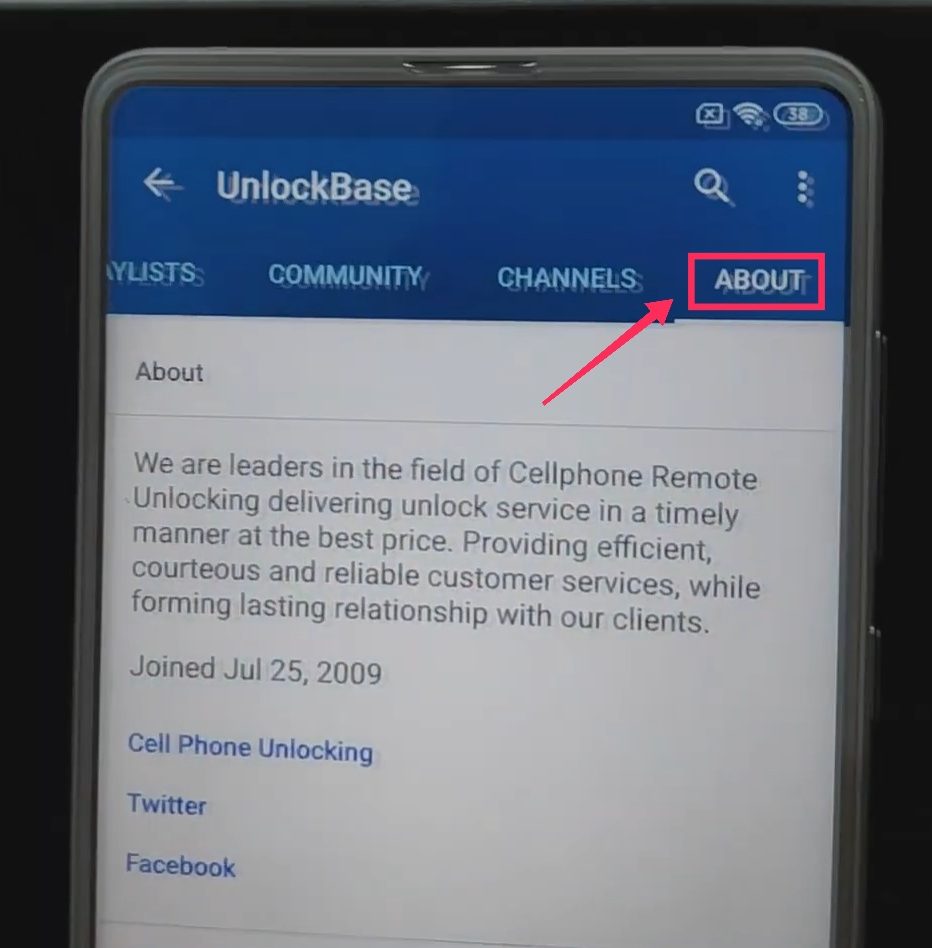
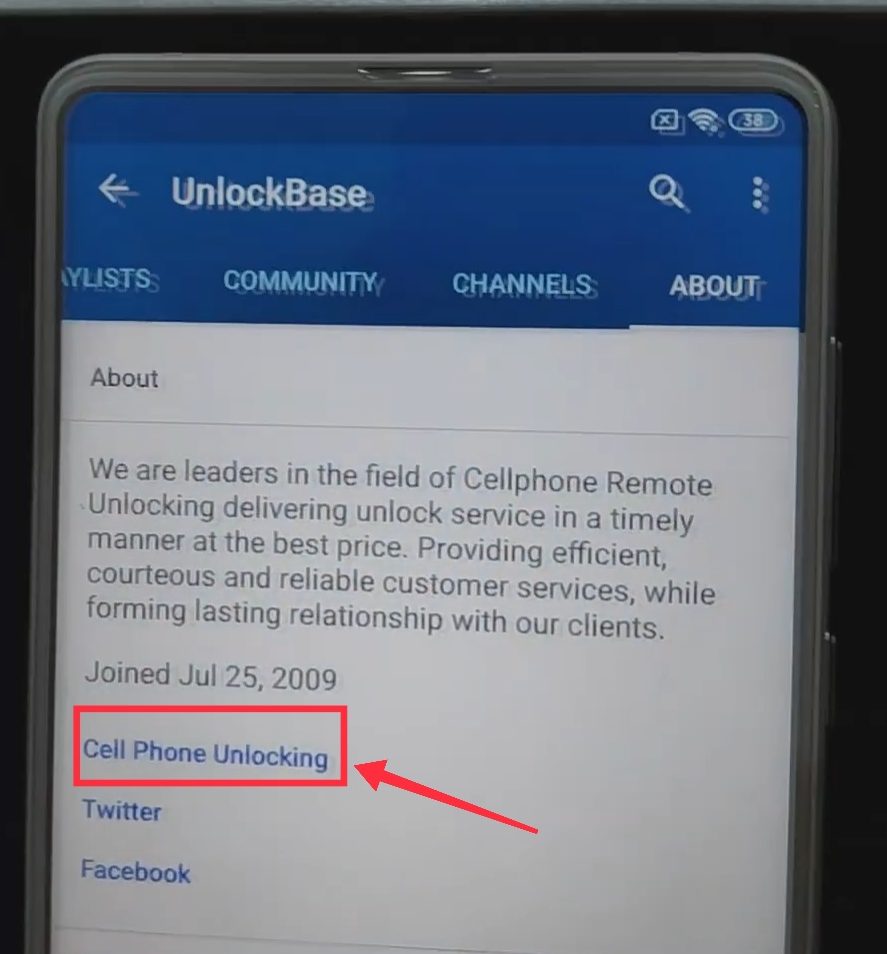
Swipe to the left, and tap “About”.
Tap “Cellphone Unlocking”.
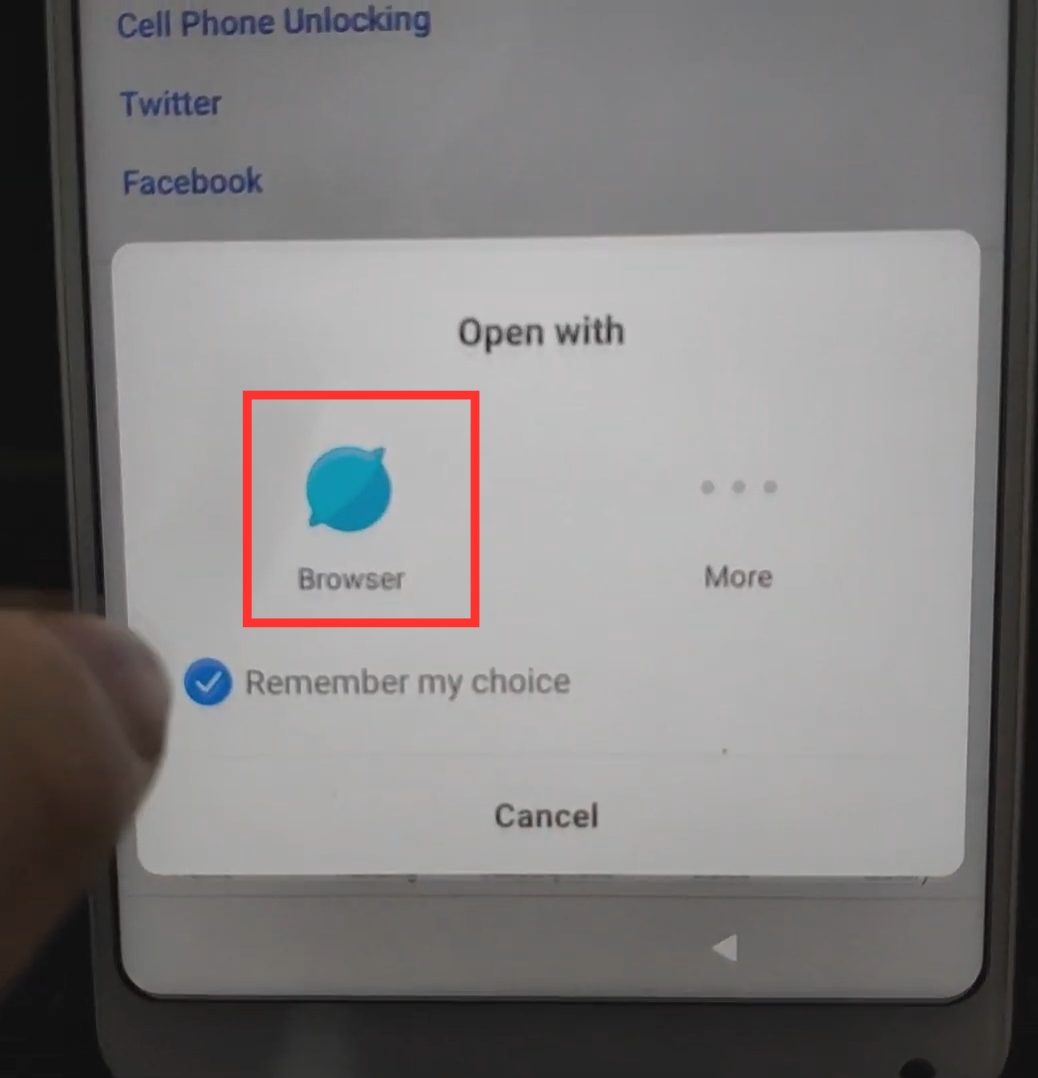
Choose “Browser”.
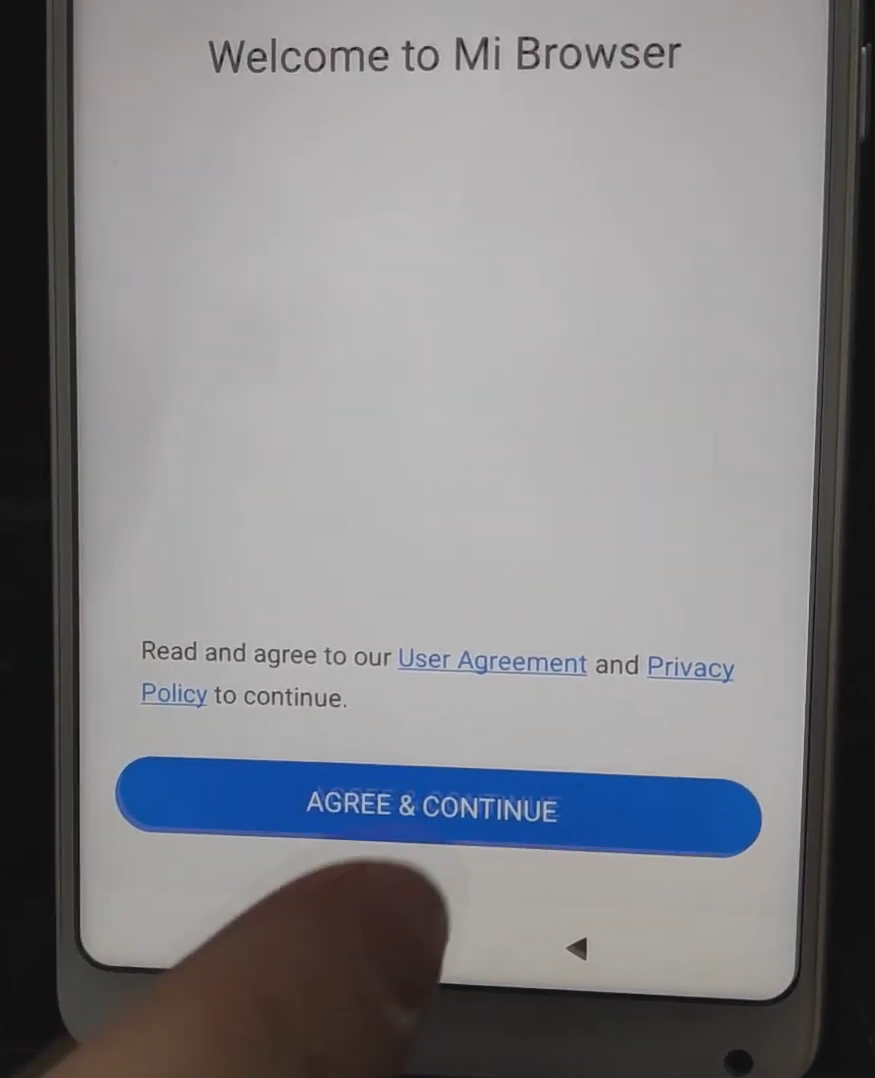
Tap “Agree & Continue”.
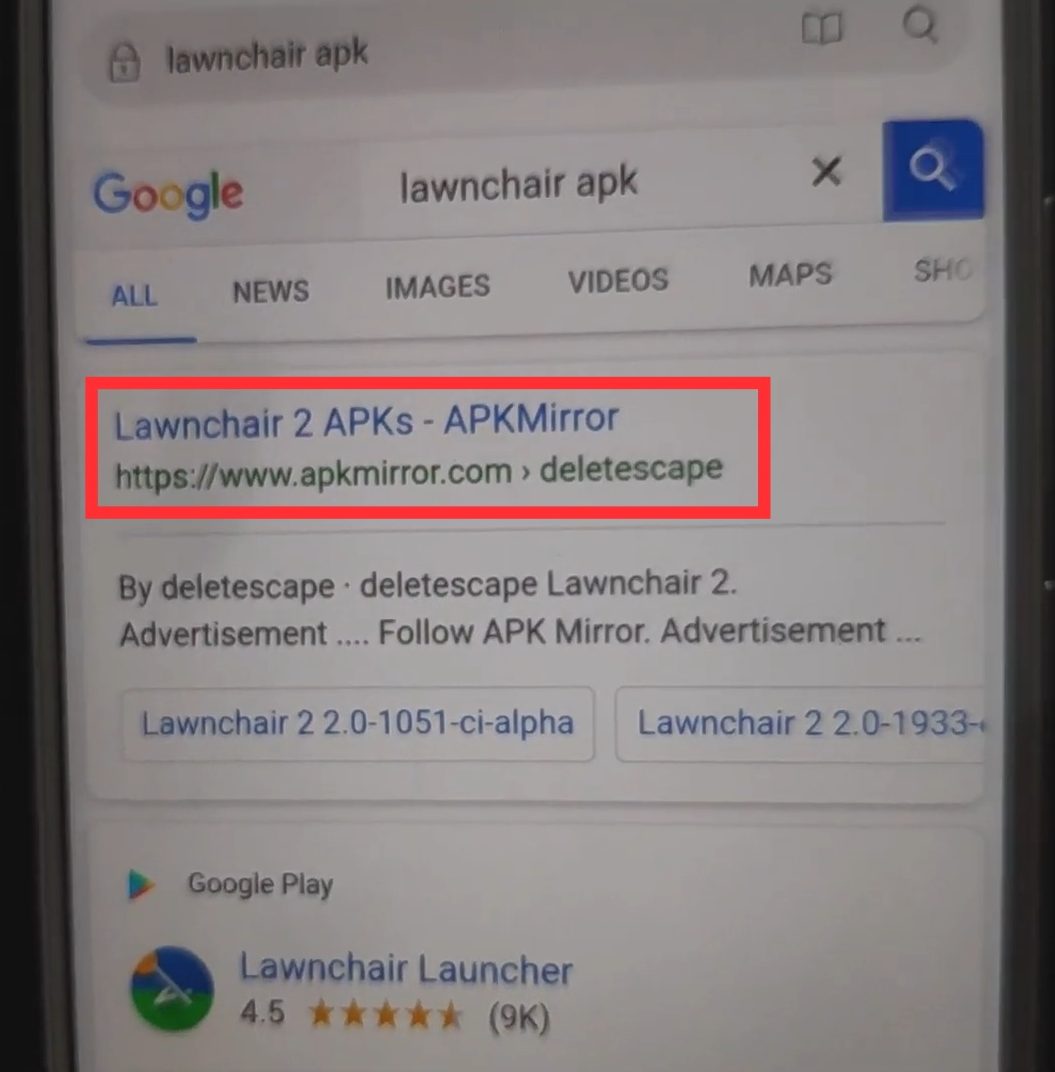
Search for “Lawnchair APK”. Using the address bar above.
Tap the one from APKMirror. It may or may not be first on the list.
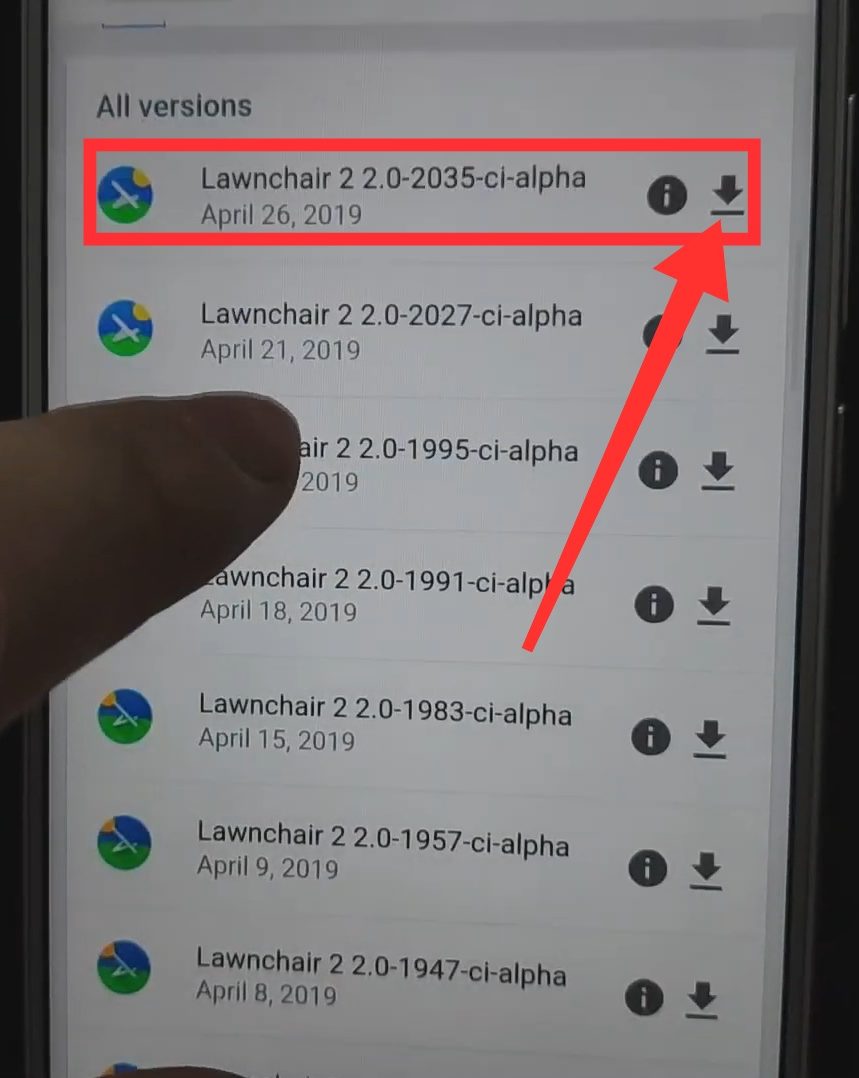
Select the very first one. Usually, that’s the latest version.
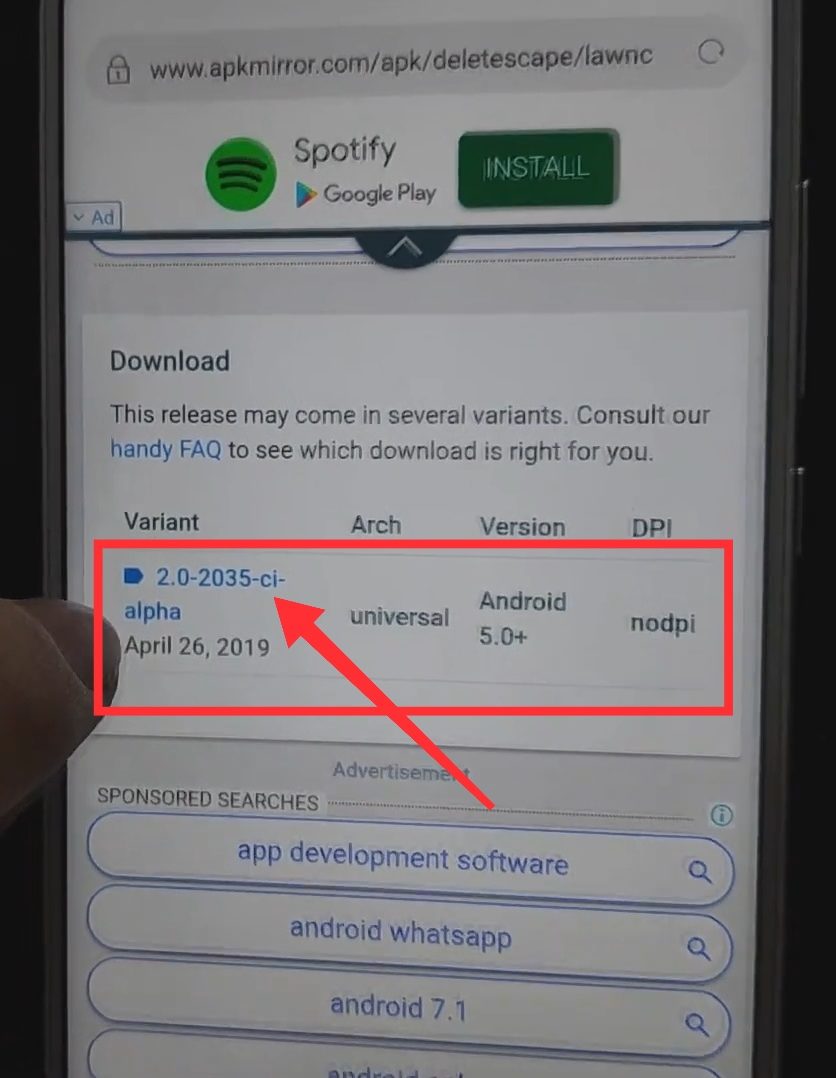
Scroll down to download and click on the blue link.
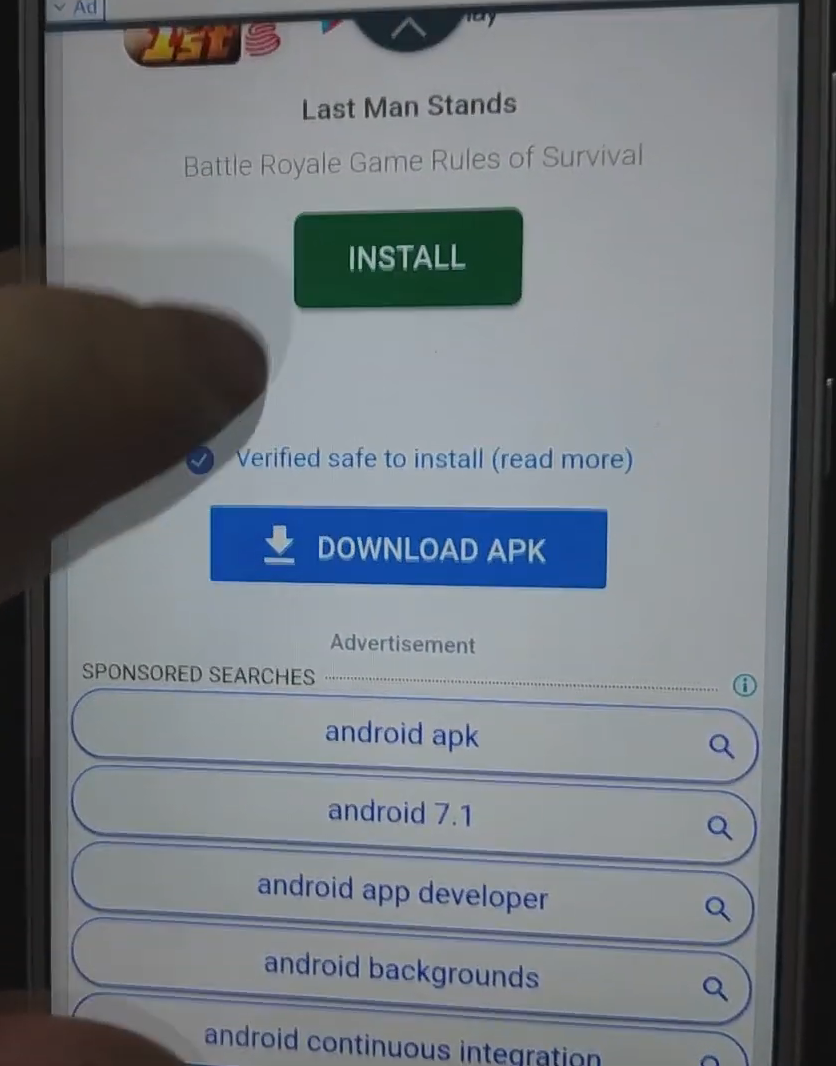
Click on “Download APK”.
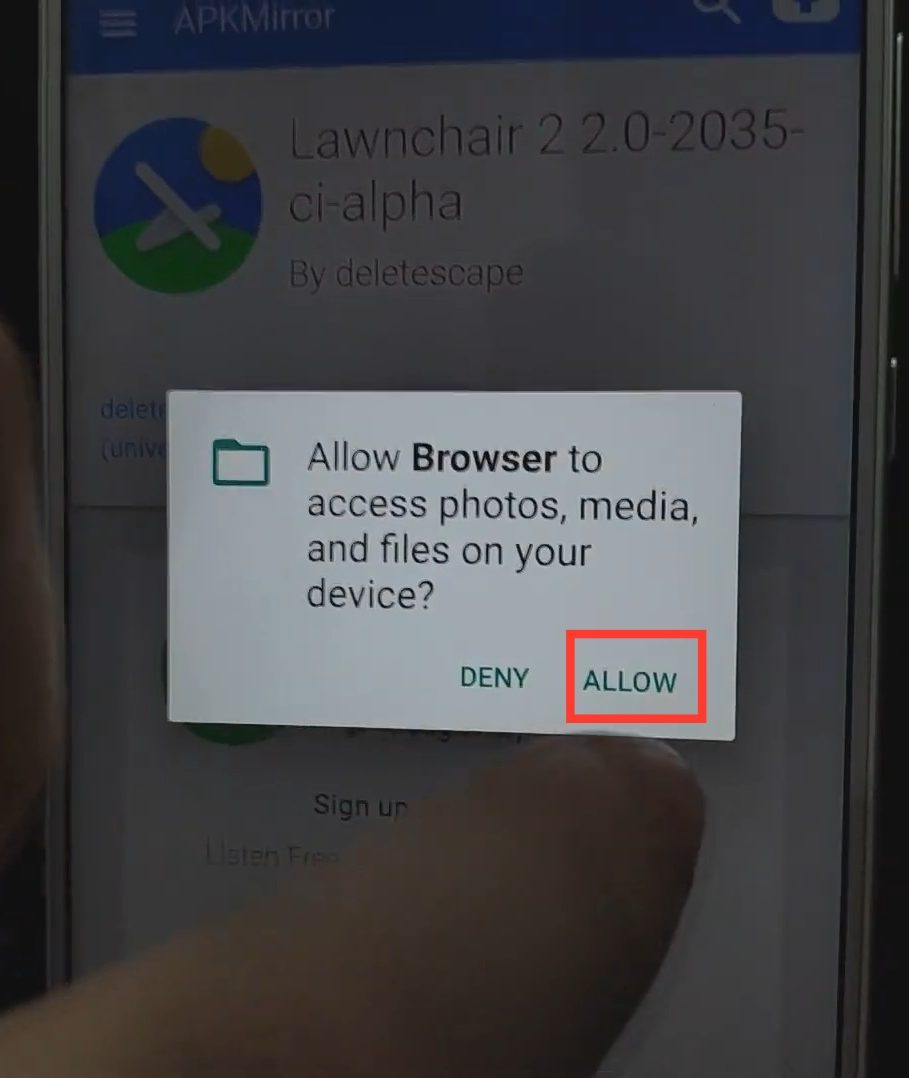
Tap “Allow”.
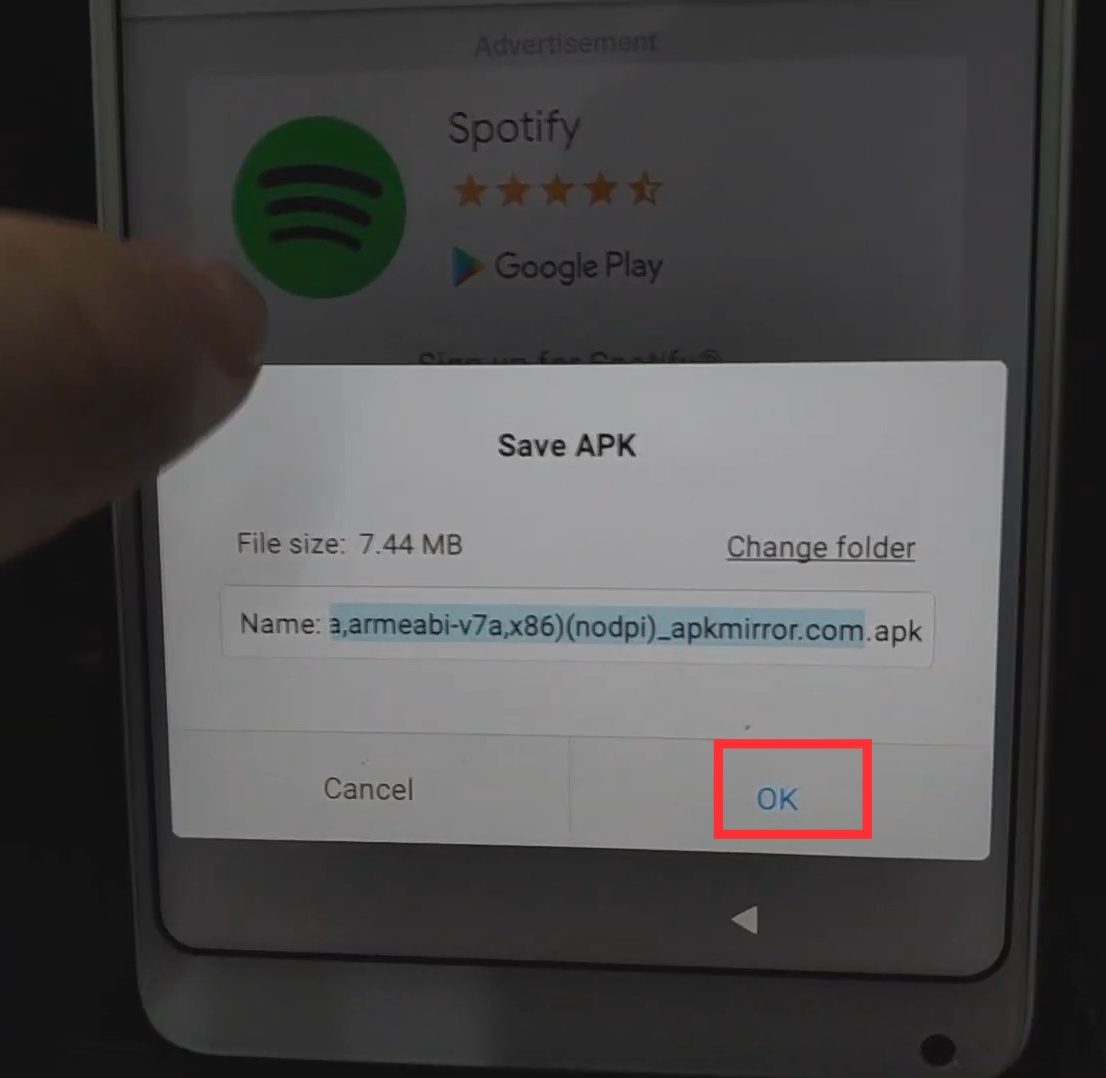
When prompted to Save APK, tap “OK”.
Once done downloading, tap “Settings”.
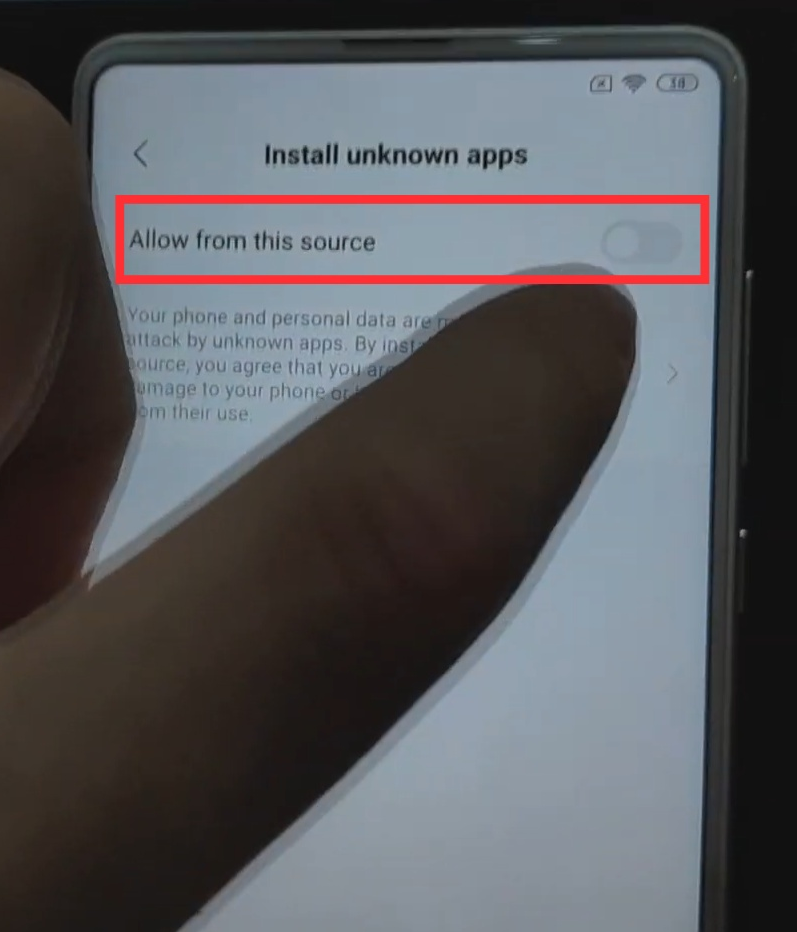
Enable “Allow from this source”.
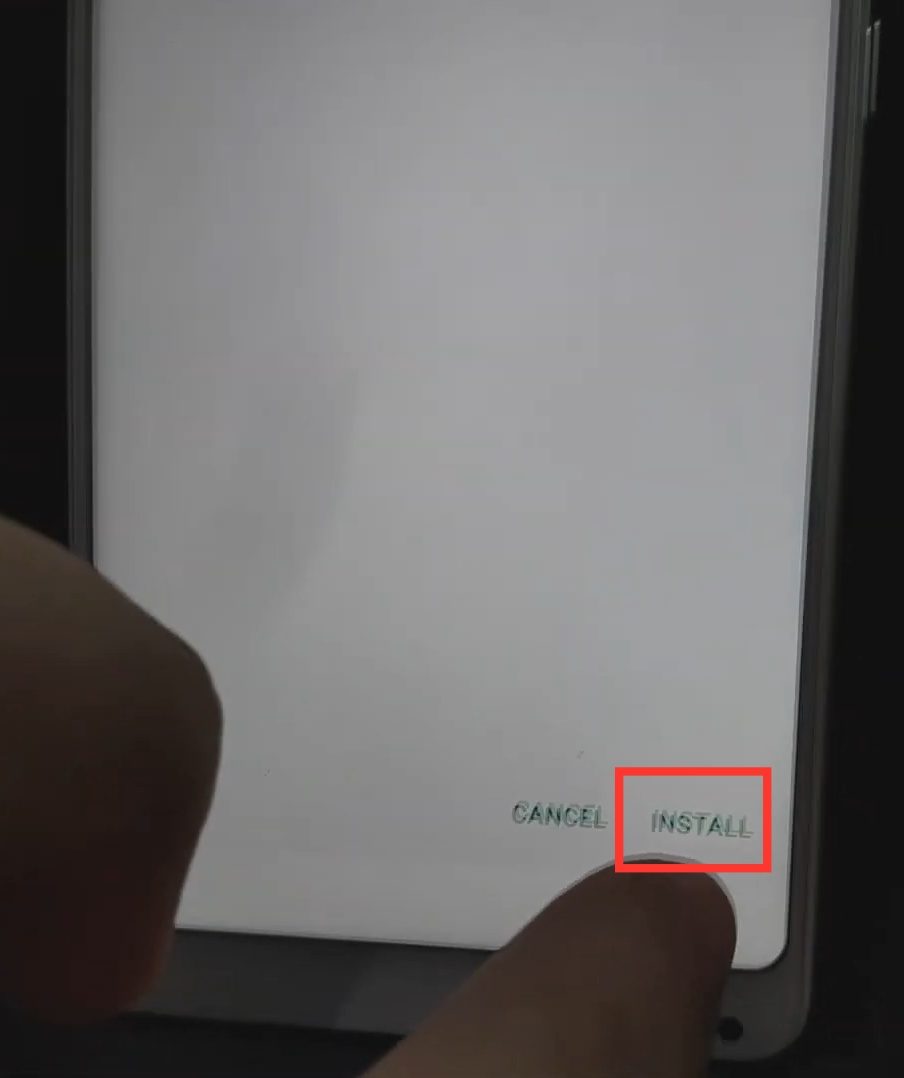
Tap “Install”.
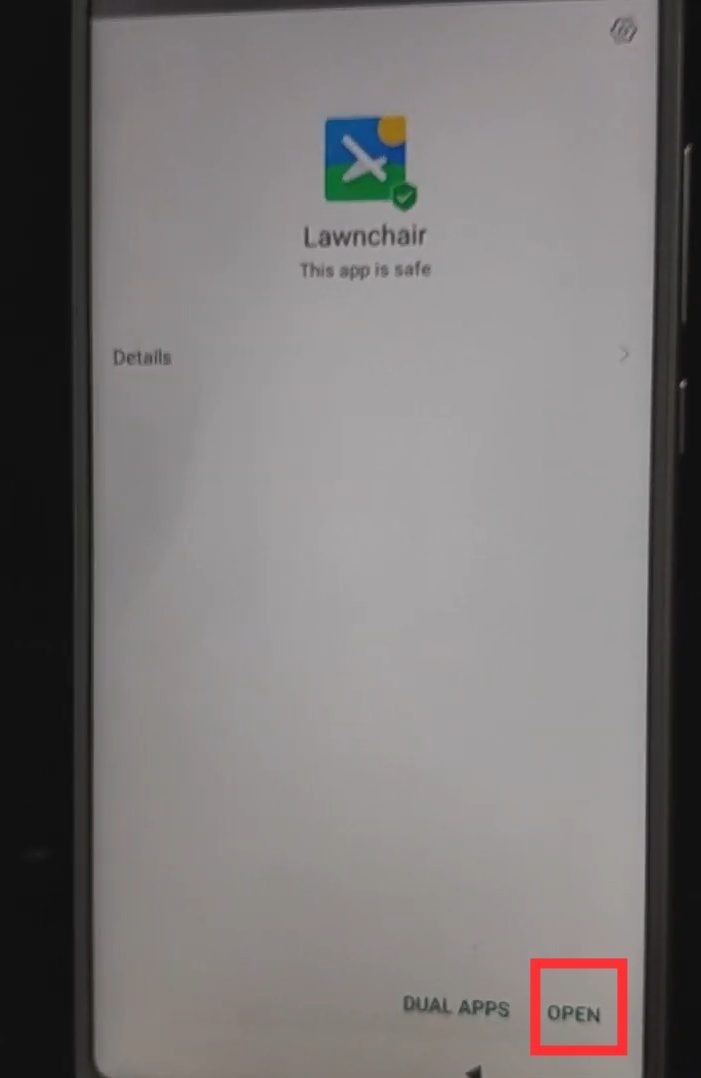
Tap “Open”.
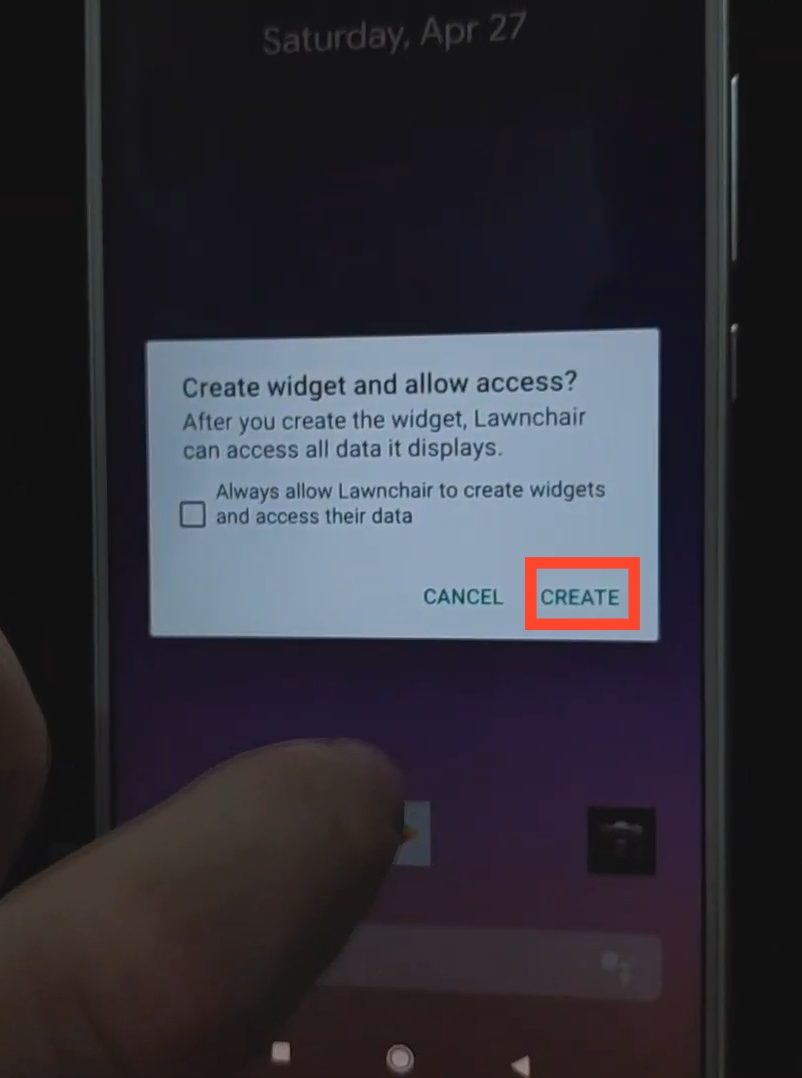
Tap “Create”.
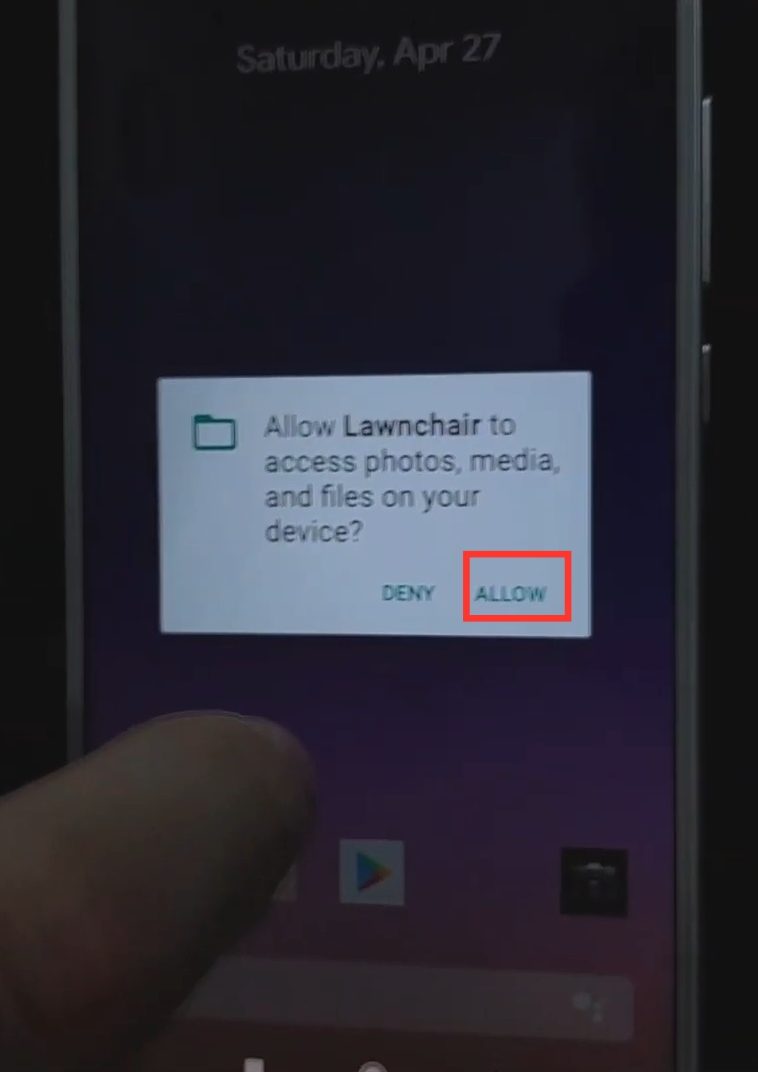
Tap “Allow”.
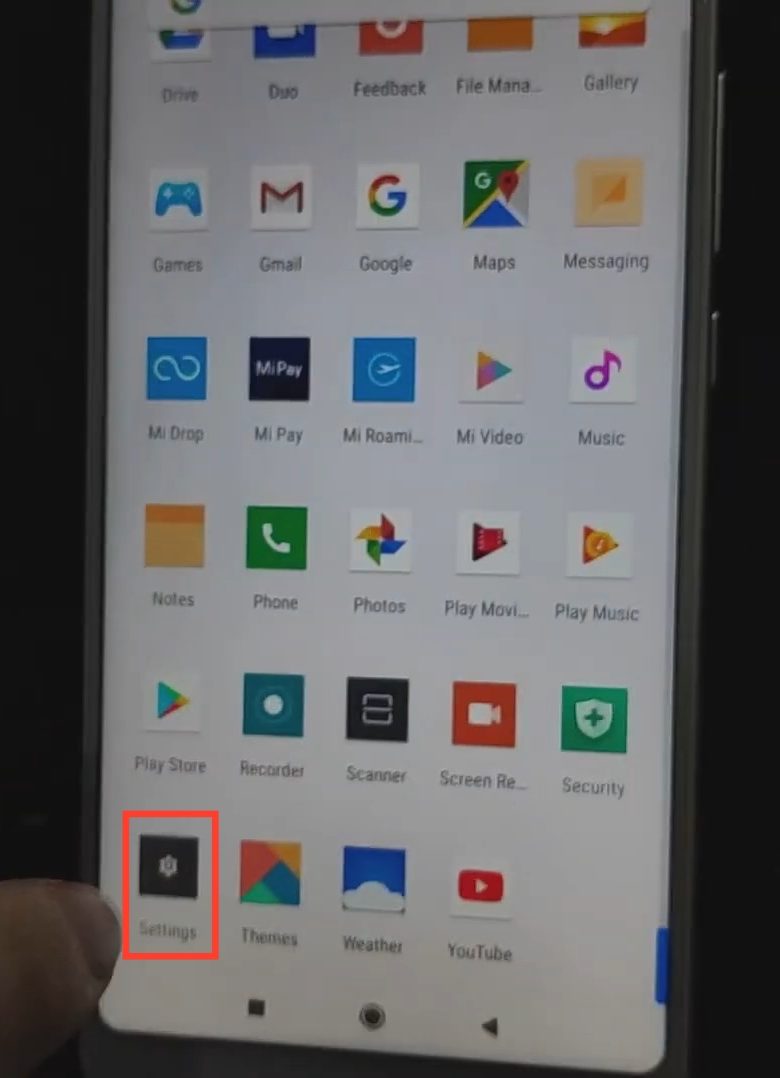
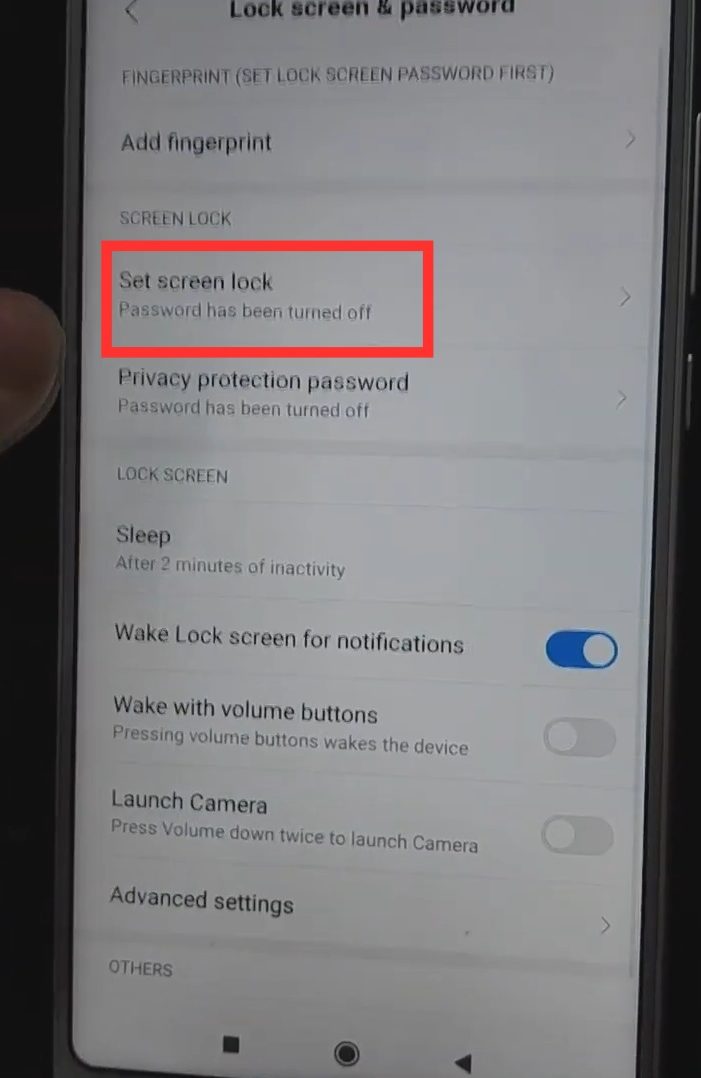
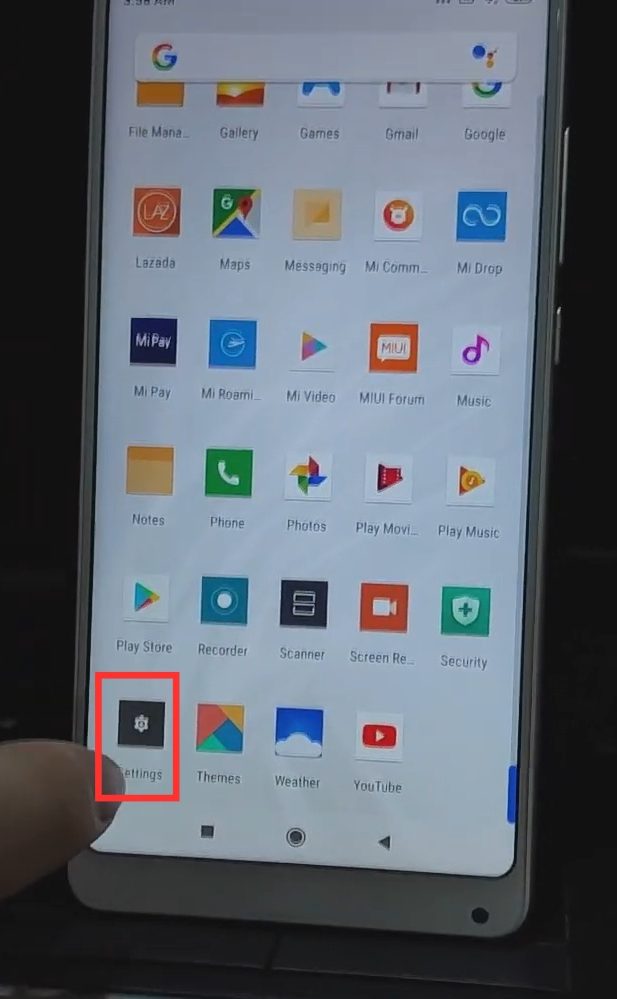
Go to “Settings”.
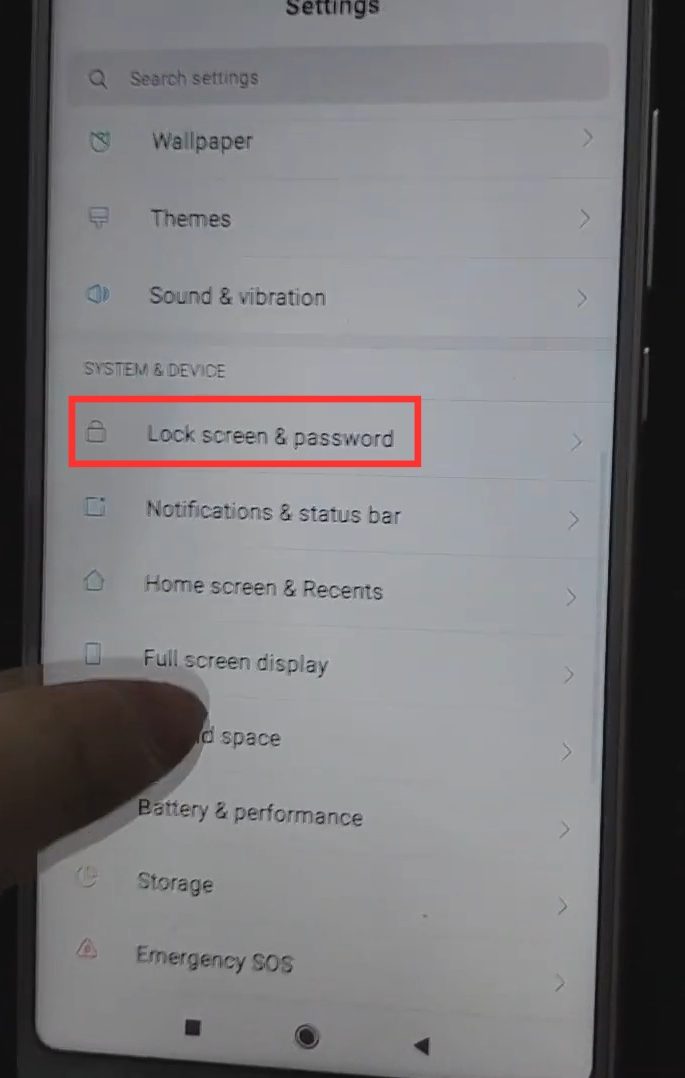
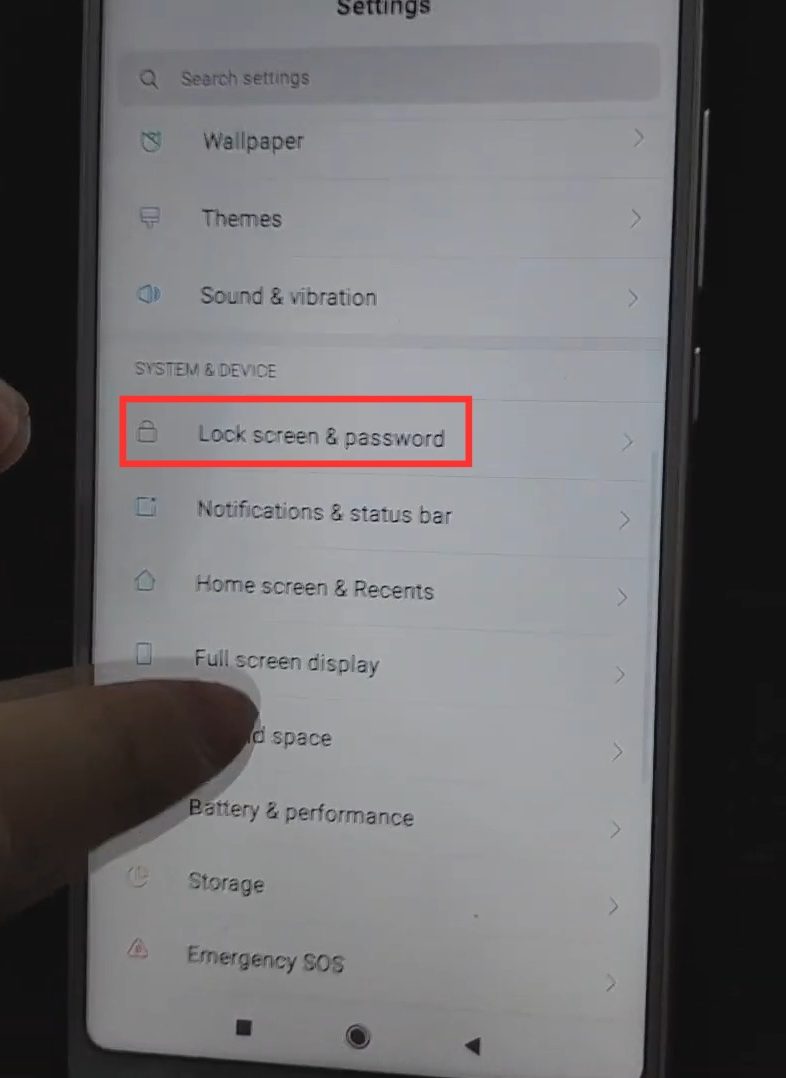
Tap “Lock screen & password”.
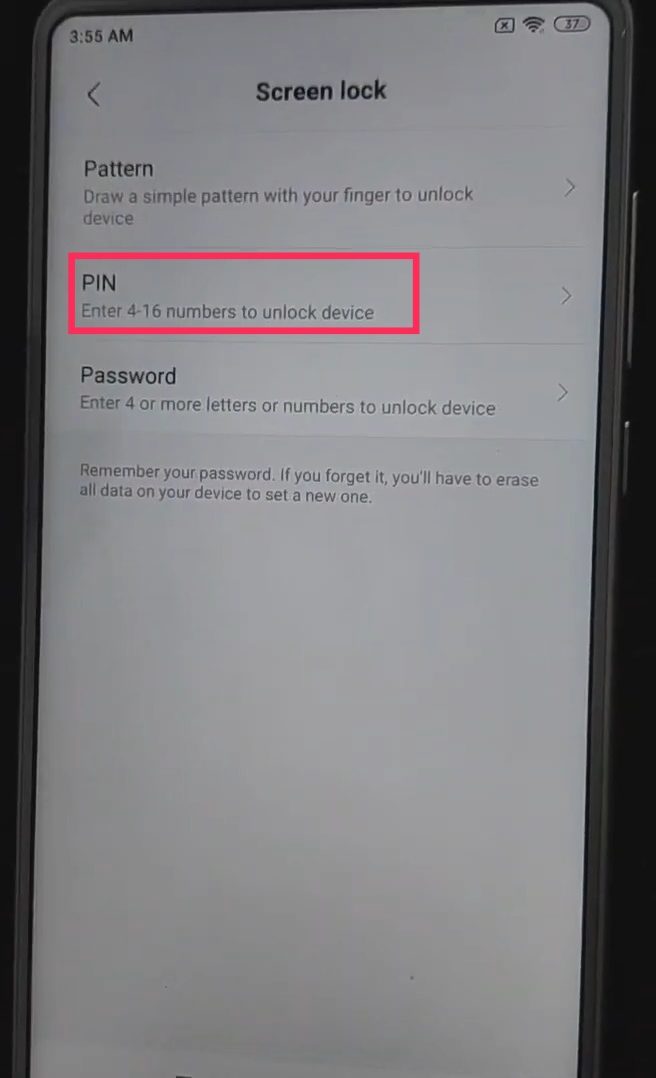
Tap “Screen Lock”.
Tap “PIN”.
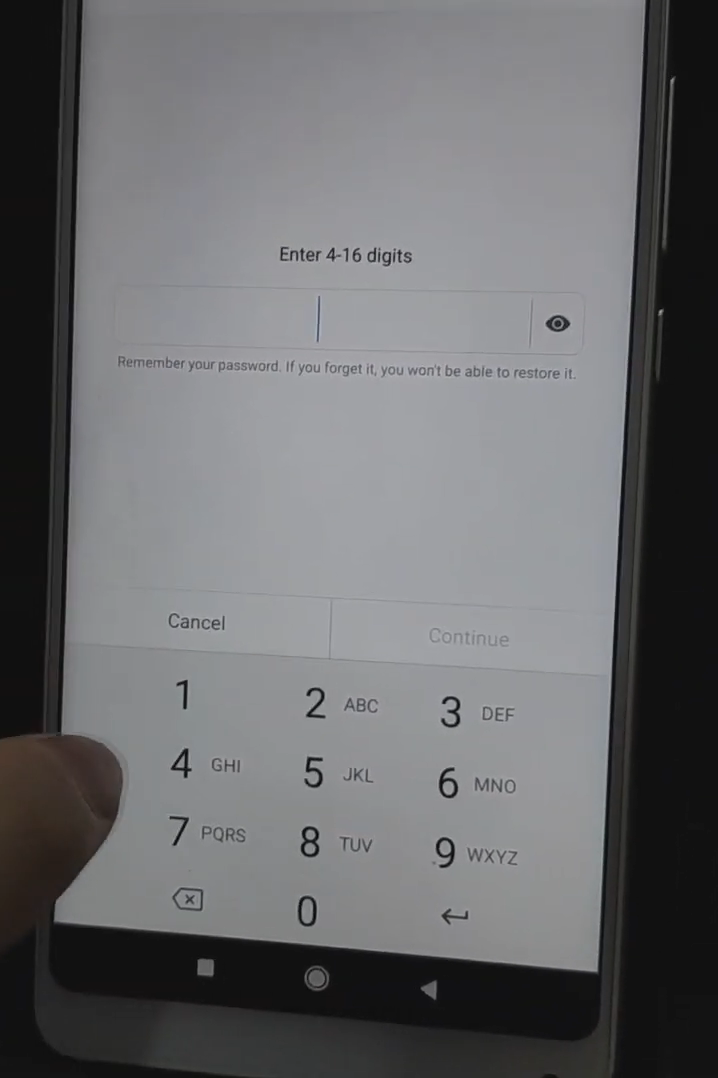
Set a Pin. For this guide, I set it to 123456. But you can set whatever you want. Just remember it.
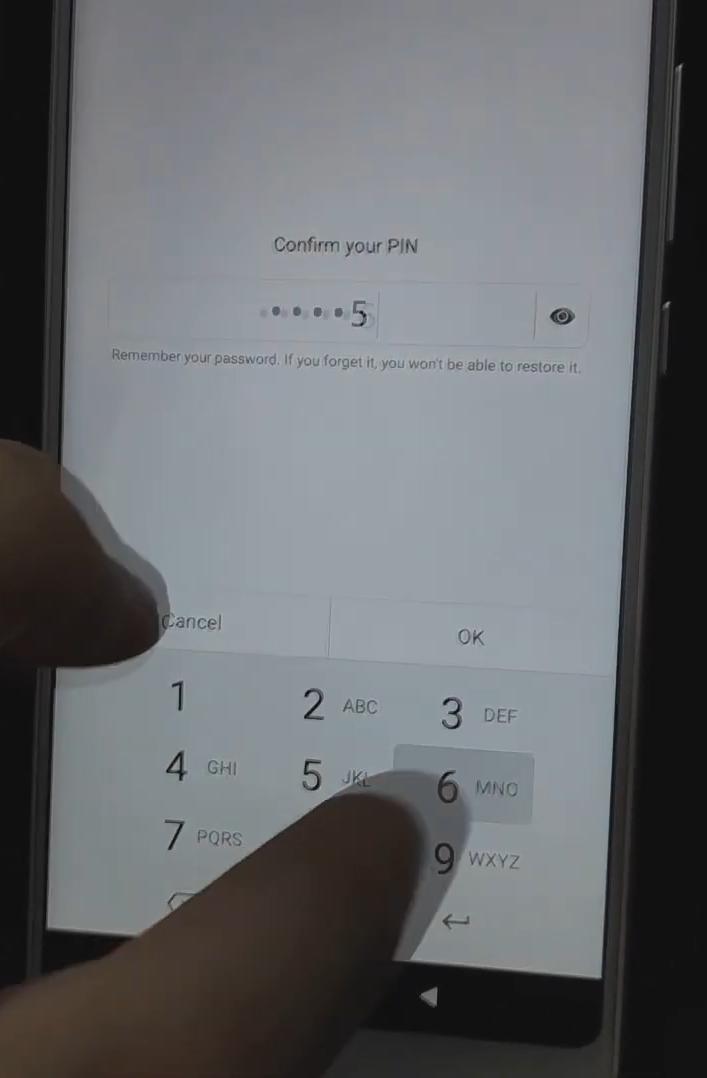
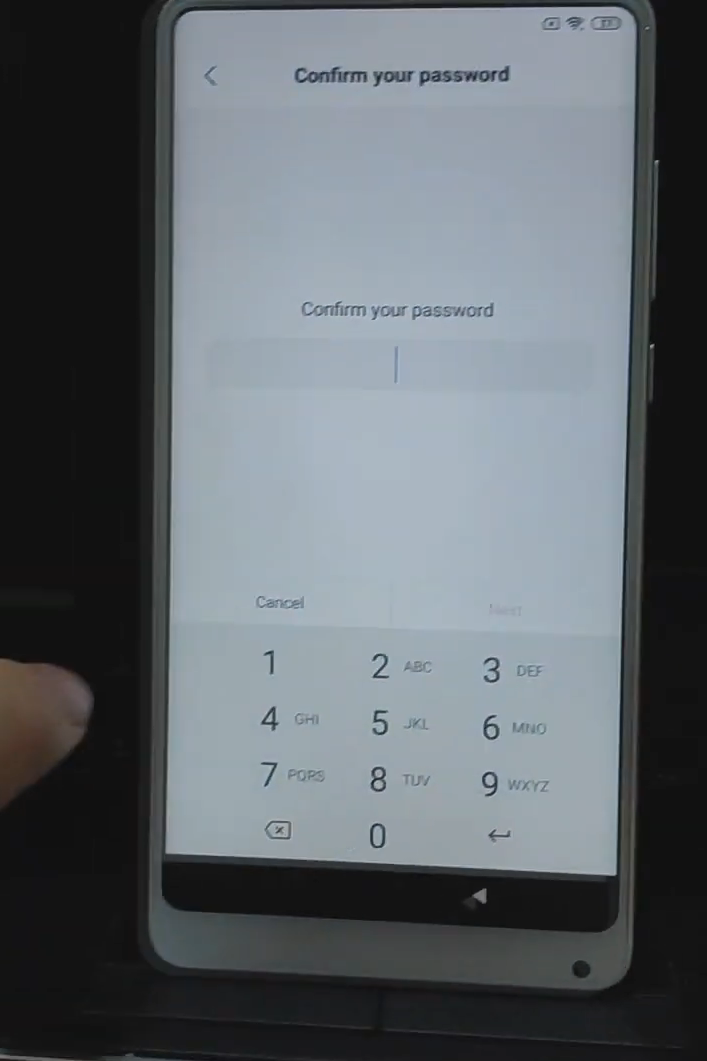
Confirm the PIN that you created.
When prompted to create a fingerprint, tap “Cancel”.
When done, reboot the phone.
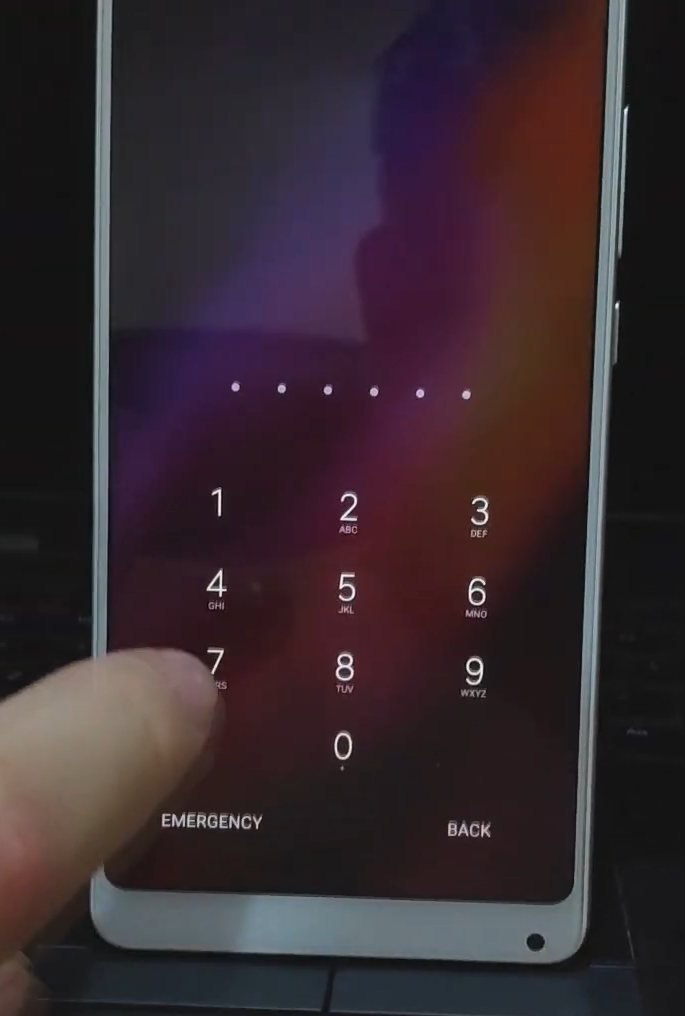
Unlock the phone by swiping up and enter the pin that you created earlier.
When you see this screen, enter the PIN you created earlier.
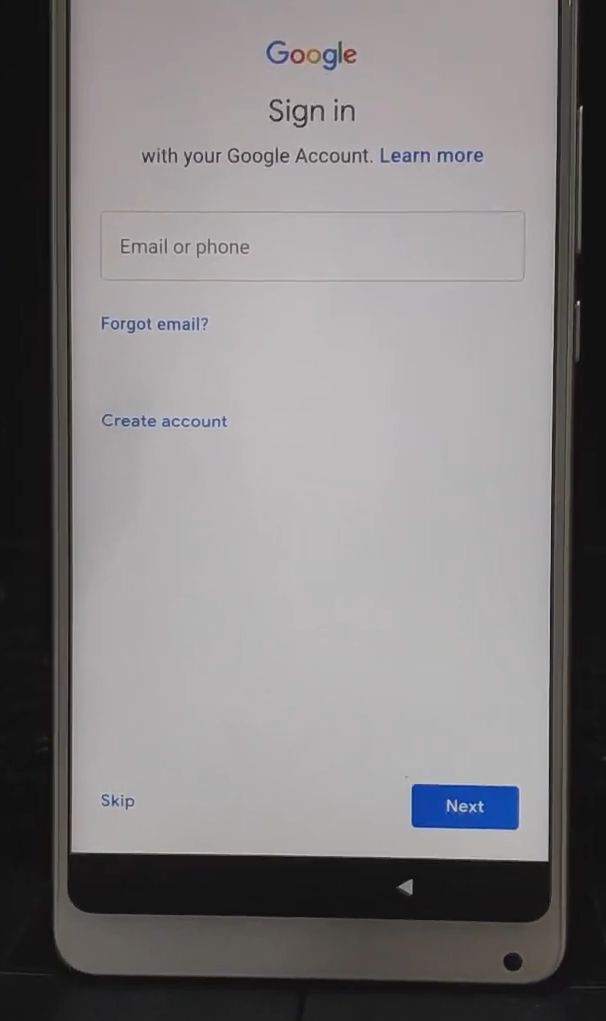
When you see this screen, YOU DID EVERYTHING CORRECTLY! However, DON’T SIGN TO A GOOGLE AND MIUI ACCOUNT JUST YET.
Just skip both Google and MIUI sign in and go through setup.
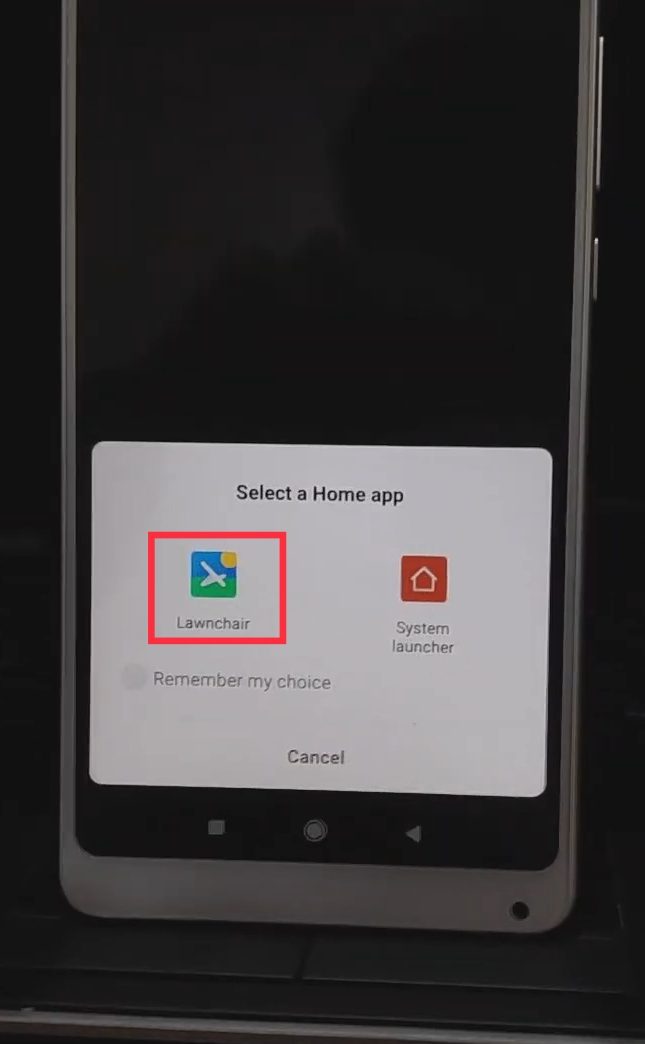
At the end of the setup, you will be prompted what launcher to use. Choose “Lawnchair”.
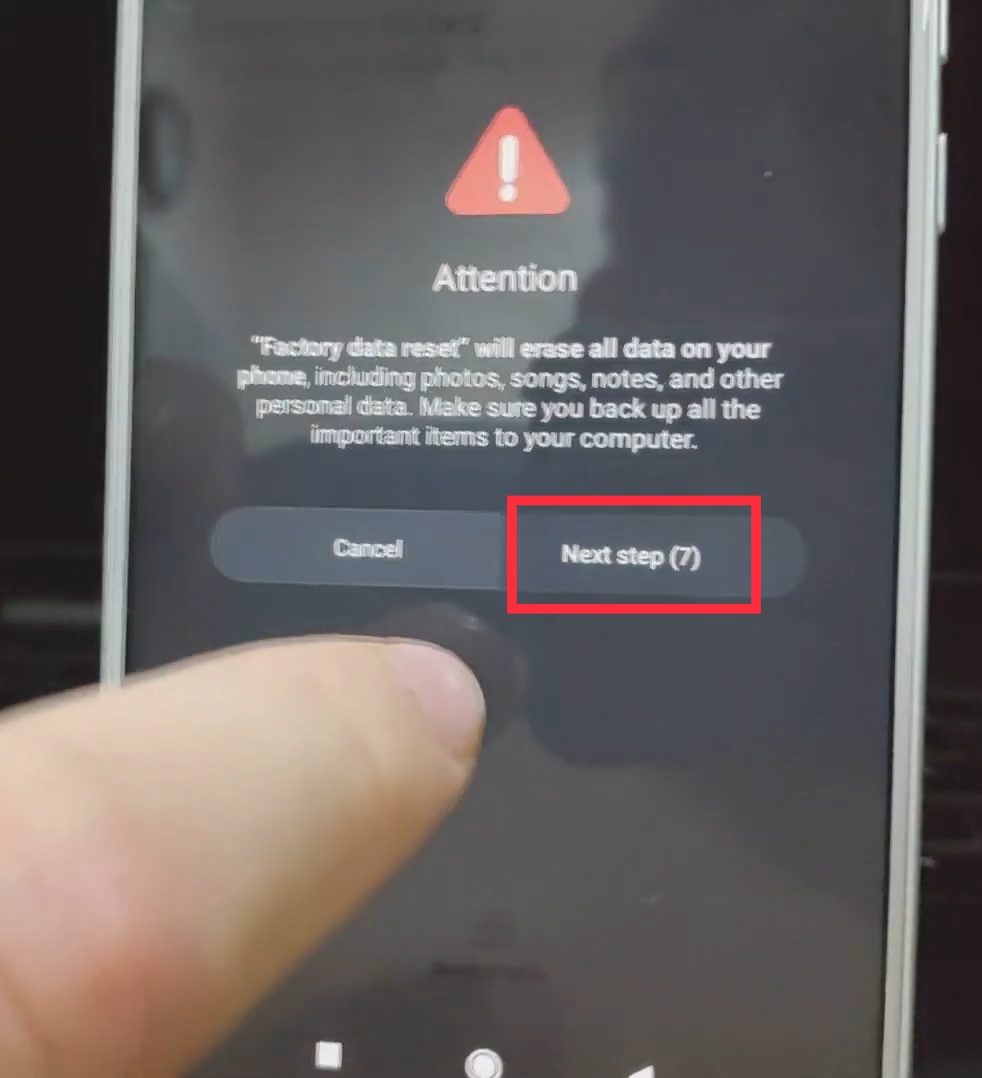
Go back to “Settings”. It’s recommended to do a factory reset.
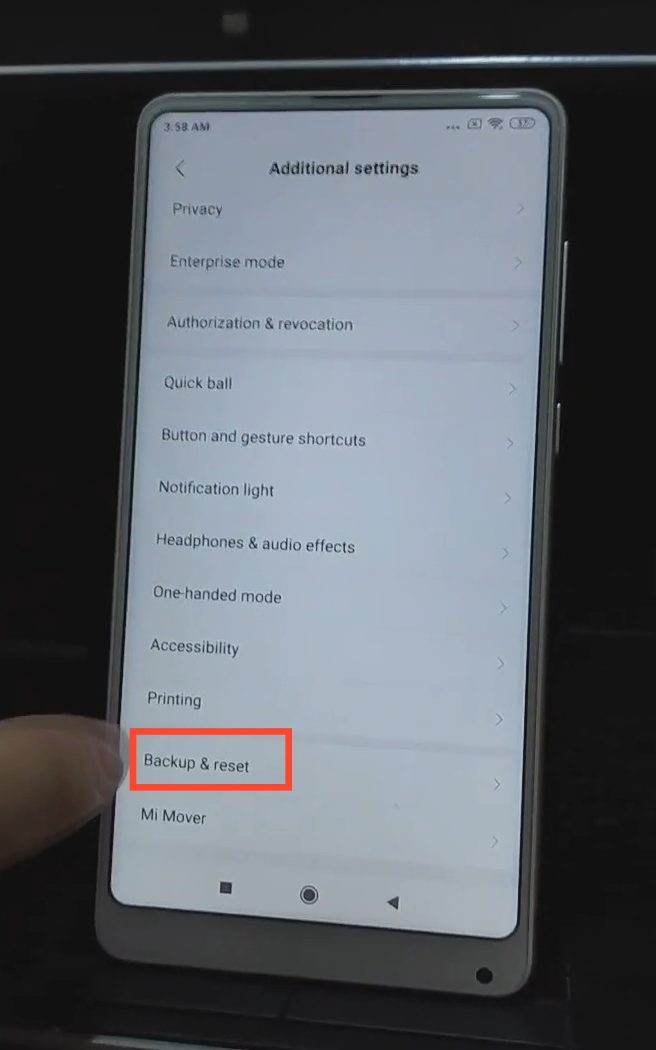
Tap “Additional Settings”.
Tap “Backup & reset”.
Tap “Erase all data (factory reset)”.
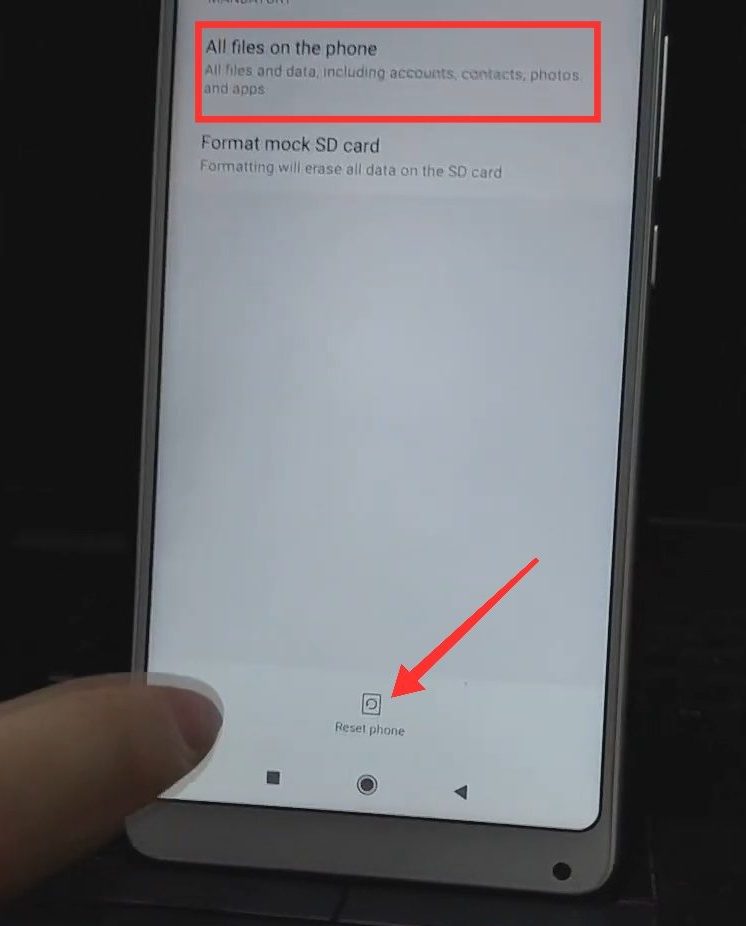
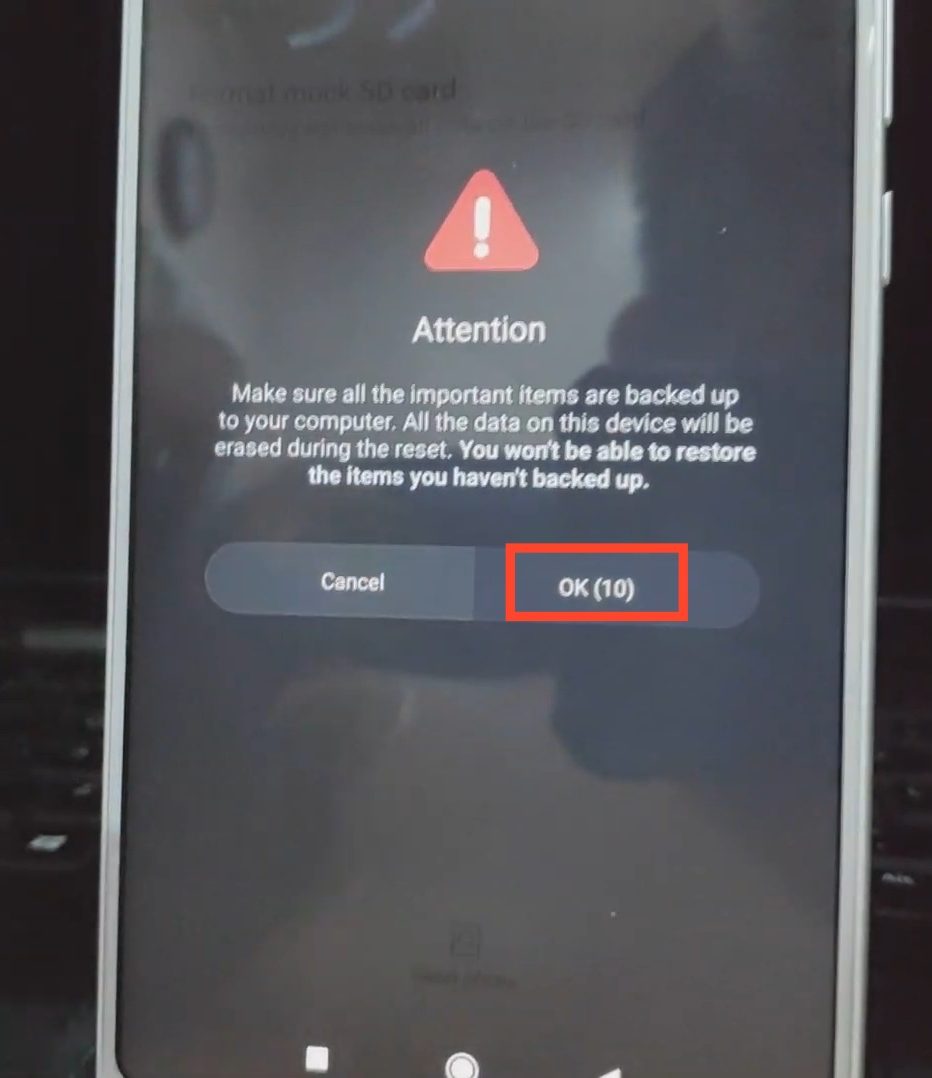
Tap “All files on the phone”, and then tap “Reset phone”.
Tap “next step” after the counter has elapsed.
Tap “OK” after the counter has elapsed.
The phone will reboot. Once booted back up, continue setting up the phone like you would with a new phone. You should be able to sign in to any other Google account! CONGRATULATIONS!
All products, and company names, logos, and service marks (collectively the "Trademarks") displayed are registered® and/or unregistered
trademarks™ of their respective owners.
The authors of this web site are not sponsored by or affiliated with any of the third-party trade mark or third-party registered trade mark owners,
and make no representations about them, their owners, their products or services.
This is a review on the performance, specs, and features of the Samsung Galaxy A6 from Metro by T-Mobile. Factory unlocked Samsung Galaxy A6 retail price is $359.99. But if you want to get it on subsidy, you can also get it locked from any carrier and have ourfactory unlock service for Samsung Galaxy A6, so you can still enjoy the flexibility of an unlocked phone.
Unlocking Samsung Galaxy A6: Quick Overview
Battery size: 3000mAhROM/RAM: 32GB/3GB
Screen Size: 5.6” AMOLED 720 x 1480Cameras: 16MP front/16MP back
What to like. This mid-range Samsung has Fingerprint Scan and Facial Recognition for security. It also runs with a 3GB RAM so it’s fast and can handle moderate to heavy apps. It has a nice aluminum casing and semi-matte finish that gives it a premium look.
Finally, it packs a 3000mAh battery that’s enough to last you more than a day of regular usage.
What not to like. For the same price, the LG Q7 Plus has arguably a better screen resolution than the Galaxy A6. The main camera doesn’t have PDAF which may result in slightly slower autofocus compared to phones within the same price range.
The processor could also be improved, but compared to other Samsung phones, you will most likely not notice that it’s inferior when it comes to speed and performance.
More importantly, for a much lesser price, the LG Q7 Plus is IP68 Water and Dust Resistant, while the Samsung Galaxy A6 is not.
Both are offered through Metro by T-Mobile.
Got a phone from Metro that you want to carrier unlock? We can help you permanently unlock it with the MetroPCS Device Unlock App!
Samsung Galaxy A6 Build And Design
Metallic Build. The Samsung Galaxy A6 is beautiful, it doesn’t exactly look like the S9 when it comes to design, but it has an aluminum casing that gives it a luxurious look. Since it’s an all-metal phone, Samsung created a small non-metallic loop at the upper and lower back to put the antennas neatly.
Bezel-less display. It’s not the first Samsung budget/mid-range phone to have a bezel-less display and Home button, but it’s so refreshing to see a less bulky, more modern design on a Samsung slate phone.
Non-ergonomic Design. The fingerprint scanner is situated on the same box as the camera, which makes it a little bit awkward to reach. It may not as bad as it seems since the phone is relatively small (only 5.6 inches screen size) and fits the average hand size.
Samsung Galaxy A6: Hardware, Specs, and Features
No USB-C. No fast-charging.Since 2018, it’s almost as if the USB-C has become an industry standard for every smartphone manufacturer, and so it’s a bummer that the Galaxy A6 didn’t come with a USB-C port for fast charging. Instead, it is using a Micro USB, which is somewhat backward for a newly-released, mid-range priced phone.
On the brighter side, you can still have your phone back from 0% up to 100% within 2 hours and 15 minutes of charging.
Low light, high-resolution camera. Budget Samsung phones most often have low megapixels cameras, but they’re also known for having good sensors. And the Galaxy A6’s cameras surely don’t disappoint.
Other phones may have higher megapixels but they are not good at taking pictures in low light. The Samsung Galaxy A6, on the other hand, has the best of both worlds. It can capture great images even in at night or in low light settings.
Overall Impression on MetroPCS Samsung Galaxy A6
So is the Samsung Galaxy A6 a good phone? Well, it can be for an avid Samsung user, but compared to other brands, it’s clearly not the best bang for the buck. There are other brands of mid-range phones out there that offer more for the same price, like the LG Q7 Plus.
Moreover, the Samsung Galaxy A6 does not have anything particularly stand out in the mid-range phone arena. Looking at the trend and changes between many budgets and mid-range phones over the years, it seems that Samsung is not interested in winning the budget and mid-range phone market.
In conclusion, the Samsung Galaxy A6 does not particularly stand out from its competition but it shows signs of huge improvements from its predecessors. And with the home button gone, we’re confident that Samsung is actively making changes, slowly stamping its brand name in the mid-range phone market to dominate it.
It is not the budget version of Samsung Galaxy S9 when it comes to the features, but with its much ‘modern’ bezel-less design, it certainly has the premium Samsung-branded vibe that you would otherwise only get with the brand’s flagship devices.
Hey, we unlock phones from Metro! If you want to enjoy the freedom and flexibility of an unlocked phone, we’re here to help! Go to MetroPCS Mobile Device Unlock App for more information.
All products, and company names, logos, and service marks (collectively the "Trademarks") displayed are registered® and/or unregistered
trademarks™ of their respective owners.
The authors of this web site are not sponsored by or affiliated with any of the third-party trade mark or third-party registered trade mark owners,
and make no representations about them, their owners, their products or services.
Samsung Galaxy J2 is one of Samsung’s newest budget phone and it has taken a remarkable change of design; for the first time in Samsung’s budget phone category, they had removed the physical home button, which means you will be using only the navigation bar on the screen.
Why Samsung removed the button we’re not entirely sure spacewise, because the space that houses the now non- existent home button is still there but it was replaced by the brand name. We’re thinking it’s for ergonomic purposes since people who are used to the home button might need some adjusting before getting used to it. It could also be because it is rather redundant to have the physical home button when it’s on the screen itself.
The Samsung Galaxy J2 doesn’t look much on the outside, it doesn’t have aluminum casing or glass back cover but that’s also one of the reasons why it’s so affordable.
Samsung Galaxy J2’s build and design is on par with the rest of the Android phones in the budget department. We compared it to 3 other budget phones that retails for the same price (LG Aristo 3, Alcatel A30 Fierce, Samsung Galaxy J3 Prime Silver) from Metro by T-Mobile (previously called MetroPCS) and there seems to be no significant difference among them (comparison shown in the table below).
SPECS
Samsung Galaxy J2
LG Aristo 3
Alcatel A30 Fierce
Samsung Galaxy J3 Prime Silver
Processor Speed
1.4 GHz quad-core processor
1.4 GHz quad-core processor
Quad Core 1.5 GHz processor
Quad Core 1.4 GHz processor
OS
Android 8.1
Android 8.1
Android 7
Android 7.0
RAM
2GB
2GB
2GB
1.5GB
ROM
16GB
16GB
32GB
16GB
Battery Size
2600mAh
2500mAh
3000mAh
2600mAh
Rear Camera
8MP with LED flash
13MP PDAF with flash
13MP autofocus with LED flash
5MP Autofocus with low light aperture
Front Camera
5MP
5MP
5MP, wide- angle with LED Flash
2MP
Video Recording
720p @30fps
720p @30fps
1080p HD
1080p HD @ 30 fps
Display Size
5 in
5 in
5 in
5 in
Display Resolution
540 x 960
720 x 1280
720 x 1280
720 x 1280
Display Type
TFT
IPS
IPS LCD
TFT
Biometrics
None
2D Face Unlock
Fingerprint
None
Price tag
$149, free after all offers
$139, free after all offers
$149, free after all offers
$139, free after all offers
The J2, however, is considerably heavy for its height, weighing 5.8 oz at just 6 inches long. It has 5 inches of screen display on a Corning Gorilla Glass, with a 540 x 960 resolution on a 16:9 aspect ratio. It’s a bummer that it has a lower resolution compared to the LG Aristo 3 which has a 720 x 1280 resolution on the same screen size for almost the same price.
To sum it up, it doesn’t have a stand out appearance and only has the standard look of most Samsung budget and mid-range phones.
The Samsung Galaxy J2 again doesn’t have an ‘edge’ above other budget phones of the same price, aside from bearing the brand name you trust. Nonetheless, its specs don’t really disappoint; it has a huge battery, a good processor, and solid cameras.
It has 5MP front-facing camera and 8MP main camera with LED Flash. However, these cameras don’t have instant focus or PDAF (Phase Detection Autofocus) and that means it might not be that great for selfies as it is for still images. Compared to Alcatel A30 Fierce, it has lower camera specs, because the American brand features a 13MP rear-facing auto-focus camera that has an LED flash and a 5MP front-facing wide-angle camera with LED flash as well.
If you’re about taking great selfie photos with a huge group, the Alcatel A30 Fierce has a better chance of nailing it than the Samsung Galaxy J2.
On the other hand, the battery is quite large but still not as huge as the Alcatel A30 fierce, which has a 3000mAh battery size. The Galaxy J2 only has a 2600mAh but still could last you a day of use.
The security features of the Galaxy J2 are not as impressive as the rest in the budget phone department. It doesn’t have fingerprint sensors like Alcatel A30 Fierce or Face Unlock which is present in LG Aristo 3.
If you value trust for the brand, Samsung Galaxy J2 is not bad for the price, although it could have had better specs to keep up with its competitors. It’s not the best Samsung budget phone we’ve seen so far, but we think that losing the home button is one of the remarkable changes the brand has adapted for all its budget phones.
Without the home button, the phone is still intuitively easy to use, that is, of course, if you’ve been a long time Android user.
If there was anything significant that we wanted Samsung could have changed, that is adding a fingerprint sensor. Undeniably, that’s something that makes every budget Samsung phone look and feel so out of date.
All products, and company names, logos, and service marks (collectively the "Trademarks") displayed are registered® and/or unregistered
trademarks™ of their respective owners.
The authors of this web site are not sponsored by or affiliated with any of the third-party trade mark or third-party registered trade mark owners,
and make no representations about them, their owners, their products or services.
Alcatel 3T 8 is TCL’s newest budget tablet, it’s 8.24 inches tall and can be bought outright for $150 through T-Mobile. It has built-in features that make it great for the whole family’s entertainment, especially the kids.
It has CloserTV app, Eye Care Mode (blue light reduction/eye protection), and built-in parental control called Kids Mode. The Kids Mode feature has a parental control panel that allows you to limit the usage time and choose only the apps your children can use.
The Eye Care Mode is exclusive to Alcatel and it’s especially helpful in relieving visual fatigue coming from the blue light due to long hours of screen time. It offers optimized brightness and tonality both in daylight and at night.
The best thing about this tablet is that it supports T-Mobile 600mHz network, which means it can get better reception even when you’re indoors or in an enclosed area. Now you can enjoy fast 4G LTE speeds that reach even when you’re inside your home!
Alcatel 3T 8 comes with the latest Android operating system, Android 8.1.0 Oreo. It has a vibrant 8-inches display, super-fast 4G LTE capability and 5 MP front and rear cameras.
It has 2GB of RAM and 16GB of ROM, expandable up to 128GB microSD card and runs on a 1.5GHz Quad-Core processor. With just 2GB of RAM, you cannot expect this tablet to multi-task and run several apps at the same time in the background without experiencing lags. Due to the limited RAM, use of heavy gaming apps and social media apps may not be as seamless as compared to that of using your mid-range smartphones.
Quick tip: the best way to optimize the speed of your tablet or smartphone is to close all the apps running on the background. With the android Oreo operating system, you can do this by simply tapping on the burger (three horizontal lines) icon located at either the bottom right or left portion of the display screen.
By tapping on the burger button, you will see all the apps that are running on the background and you can close all the remaining apps you do not wish to use. Doing this will optimize your device’s speed again and will help you avoid unnecessary lag.
Moreover, the Alcatel 3T 8 comes with a gargantuan 4080mAh battery with a standby time of up to 400 hours in the 4G network. Despite its huge battery size, it won’t last you a day of video streaming because the average usage time for LTE video streaming is only 6.7 hours. If you’re video streaming via Wi-Fi, it will last you a little longer, which is approximately 8.35 hours.
Alcatel 3T Build and Design
This family-friendly tablet is offered only in one color, which is metallic black. It has a considerably ergonomic 10.37oz of weight and comes with an Asahi glass. It is comfortably slim just like your regular smartphone, but it doesn’t have the most stylish look.
It doesn’t look remarkably amazing on a first look, but with bezels on all 4 sides of the display, you’ll have ample room to hold it comfortably without accidentally touching the screen.
Alcatel 3T 8 vs Lenovo Yoga Tab 3 8” vs Samsung Galaxy Tab A 8.0
In the table below, we compared the tech specs of Alcatel 3T 8” to two of the Android tablets within its price range. Though the Alcatel tablet doesn’t particularly stand out or have a “wow” factor, it’s clear that its manufacturer chose to make up with the lack of luster by being in the middle; offering features that some brands don’t and by serving a specific target market: parents with kids.
Lenovo’s tablet clearly has the “wow” factor because of its cool features: rotatable camera, versatile design, Dolby Atmos speakers, and a really huge battery size which is a power bank at the same time.
Samsung’s tablet, on the other hand, doesn’t come out with a spectacular design like that of Lenovo Yoga, but it makes up for having a better camera and video recording quality.
Alcatel 3T 8”
Lenovo Yoga Tab 3 8”
Samsung Galaxy Tab A 8.0 (2017)
Processor Speed
1.5 GHz quad-core processor
Quad-core 1.3GHz
Quad-core 1.4GHz Cortex-A53
RAM
2GB
1GB
2GB
OS
Android 8.1 Oreo
Android 5.1
Android 7.1 (Nougat)
Battery Size
4080mAh
6200mAh
5000mAh
Rear Camera
5MP
8MP Rotatable camera auto-focus
8MP
Front Camera
5MP
5MP
Headphone jack
Yes
Yes
Yes
ROM
16GB
16GB
16GB
External Memory
Up to 128GB, microSD
Up to 128GB, SD Card
Up to 256GB, microSD
Display Size
8.0”
8.0”
8.0”
Video Capture
720p 30fps
720p 30fps
1080p @30fps
Price tag
$158 (T-Mobile)
Colors
Metallic Black
Slate Black
Black, Gold
Alcatel 3T 8” definitely has competitive key features, and for the price, it’s definitely worth it. For a simple source of entertainment for your children, it really is wonderful to have on the go to keep your children entertained safely while they’re on the internet.
All products, and company names, logos, and service marks (collectively the "Trademarks") displayed are registered® and/or unregistered
trademarks™ of their respective owners.
The authors of this web site are not sponsored by or affiliated with any of the third-party trade mark or third-party registered trade mark owners,
and make no representations about them, their owners, their products or services.