

This guide will show you how to bypass Google account on a Xiaomi phone. You may need to do this if you forget the password on your Google account and had reset the device using recovery mode. You don’t need a computer to accomplish this. Doing this process may or may not work depending on the model and/or software version running in your Xiaomi phone.
At the time when I wrote this guide and filmed the how-to video (that supplements this guide), it worked for me using a Xiaomi Mi Mix 2S running the latest MIUI 10.3.2.
Screenshot Guide: Bypass Google Account Xiaomi
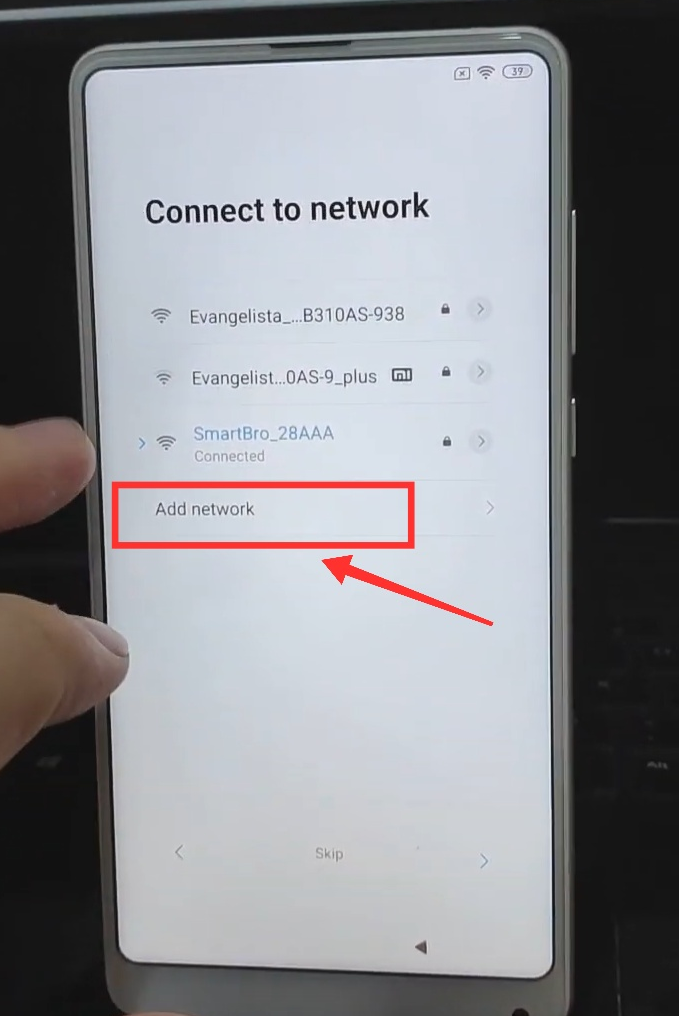
- From the “Verify your account” screen. Go back, until you see the list of WiFi networks.

- Tap on “Add Network”.

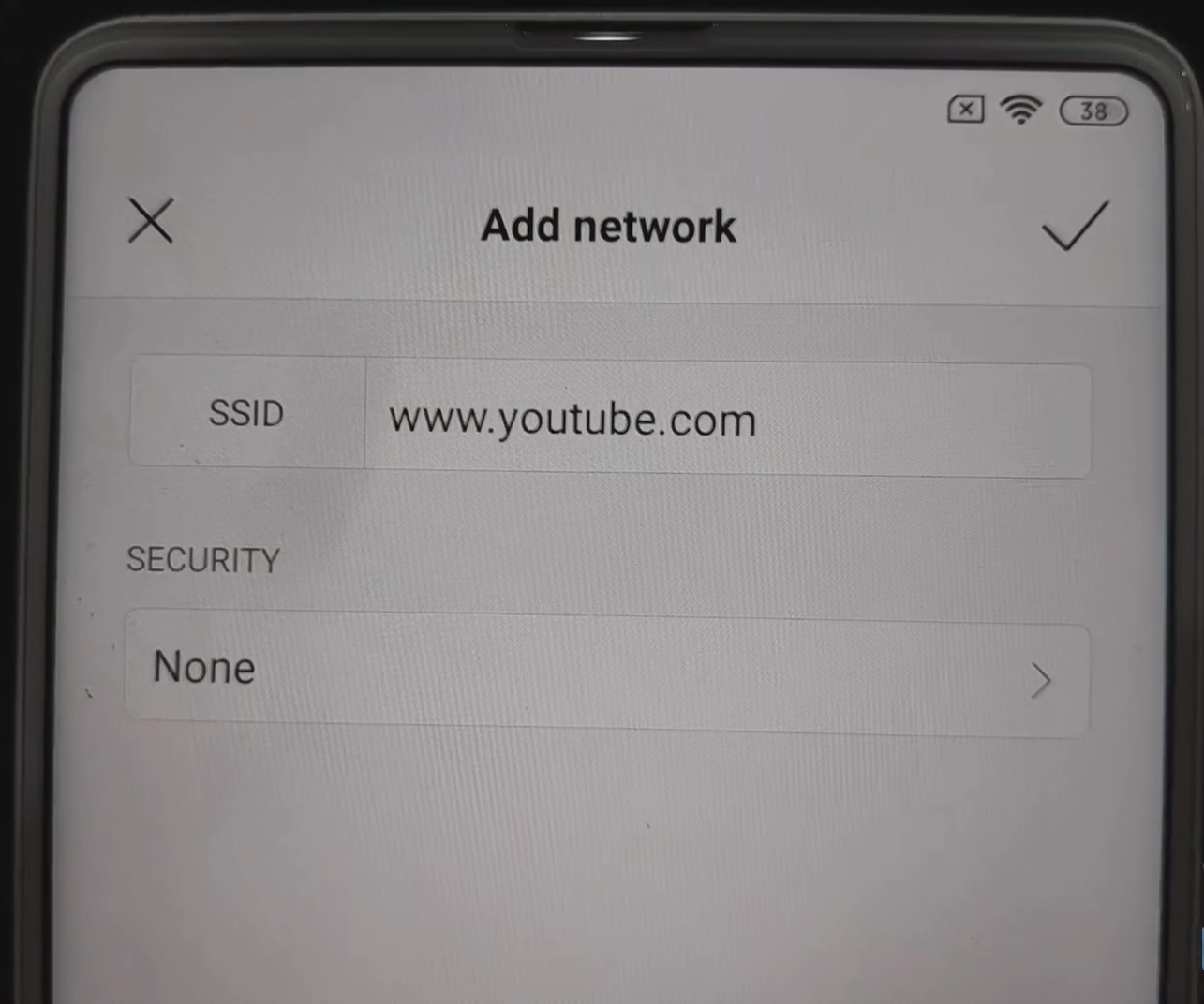
- Type “www.youtube.com” under “SSID”.

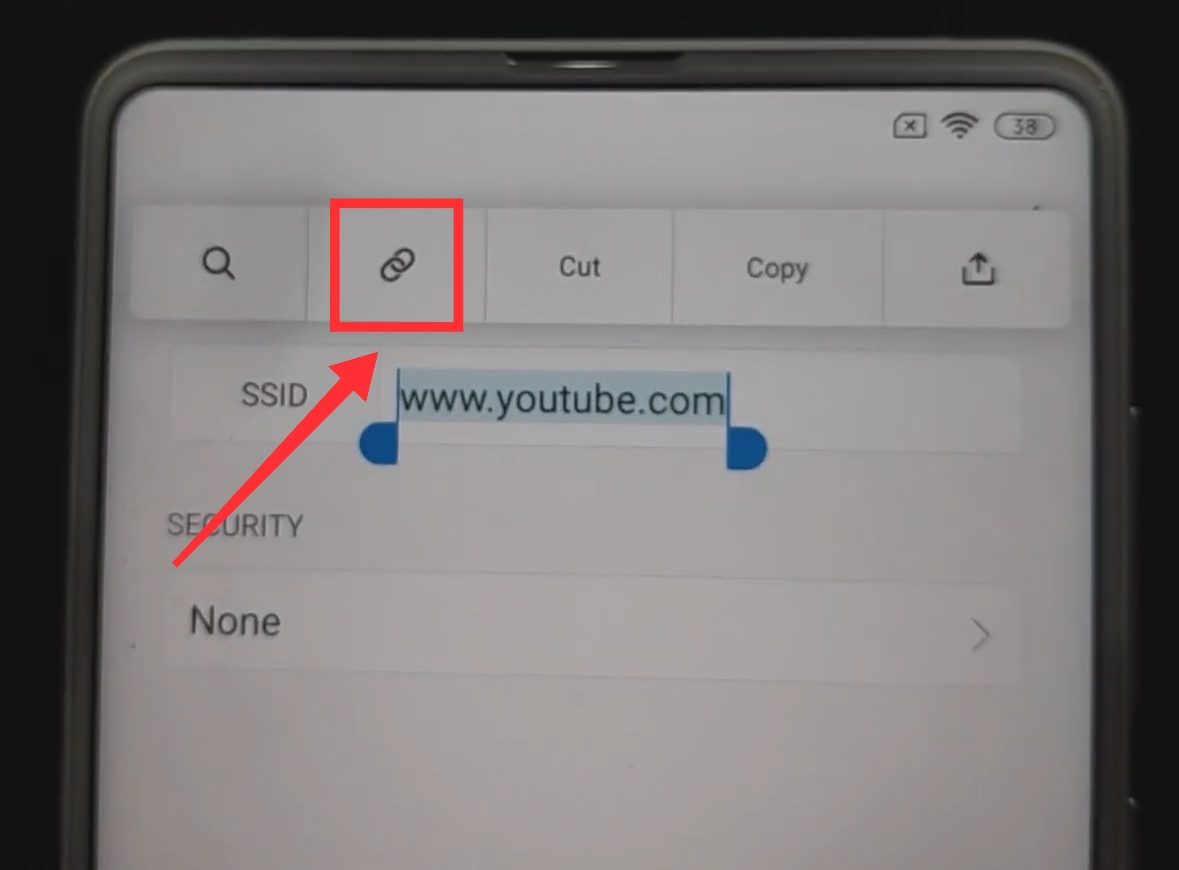
- Long press “www.youtube.com”, until it’s highlighted in blue.

- Above it, tap the second option.

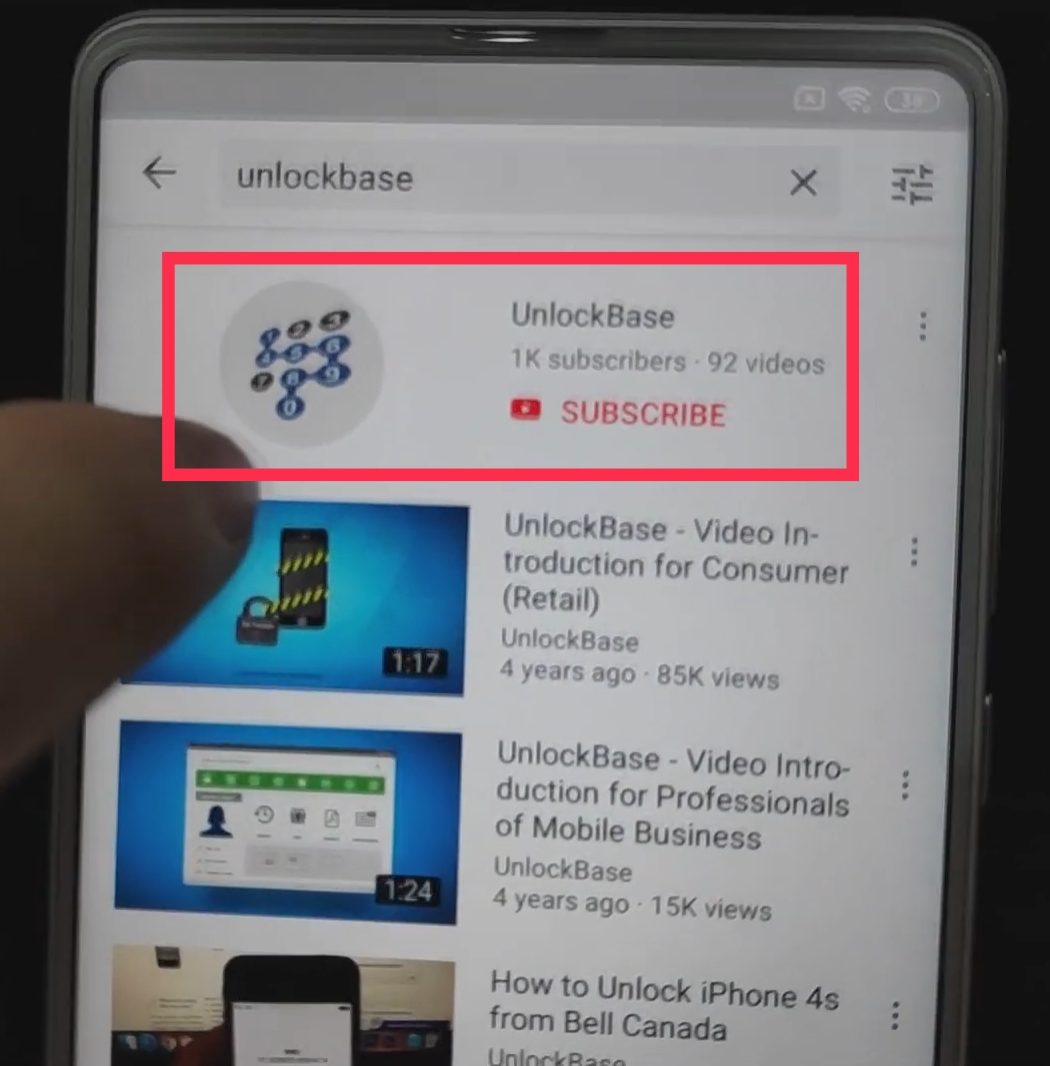
- The YouTube app should open. Search for “UnlockBase”.7. Select “UnlockBase”. From the results list.

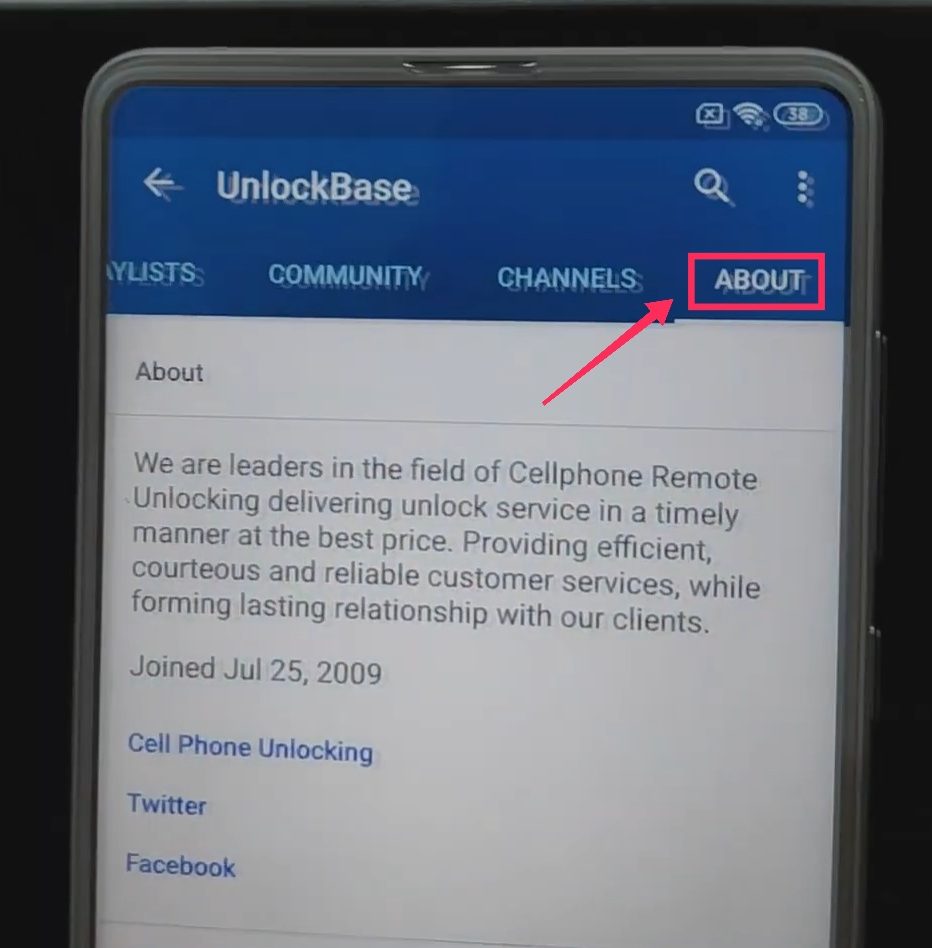
- Swipe to the left, and tap “About”.

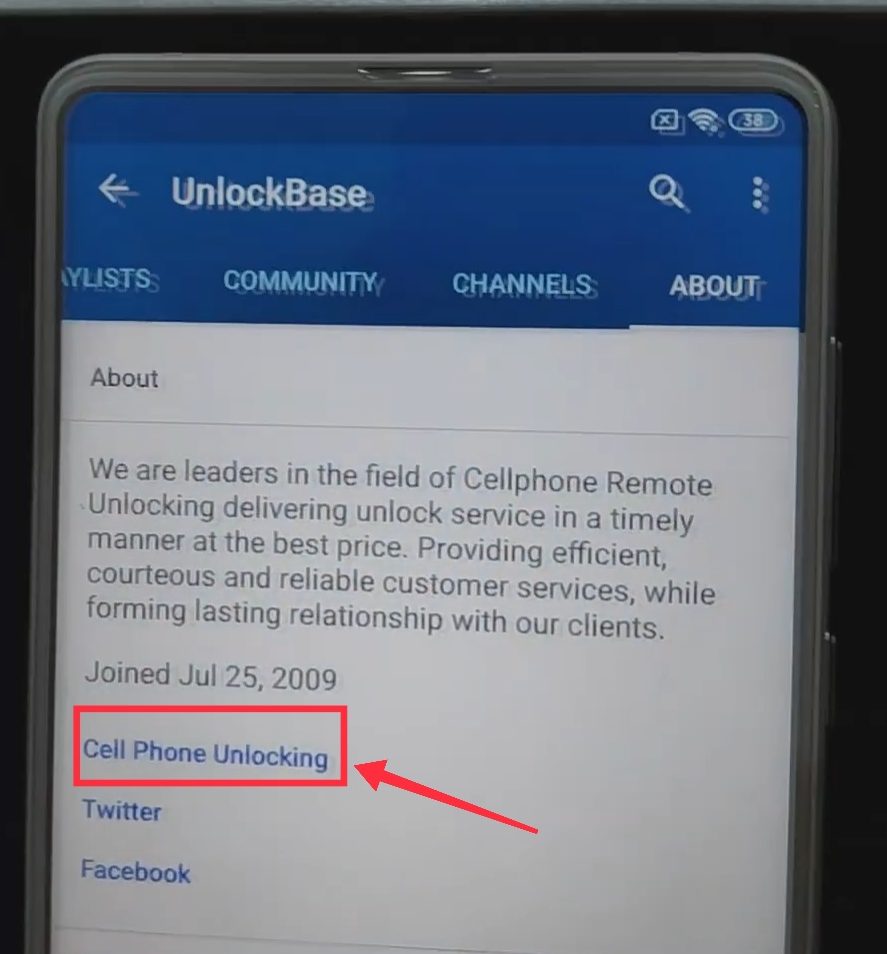
- Tap “Cellphone Unlocking”.

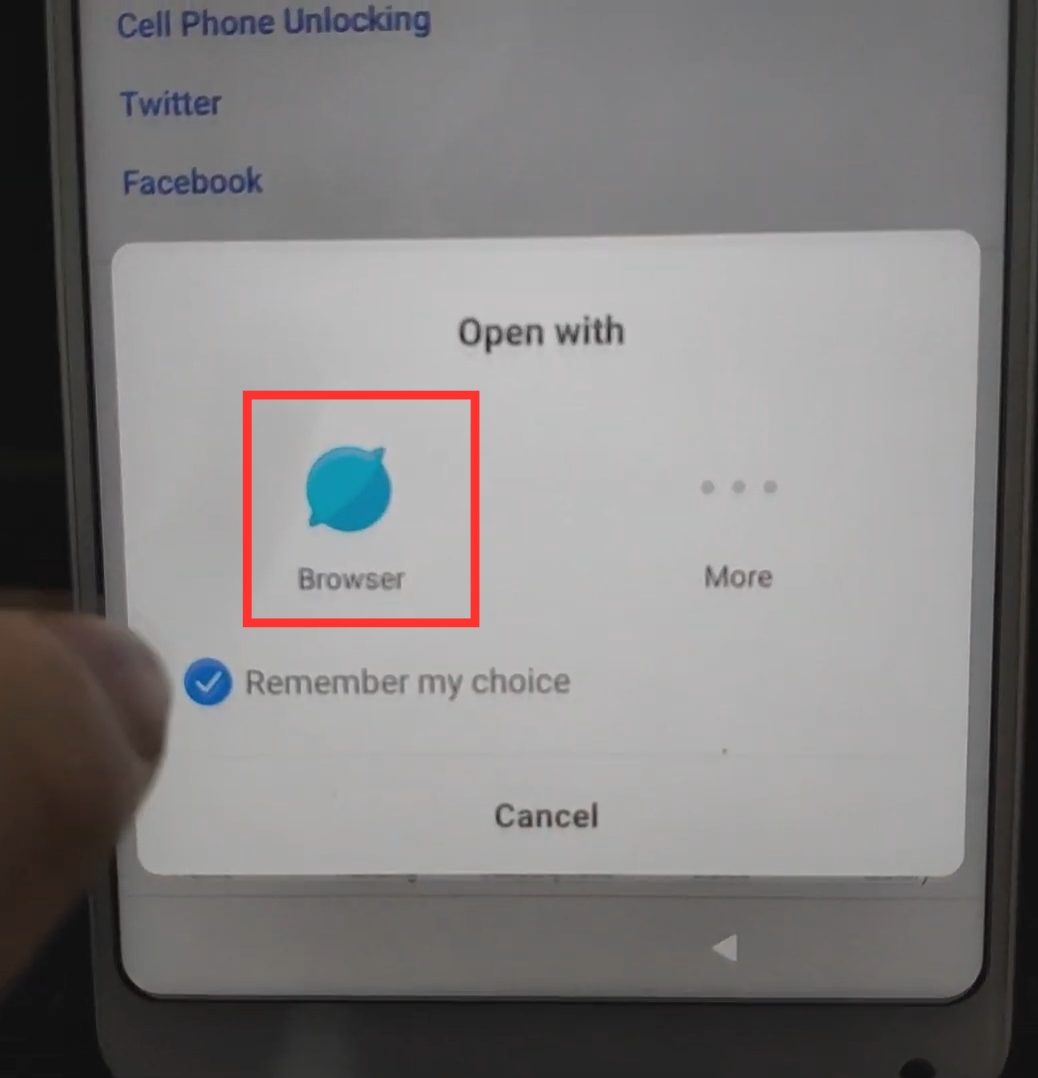
- Choose “Browser”.

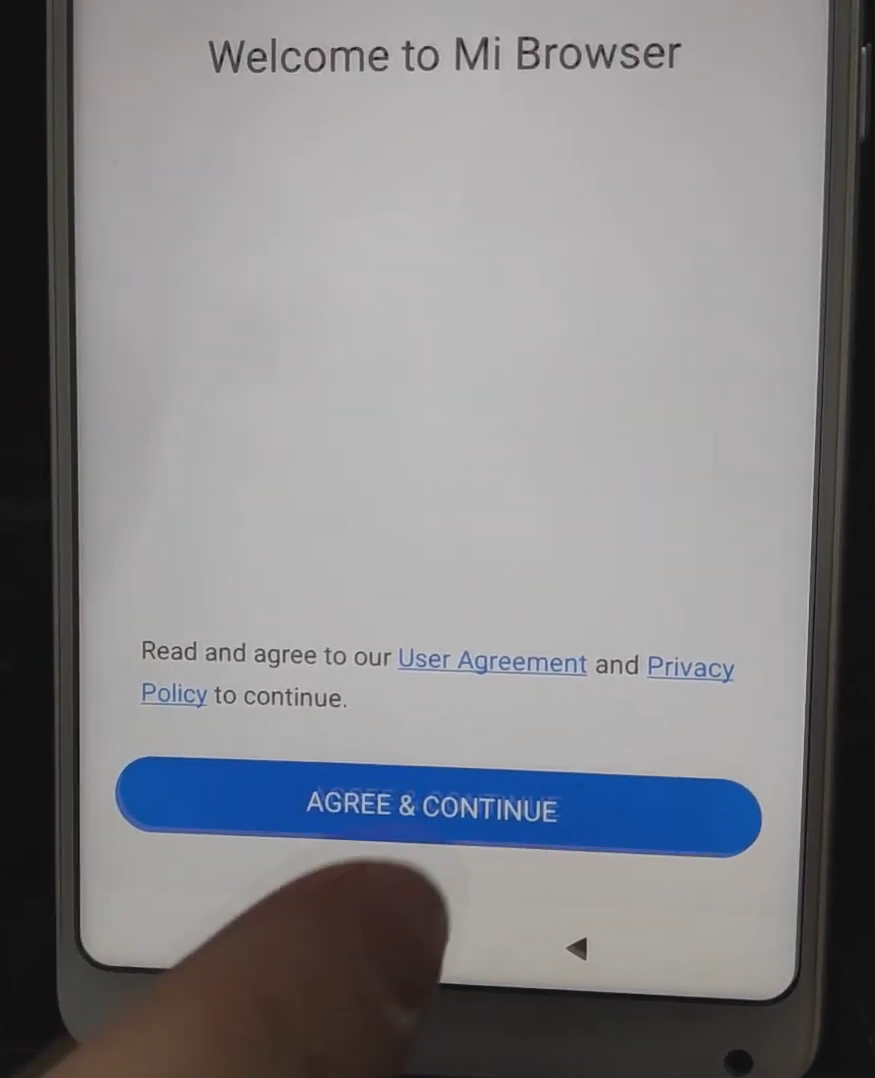
- Tap “Agree & Continue”.

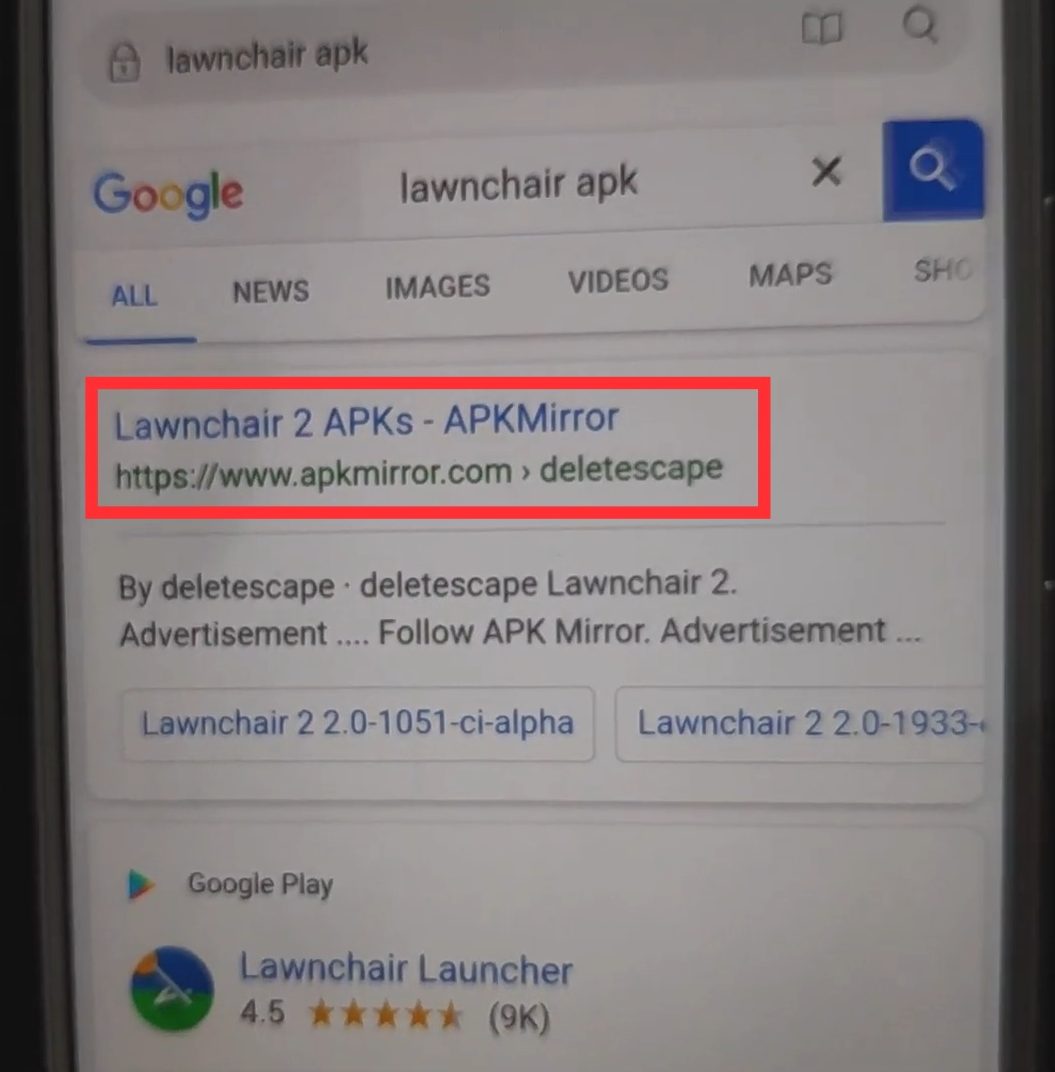
- Search for “Lawnchair APK”. Using the address bar above.

- Tap the one from APKMirror. It may or may not be first on the list.

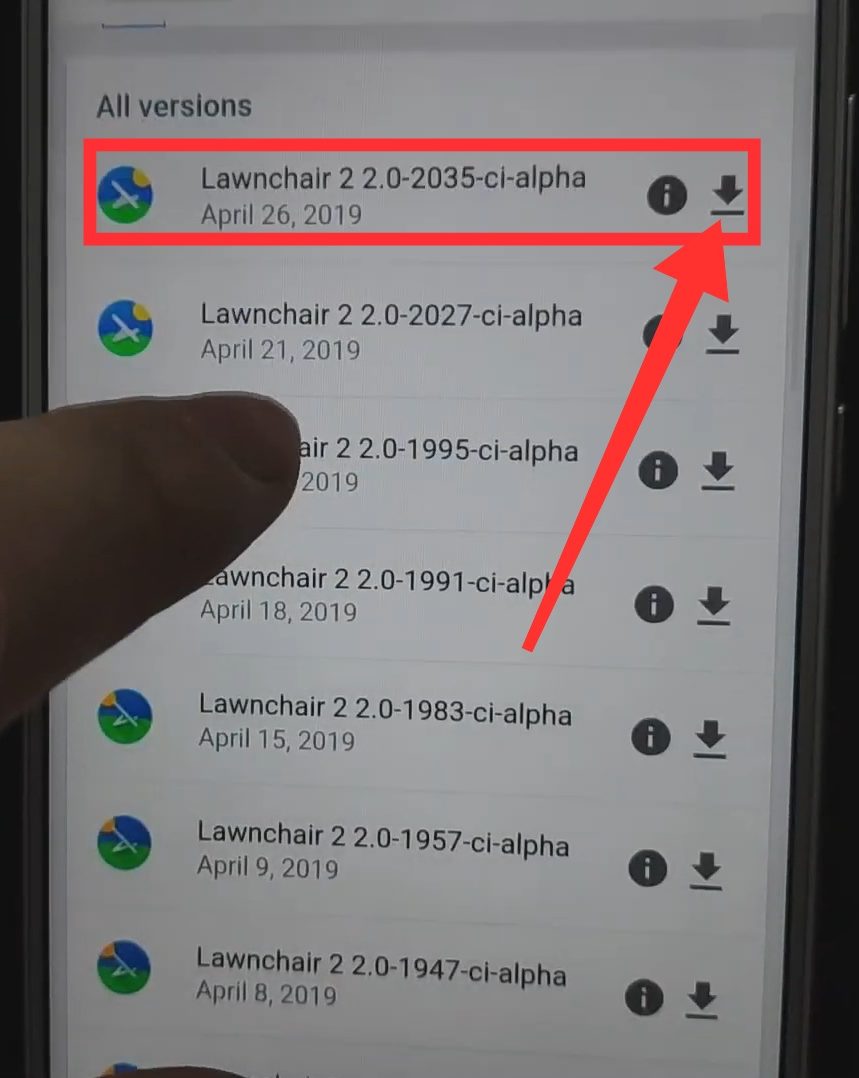
- Select the very first one. Usually, that’s the latest version.

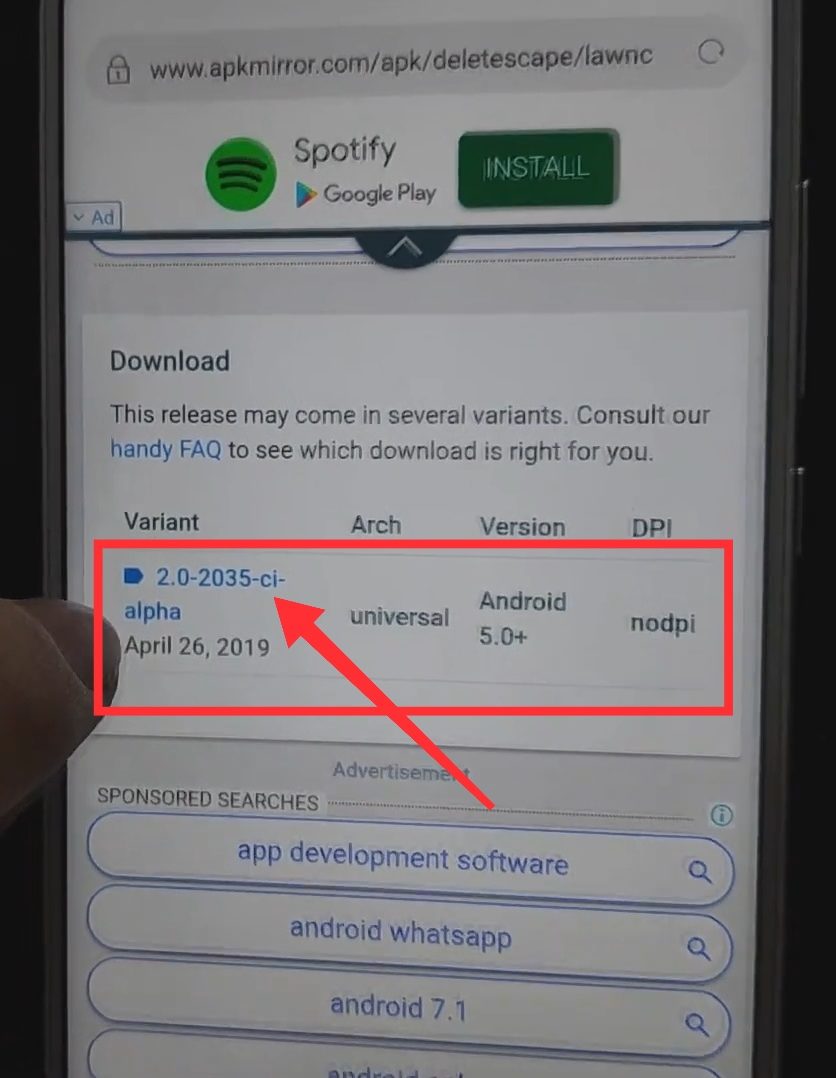
- Scroll down to download and click on the blue link.

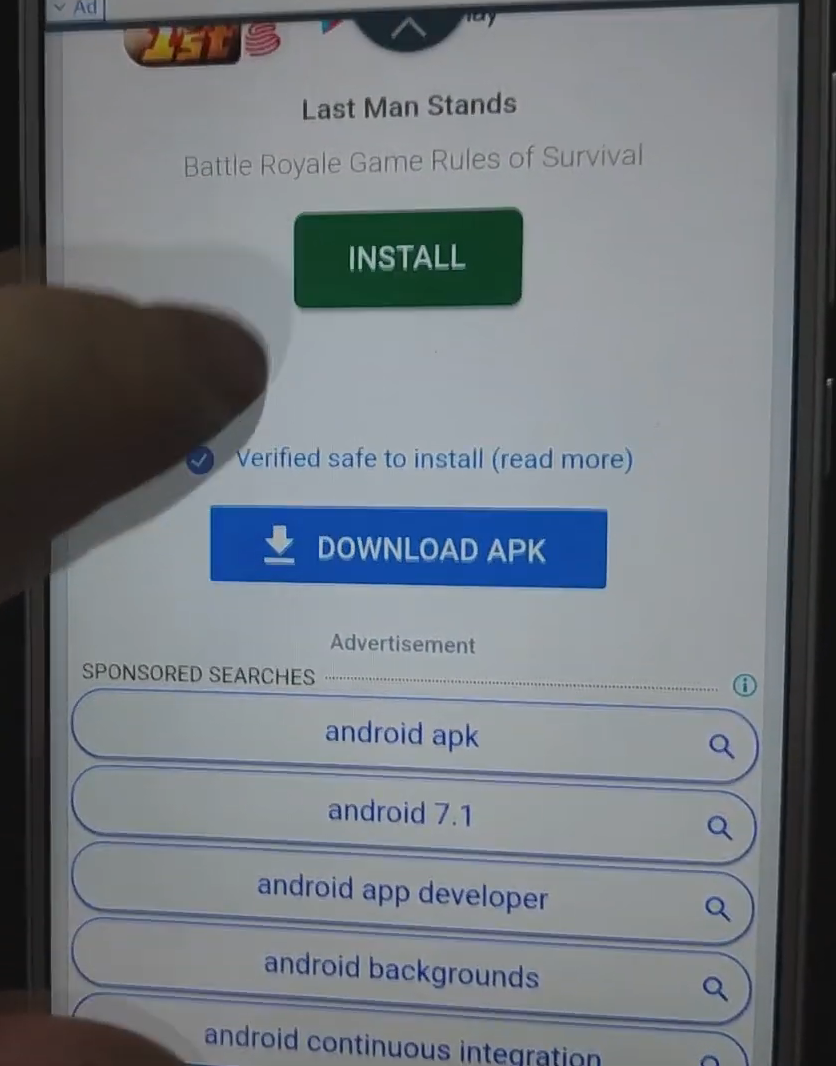
- Click on “Download APK”.

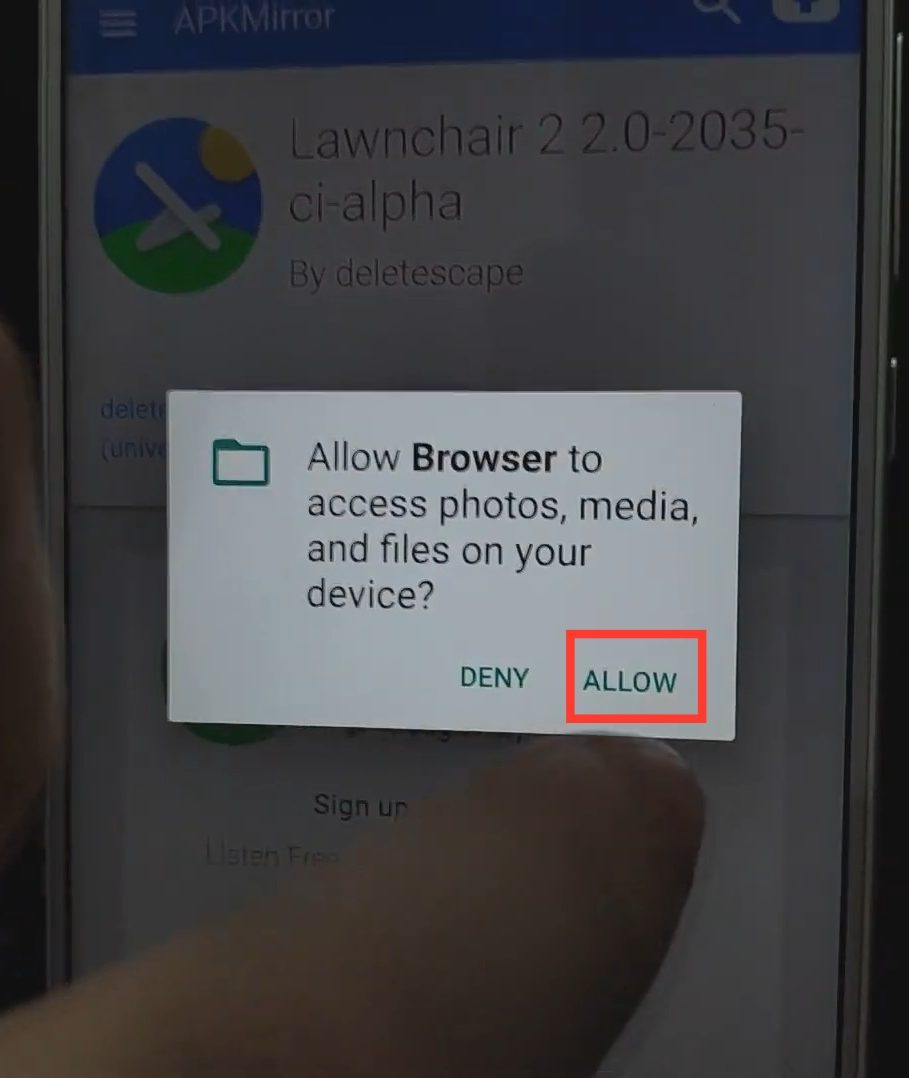
- Tap “Allow”.

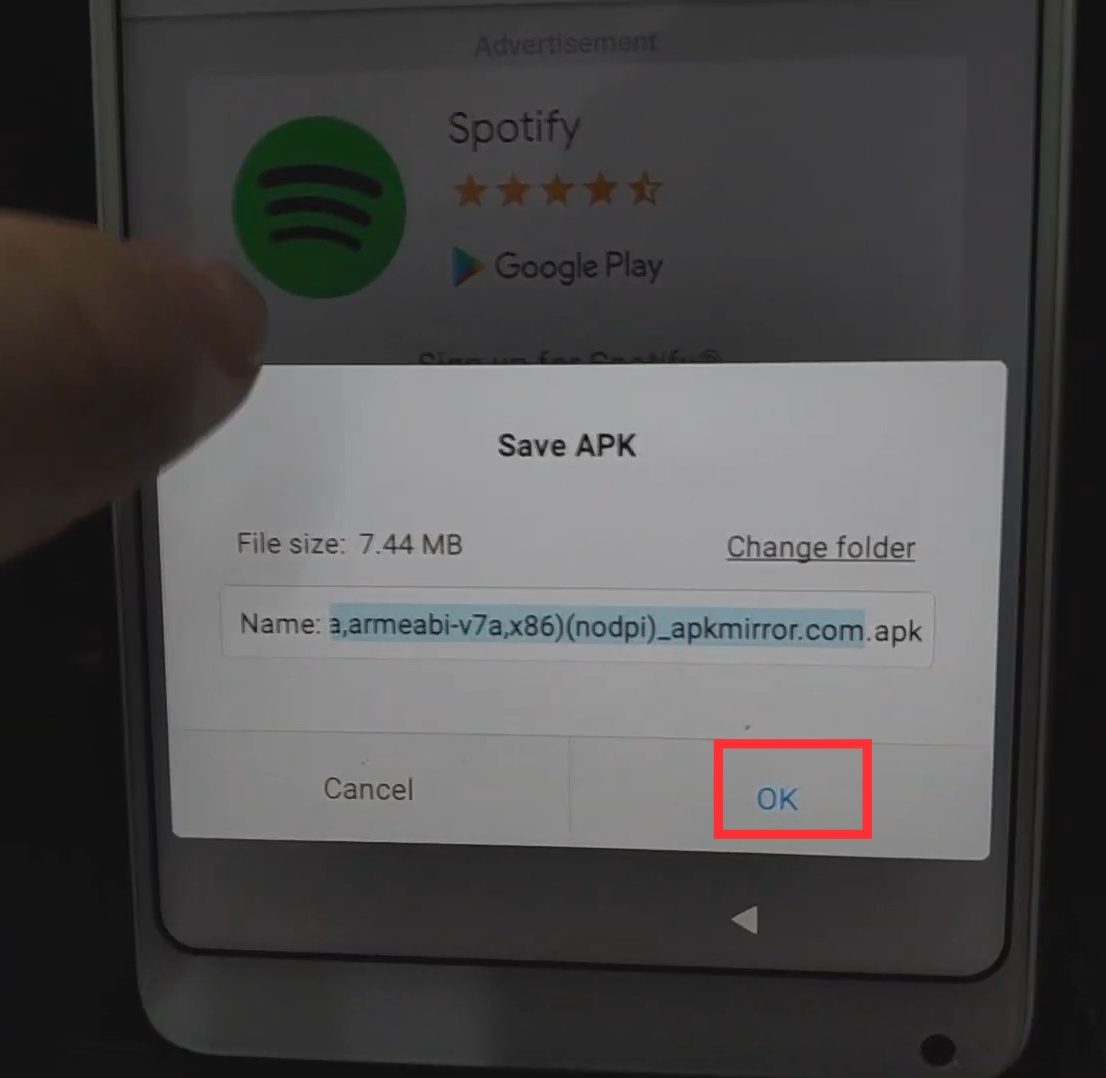
- When prompted to Save APK, tap “OK”.

- Once done downloading, tap “Settings”.

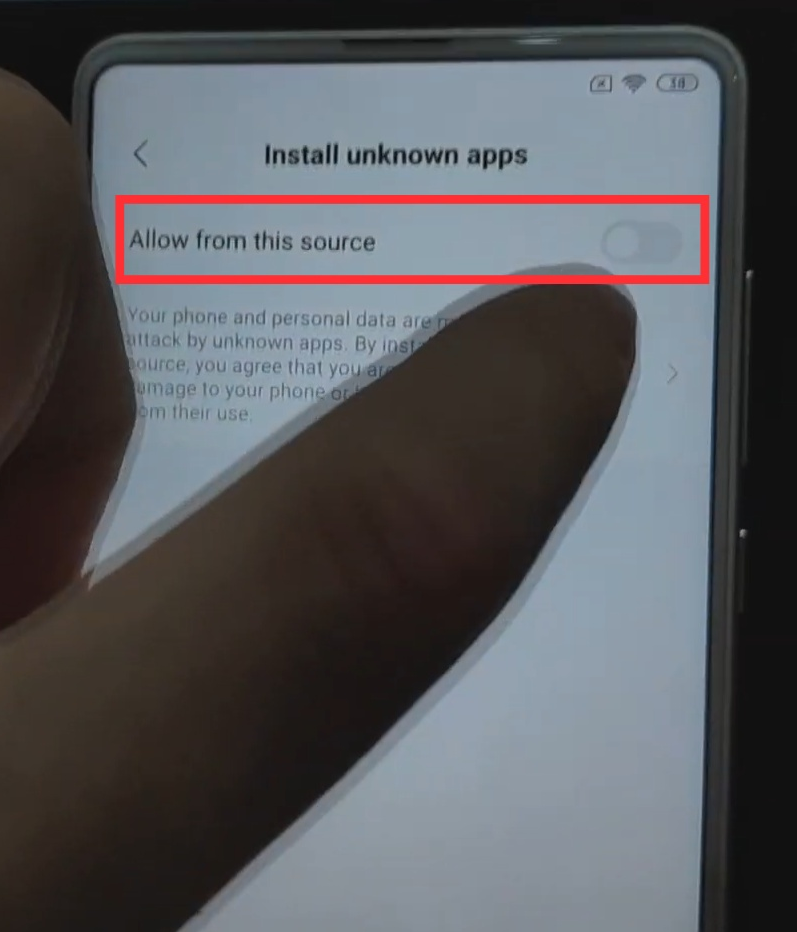
- Enable “Allow from this source”.

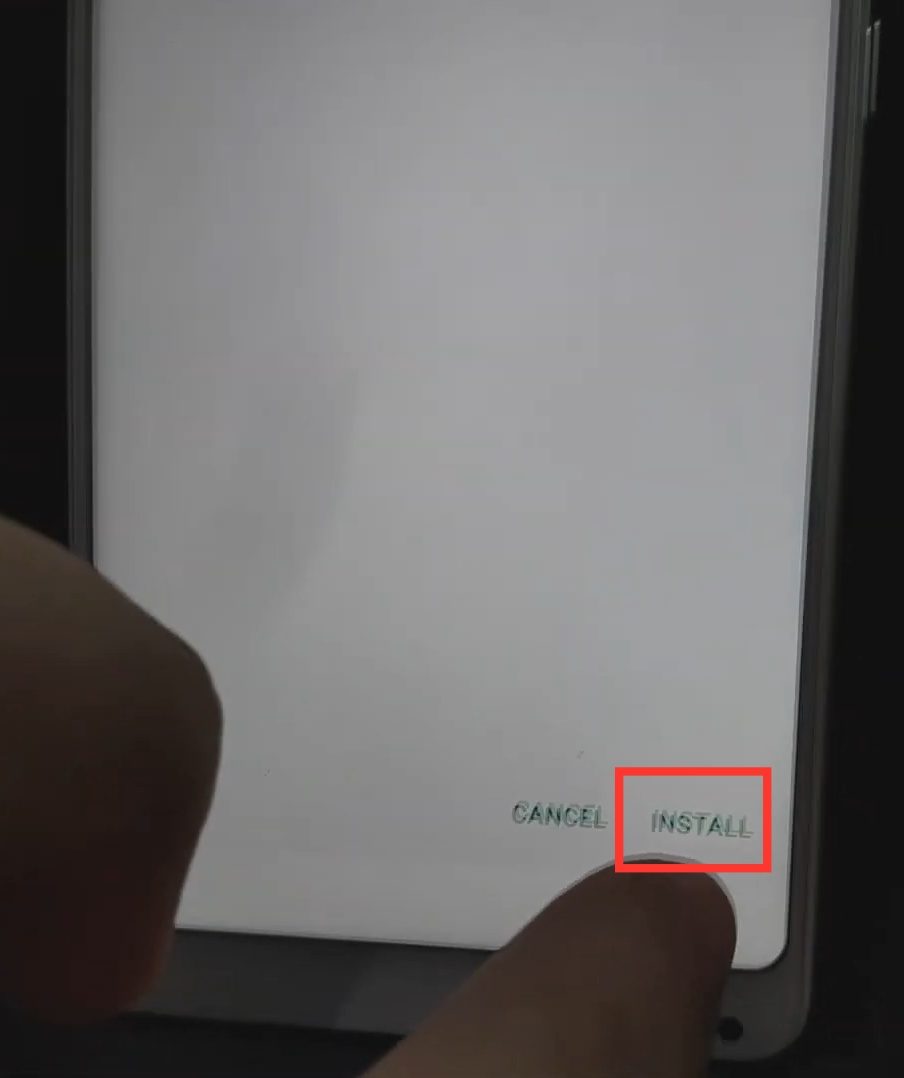
- Tap “Install”.

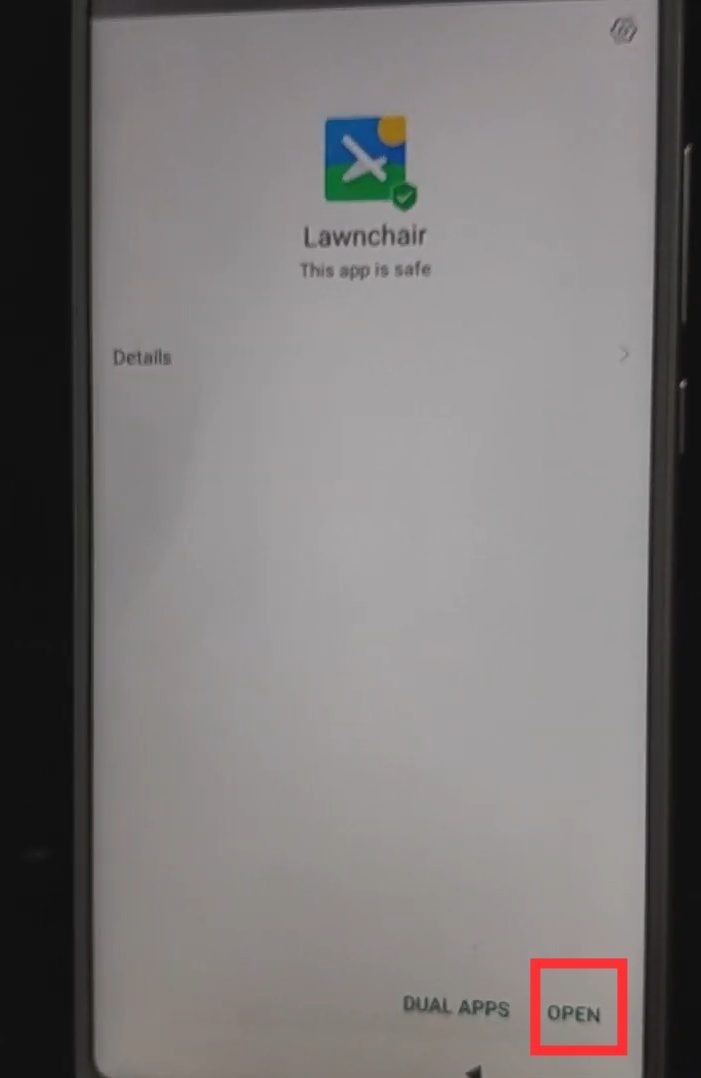
- Tap “Open”.

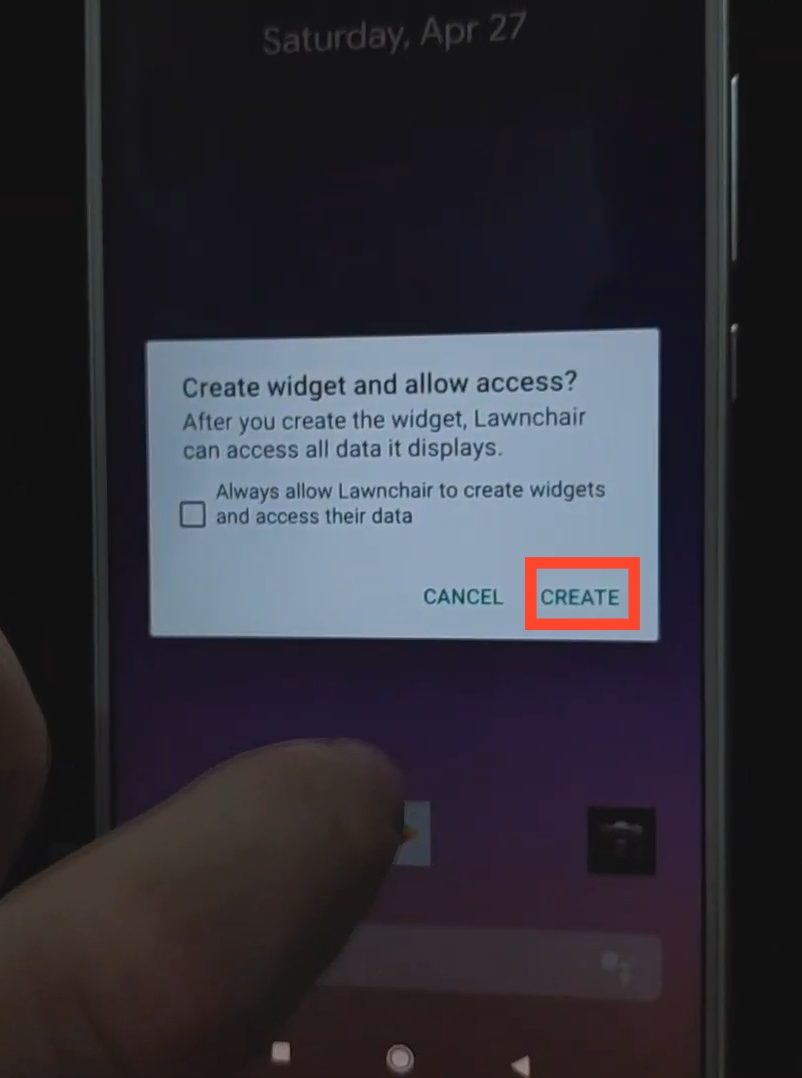
- Tap “Create”.

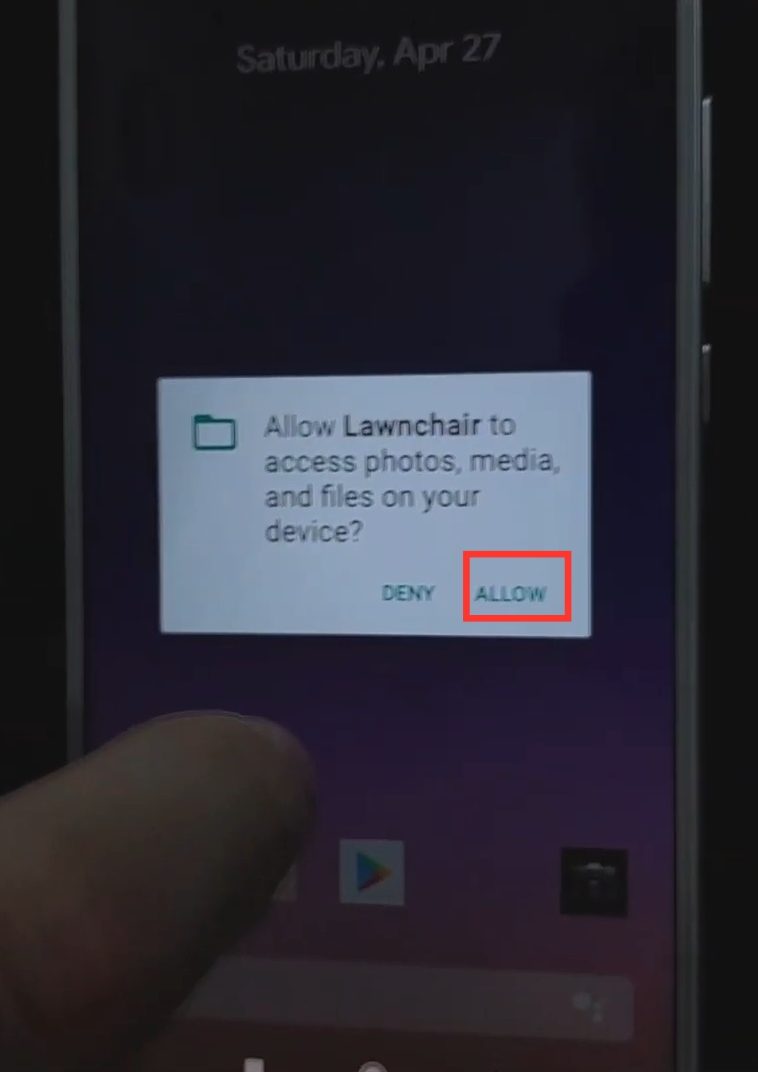
- Tap “Allow”.

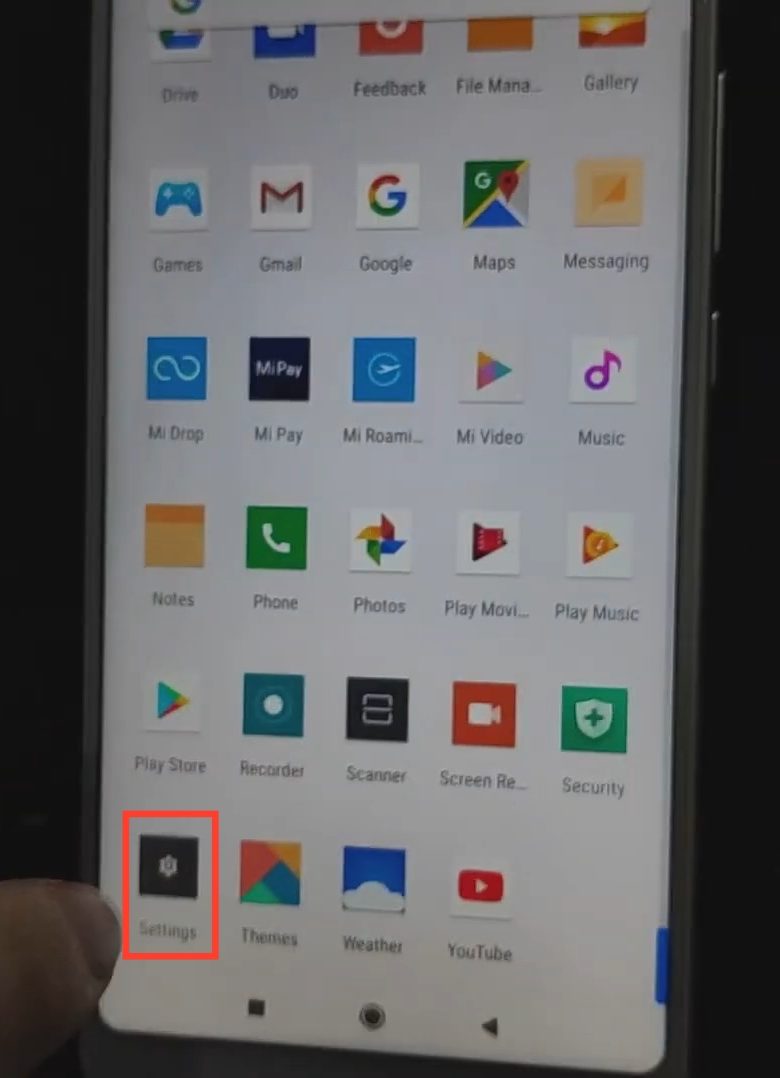
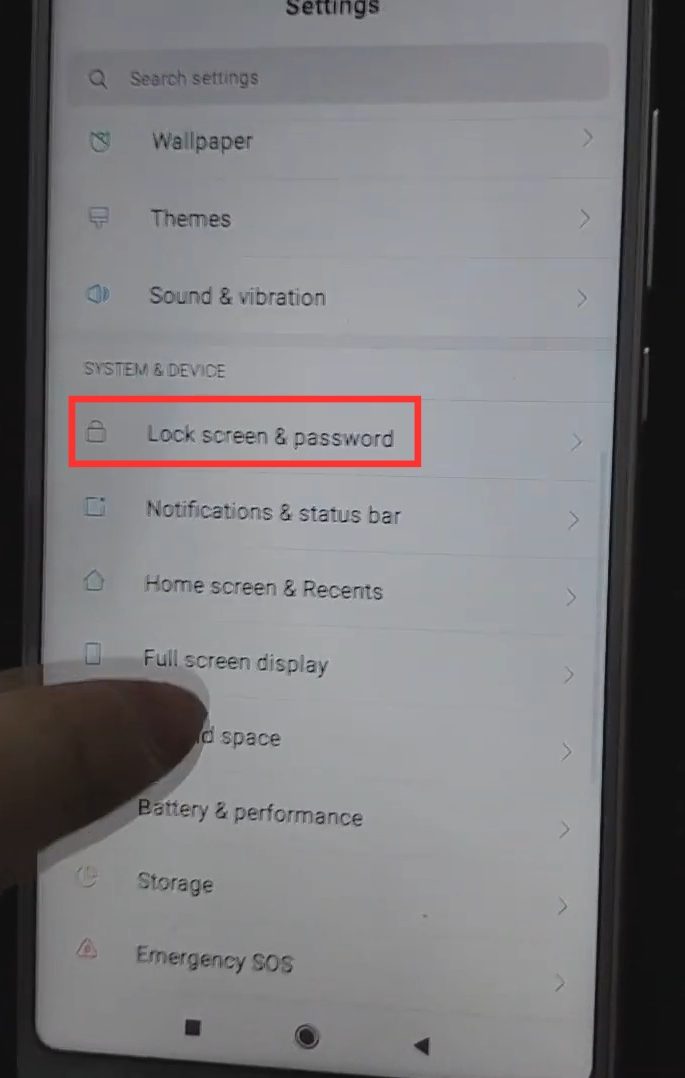
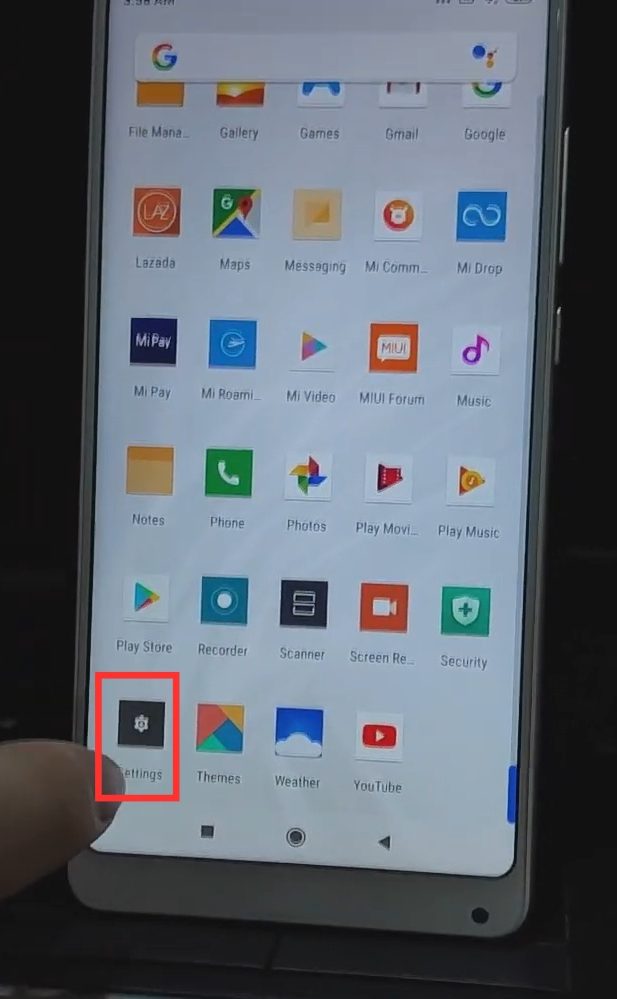
- Go to “Settings”.

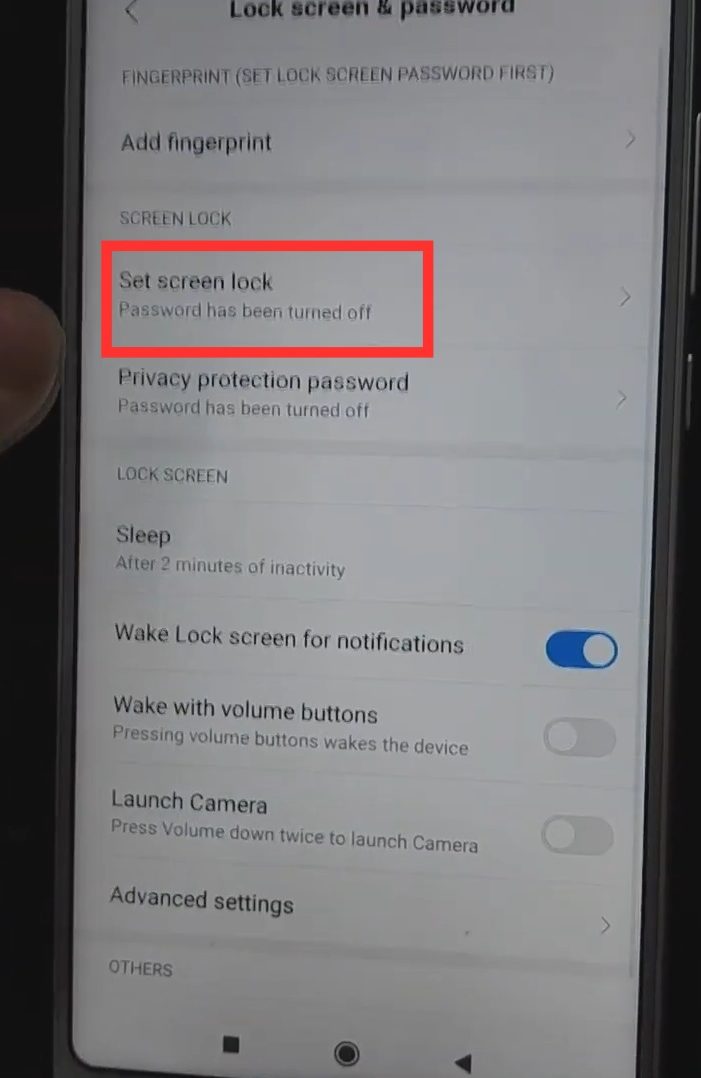
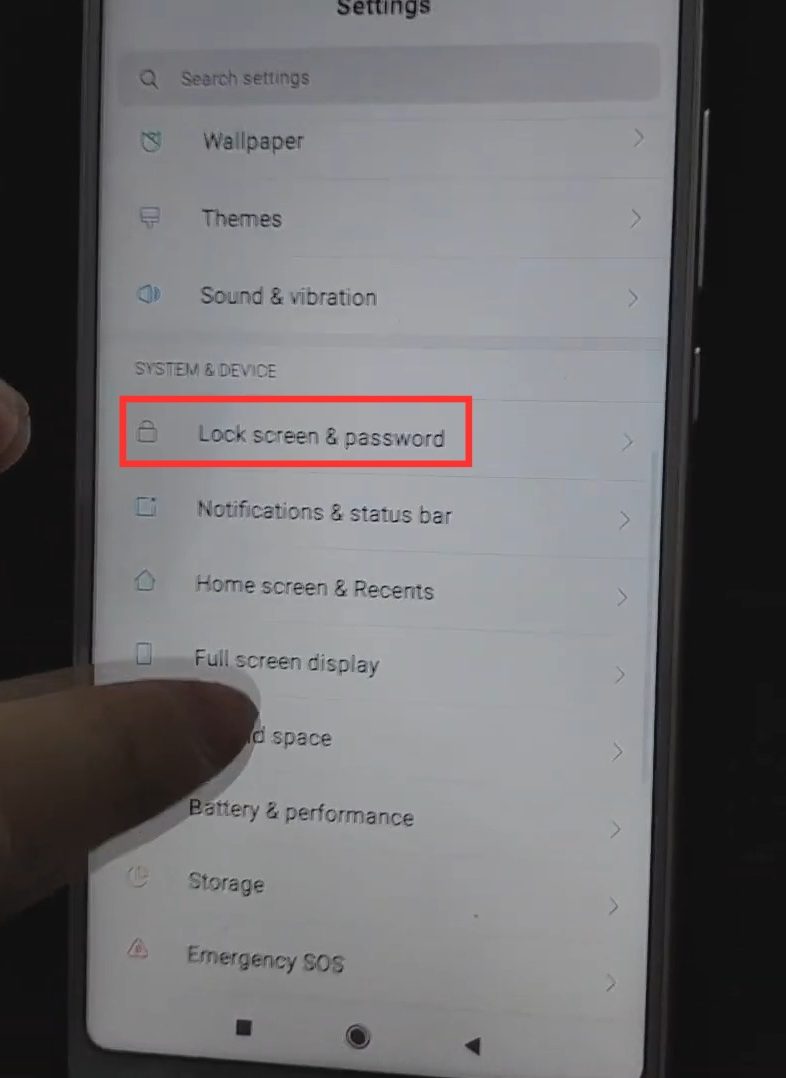
- Tap “Lock screen & password”.

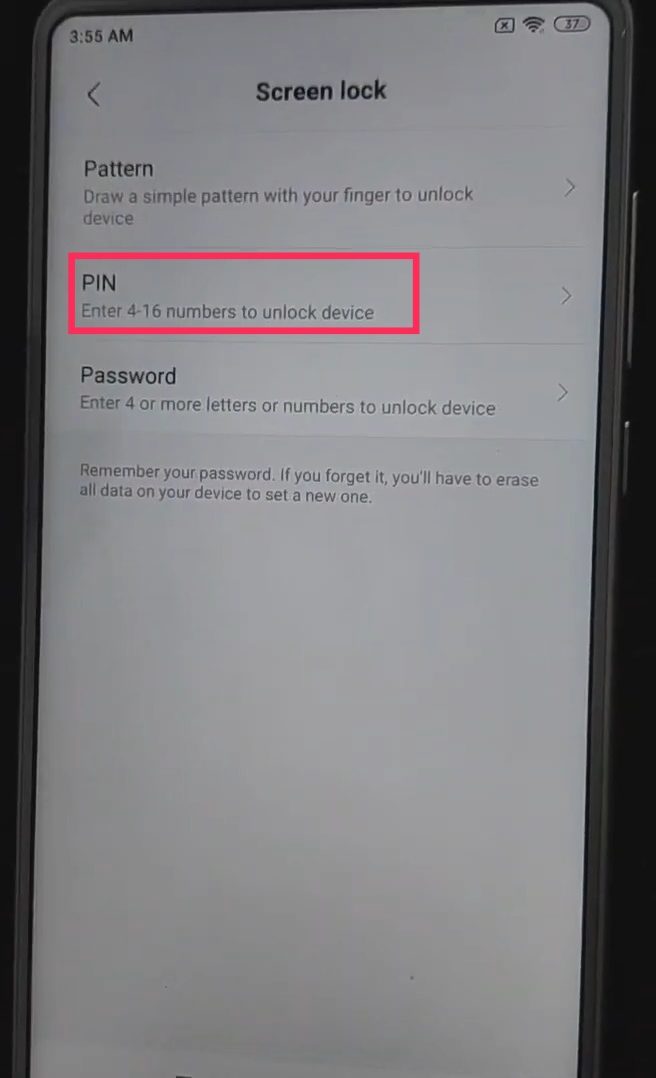
- Tap “Screen Lock”.
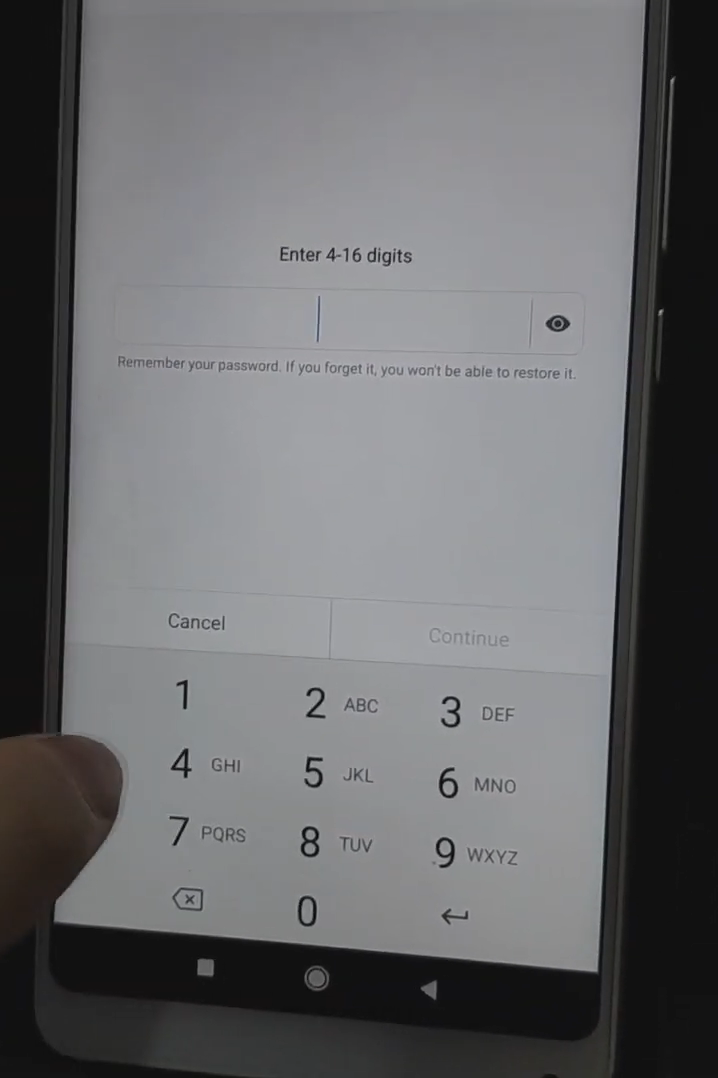
- Tap “PIN”.

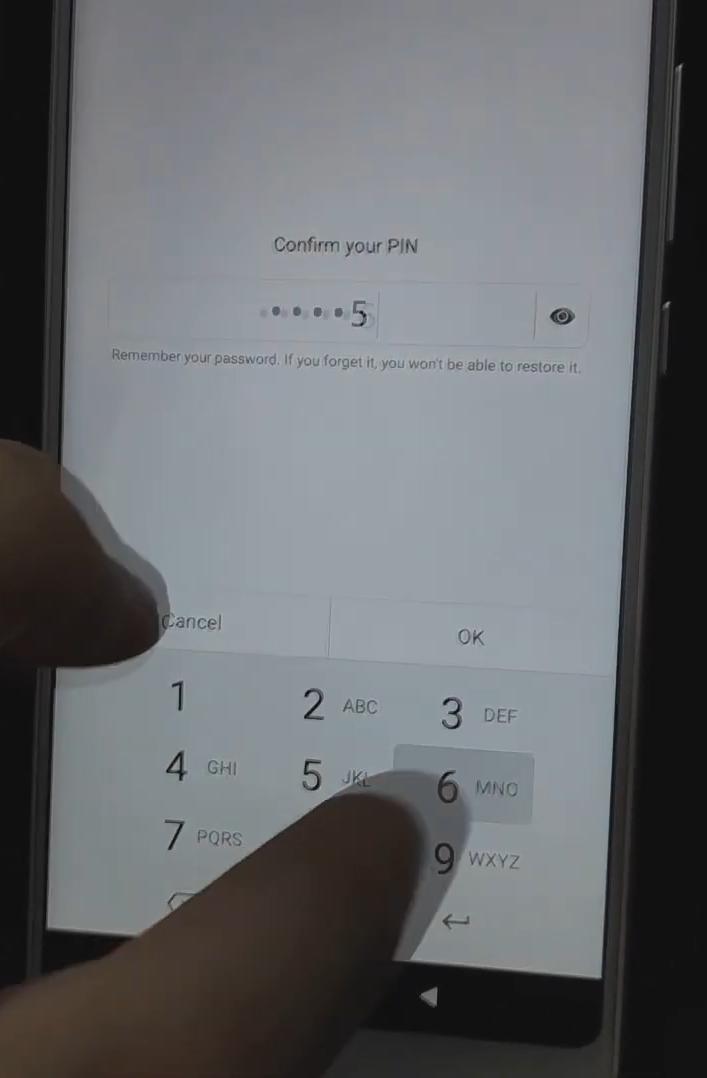
- Set a Pin. For this guide, I set it to 123456. But you can set whatever you want. Just remember it.

- Confirm the PIN that you created.

- When prompted to create a fingerprint, tap “Cancel”.

- When done, reboot the phone.
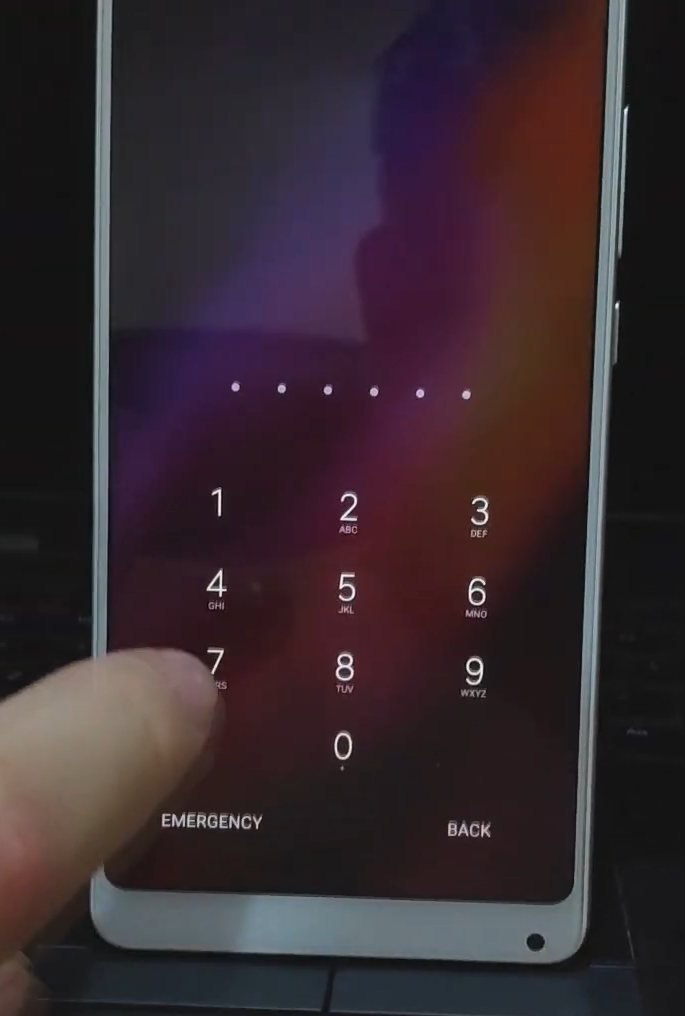
- Unlock the phone by swiping up and enter the pin that you created earlier.

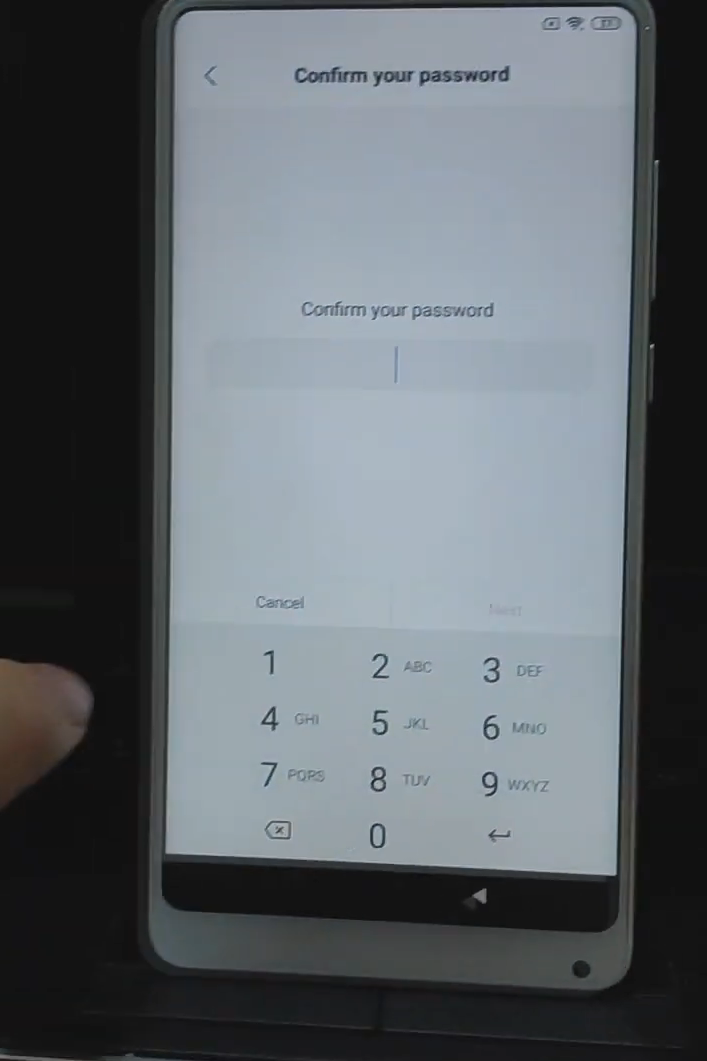
- When you see this screen, enter the PIN you created earlier.

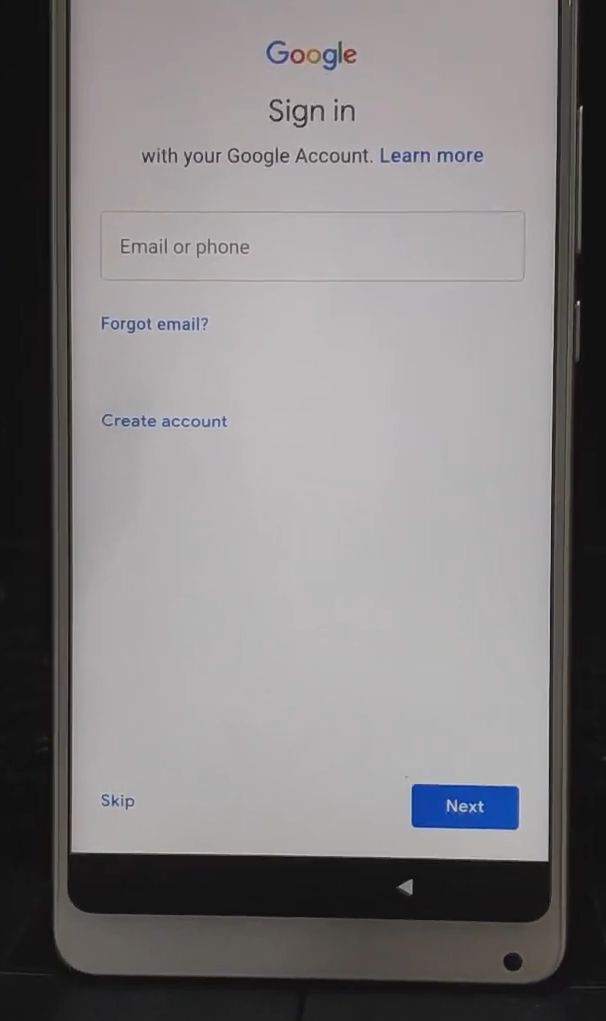
- When you see this screen, YOU DID EVERYTHING CORRECTLY! However, DON’T SIGN TO A GOOGLE AND MIUI ACCOUNT JUST YET.

- Just skip both Google and MIUI sign in and go through setup.
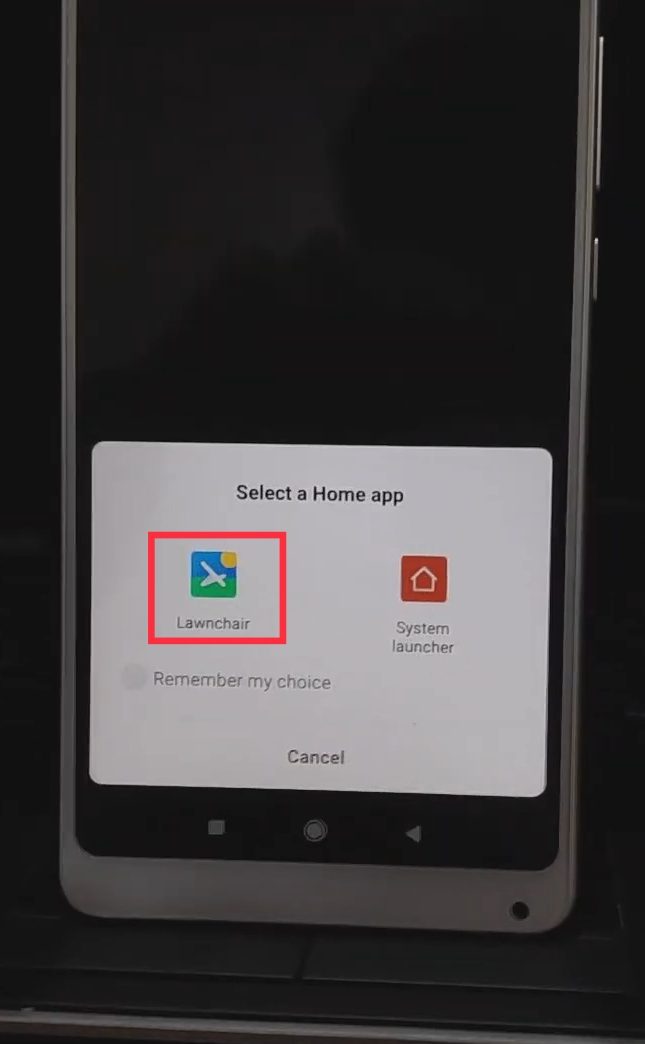
- At the end of the setup, you will be prompted what launcher to use. Choose “Lawnchair”.

- Go back to “Settings”. It’s recommended to do a factory reset.

- Tap “Additional Settings”.

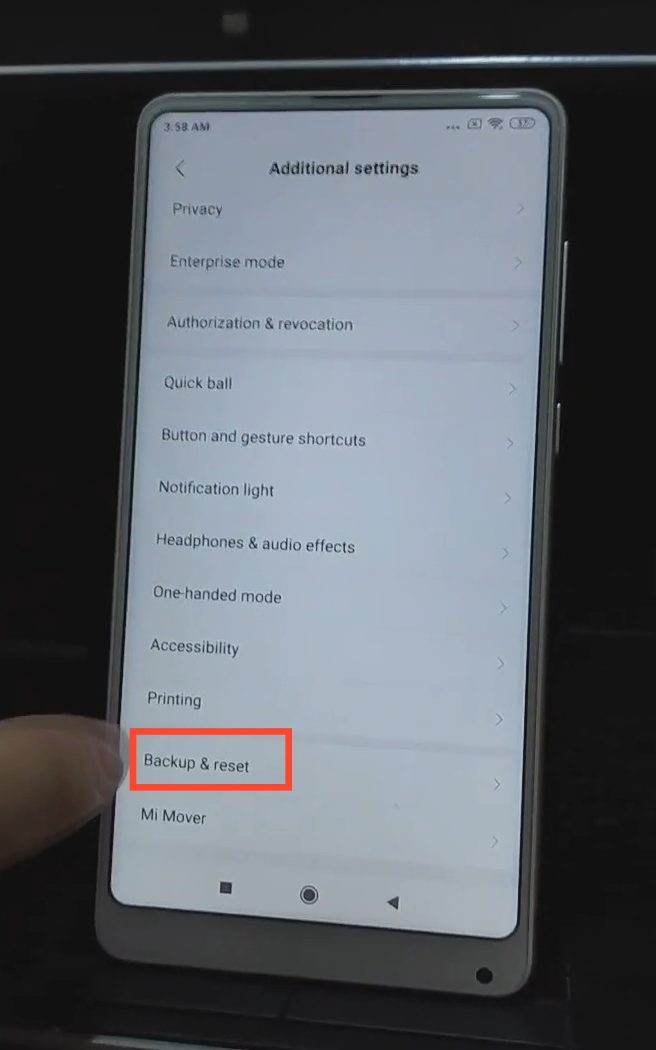
- Tap “Backup & reset”.

- Tap “Erase all data (factory reset)”.

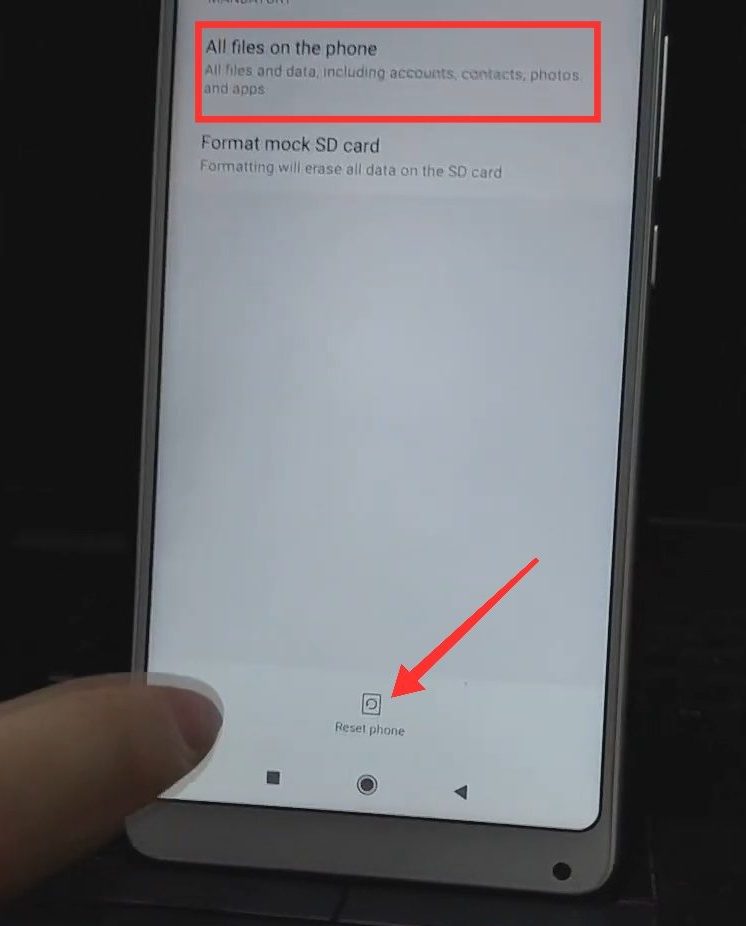
- Tap “All files on the phone”, and then tap “Reset phone”.

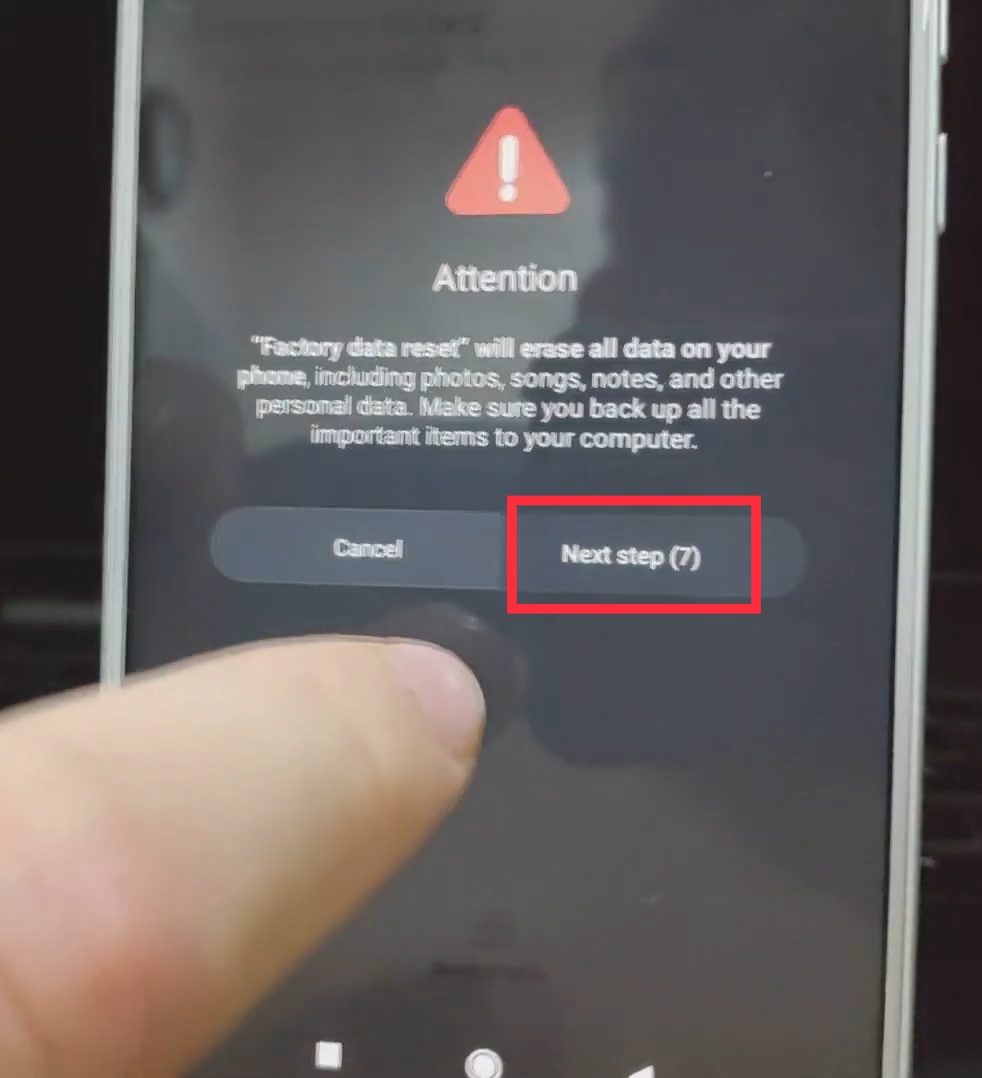
- Tap “next step” after the counter has elapsed.

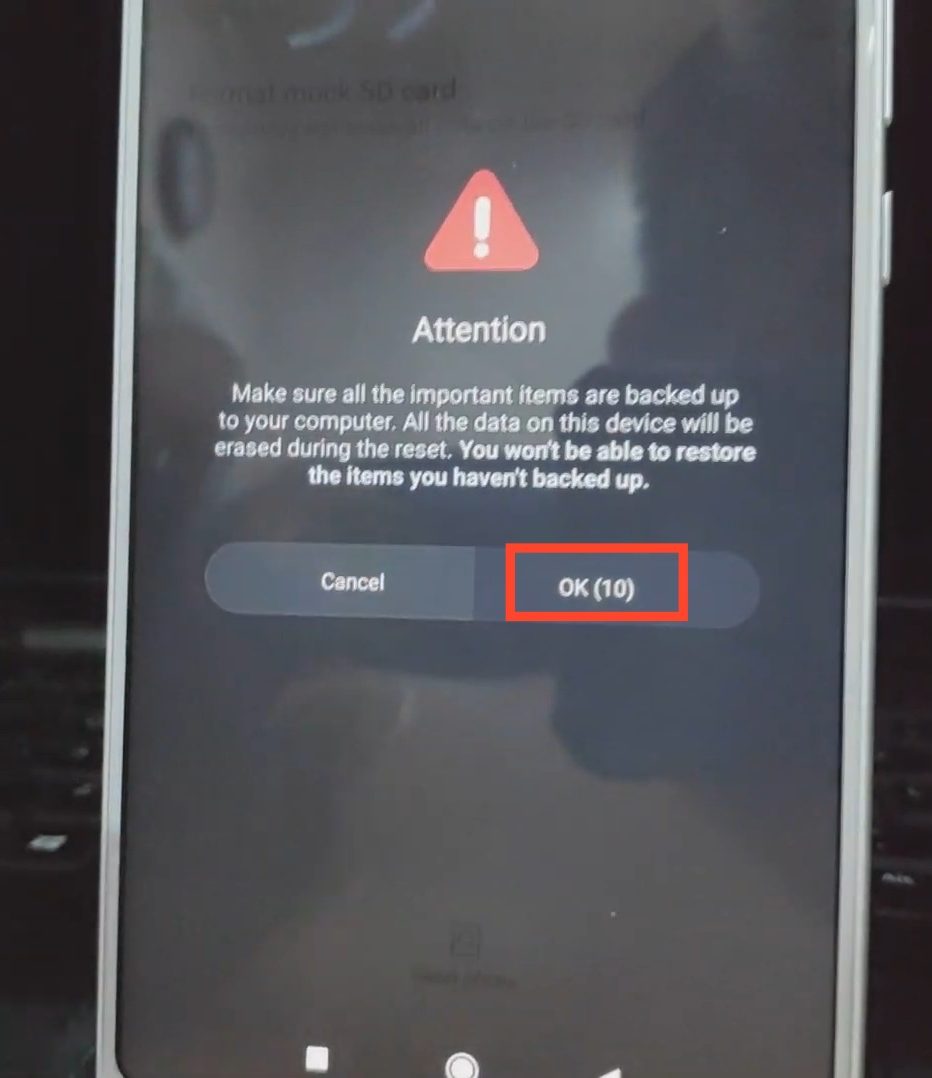
- Tap “OK” after the counter has elapsed.

- The phone will reboot. Once booted back up, continue setting up the phone like you would with a new phone. You should be able to sign in to any other Google account! CONGRATULATIONS!







All products, and company names, logos, and service marks (collectively the "Trademarks") displayed are registered® and/or unregistered trademarks™ of their respective owners. The authors of this web site are not sponsored by or affiliated with any of the third-party trade mark or third-party registered trade mark owners, and make no representations about them, their owners, their products or services.


Comments are closed.