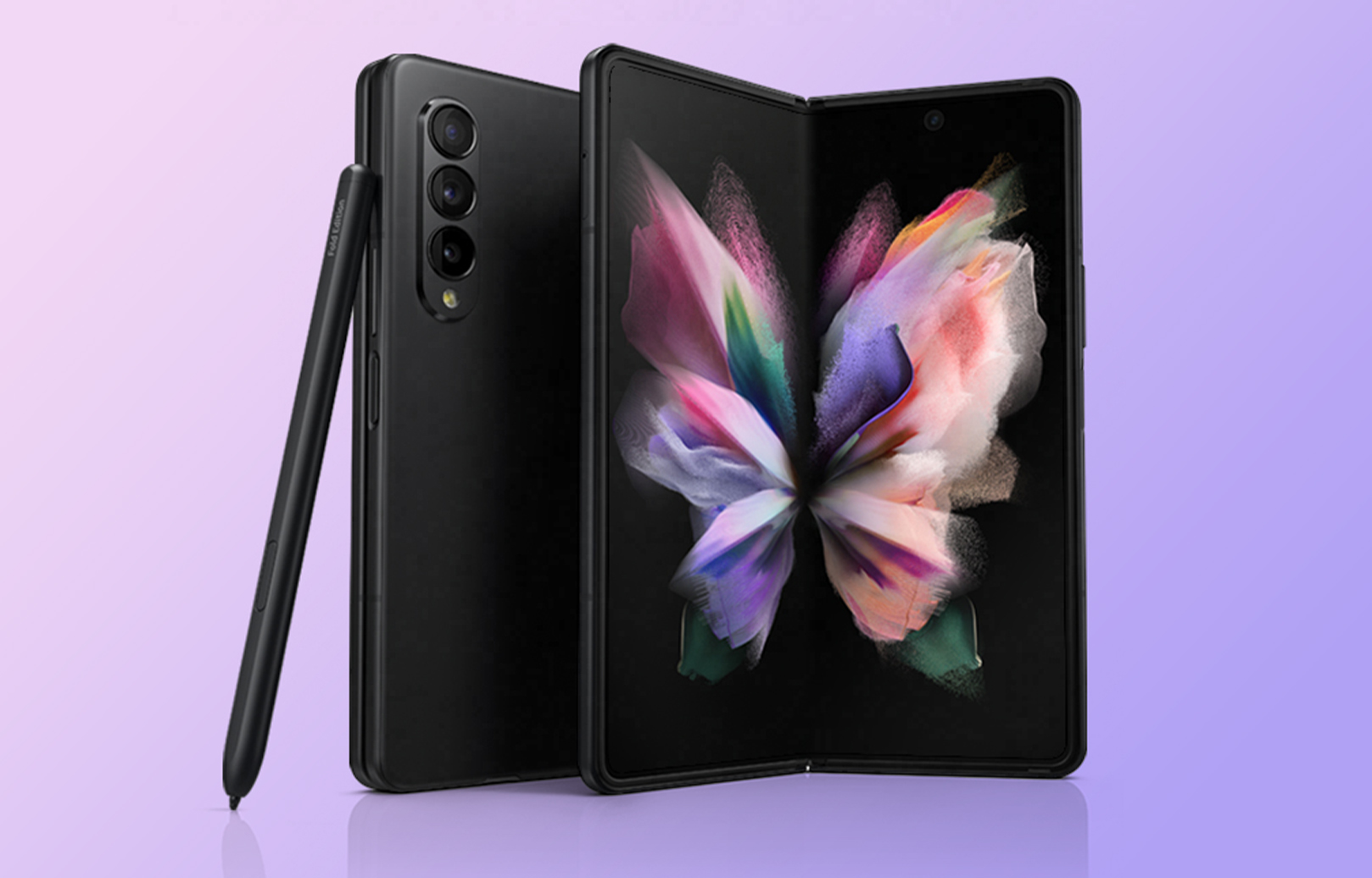
The Galaxy Z Fold 3 is Samsung’s most recent flagship phone. It’s also the most expensive phone the firm has ever made, so we understand if you opted to buy it through a carrier and utilize one of their installment plans to make it more affordable.
As a result, your phone is now tied to a specific carrier with its own set of restrictions. For example, one of the most significant restrictions is the SIM card’s carrier lock, which makes it unable to use with another carrier. Changing carriers or using it with a local telco in another country can be difficult because of this.
What is SIM restriction?
Sim restrictions are also referred to as SIM lock. Phones that are locked benefit the service providers more than any other group of people. A SIM-locked phone cannot be used on another network unless the user goes through the trouble of having it unlocked. Customers are discouraged from quitting their telecom by this method.
Advantages of using Galaxy Fold 3 unlocked
The consumer stands to gain the most from a Galaxy Fold 3 unlocked phone. When you own a Galaxy Fold 3 unlocked phone, the limitations of a locked phone are practically nonexistent.
Changing carriers is as simple as switching SIM cards on a Galaxy Fold 3 unlocked phone, which means it may be used on any network.
Traveling internationally? Bring your Galaxy Fold 3 unlocked phone. To save money on roaming charges while traveling outside your home country, simply buy a local SIM card from a local carrier and connect it into your Galaxy Fold 3 unlocked phone.
Dual-SIM phones are available on a few devices. It’s possible to have two distinct phone numbers and two different phone plans on a dual-SIM phone if the phone is unlocked.
If you are considering selling your Galaxy Fold 3 unlocked phone, you should know that it will be very simple to do so because most people these days choose to buy unlocked phones.
How to make your Galaxy Fold 3 unlocked?
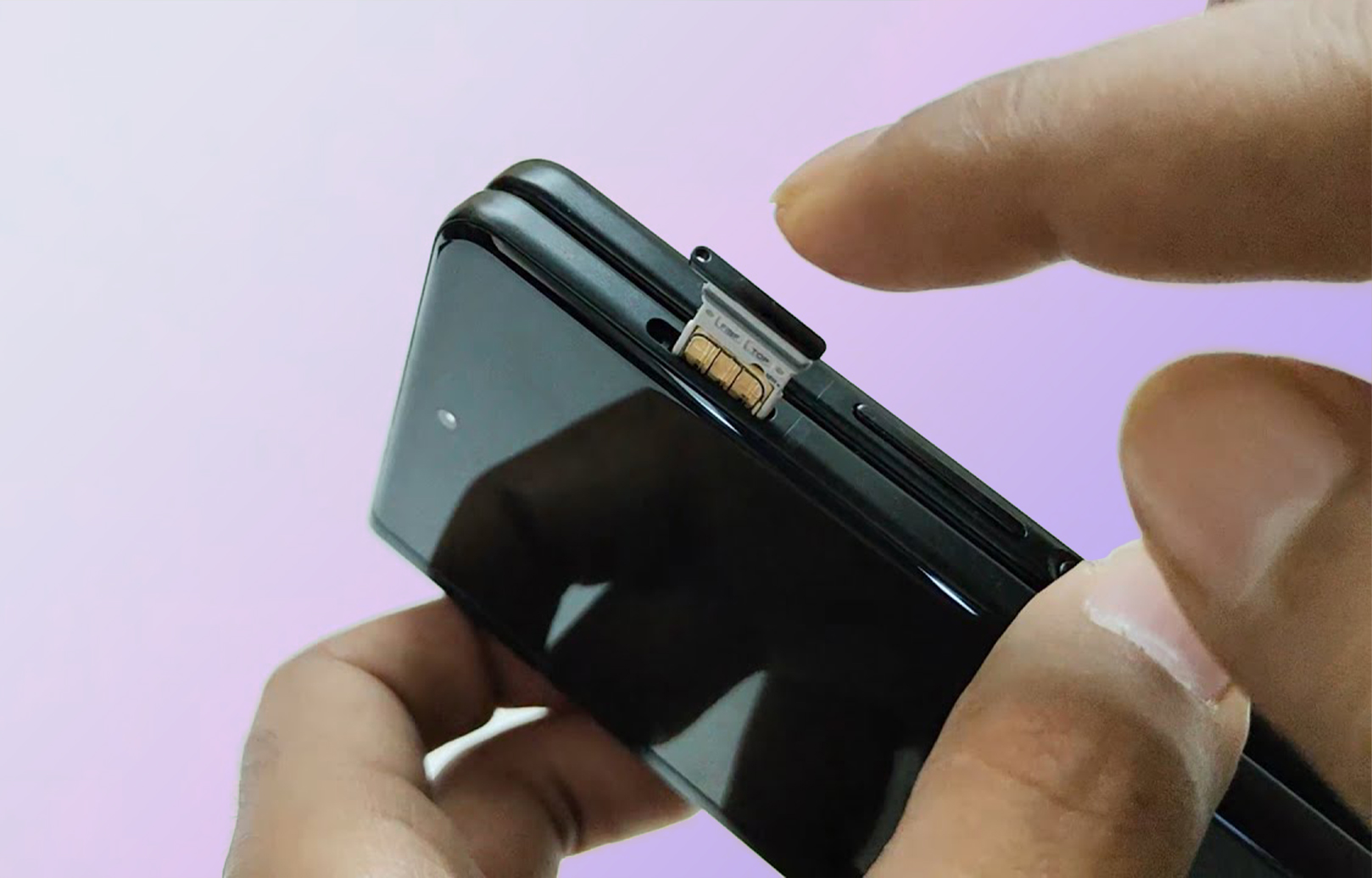
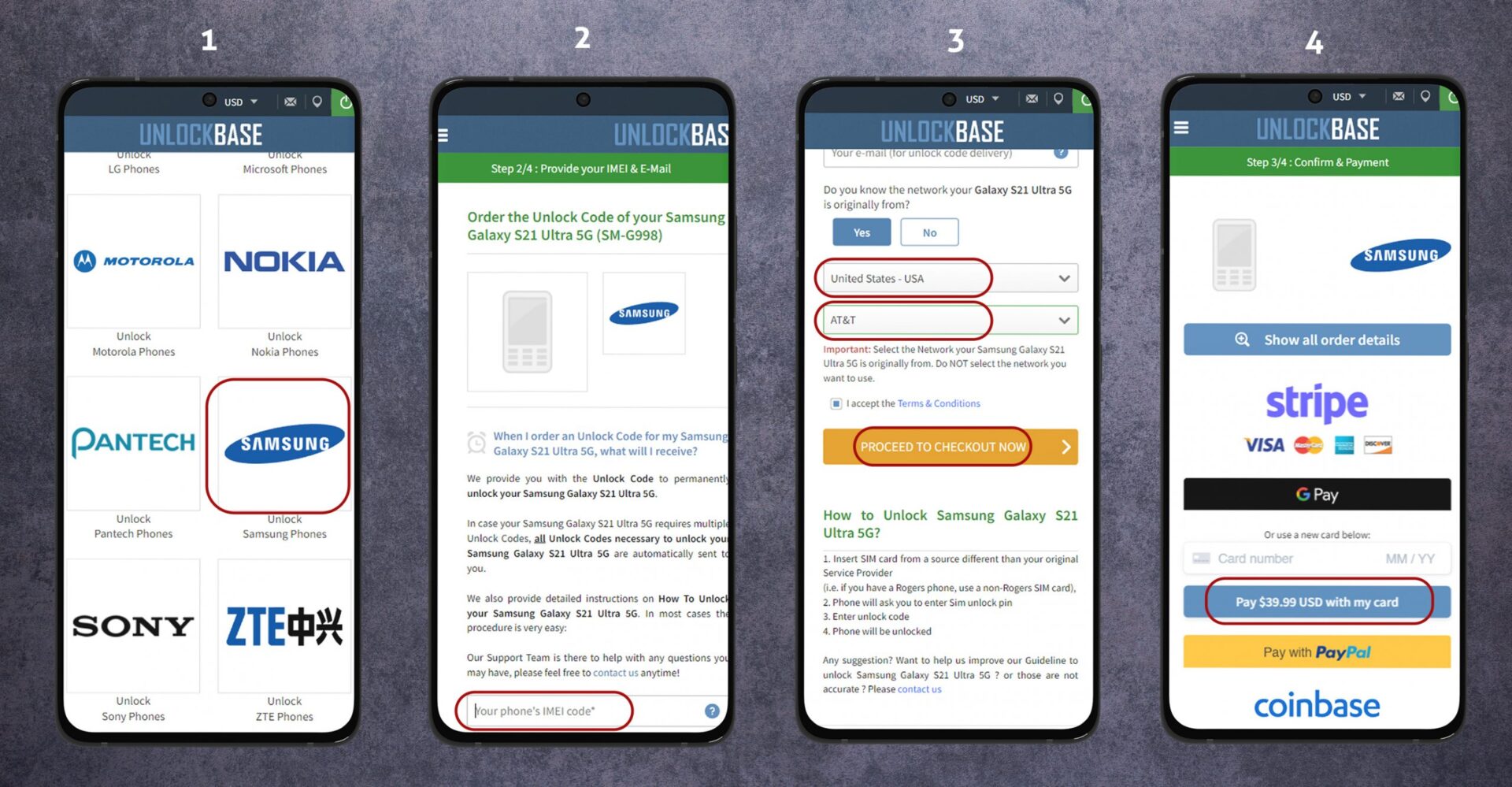
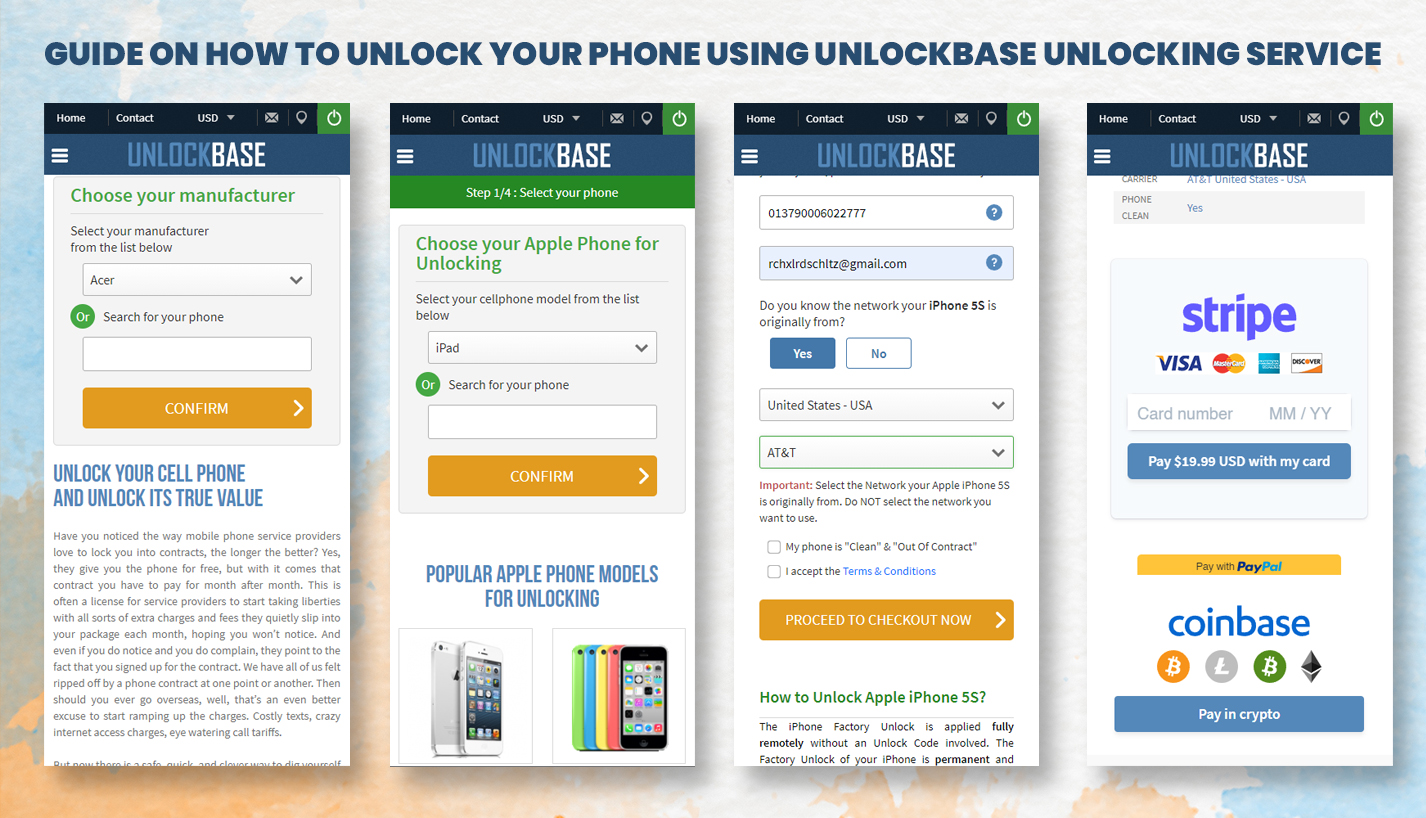
To bypass sim restrictions of your Galaxy Fold 3 phone, please follow the procedures listed below:
If you are unhappy with the service provided by your current carrier, move to a different region, are traveling, or wish to keep using your old handset even after switching networks, having your Galaxy Fold 3 unlocked will allow you to transfer carriers without having to give up your previous device. Unlocking your phone is required if you want to use it with a different wireless service provider or if you want to get more money for it when you sell it. Don’t be concerned; engaging in such behavior does not violate any laws.
Conclusion
SIM restrictions allow telecommunications companies to limit a customer’s use of their service on their mobile device. These locked phones are advantageous for service providers since they make it more difficult for customers to migrate to other telecoms when they discover a more attractive offer from another carrier. Getting your Galaxy Fold 3 unlocked is a hassle-free and inexpensive option that offers a lot of conveniences. Please share your thoughts and experiences with us in the comment section on how your Galaxy Fold 3 unlocked phone is treating you.
All products, and company names, logos, and service marks (collectively the "Trademarks") displayed are registered® and/or unregistered
trademarks™ of their respective owners.
The authors of this web site are not sponsored by or affiliated with any of the third-party trade mark or third-party registered trade mark owners,
and make no representations about them, their owners, their products or services.
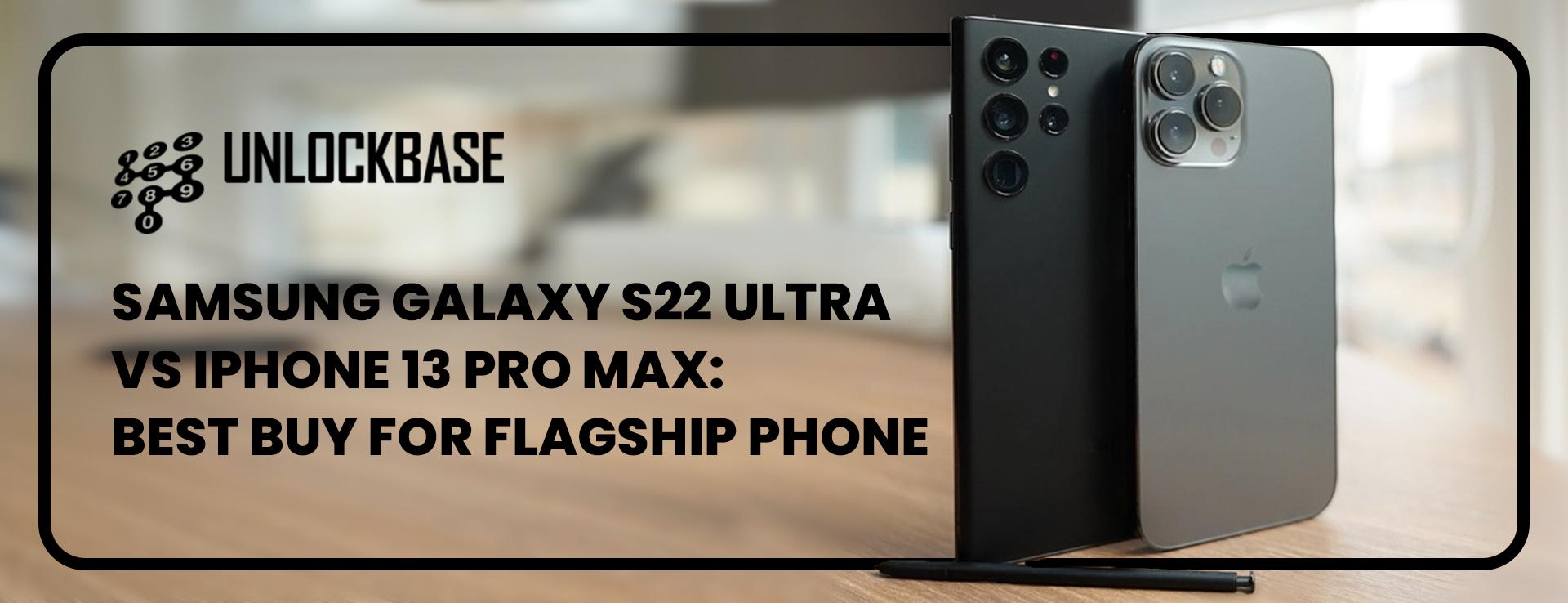
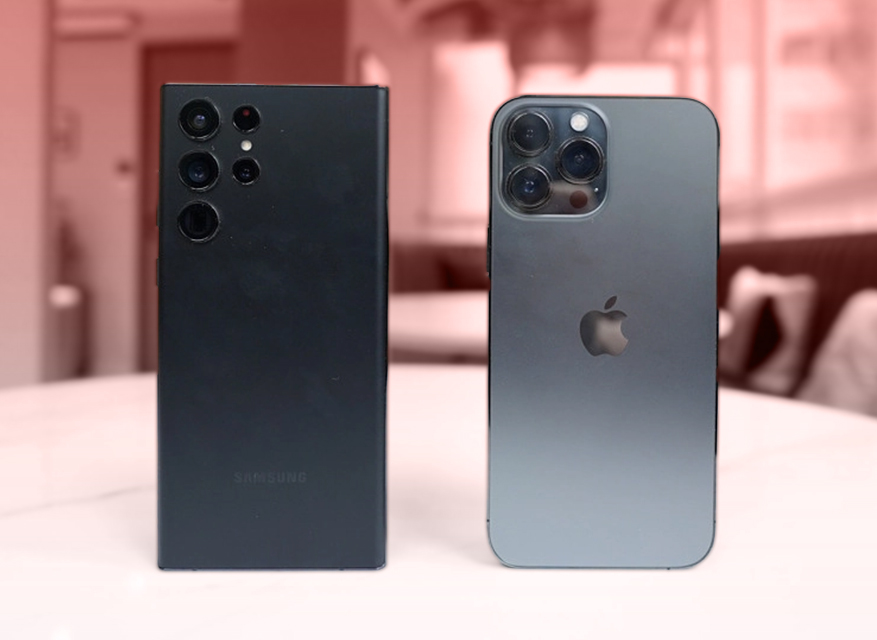
S22 Ultra VS iPhone 13 Pro Max : The Samsung Galaxy S22 Ultra vs iPhone 13 Pro Max matchup pits the two best-and-largest smartphones from each brand’s respective lineups against one another. Samsung Galaxy S22 Ultra and iPhone 13 Pro Max face off in a head-to-head matchup. We’ve never seen this close of a matchup between Samsung and Apple before. Below, we’ll compare the two titans in terms of design, performance, display, cameras, as well as pricing, to assist you in making an informed decision.
S22 Ultra VS iPhone 13 Pro Max : Design
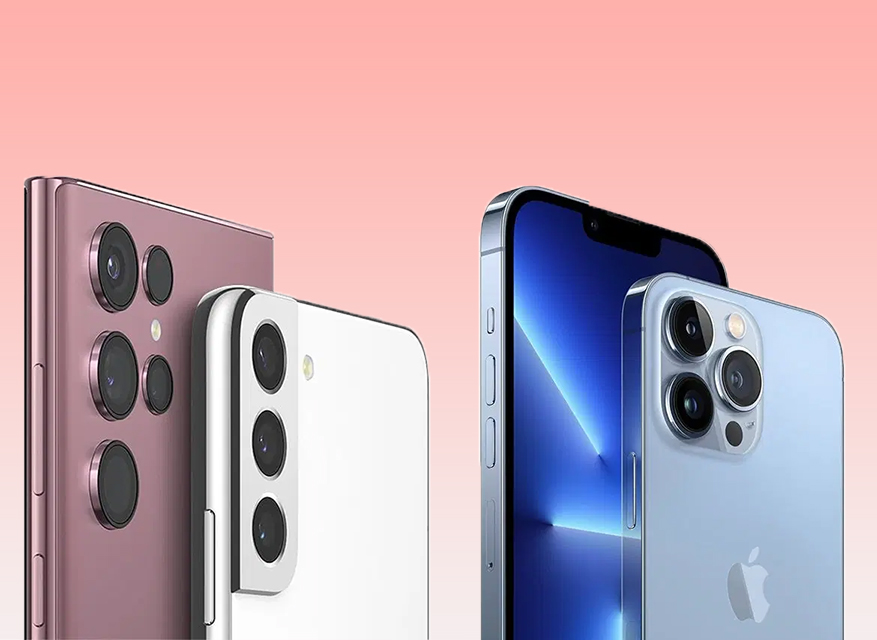
The Galaxy S22 Ultra from Samsung just looks and feels more streamlined than the iPhone 13 Pro Max, and it all starts with a camera array that is more flush with the design of the phone. The lenses of the iPhone are grouped in a more chunky block that is located on the back of the device.
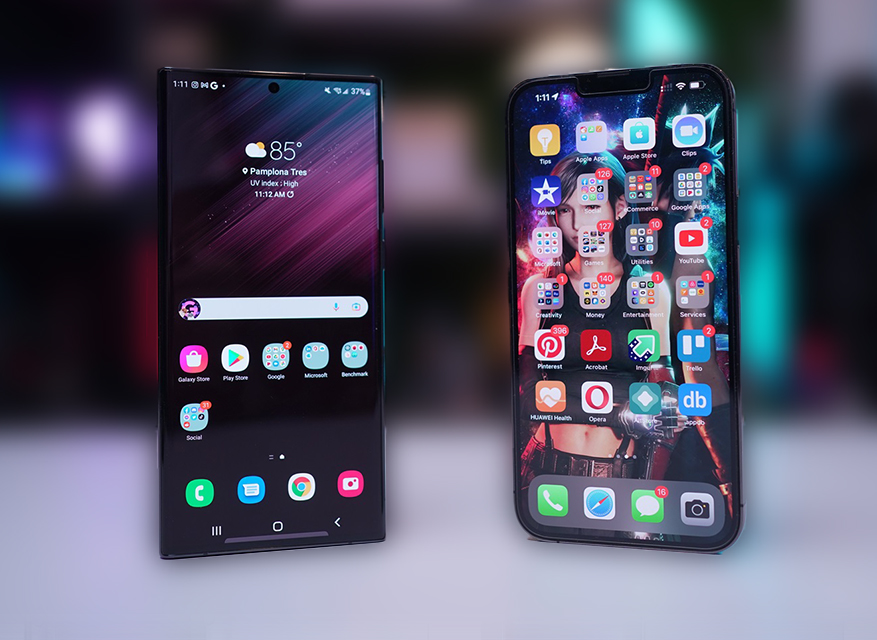
One further thing going in Samsung’s favor is the fact that its display does not have a notch on it. Even while the notch on the iPhone 13 Pro Max isn’t as large as it used to be, it’s still more distracting than the punch hole on the Galaxy S22 Ultra.
Nonetheless, while the slightly curved display on the S22 Ultra makes the device more visually appealing, it also has the potential to make typing and moving the mouse more difficult than it should be. The display on the iPhone 13 Pro Max is flat, which makes it somewhat simpler to operate and grip than previous models.
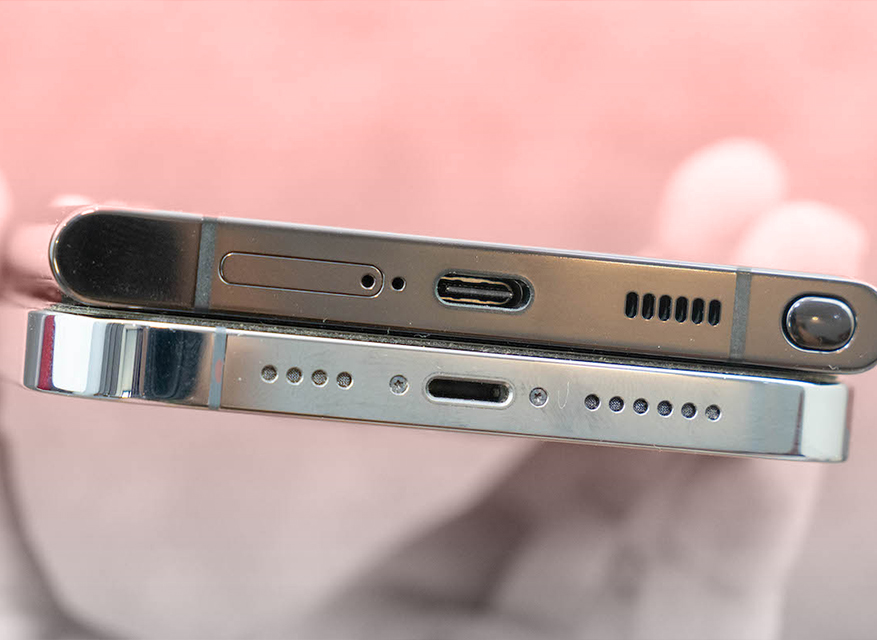
The Galaxy S22 Ultra has dimensions of 6.4 inches by 3.1 inches by 0.4 inches and weighs 8.1 ounces. Compared to the iPhone 13 Pro Max, which has dimensions of 6.3 inches by 3.1 inches by 0.3 inches and weighs 8.5 ounces, the Galaxy S22 Ultra is taller but lighter.
S22 Ultra VS iPhone 13 Pro Max : Display
Both the Galaxy S22 Ultra and the iPhone 13 Pro Max have breathtaking AMOLED displays; therefore, you won’t make a mistake by purchasing either one of these phones.
The brightness of the S22 Ultra reached 1,359 nits, making it somewhat superior to its predecessor. The brightest possible setting for the iPhone 13 Pro Max was 1,038 nits. In addition, the display panel of the Galaxy S22 Ultra covered a larger portion of both the sRGB color gamut (137.5 percent) and the more stringent DCI-P3 color space (97.4 percent), in comparison to the iPhone 13 Pro Max’s coverage of 109.3 percent and 77.4 percent respectively.
However, the panel from Apple has an advantage in terms of color accuracy because it achieved a Delta-E score of 0.21, whereas a score of 0 is considered to be flawless. The S22 Ultra performed marginally worse, with a score of 0.25.
There have been reports of display issues with certain models of the Samsung Galaxy S22 Ultra that are powered by an Exynos chipset, and the manufacturer has promised a solution. It would appear that the problem does not manifest itself in the Qualcomm Snapdragon 8 Gen 1 variant of the S22 Ultra.
S22 Ultra VS iPhone 13 Pro Max : Camera
In comparison to the Galaxy S21 Ultra, the Galaxy S22 Ultra has a bigger sensor and a higher resolution main camera with 108MP. A 12MP ultrawide lens and dual 10MP telephoto lenses round out the camera’s optical zoom capabilities, which go as high as 10x and as far as 100x, respectively.
The main, ultra-wide, and telephoto cameras of the iPhone 13 Pro Max all have a resolution of 12 MP. In addition to increasing the main sensor’s size, Apple did so to allow for more light to reach the sensor. However, the iPhone 13 Pro Max’s optical zoom is limited to 3x.
S22 Ultra VS iPhone 13 Pro Max : Video
The iPhone 13 Pro Max’s video recording capabilities are limited to 4K at a maximum of 60 frames per second, while the Samsung Galaxy S22 Ultra can record up to 8K video at a frame rate of 24 frames per second. However, only the iPhone supports a Cinematic mode for video recording, which produces a rack focus effect and automatically switches subjects depending on who is speaking. This mode is exclusive to the iPhone. The Galaxy S22 Ultra includes a portrait video mode, although it isn’t as intelligent as the one on the Galaxy S10. The Samsung phone’s Auto Framing feature can automatically monitor up to ten people and maintain them in the center of the frame.
S22 Ultra VS iPhone 13 Pro Max : Performance
The Galaxy S22 Ultra comes equipped with the most recent Snapdragon 8 Gen 1 processor, which results in a significant improvement in overall performance, particularly with regard to graphics. In spite of this, it is not yet competitive with the iPhone 13 Pro Max and the A15 Bionic chip in a number of tests.
In artificial benchmarks such as Geekbench 5, the Galaxy S22 Ultra comes in second place behind the iPhone 13 Pro Max in both the single-core and the multi-core tests. The Galaxy S22 Ultra delivered a silky smooth 59.8 frames per second when running the 3DMark Wild Life benchmark, which is a significant improvement from the S21 Ultra’s frame rate of 34 fps. Despite this, the iPhone 13 Pro Max was able to achieve a higher score.
The Galaxy S22 Ultra took 47 seconds to transcode a 4K footage to 1080p, which is again an improvement over the S21 Ultra but is still slower than the 25-second milestone that the iPhone 13 Pro Max achieved.
S22 Ultra VS iPhone 13 Pro Max : Battery Life and Charging
Although the battery capacity of the iPhone 13 Pro Max is lower than that of the Galaxy S22 Ultra (which has 5,000 mAh), the iPhone 13 Pro Max appears to have a longer run time in the majority of testing. If battery life is a key concern for you, the Pro Max seems to be the better option; nonetheless, both should get you far into the second day of ordinary use. Having said that, the Galaxy S22 Ultra does have a faster charging option, although the time it takes to fully charge the phone is only reduced by roughly 20 minutes.
S22 Ultra VS iPhone 13 Pro Max : Other Features and Software
The integrated S Pen is without a doubt the most notable of the Galaxy S22 Ultra’s many unique features. In addition to being an integral part of the phone, its performance is noticeably more streamlined compared to that of the previous Galaxy Note 20 Ultra. Because there is a 70 percent reduction in latency, activities like taking notes and drawing now have a more responsive feel.
One other fascinating and unique feature that comes with the Galaxy S22 Ultra is the compatibility it has with Google Duo. It is possible to share your complete screen while on a call, allowing you to watch videos together with other people using apps like YouTube. (To be completely fair, Apple’s FaceTime now enables that feature with the release of iOS 15.)
The Cinematic mode on the iPhone 13 Pro Max is the primary highlight of the device’s special features. This mode provides a bokeh effect for video and makes use of artificial intelligence to transfer the focus to the appropriate subject in the frame based on who is being more active. You also have the option of switching the focus manually between different topics on the fly.
S22 Ultra VS iPhone 13 Pro Max : Price
When comparing the prices of the Samsung Galaxy S22 Ultra with the iPhone 13 Pro Max, the S22 Ultra has the higher initial cost, even when its specifications are at their most basic level. It has a starting price of $1,199 which is $100 higher than the iPhone 13 Pro Max. This grants you access to 8 GB of RAM as well as 128 GB of storage space.To upgrade that to a configuration with 12 GB of memory and 256 GB of storage space will cost you an additional one hundred dollars or one hundred pounds, while the most advanced configuration with 12 GB of memory and 1TB of storage space will cost you at least $1,599.
The base price of the iPhone 13 Pro Max is $1,099, and it comes with 128GB of storage (the RAM capacity isn’t listed, although most people assume it’s 6GB). The cost of the model with 256GB of storage is $1,199, and the cost of the model with 1TB of storage is $1,599.
Conclusion:
Which of these two devices, the Samsung Galaxy S22 Ultra or the iPhone 13 Pro Max, do you think will emerge victorious in the end? Your decision will probably boil down to whether you want iOS or Android as your operating system, as this is one of the most difficult decisions we’ve ever had to make because both of these phones are excellent. It’s truly a toss-up between the two in terms of design, performance, display, and cameras, with both having some positive aspects to offer. Please let us know in the comments section below if there is anything we can help you with.
All products, and company names, logos, and service marks (collectively the "Trademarks") displayed are registered® and/or unregistered
trademarks™ of their respective owners.
The authors of this web site are not sponsored by or affiliated with any of the third-party trade mark or third-party registered trade mark owners,
and make no representations about them, their owners, their products or services.
How to unlock Samsung a21 phone: When you purchase a phone from a mobile operator, you are locked into their service. Typically, if an organization provides you with a free or subsidized phone, you must sign a one- or two-year contract.
By unlocking your phone using the IMEI code, you may circumvent this arrangement and freely swap between service providers and go abroad to various regions.
How does unlocking a phone work?
Mobile unlocking is accomplished by inputting the unique code supplied by our website into your phone. The procedure is as fast and straightforward as counting to three.
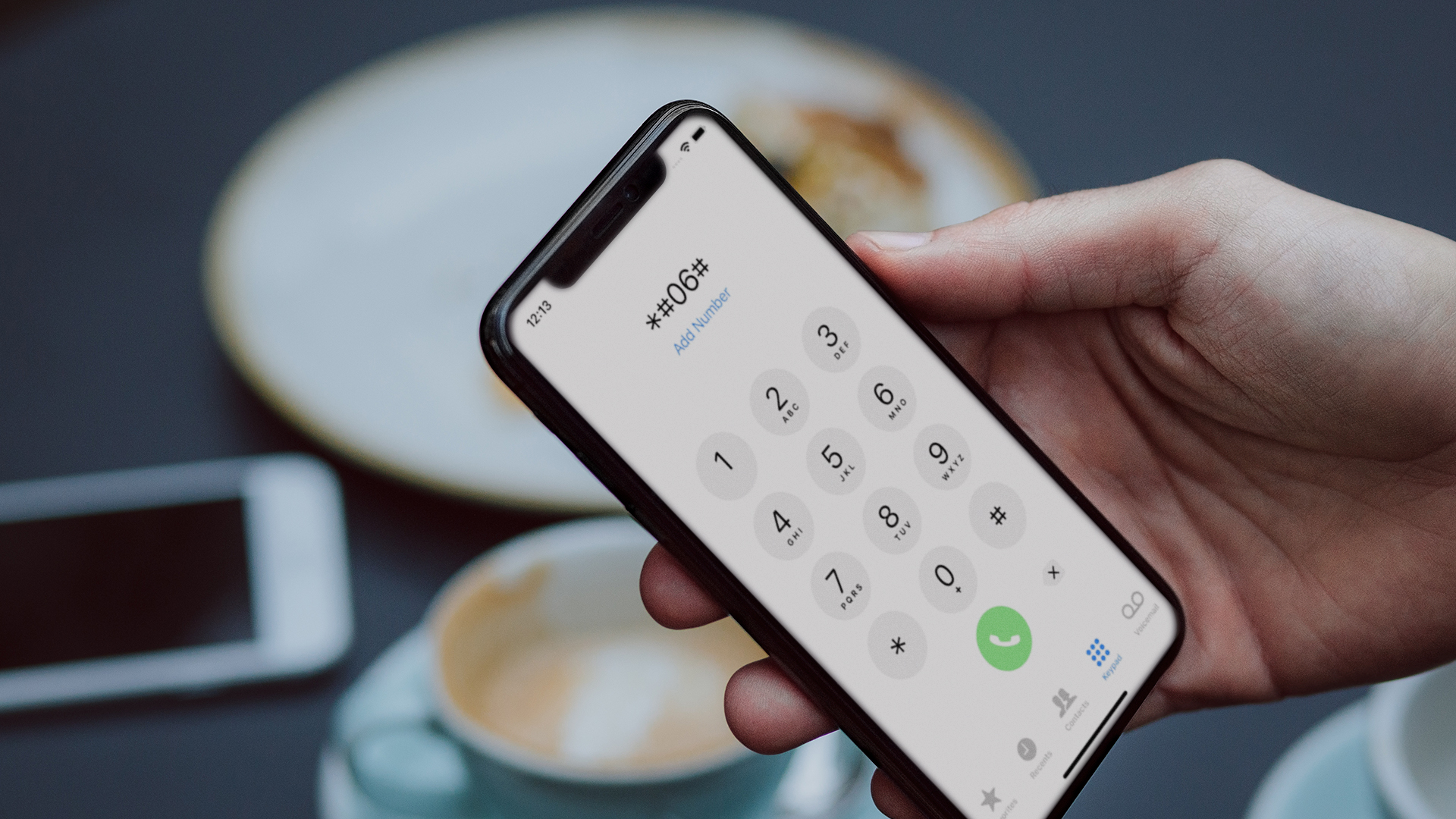
After placing a purchase, the buyer will get an email with a unique code submitted by both the phone manufacturer and the service provider. The IMEI number is essential for order completion. Simply type *#06# onto your phone’s keypad to get your IMEI number.
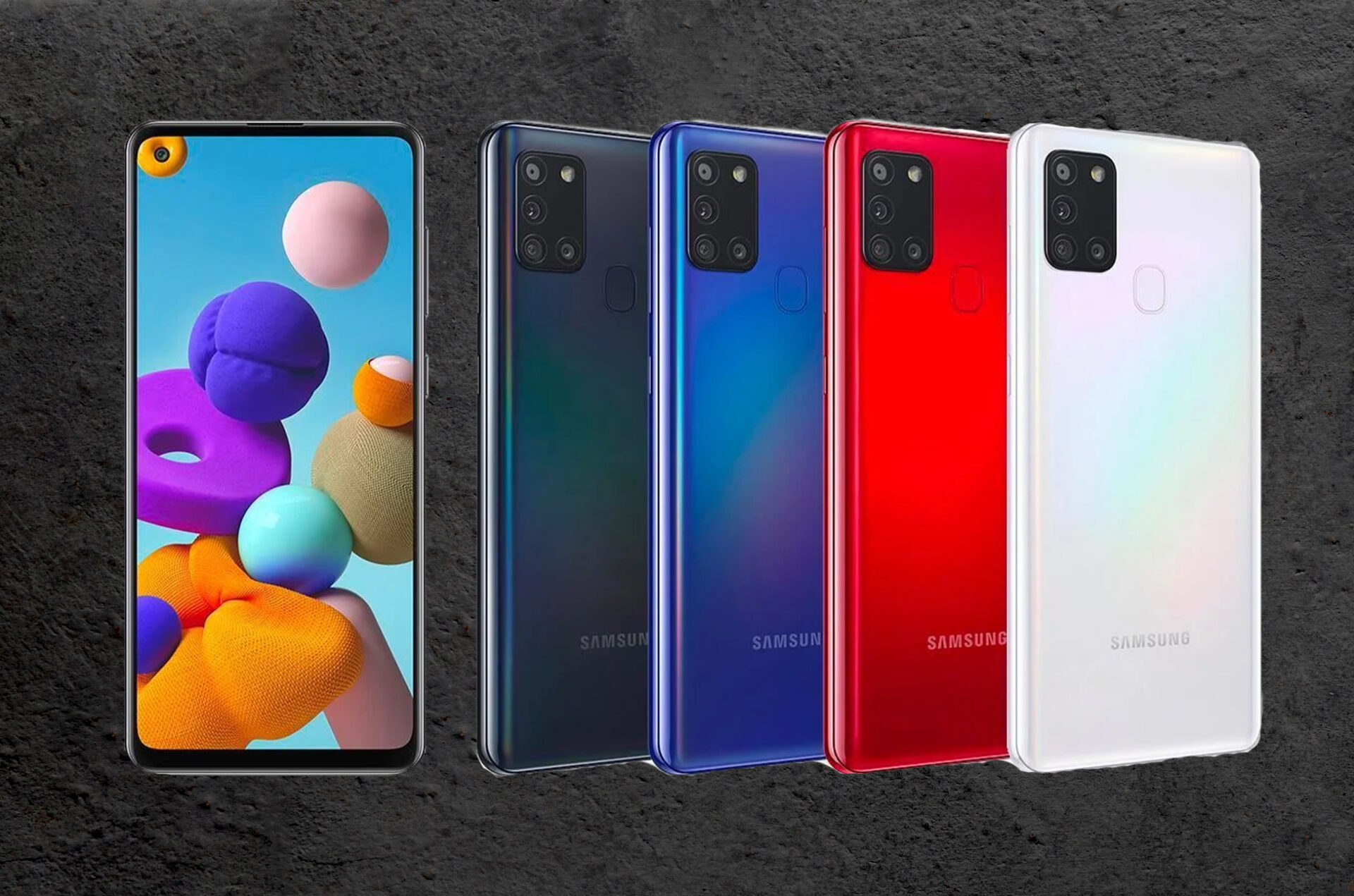
How Unlocking Your Samsung Galaxy A21 Can Help You
1. The ability to quickly and easily swap between multiple country-specific SIM cards.
2. Save money on roaming charges by using a local SIM card when going overseas.
3. The resale value of your Samsung Galaxy A21 will rise as more carriers begin to offer the device to their customers.
4. Your Samsung Galaxy A21 will always remain unlocked, even if the phone is updated to a newer version of the software.
How To Unlock Samsung A21 Phone
how to unlock samsung a21 phone : The Samsung Galaxy A21 may be permanently unlocked using the Unlock Code that we will provide to you.
If more than one Unlock Code is required to unlock your Samsung Galaxy A21, all essential Unlock Codes will be provided to you instantly
Detailed instructions are also provided on how to unlock your Samsung Galaxy A21.
To carrier unlock your Samsung Galaxy S22 phone, please follow the procedures listed below:
To simplify your life, remove the network blocker from your Samsung smartphone. Stop worrying about high costs and being unable to switch providers. Unlocking a Samsung Smartphone from a network sim lock is a fast, simple, and inexpensive operation. It was designed to eliminate the obstruction on all Samsung smartphones using the Android operating system. If you have a remark or question, please leave it below!
All products, and company names, logos, and service marks (collectively the "Trademarks") displayed are registered® and/or unregistered
trademarks™ of their respective owners.
The authors of this web site are not sponsored by or affiliated with any of the third-party trade mark or third-party registered trade mark owners,
and make no representations about them, their owners, their products or services.
Samsung S22 Unlocked: So you’ve managed to get your hands on one of the newest and most cutting-edge flagship phones from Samsung, the Galaxy S22. It’s one of the most capable Android smartphones now on the market, but because they just came out, it’s possible that your phone carrier provided you with it instead.
This implies your phone’s SIM card is locked to your carrier, making it difficult to obtain a local SIM instead of incurring high roaming fees. SIM card unlocking can help here.
What is Samsung Galaxy S22 Carrier Locked?
The majority of devices are carrier locked when purchased on a contract from a mobile carrier.
This indicates that the Samsung Galaxy S22 is only capable of receiving signals from a single network. If you insert a Simcard that is linked with a different carrier, the device will either prompt you to enter an unlock code or display a notice stating that the inserted Simcard is not valid.
Can I carrier unlock my Samsung Galaxy S22? Is it safe?
Remember that there is absolutely no risk involved when you unlock a Samsung Galaxy S22 phone. Your warranty or contract will not be voided, and it will not have any impact on the plan that you already have.
Why should I get my Samsung S22 Unlocked?
1. Easy to switch from one provider to another.
If your phone is carrier unlocked, you can change your network provider whenever you want, based on your needs and priorities.
2. Avoid roaming charges to save money.
When traveling internationally, all you need in addition to your phone is a local SIM card if you have a phone that is unlocked from its carrier. This is the smartest way to make local calls without paying the excessive fees that come along with using a roaming service.
3. Sell your phone for a higher price.
If you choose to sell your phone, you will be able to fetch a higher price for it. When it comes to resale value, carrier unlocked phones command a premium. Not to mention the fact that it’s possible to sell it in other countries.
How to unlock Samsung Galaxy S22?
To carrier unlock your Samsung Galaxy S22 phone, please follow the procedures listed below:
Your Samsung Galaxy S22 can be unlocked in the most convenient and fastest way possible. Even if you use our code, you won’t lose your warranty because it doesn’t interact with your system in any way. Let us know if you have any further queries in the comments area below.
All products, and company names, logos, and service marks (collectively the "Trademarks") displayed are registered® and/or unregistered
trademarks™ of their respective owners.
The authors of this web site are not sponsored by or affiliated with any of the third-party trade mark or third-party registered trade mark owners,
and make no representations about them, their owners, their products or services.
Samsung Galaxy S9 AT&T Unlock: When you unlock your phone, you will be able to use any SIM card from any network provider in your SAMSUNG Galaxy S9. This includes the use of an unlock code, which is a series of numbers that may be typed into your phone via the keypad in order to eliminate any network restrictions, allowing you to use other domestic and international networks alternatively.
What are the benefits of having my SAMSUNG S9 AT&T Unlock?
The most significant benefit of having your S9 AT&T Unlock is the increased amount of options. With your phone unlocked, you can change SIM cards at different times to obtain the greatest value from the various rates offered by different service providers, and you can choose which network and which rate you wish to use at different times as well.
The ability to purchase or use a SIM card from a different network in your own country or even across the globe will be granted to you after your phone has been unlocked. When traveling abroad, unlocking your phone will allow you to use a local SIM card from a local service provider, resulting in significantly lower call costs. It will also boost the worth of your phone in the case that you decide to sell your Samsung Galaxy S9 AT&T Unlock.
How to unlock AT&T SAMSUNG S9?
An AT&T SAMSUNG GALAXY S9 phone can be unlocked in two processes.
The first step is to figure out how to get the code for Samsung Galaxy S9 AT&T Unlock.
Confirm your payment and wait for an email confirmation.
The second step entails determining ‘how to enter the code on the Samsung Galaxy S9 AT&T Unlock phone.
You will receive an email with the Samsung Galaxy S9 AT&T Unlock code after a few moments. Please follow the instructions below after you have got the email.
Remove the original SIM card from your phone.
Insert an unaccepted SIM card.
You should now see a box to enter the unlock code.
Your Samsung Galaxy S9 AT&T Unlock phone can now receive signals from another carrier.
NOTE:
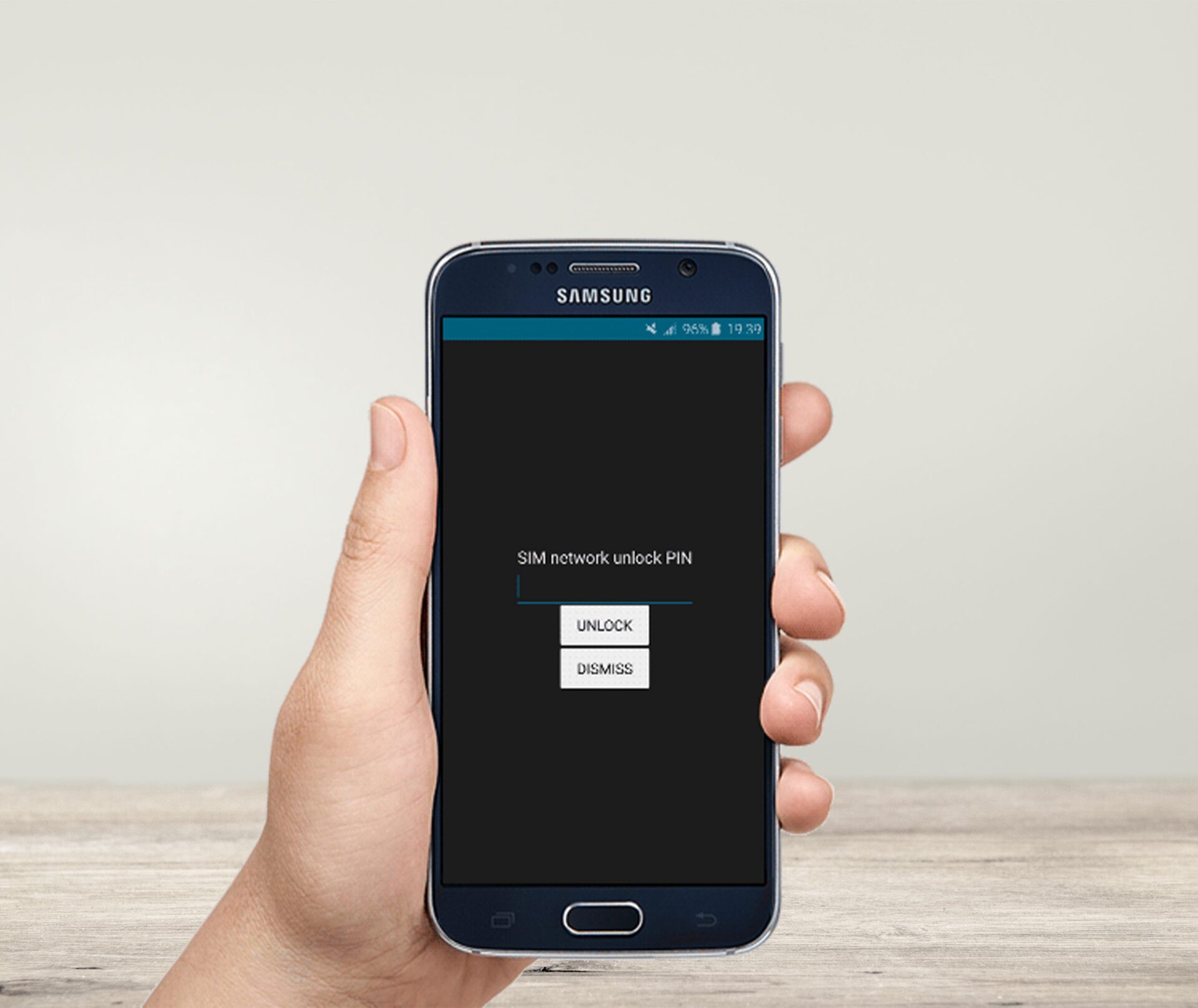
If your Samsung Galaxy S9 AT&T Unlock requests a “SIM network unlock pin” rather than a “network unlock code”, you don’t have to worry, just enter the AT&T SAMSUNG GALAXY S9 unlock code that was provided. They are referring to the same thing.
Conclusion
Unlocking your mobile phone using unlock codes is the safest method of removing the network limitation on your phone currently accessible. It is merely a matter of entering the relevant codes into your phone immediately through the keypad to remove the network restriction.
Please do not hesitate to contact us if you have any questions or if you require assistance in unlocking your phone. We’re available to serve you at any time!
All products, and company names, logos, and service marks (collectively the "Trademarks") displayed are registered® and/or unregistered
trademarks™ of their respective owners.
The authors of this web site are not sponsored by or affiliated with any of the third-party trade mark or third-party registered trade mark owners,
and make no representations about them, their owners, their products or services.
One UI 4.1 : In late 2021, Samsung introduced One UI 4.0, which included Material You and the rest of Android 12’s features on various Samsung phones. The Galaxy S22 series comes with an enhanced One UI 4.1 version, including bug fixes and other improvements over 4.0.
However, One UI 4.1 introduces several useful new features to the Galaxy S22, as well as other devices that will be upgraded in the future. We went through every new part in the latest version to see what’s different and better than the software you’re presumably using right now on your new phone.
Update Your Software
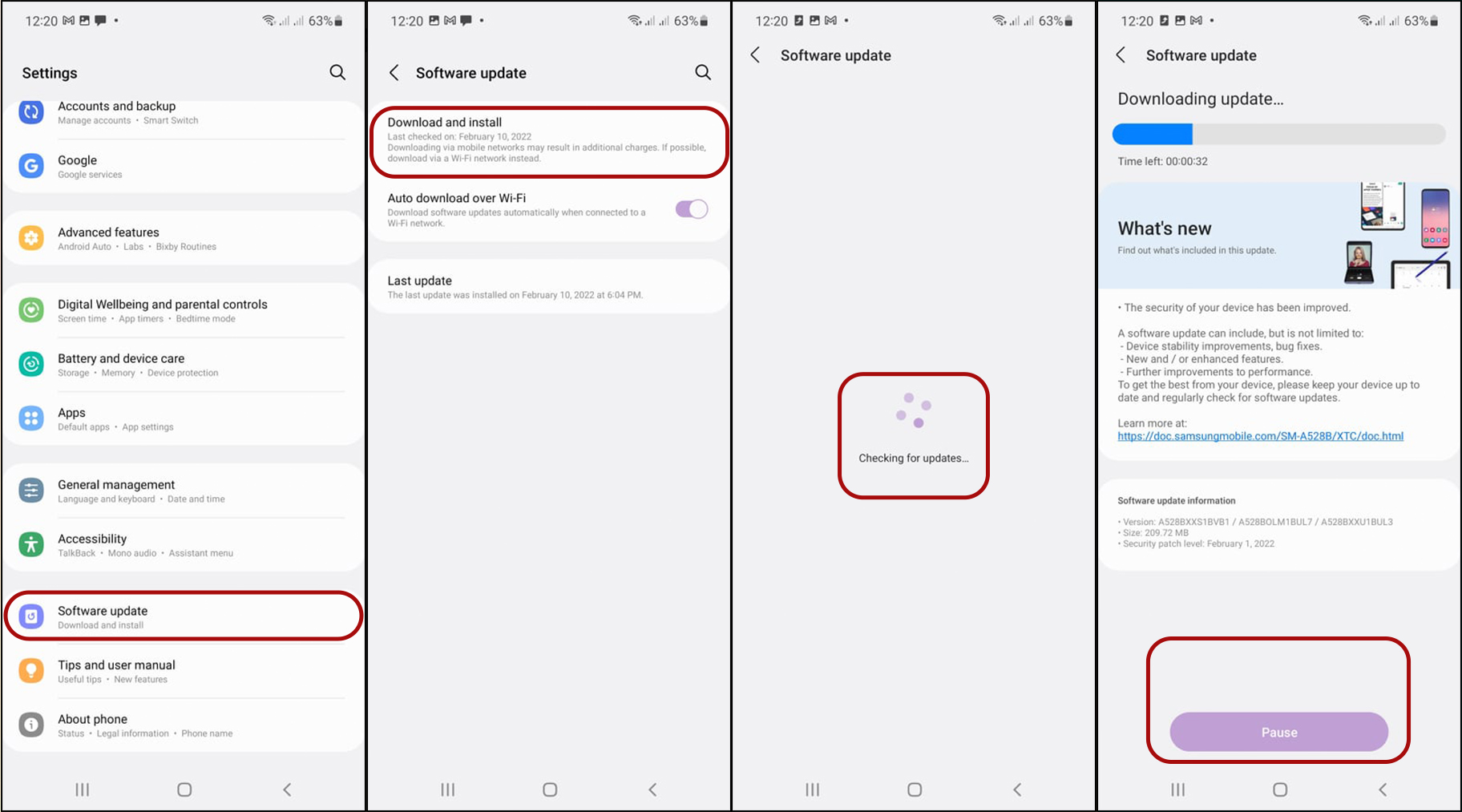
Check that your device’s software and accompanying applications have been updated to the most recent version before attempting the suggestions below. Please follow these instructions to update the software on your mobile device:
Go to Settings > Software Update in the first step.
Step 2: Select Download and Install from the drop-down menu.
Step 3: Follow the directions on the screen.
One UI 4.1 design, features, and enhancements
Innovative Smart Widget
In iOS 14, Apple introduced Smart Stacks widgets, which enable users to stack widgets on top of one other and swipe between them. Samsung has incorporated a similar feature called Smart Widgets in One UI 4.1. It has a similar appearance and feels like the iOS version, which is an excellent thing.
With Smart Widgets, you can stack many widgets on top and swipe between them. There are three sizes available, and you can use them to mix information like news and weather with controls for your Galaxy Buds headphones, for example.
Depending on the user circumstance, up to three glance widgets present the most appropriate widget, and the widgets are automatically displayed or discarded.
Suppose you have a Calendar event coming up in the next 30 minutes, for example. In that case, an upcoming event widget will show, telling the user of the event, the amount of time before the event, and other pertinent information. If the user clicks on the forthcoming event widget to verify the event or if the event time has passed, the widget will immediately remove.
Upgraded Gallery Features
Relighting a Portrait – Users may also create a Studio look by utilizing the newly introduced Relighting circle to add extra lighting from any direction. The Intensity bar allows users to alter the intensity of the auxiliary lights.
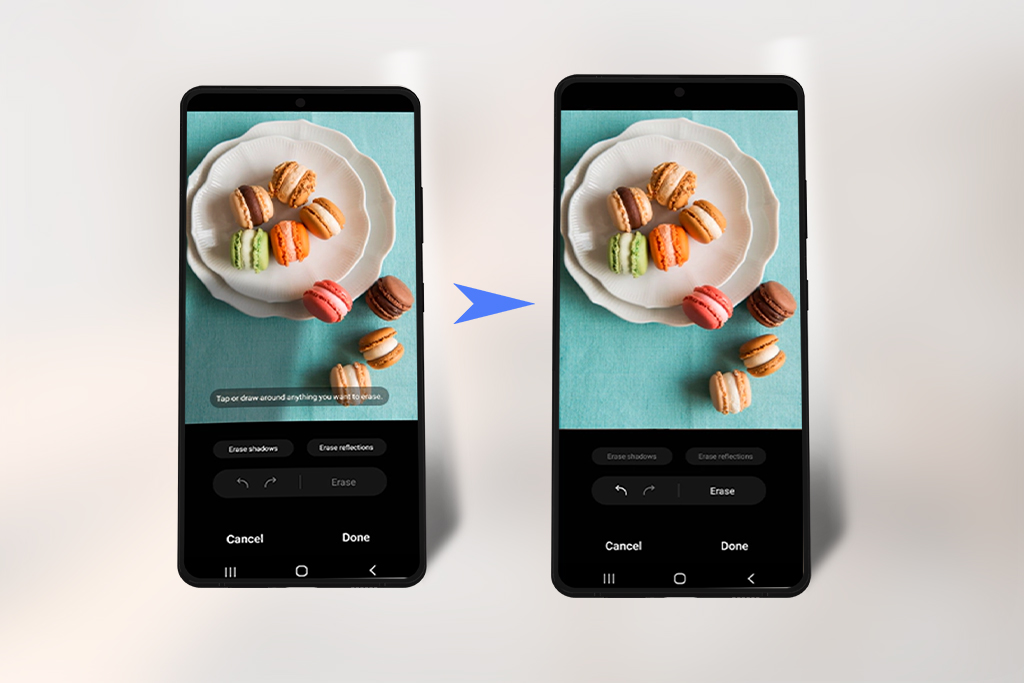
Enhanced Photo Remaster – You may increase the picture quality by eliminating reflections, shadows, and more using the Enhanced Photo Remaster option. Remastered photographs have a “Remastered” tag that replaces the original image.
Shadow and Reflection erasers have been added – With the touch of a button, you may easily remove shadows or reflections that are automatically recognized. To utilize the Object Eraser, go to Gallery, Edit, and More choices (three vertical dots), where you’ll discover Object Eraser.
Pro Mode Camera – One UI 4.1 fixes this, and you can now utilize the S22 Ultra’s 3X telephoto lens in Pro and Pro Video modes. This should be available once earlier phones are upgraded.
RAM Plus
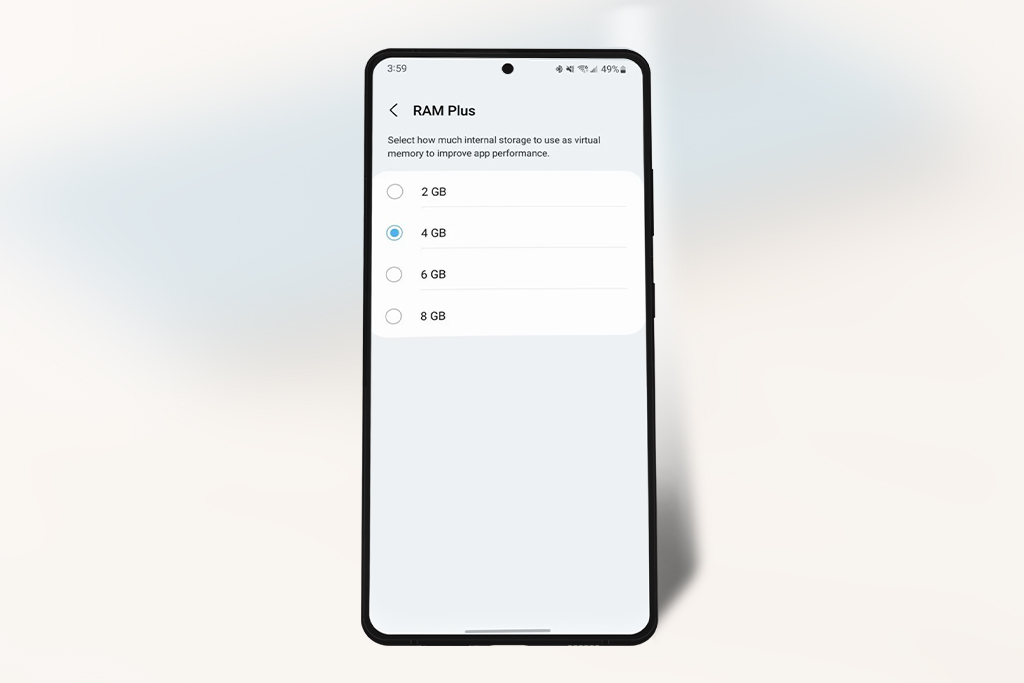
The RAM Plus function in One UI 4.0 allocates 4GB of your storage for use as additional RAM, similar to a swap disk on a computer. On all devices, it’s enabled by default, but with One UI 4.1, you can now pick how much virtual RAM you want. You may choose between 2GB, 4GB, 6GB, or 8GB of RAM, which might be helpful in Samsung handsets with 4GB or 6GB of RAM.
Enhanced S Pen and Notes Experience
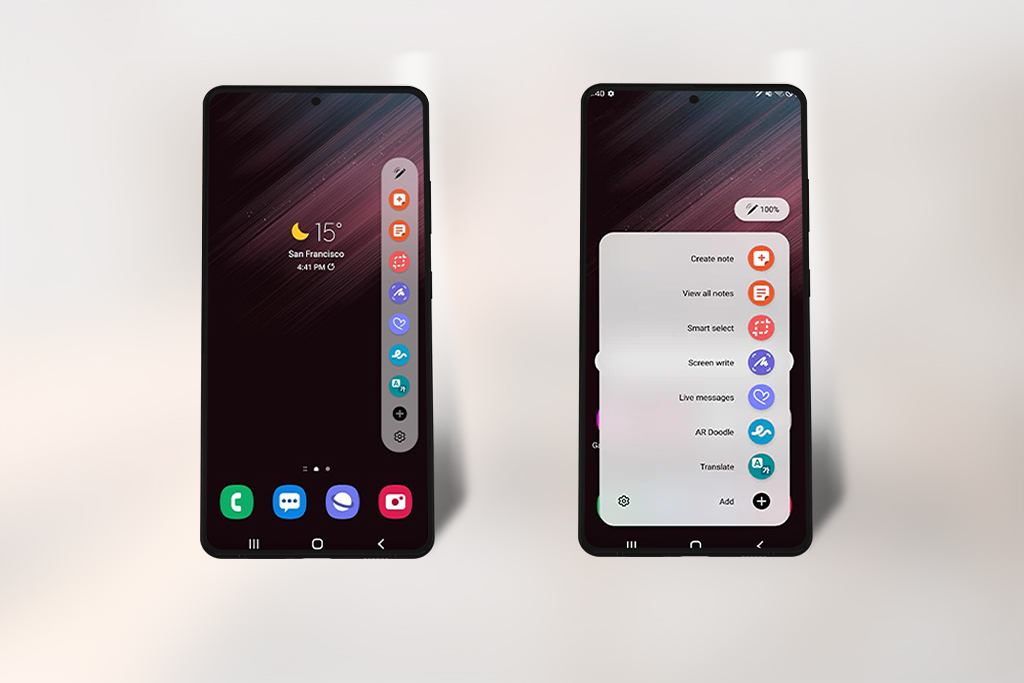
Users may modify a note on one device and Edit, select, or alter the settings on another device using Samsung Notes’ in-app collaboration. With Quick note upgrade, users may rapidly add a website link and web page. Although the pre-loaded Standard mode allows you to use the Air command without covering the entire screen, try installing Compact mode to use the Air command without covering the whole screen.
Release of One UI 4.1
With the Galaxy S22, Galaxy S22+, and Galaxy S22 Ultra, Samsung has introduced One UI 4.1 based on Android 12. After the debut of its 2022 flagship phones, the business will issue the upgrade for many of its compatible smartphones in the following weeks and months.
Conclusion
That’s all the new features we’ve discovered in One UI 4.1 so far, and it seems to be a decent upgrade for Samsung customers. Adding the zoom lens to pro mode resolves a long-standing issue for many of us, and smart widgets are something desired on Android since Apple introduced Smart Stacks in iOS 14. While these features are now only accessible on the S22 series, prior years have indicated that One UI 4.1 would be released for earlier phones within the following month. If you have any questions, let us know in the comment section below!
All products, and company names, logos, and service marks (collectively the "Trademarks") displayed are registered® and/or unregistered
trademarks™ of their respective owners.
The authors of this web site are not sponsored by or affiliated with any of the third-party trade mark or third-party registered trade mark owners,
and make no representations about them, their owners, their products or services.
Samsung Galaxy S21 Ultra Unlocked: Have you gotten your hands on the brand-new Samsung Galaxy S21 Ultra? You most likely did, which is why you’re here. You want to use codes to unlock your Samsung Galaxy S21 Ultra so that it can function on any network on the globe. You’re in luck if this is what you were searching for.
Suppose your Samsung Galaxy S21 Ultra is locked to a particular network provider. In that case, the unlocking solutions you’ve come across so far are either too costly, too unreliable, or would void your phone’s warranty. Worry not; we will provide the safest and easiest way to Unlock your Phone.
Things You Need To Your Samsung Galaxy S21 Ultra from AT&T
Any browser ( phone, computer )
Your phone’s IMEI
Any Sim Card Aside from AT&T
Here’s the ideal, easy-to-understand Samsung Galaxy S21 Ultra unlocked technique, which begins with obtaining a 15-digit IMEI NUMBER.
The IMEI NUMBER of Samsung Galaxy S21 Ultra can be obtained in the following manner:
*#06# is the number to dial or Go to phone setting-> About phone-> Status
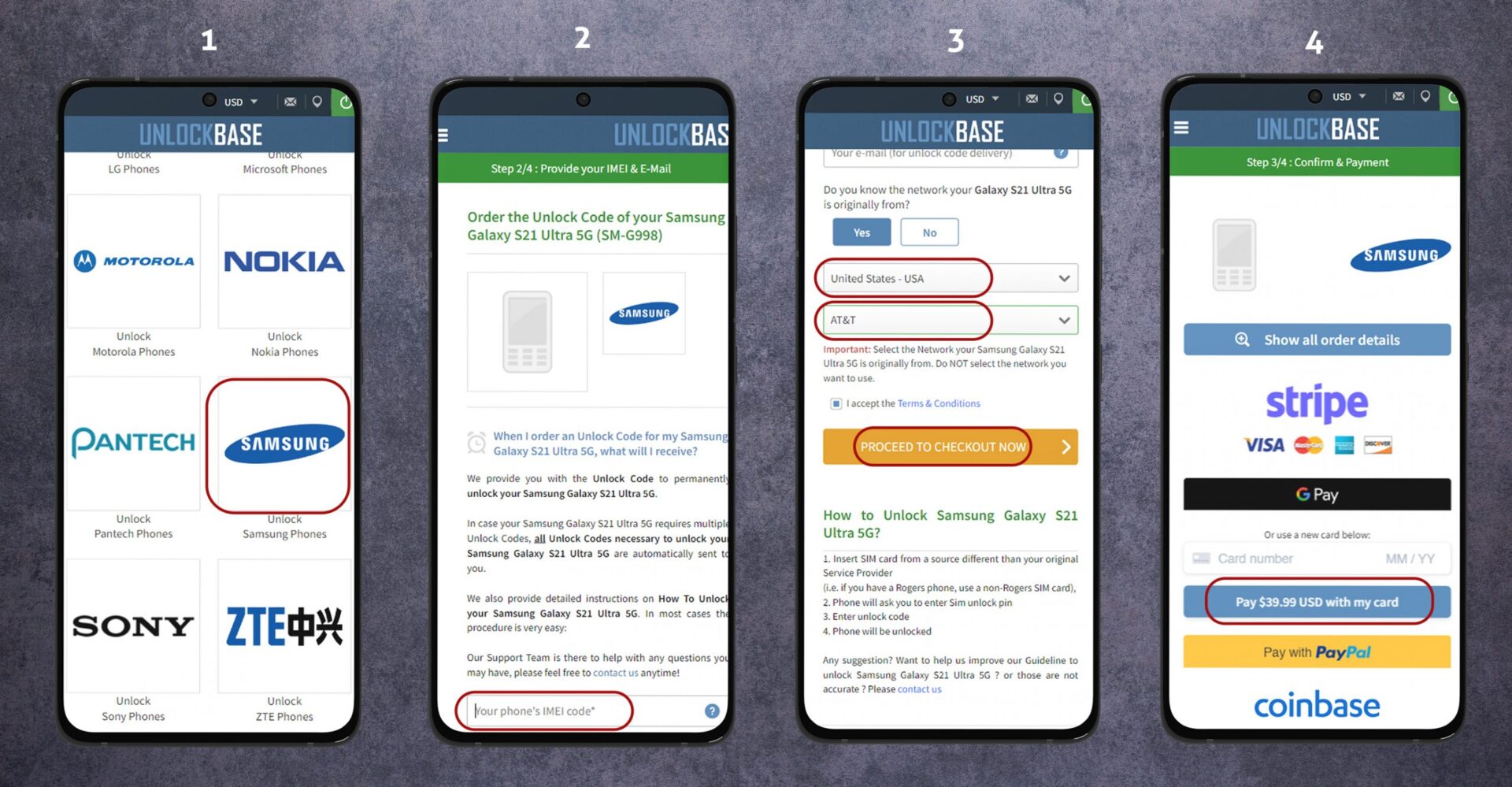
Samsung Galaxy S21 Ultra Unlocked from AT&T Using UnlockBase
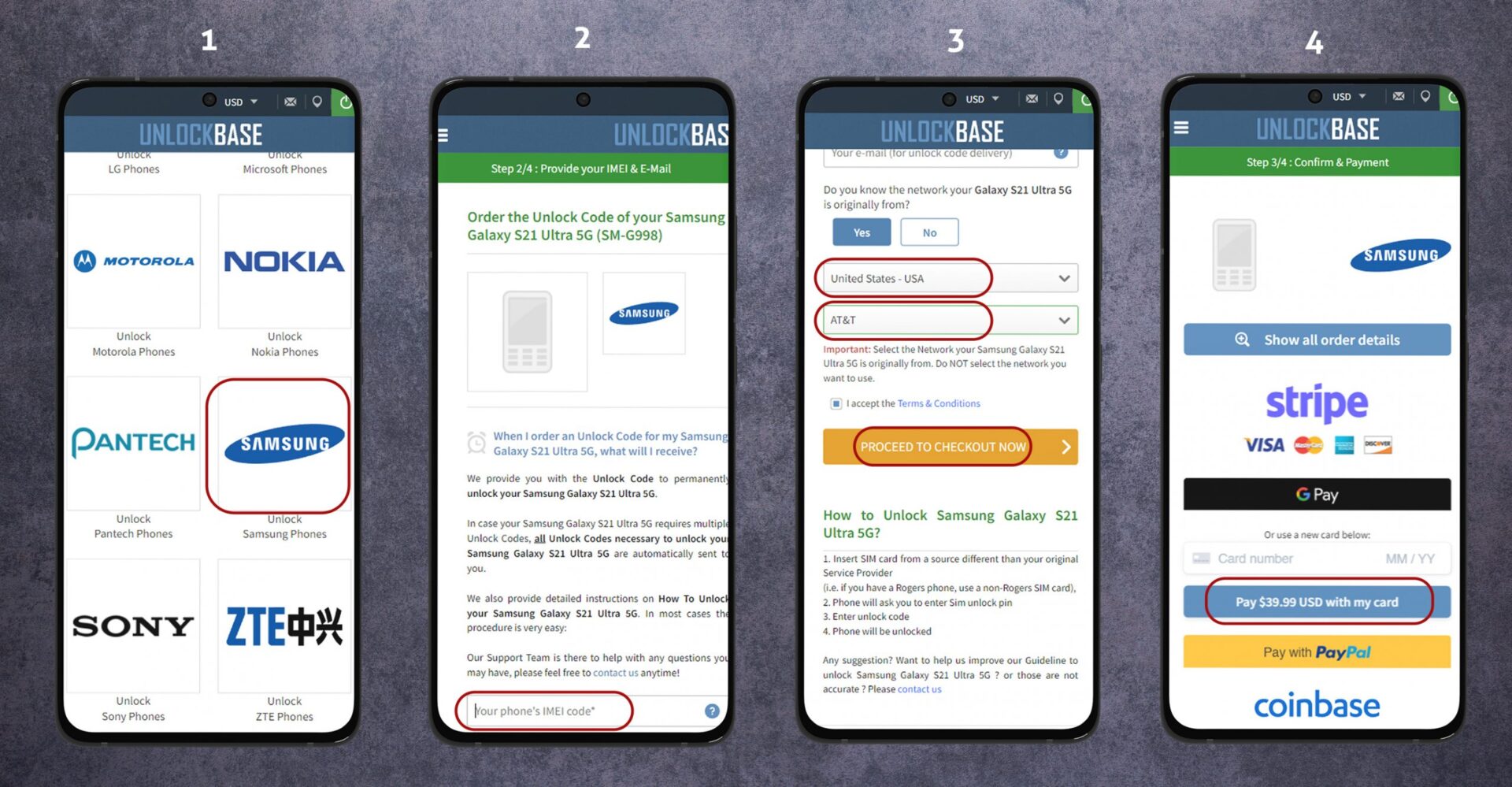
1. Go to https://www.unlockbase.com/unlock-phone/
2. Select Samsung as the manufacturer of your phone.
3. Select S21 ULTRA from the list after getting the proper manufacturer of your phone
4. In the first part of the article, we asked you to write down your IMEI Number, Insert your IMEI on the website
5. Select your phone’s carrier as AT&T
6. Proceed to Check out and give you Account Information to Confirm your Payment.
7. We will send you the Samsung Galaxy S21 Ultra unlocked code as soon as possible to your provided email id.
Entering a network unlock code in a Samsung Galaxy S21 Ultra Unlocked
In a Samsung Galaxy S21 Ultra 5G, entering the unlock code is simple.
1. Put an unaccepted SIM card into the Samsung Galaxy S21 Ultra 5G. (unaccepted means different than the one in which the device works)
2. A particular unlock window should open, in which you should input the codes Please note it’s an 8 or 16 digits number. There are cases when you get a complete set of codes. All you need is the NCK, which is the first one.
3. The unlock code will be accepted by your SAMSUNG GALAXY S21 ULTRA phone, and it will begin to receive the signal of a new service provider.
You can also refer to or follow this Video if you have trouble following the steps above :
Conclusion
The majority of devices purchased on a network provider’s contract are network-blocked. It implies that the Samsung Galaxy S21 Ultra 5G can only connect to one network at a time. If you insert a Simcard from a different network, the device will either prompt you for an unlock code or display a notice stating that the Simcard is not compatible. It only means that some of the networks can be unlocked through unlock codes and it is easy if you have a reliable unlocking service like UnlockBase.
All products, and company names, logos, and service marks (collectively the "Trademarks") displayed are registered® and/or unregistered
trademarks™ of their respective owners.
The authors of this web site are not sponsored by or affiliated with any of the third-party trade mark or third-party registered trade mark owners,
and make no representations about them, their owners, their products or services.
Having a phone with a SIM that isn’t linked to a carrier may be advantageous, which is why some individuals choose not to purchase their phones on contract with a carrier since it allows them to switch carriers or travel internationally.
At the same time, we understand that certain phones are costly and that you would be better off purchasing one on contract, but the good news is that even if your SIM is locked to a carrier, there are methods to unlock it, so continue reading to learn more.
Why Unlock Your Samsung A50?
It can save you money — being able to use local SIMs while traveling allows you to avoid paying exorbitant international rates for calls, messages, and Internet access.
If you sell your phone, it may enhance its worth by up to 300% since prospective purchasers don’t want to deal with the inconvenience of unlocking it themselves.
When transferring between networks, you may utilize a Dual SIM adaptor for further ease.
It is now legal to unlock any phone (manufactured before January 26th 2013 in the US).
It’s a lot simpler and faster than befzore — there’s no need to send your phone away or go to a repair facility. Your phone will be unlocked using a simple code.
How Does Phone Unlocking Work?
Mobile unlocking is done by inputting the unique code supplied by our website into your phone. The procedure is straightforward and straightforward, similar to counting to three. Following the completion of a purchase, the client will get an email with a unique code that will be accepted by both the customer’s phone producer and the service provider. To complete the order, the IMEI number is necessary. Entering *#06# on your phone is the quickest method to obtain your IMEI number.
The sim lock on your phone will be switched off after you input the unique unlock code. A single code disables the sim lock for good. It will not reappear, even if you do software upgrades or switch SIM cards. The remote unlock is totally wireless and requires no further software installation. The simplest approach to eliminate your phone’s limitations is to unlock it using a code.
Samsung A50 Unlocked
If you don’t fit the conditions for a free SIM unlock from your carrier, don’t panic; there are paid services like UnlockBase that can supply you with the SIM unlock code for your Galaxy A50 device.
We provide you with the Unlock Code to permanently unlock your Samsung Galaxy A50.
In case your Samsung Galaxy A50 requires multiple Unlock Codes, all Unlock Codes necessary to unlock your Samsung Galaxy A50 are automatically sent to you.
We also provide detailed instructions on How To Unlock your Samsung Galaxy A50. In most cases the procedure is very easy :
Launch the Phone app on your Galaxy A50 and dial *#06# to see your phone’s IMEI number. Make a note of the IMEI number wherever you can readily find it. Go to UnlockBase.com
Enter the device’s IMEI number Fill in your payment and contact information during the checkout procedure. After everything is completed, you should get the unlock code for your Galaxy A50 through email. With a non-accepted SIM card, turn on the Galaxy A50 mobile (Any other SIM card than the network the phone is currently locked to).
You should be prompted to enter the SIM unlock code that you got through email, and you should be good to go after that.
After you’ve performed all of the procedures above, your Samsung Galaxy A50 should be unlocked and you won’t have any trouble switching carriers, such as when going abroad and needing to use a local SIM with your phone.
It’s important to note that this does not liberate you from your carrier’s contract; you’ll still have to pay them, but it does provide you with some flexibility.
Conclusion
You should know that if your account isn’t in good standing or you haven’t paid off the remainder of what you owe for the device, Your carrier won’t grant your request for an unlocking code.
Phones can be done straight from the manufacturer or service providers since they know how these devices work. We hope the information mentioned above gave you an idea of how to fix the Samsung A50 locked issue.
All products, and company names, logos, and service marks (collectively the "Trademarks") displayed are registered® and/or unregistered
trademarks™ of their respective owners.
The authors of this web site are not sponsored by or affiliated with any of the third-party trade mark or third-party registered trade mark owners,
and make no representations about them, their owners, their products or services.
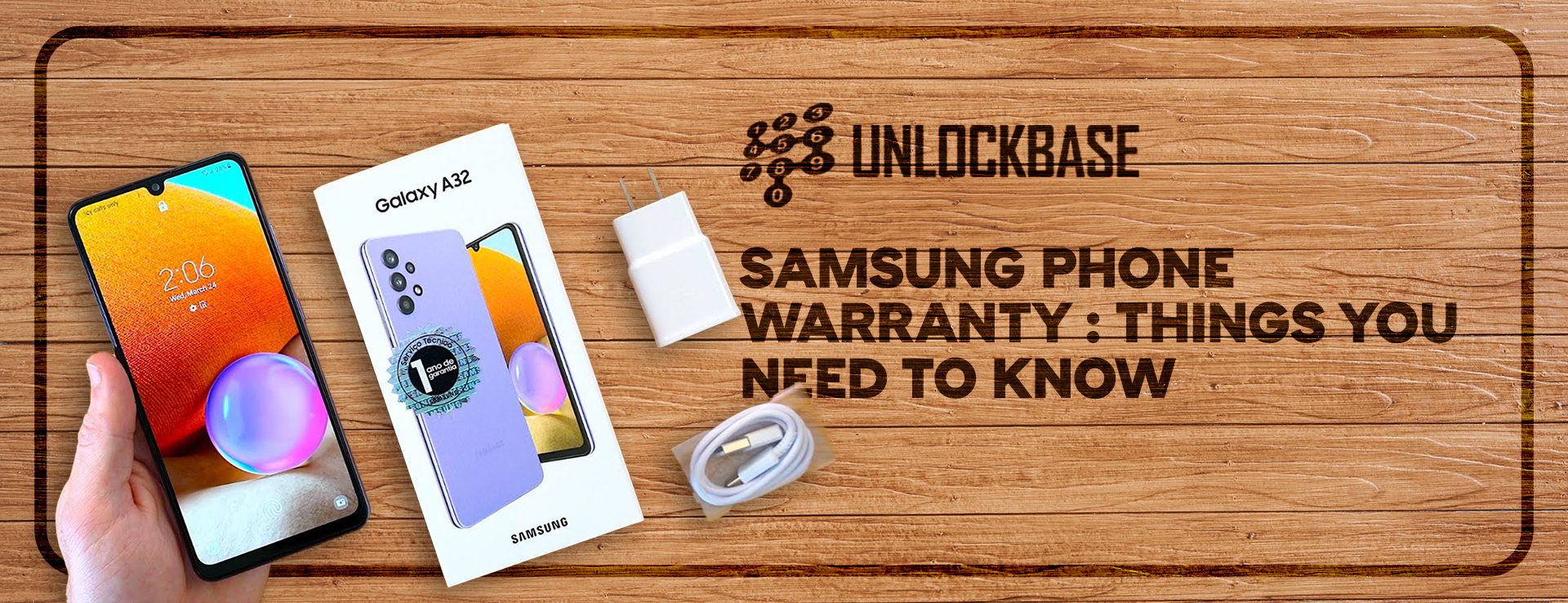
Samsung is the world’s one of the most popular smartphone brands. Samsung gives a manufacturer’s guarantee on its smartphones and accessories for added peace of mind.
Samsung Phone Warranty : What Does It Cover?
A 12-month manufacturer guarantee is included with all Samsung mobile devices. The battery guarantee for cell phone accessories ends after 12 months, while the charger and headset warranties expire after six months. If your phone’s problem is covered by the warranty, Samsung will repair or replace it for free.
Even after the original warranty period on your equipment has expired, the Samsung extended warranty program guarantees that you have total peace of mind.
The company’s warranty extension program is known as Samsung Care.
Samsung customer service considers client satisfaction to be critical to their success.
As a response, Samsung introduced Samsung Care, which extends Samsung’s warranty coverage for an additional year.
As a consequence, even if your original manufacturer warranty has expired, you don’t have to worry since the extended Samsung claim warranty is similar to the manufacturer warranty.
Samsung Phone Warranty : What Does Not Cover?
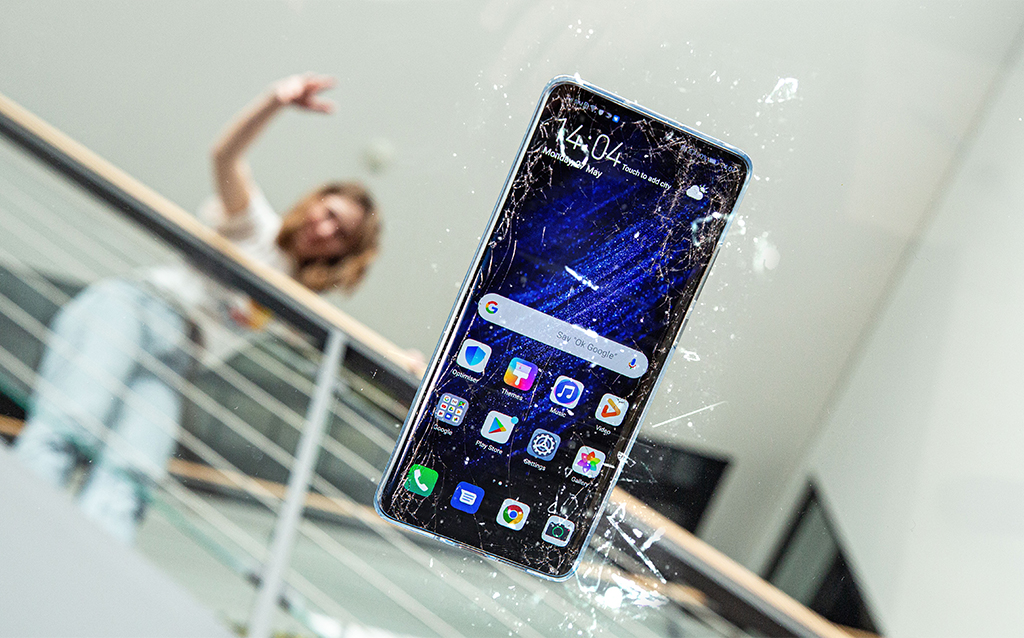
Accidental damage, misuse, abuse, alteration, tampering, or failure of the purchaser to follow the user’s manual’s regular operating instructions;
Defects or damage caused by spilled food or drinks, or incorrect electrical supply and voltage use;
Fire, flood, or other acts of God, as well as animal or insect infestations, cause damage, losses, faults, or malfunction.
Wear and tear, corrosion, rusting, or discoloration are all examples of normal wear and tear.
Defects or damage arising from non-Samsung testing, operation, maintenance, installation, servicing, or adjustment, including but not limited to unauthorized software installation and unauthorized root access, all of which will invalidate this limited warranty;
Performing routine maintenance and service;
After 7 days from the date of purchase, claims for damaged or missing parts;
If any portion of the device is replaced with a part or parts that are not supplied or approved by us, or if the unit is disassembled or repaired by someone who is not a Samsung authorized technician;
Any equipment/product whose serial number has been deleted, unreadable, or tampered with.
Use of Samsung-supplied and/or approved goods, equipment, systems, utilities, services, parts, supplies, accessories, applications, installation, repairs, external wiring, and connections that harm this device or cause service difficulties
Conditions Of Warranty
To claim a warranty, you’ll need a warranty card or evidence of purchase. Only approved Samsung service shops will be able to perform repairs throughout the warranty period.
The warranty terms are not valid if the product is damaged or misused in a Samsung service facility, and repairs will be done on a charged basis only.
The warranty shall be invalidated if the defect is caused by improper usage.
If the product fails under particular conditions/types, the warranty will be voided (example: Waterlogging, misuse, etc.)
The guarantee will also be invalid if the customer modifies or modifications the circuitry in any way.
Claiming Of Warranty
Documents Required in Order to file a Warranty claim :
Warranty Card
Invoice Copy
Original Product
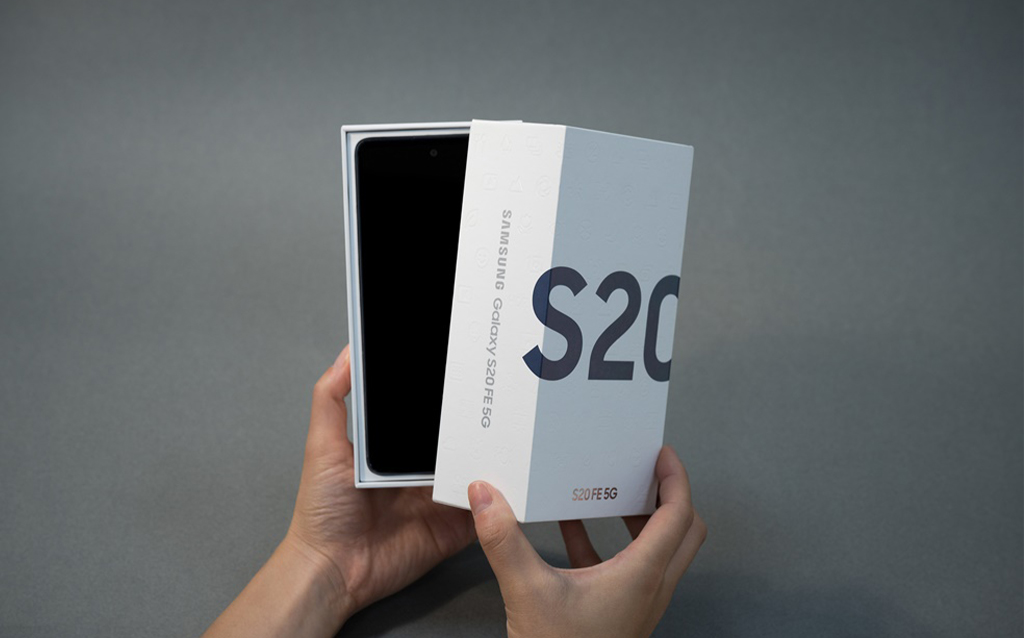
Product Box
Identification Card
You may only claim Samsung warranty at authorized Samsung service facilities if you have a problem with your Samsung product.
Samsung will only cover manufacturing flaws and problems. If your phone develops a malfunction or an issue on its own, Samsung will fix it for free at one of their service locations.
Conclusion
If you’re experiencing unusual behavior on Samsung mobiles, tablets, you should maximize your device as early as today before anything happens! You should constantly evaluate all elements of a product, not only the specs, but also the benefits of utilizing it, to be a good client.
Please share your thoughts in the comments area below if you consider yourself a wise shopper.
All products, and company names, logos, and service marks (collectively the "Trademarks") displayed are registered® and/or unregistered
trademarks™ of their respective owners.
The authors of this web site are not sponsored by or affiliated with any of the third-party trade mark or third-party registered trade mark owners,
and make no representations about them, their owners, their products or services.
The IMEI (International Mobile Equipment Identity) is a unique identifier for mobile devices. It’s a 15-digit number that’s unique to each device, so think of it as your phone’s fingerprint. IMEI numbers are shared between phone carriers and manufacturers in order to track stolen or hacked handsets.
An IMEI number, serial number, and model number are all part of a mobile device’s unique identification. There are a few various ways to find out this information depending on your device model.
1. Samsung IMEI Check Using USSD code
This is the most straightforward technique of determining your phone’s IMEI number. The advantage of this strategy is that it is almost popular. It is compatible with nearly all feature phones and smartphones.
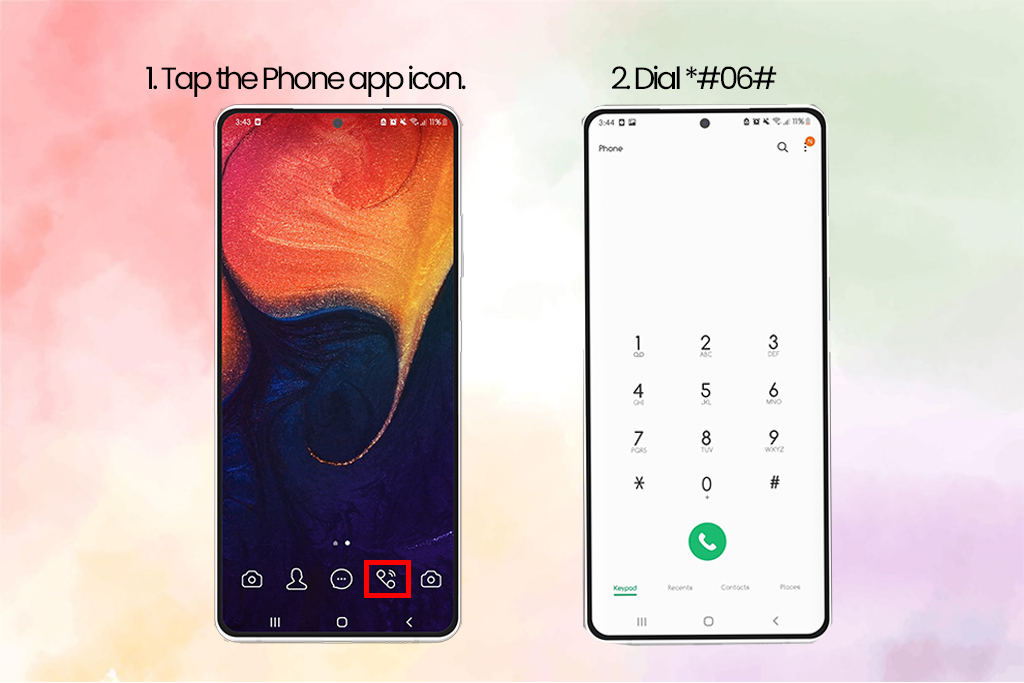
Tap the Phone app icon.
Dial *#06# in your keypad.
The IMEI number of your current device, as well as the Serial Number (S/N), will be displayed on the screen. Depending on whatever Android OS version your smartphone is running, the displayed screen may seem different.
2. Samsung IMEI Check Number on the Phone
For phones that have been sealed (non-removable cover or battery)
Take a look at your phone’s backside. On the back of your device, you’ll find the Model Number, Serial Number, and IMEI.
For phones with a detachable battery or case
Remove the battery and rear cover.
The Model Number, Serial Number, and IMEI are printed on the sticker.
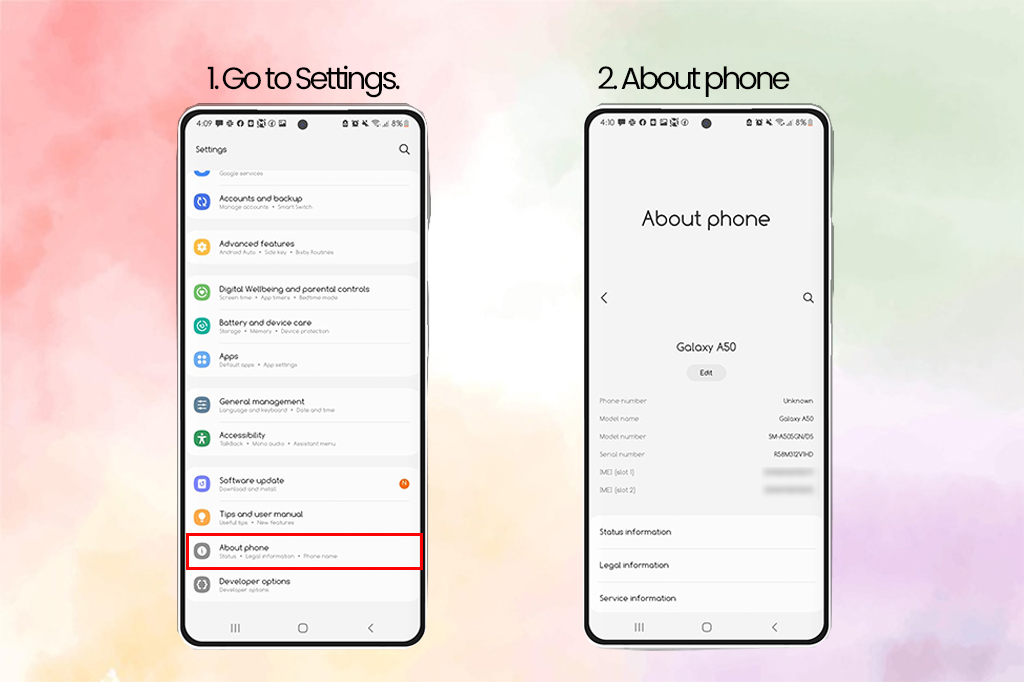
3. Samsung IMEI Check Via Settings
On Android, go to Settings > About > IMEI to see the IMEI number. Tap Status and scroll down to see the IMEI information
Note: If you’re using an older device, you might have to press Status to see this information.
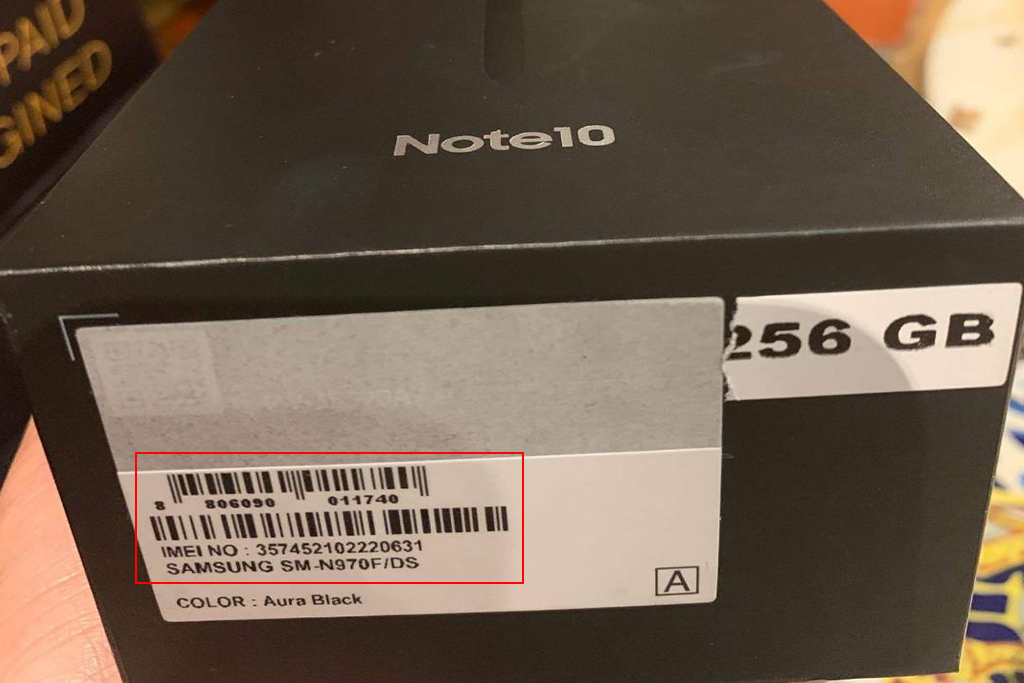
4. Samsung IMEI Check on Retail Box
The IMEI number is stated on both the retail boxes, which is a good idea to save both instead of tossing them away. At the very least, keep the box since it will come in handy if you need to check the IMEI or if you decide to resell the phone later. The IMEI number is printed on a sticker on the box’s side.
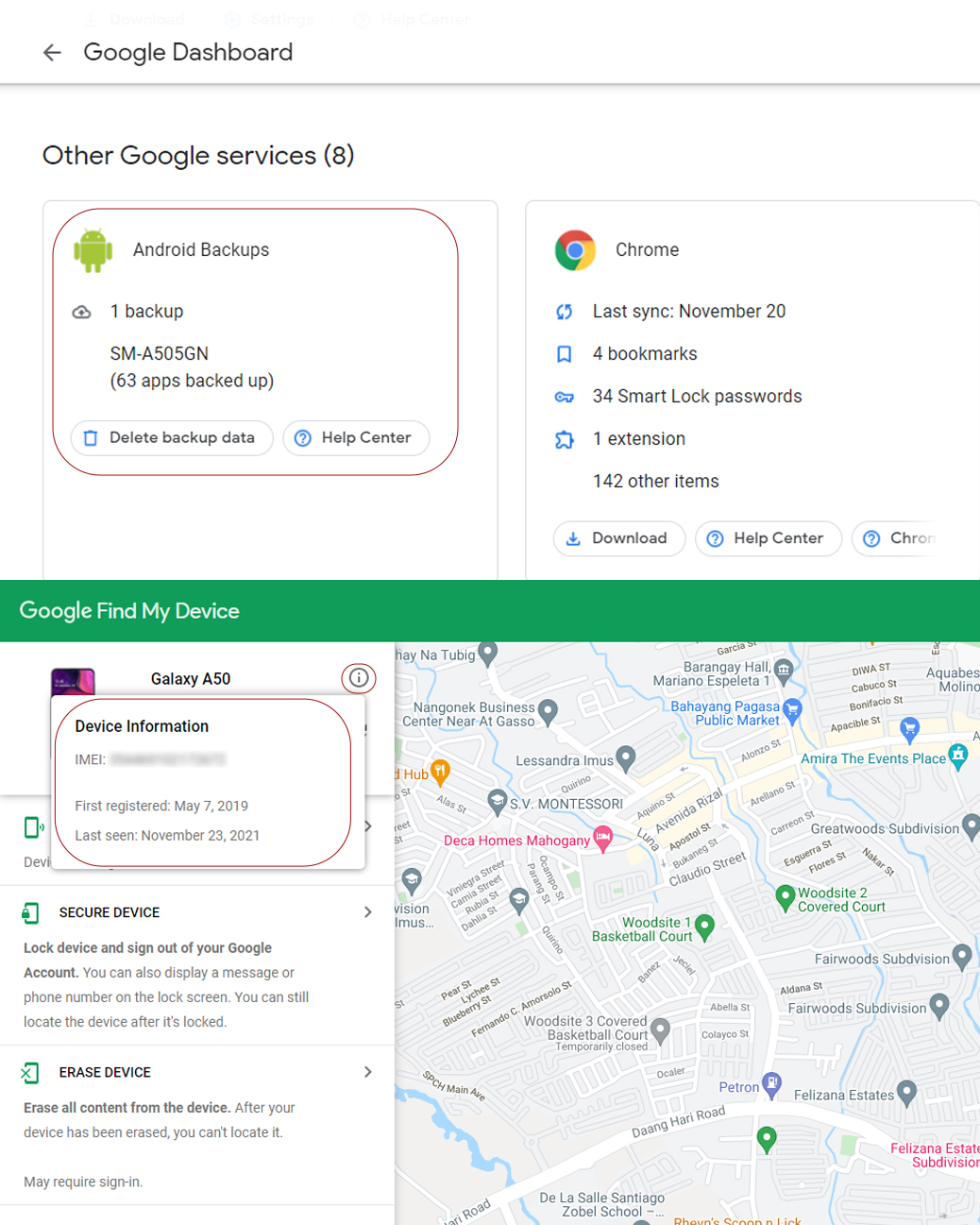
5. Samsung IMEI Check using Google Dashboard
Even if they’ve misplaced their phone, Android users may check the IMEI number. All of the techniques listed above are effective and faster, but if you’ve misplaced your phone and haven’t retained the box, you may still use this approach.
Use the Google account associated with the Android phone to access Google Dashboard.
Next to the green robot logo, select Android.
This will provide a list of all devices associated with the account, as well as their IMEI numbers.
Conclusion
You can check your Samsung’s device even if it’s not in your possession! We hope that this quick tutorial helped you out! Have you had the same problem before? Do you know another way on how to get an IMEI number on an iPhone if locked? Let us know in the comments below!
All products, and company names, logos, and service marks (collectively the "Trademarks") displayed are registered® and/or unregistered
trademarks™ of their respective owners.
The authors of this web site are not sponsored by or affiliated with any of the third-party trade mark or third-party registered trade mark owners,
and make no representations about them, their owners, their products or services.