
2026
SIM Not Supported or Network Locked? How to Diagnose Phone Network Errors
Network
Seeing SIM not supported network locked messages—or suddenly finding that your phone has no mobile service—can immediately make it seem like the device needs unlocking. Sometimes that is exactly the problem. In other cases, however, the cause has nothing to do with a carrier lock.
A SIM problem, unsupported network bands, an inactive account, poor coverage, device configuration, or an IMEI-related restriction can produce similar symptoms. The wording also varies between manufacturers and operating systems, making diagnosis even more confusing.
Before ordering an unlocking service, it makes sense to identify what the phone is actually telling you. A few simple checks can separate a genuine carrier lock from problems that require a completely different solution.
Similar Messages Can Mean Very Different Problems
Mobile phones communicate network problems through short system messages. Unfortunately, those messages do not always explain the underlying cause clearly.
“SIM Not Supported,” “Network Locked,” “No Service,” and “Emergency Calls Only” may all appear when a phone cannot establish normal cellular service. Yet they describe different situations.
A true carrier lock error usually occurs because the phone is restricted to a particular carrier or network. When a SIM or eSIM from another provider is introduced, the device refuses normal activation.
Other errors occur after the phone has already accepted the SIM. In those cases, the device may simply be unable to register on the available network.
The first question, therefore, should not be “How do I unlock this phone?” It should be “Why is this phone unable to connect?”
“SIM Not Supported”: What It Usually Means
A SIM not supported message is one of the stronger indications that a carrier restriction may exist.
On an iPhone, for example, Apple explains that an unlocked device should show “No SIM restrictions” under Settings > General > About > Carrier Lock on supported iOS versions. If another carrier’s SIM cannot activate and the device remains carrier-locked, the original carrier normally controls eligibility for the unlock.
However, “SIM Not Supported” still deserves investigation before you assume the cause.
The SIM itself could be inactive, damaged, or incorrectly provisioned. An eSIM profile may also fail because the carrier does not support that particular device variant.
Start by checking three things:
- Does the SIM work in another compatible phone?
- Does the phone accept a SIM from its original carrier?
- Does the device’s lock-status information show a carrier restriction?
If the original carrier works but another compatible carrier does not, a network lock becomes a much stronger possibility.
“Network Locked” or “SIM Network Unlock PIN”: What It Means
Android devices often make carrier restrictions more explicit.
Messages such as “Network Locked,” “SIM Network Unlock PIN,” or a similar network unlock message commonly appear when a device recognizes a SIM from another provider but is restricted from using that network.
This is different from your normal SIM PIN.
A SIM PIN protects the SIM card itself. A SIM network unlock code or network unlock prompt relates to the phone’s carrier restriction. Entering your SIM PIN will not remove that restriction.
Avoid guessing codes repeatedly. Some devices limit the number of incorrect attempts and may eventually require additional assistance.
Instead, identify the phone’s exact model and original carrier. Then confirm whether the device qualifies for the carrier’s official unlocking process or whether an appropriate professional unlocking option exists.
“No Service” Doesn’t Automatically Mean Your Phone Is Locked
A phone says no service for many reasons, and a carrier lock is only one possibility.
In fact, if the phone accepts the SIM without displaying any lock-related warning, you should investigate ordinary connectivity issues before assuming that unlocking will help.
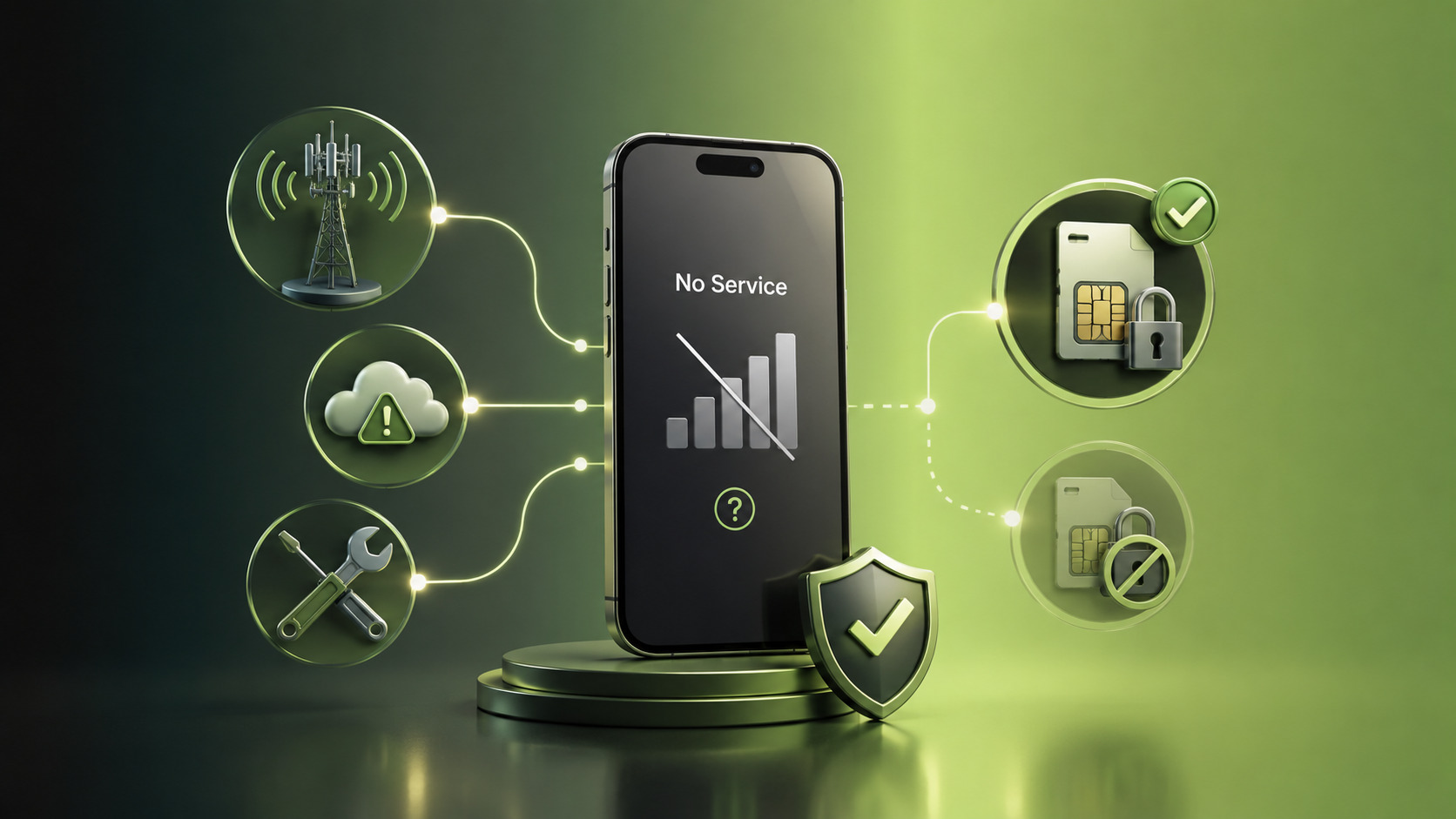
“No Service” can result from:
- Weak or unavailable network coverage
- An inactive SIM or eSIM
- Incorrect network configuration
- Temporary carrier outages
- Unsupported cellular bands
- Account or provisioning problems
- An IMEI-related restriction
Try restarting the phone and toggling Airplane Mode before moving to more involved checks. Make sure the SIM or eSIM line is enabled and verify that the carrier account remains active.
If possible, test the SIM in another compatible device. If the second phone also has no service, the problem probably lies with the SIM, account, or network rather than the original phone’s lock status.
Network compatibility also matters, especially with imported devices. An unlocked phone is not automatically compatible with every carrier.
“Emergency Calls Only”: Lock Issue or Network Issue?
“Emergency Calls Only” means the phone can detect cellular infrastructure but cannot register for normal service.
That can happen with a carrier-locked phone, but it can also occur when the SIM is inactive, the account has a problem, coverage is limited, or the device cannot properly connect to the carrier.
This distinction becomes particularly important when traveling.
A phone purchased in one country may be fully unlocked yet lack important frequency bands used by a network in another region. Likewise, a carrier may require specific support for technologies such as VoLTE before allowing normal service.
If the device previously worked with the same carrier and suddenly displays “Emergency Calls Only,” investigate the network, SIM, and account first. A carrier lock generally does not appear spontaneously on a phone that was already operating normally as an unlocked device.
How to Determine Whether Unlocking Is Actually the Solution
When dealing with SIM not supported network locked errors, a systematic diagnosis is faster than trying random fixes. Work through the following checks before ordering any service.
1. Confirm the Carrier Lock Status
Start with the phone itself.
On compatible iPhones, open Settings > General > About and look for Carrier Lock. “No SIM restrictions” indicates that the iPhone is not carrier-locked.
Android menus vary by manufacturer and carrier, so there may not be an equally universal status field. Testing a known-working SIM from another compatible carrier can often provide useful evidence.
2. Check the SIM or eSIM
A faulty SIM can make a perfectly functional unlocked phone look like it has a network problem.
Confirm that the SIM is active and correctly installed. For eSIM, make sure the profile has been properly downloaded and activated.
When possible, test the SIM in another compatible device. You can also test a known-working SIM in the problem phone.
These two tests help separate a device issue from a SIM or account issue.
3. Verify Network Compatibility
Unlocking removes a carrier restriction. It does not add missing hardware capabilities.
Check whether the exact phone model supports the frequencies and network technologies used by your intended carrier. This is especially important for devices purchased abroad.
Two versions of the same smartphone can look identical while supporting different network configurations.
4. Check IMEI and Device Status
The IMEI identifies the handset on mobile networks. A phone may be unlocked while still facing restrictions because of its device status.
For example, a device reported lost or stolen may appear on a blacklist. Certain carriers may also restrict devices because of account or financing issues, depending on their policies.
A network unlock does not automatically resolve an IMEI blacklist. These are separate issues and should not be confused.
5. Identify the Original Carrier
If the phone really is locked, you need to know which carrier imposed the restriction.
This becomes particularly important with second-hand or refurbished devices. The current owner may have purchased the phone from a reseller and know little about its original network.
The model number, purchase records, carrier information, or a reliable device-status check can help establish the phone’s history.
Identifying the cause before ordering a service saves time and helps ensure that an unlock—not a SIM, compatibility, or network fix—is actually what your device needs.
When to Request an Unlock—and When Not To
Unlocking is the appropriate solution when a confirmed carrier restriction prevents an otherwise compatible device from using another network.
For example, imagine a phone that works normally with Carrier A. You insert an active SIM from compatible Carrier B, and the device displays “Network Locked” or requests a network unlock code. If the phone’s status confirms a carrier restriction, an unlock is the logical next step.
You probably do not need an unlocking service when the phone already shows that it has no SIM restrictions but still cannot connect.
In that situation, investigate:
- SIM or eSIM activation
- Network coverage
- Carrier account status
- Device compatibility
- APN or network configuration
- IMEI status
- Temporary carrier outages
The same principle applies to international use. If an unlocked phone lacks the necessary network bands for a particular carrier, another unlock cannot create that compatibility.
Understanding this distinction prevents unnecessary orders and helps users focus on the actual source of the problem.

A Simple Diagnosis Can Save a Lot of Frustration
Network errors can look similar on the screen, but their solutions can be completely different.
“SIM Not Supported” and “Network Locked” often justify checking for carrier restrictions. “No Service” and “Emergency Calls Only,” meanwhile, require a broader diagnosis because they can result from SIM, coverage, compatibility, account, or device-status problems.
The key is to confirm the cause rather than treating every connectivity problem as an unlocking problem.
Check the carrier lock status, test the SIM, verify network compatibility, review the IMEI status, and identify the original carrier. Once those pieces are clear, you can determine whether unlocking is actually necessary.
If a carrier restriction is the cause, UnlockBase.com provides professional unlocking services for a wide range of devices and networks, with clear service information before you order.
All products, and company names, logos, and service marks (collectively the "Trademarks") displayed are registered® and/or unregistered trademarks™ of their respective owners. The authors of this web site are not sponsored by or affiliated with any of the third-party trade mark or third-party registered trade mark owners, and make no representations about them, their owners, their products or services.


Comments are closed.