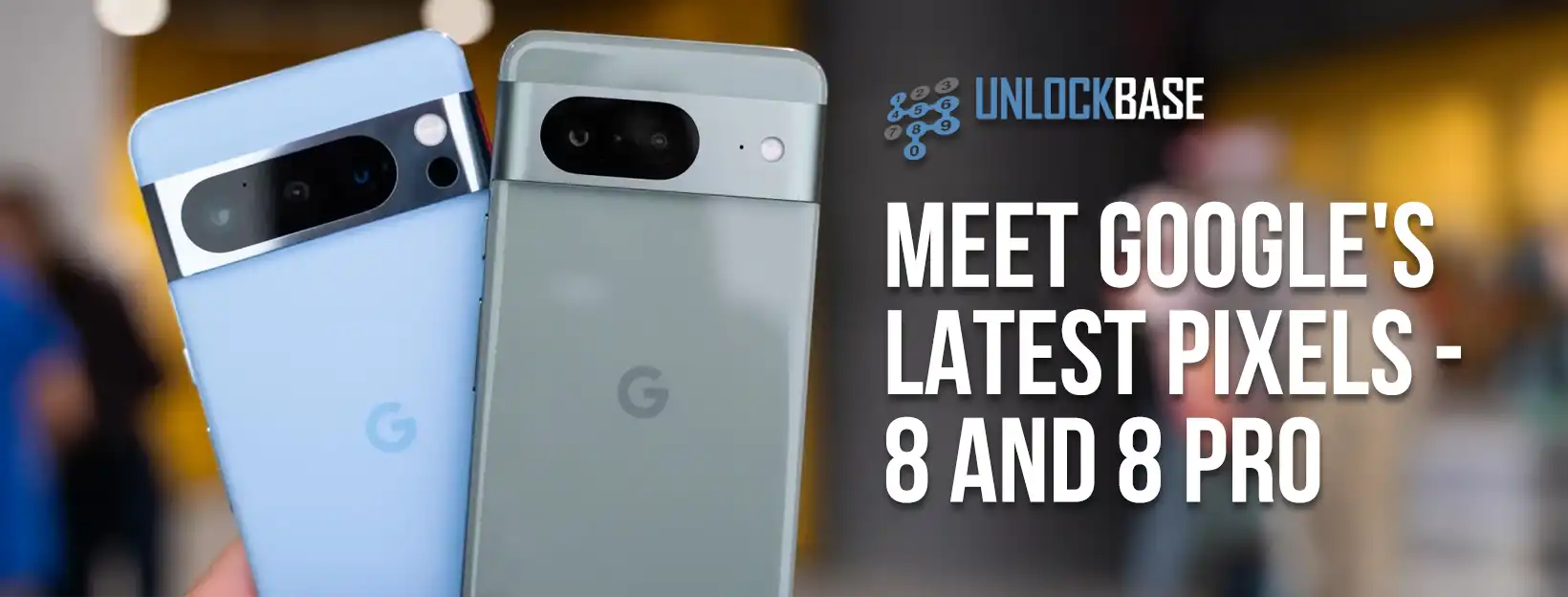
Google Pixel 8 Pro Review? The Google Pixel series has consistently stood out for its exceptional software and camera capabilities. With the release of the Google Pixel 8 and Pixel 8 Pro, Google aims to reaffirm its position in the market. In this review, we’ll delve deep into both these smartphones, examining their design, features, and the unprecedented seven-year software support that Google has introduced, setting new industry standards.
Google Pixel 8 Review : A Compact Delight
Google continues its two-model trend with the Pixel 8 series, and the standard model, the Google Pixel 8, is now the latest entry-tier flagship in the Pixel lineup.
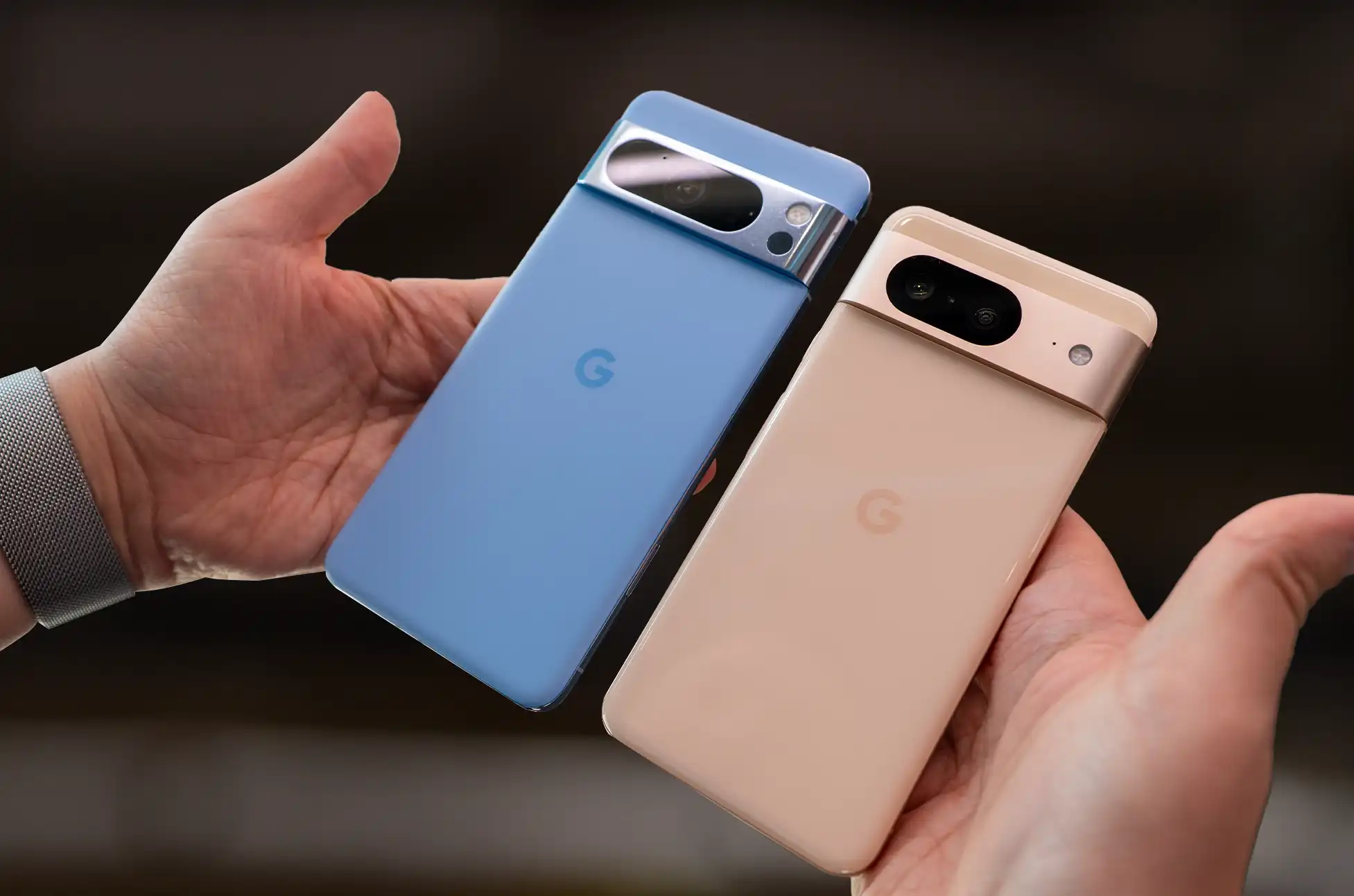
Design and Feel – Design-wise, the Pixel 8 doesn’t deviate much from its predecessors, with the key change being its size. At 150.5 x 70.8 x 8.9mm, it’s the smallest mainline Pixel phone since the Pixel 5. Small phones might have fallen out of favor, but the Pixel 8’s size feels just right. It strikes a balance that’s comfortable for all, especially those with smaller hands or tired of thumb-stretching displays. While not much else has changed in design, Google’s winning formula remains intact. The camera bar accommodates two new lenses, and bezels are slightly thinner. The aluminum rails and glossy back glass, featuring Gorilla Glass Victus, remain familiar but stylish.
Stunning Color Options – The Google Pixel 8 introduces new colorways that are sure to please. Obsidian (black) offers a classic look, while Hazel provides a classy gray/green option. Peony adds a delightful touch of pink to the lineup.
Impressions of the Pixel 8 – The Pixel 8 embodies the mantra, “If it ain’t broke, don’t fix it.” Google retains everything users love about modern Pixel phones and addresses common requests for more compact devices and thinner bezels. The Pixel 8’s compact size and thoughtful design make it a strong recommendation for the upcoming holiday season. Thanks, Google, for delivering a fantastic option.
A Design Evolution: Google Pixel 8 Pro Review
While the Pixel 8 hasn’t undergone major changes, its Pro counterpart, the Pixel 8 Pro, introduces notable upgrades that set it apart from its non-Pro siblings. Here’s the Google Pixel 8 Pro Review
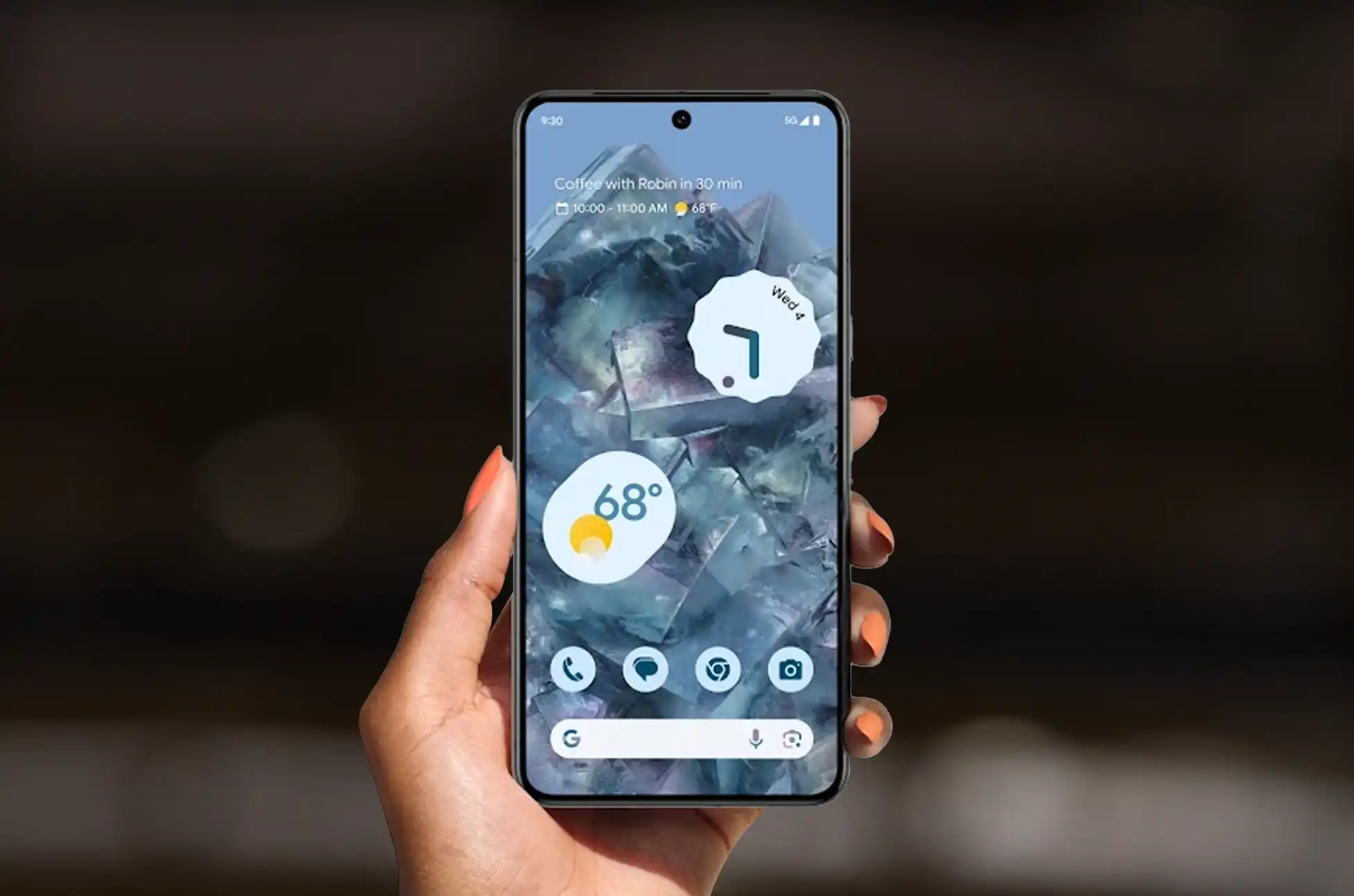
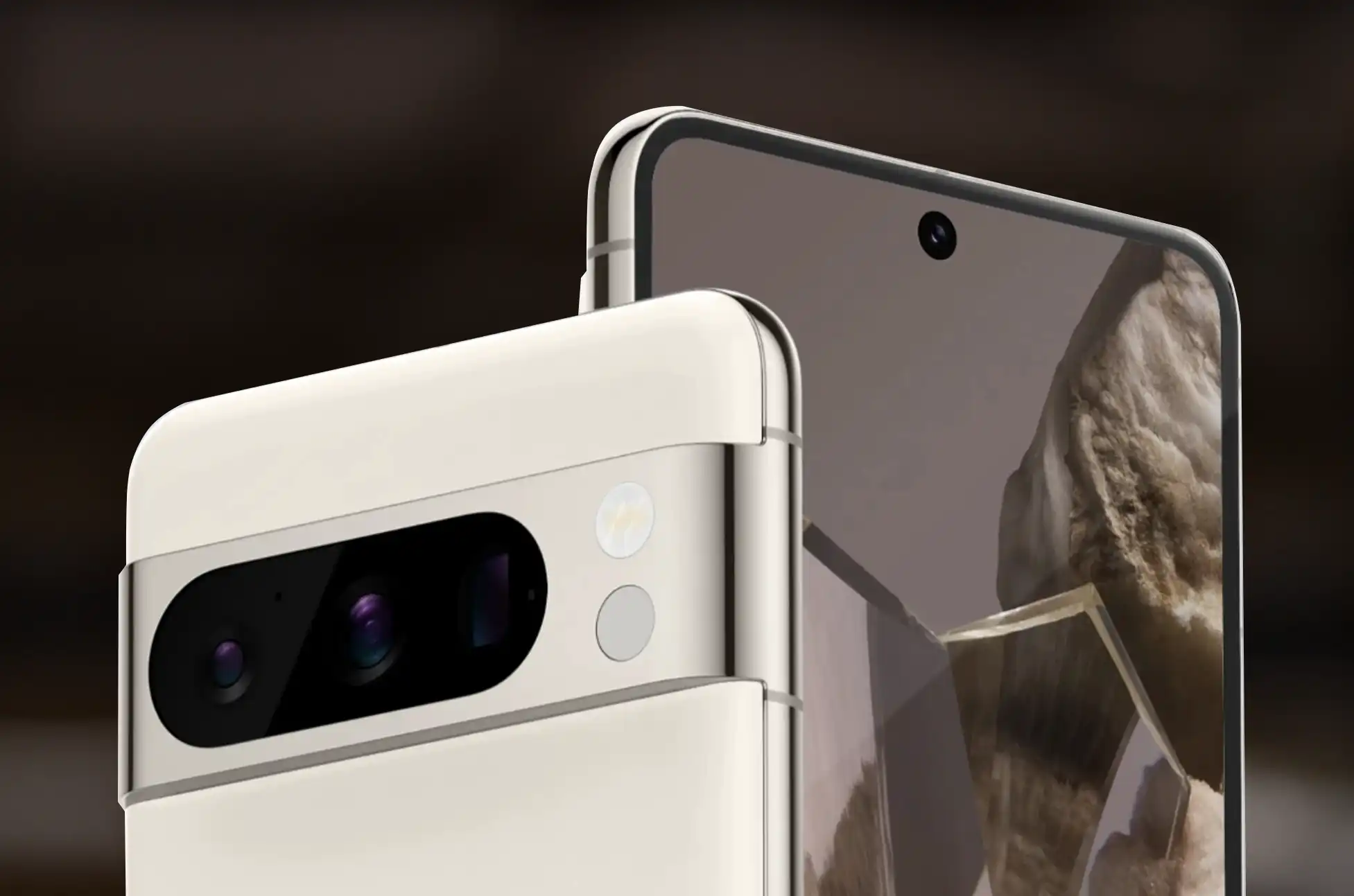
Design and Feel – The Pixel 8 Pro features two significant design changes this year. Firstly, it boasts a flat display, a first for a Pro Pixel device. This change eliminates the steep curves found in previous models, making it easier to use Android’s navigation gestures. Secondly, the Pixel 8 Pro sports a matte glass back, crafted from Gorilla Glass Victus 2. This glass feels soft to the touch and is resistant to fingerprints, a departure from the slick, fingerprint-prone backs of the Pixel 7 Pro and Pixel 6 Pro. The matte back offers a tactile feel reminiscent of the beloved Pixel 5. Beyond these major alterations, there are more subtle changes.
The camera bar adopts a different design, housing all the lenses in a single “pill” container instead of the “pill + circle” system of the Pixel 7 Pro. Size differences are minimal, with the Pixel 8 Pro being slightly larger than the Pixel 7 Pro by fractions of a millimeter.Color options for the Pixel 8 Pro provide variety. While Obsidian is retained, the Porcelain model replaces the Pixel 8’s Peony variant. Additionally, the Pixel 8 Pro introduces a stunning Bay (blue) color option, likely to be a popular choice for those seeking a more vibrant phone.
Impressions of the Pixel 8 Pro – Having used the Google Pixel 7 Pro extensively, I can confidently say that the Pixel 8 Pro represents a significant design improvement. The matte glass and flat display enhance the user experience, offering comfort and familiarity. While it remains a sizable and weighty phone, those seeking a more compact alternative can consider the Pixel 8.
A Game-Changing Upgrade
The most remarkable improvement isn’t physical but rather software-related. Google made history by announcing that the Pixel 8 series will receive an astonishing seven years of software support. This includes seven Android versions, 84 monthly security updates, and 28 quarterly Pixel Feature Drops, ensuring Google’s support until 2030.
This unprecedented commitment sets Google far ahead of its competitors in terms of software support. Apple typically offers five to six years of iPhone support, Samsung provides five years with only four Android upgrades, and even Fairphone’s celebrated ten-year promise encompasses only five Android upgrades.
While this is a significant leap, it’s unclear if this policy will extend to other Pixel phones. Notably, the $1,800 Google Pixel Fold deserves similar support, considering its premium price tag. For now, the seven-year commitment applies exclusively to the Pixel 8 series, but future developments remain uncertain.
Google Pixel 8 and Pixel 8 Pro Review Specs
While our initial hands-on experience didn’t allow for comprehensive testing, we can highlight key upgrades. Both phones feature the new Google Tensor G3 chipset, offering improved power and on-device AI capabilities. Exciting AI features like “Best Take” and “Magic Editor” enhance user experiences.
The displays have also seen upgrades, known as “Actua displays.” The Pixel 8 reaches 2,000 nits peak brightness, comparable to the iPhone 15 Pro series. Meanwhile, the Pixel 8 Pro boasts an impressive 2,400 nits with its Super Actua display. However, further testing is required for a precise evaluation.
For a detailed spec breakdown, consult the table below.
As we wrap up this hands-on review of the Google Pixel 8 and Pixel 8 Pro, it’s evident that Google is taking its Pixel smartphones seriously. The consistent design language across all Pixel phones showcases a commitment to a cohesive product lineup. Google is not only adding features that users genuinely appreciate but also refining the look and feel of the devices for maximum comfort.
All products, and company names, logos, and service marks (collectively the "Trademarks") displayed are registered® and/or unregistered
trademarks™ of their respective owners.
The authors of this web site are not sponsored by or affiliated with any of the third-party trade mark or third-party registered trade mark owners,
and make no representations about them, their owners, their products or services.
Unlock virgin mobile iPhone? Tired of being locked into a single carrier’s network? Unlocking your Virgin Mobile iPhone is the solution you’ve been looking for. This guide will walk you through the process, ensuring you can make the most of your device by switching to the carrier that best suits your needs.
Recognizing the Value of Unlocking
The Virgin Mobile iPhone unlock has several significant advantages. You can switch to a different carrier that provides superior service, more affordable rates, or special features. You can also utilize local SIM cards when visiting another country to avoid high roaming fees.
Unlock Virgin Mobile iPhone
To initiate the unlocking process, gather essential information, such as your iPhone’s IMEI number and your account details. Next, contact Virgin Mobile’s customer support to request an unlock code. Prepare to explain the reason for needing the phone unlocked. If you are eligible, you can follow their instructions, and you’ll be ready to go! However, if you do not meet their eligibility criteria, don’t worry – UnlockBase has you covered!
Unlock Virgin Mobile iPhone with Unlock Base
If you get confused or uncertain at any point, our devoted team of customer support specialists will help you unlock your phone.
Confirm your payment and wait for an email confirmation.
After you make the payment, we will whitelist your IMEI in Apple’s IMEI database, providing you with a permanent official unlock that won’t void your warranty and allows constant upgrades to the most recent version of iOS.
Your unlock is provided “Over-The-Air” over WiFi or cellular connection, so there’s no need to connect your Virgin Mobile iPhone to a computer or restart it. You may use your Virgin Mobile iPhone usually without any service interruptions. After we notify you that we have unlocked your Virgin Mobile iPhone, you can use any sim card in it.
How to Unlock Virgin Mobile iPhone
We apply the iPhone Factory Unlock entirely remotely, without involving an Unlock Code. The Factory Unlock of your iPhone is permanent and also stays if you update iOS or restore your iPhone. As soon as we confirm that we’ve applied the unlock to your iPhone, please follow the steps below:
Power on your iPhone with a non-accepted SIM Card inserted. A SIM Card is “non-accepted” if the original network that locked your iPhone doesn’t provide it. The SIM Card can be from any other network carrier worldwide and does not need to be the same SIM Card you want to use in the future.
Your iPhone will automatically activate with your new SIM Card. That means your iPhone is fully unlocked now.
You can now use your iPhone with any network carrier worldwide!
Conclusion
Unlocking your Virgin Mobile iPhone isn’t just about technicalities; it’s about seizing control of your mobile experience. By following the steps in this guide, you’ve taken a significant step towards mobile freedom. Remember to stay informed about your rights and carrier policies, and enjoy the newfound versatility that comes with an unlocked iPhone.
All products, and company names, logos, and service marks (collectively the "Trademarks") displayed are registered® and/or unregistered
trademarks™ of their respective owners.
The authors of this web site are not sponsored by or affiliated with any of the third-party trade mark or third-party registered trade mark owners,
and make no representations about them, their owners, their products or services.
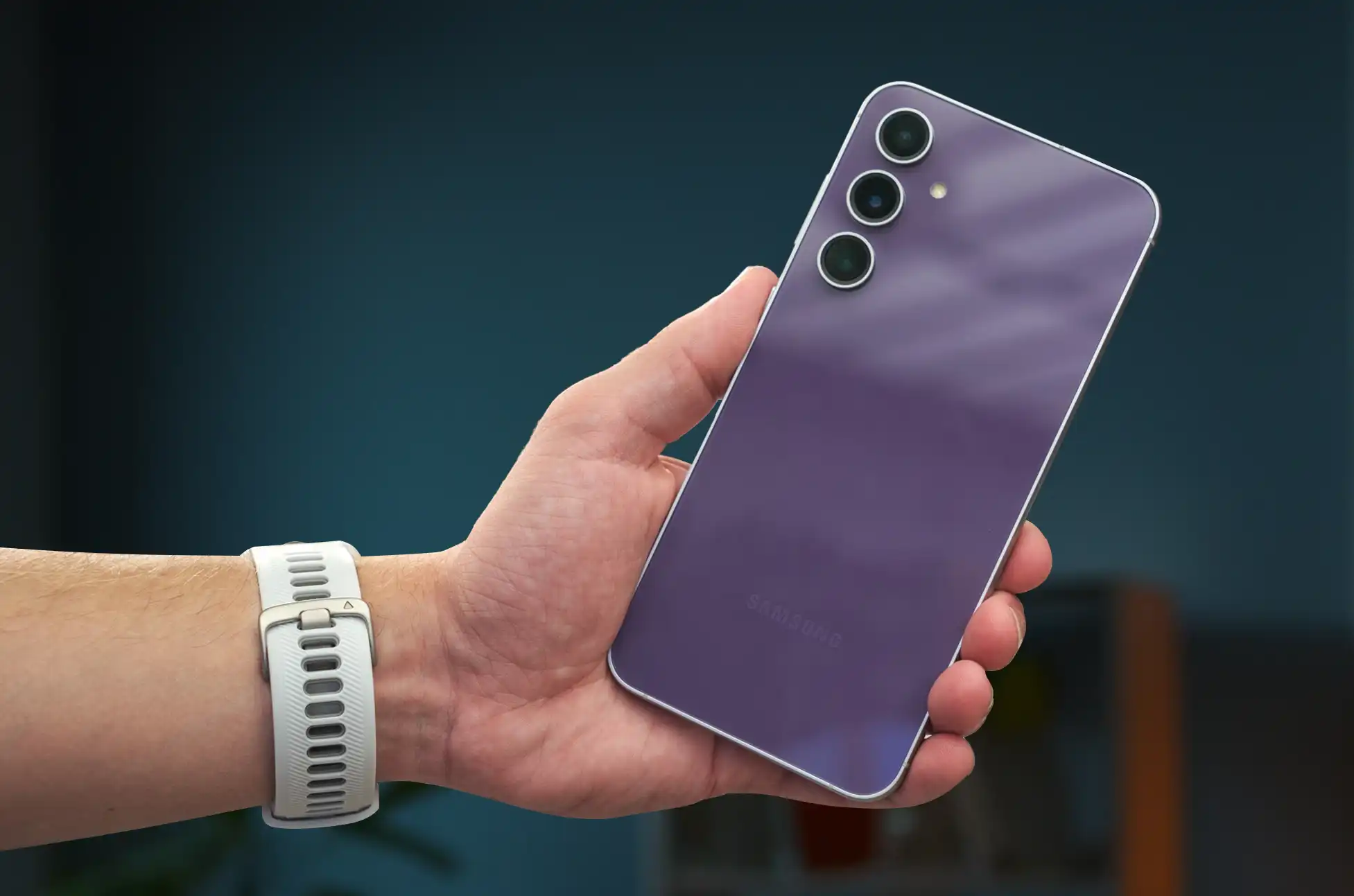
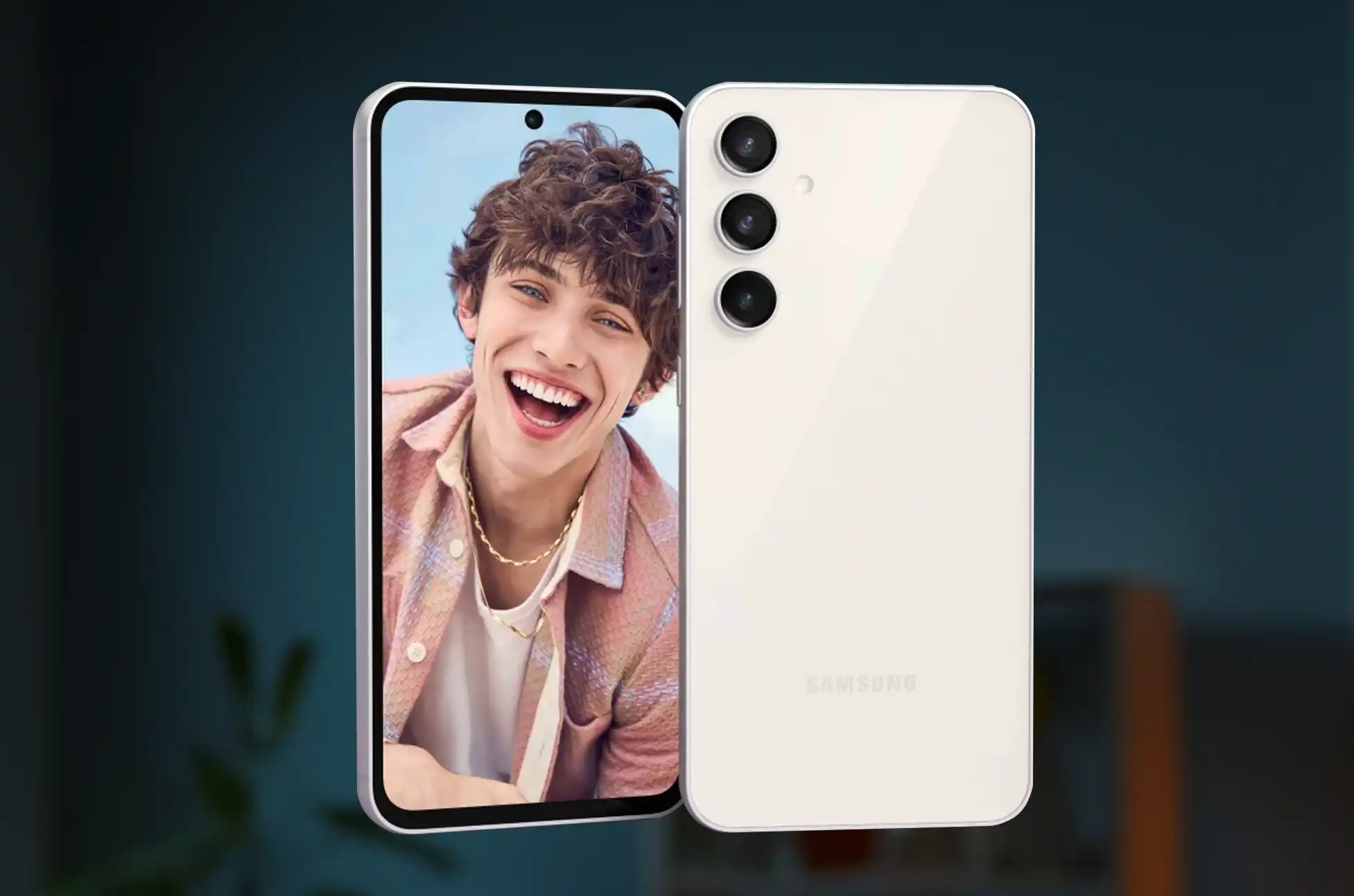
In the competitive world of smartphones, Samsung has consistently been a leader, setting benchmarks with its innovative technology and design. The introduction of the Galaxy S20 FE marked a notable shift, offering flagship-level experiences at a fraction of the price. Fast forward to the present, the Galaxy S23 FE emerges, promising to not just continue this legacy but to elevate it, even after the hiccup of the Galaxy S21 FE.
Samsung Galaxy S23 FE: A Revival in the Making
Unveiled on October 4, the Galaxy S23 FE, priced at $599 for the 8GB/128GB model, promises a blend of affordability, performance, and quality. Available from October 26, this smartphone is anticipated to mirror the success of its predecessors, despite the absence of a Galaxy S22 FE.
A Closer Look at Specifications
Samsung never shies away from integrating pioneering technology in its FE series. The S23 FE, boasting a 120Hz OLED screen, a robust battery, and wireless charging, is no exception. However, it’s the improved 50 MP main camera, enhanced by “Nightography” for superior low-light photos, that steals the spotlight.
Samsung Galaxy S23 FE
Display
6.4-inch Dynamic AMOLED, FHD+ (2,340 x 1,080), 120Hz refresh rate
Processor
Qualcomm Snapdragon 8 Gen 1 (US) or Exynos 2200 (Global)
RAM
8GB
Storage
128GB or 256G, No expandable storage
Battery and power
4,500mAh, 25W wired charging, 15W wireless charging, Reverse wireless charging, No charger in box
With strong (but one-year-old) silicon, a 120Hz OLED screen, a respectable-sized battery, and wireless charging, the Galaxy FE series often offers some flagship-level features at a more affordable price range.
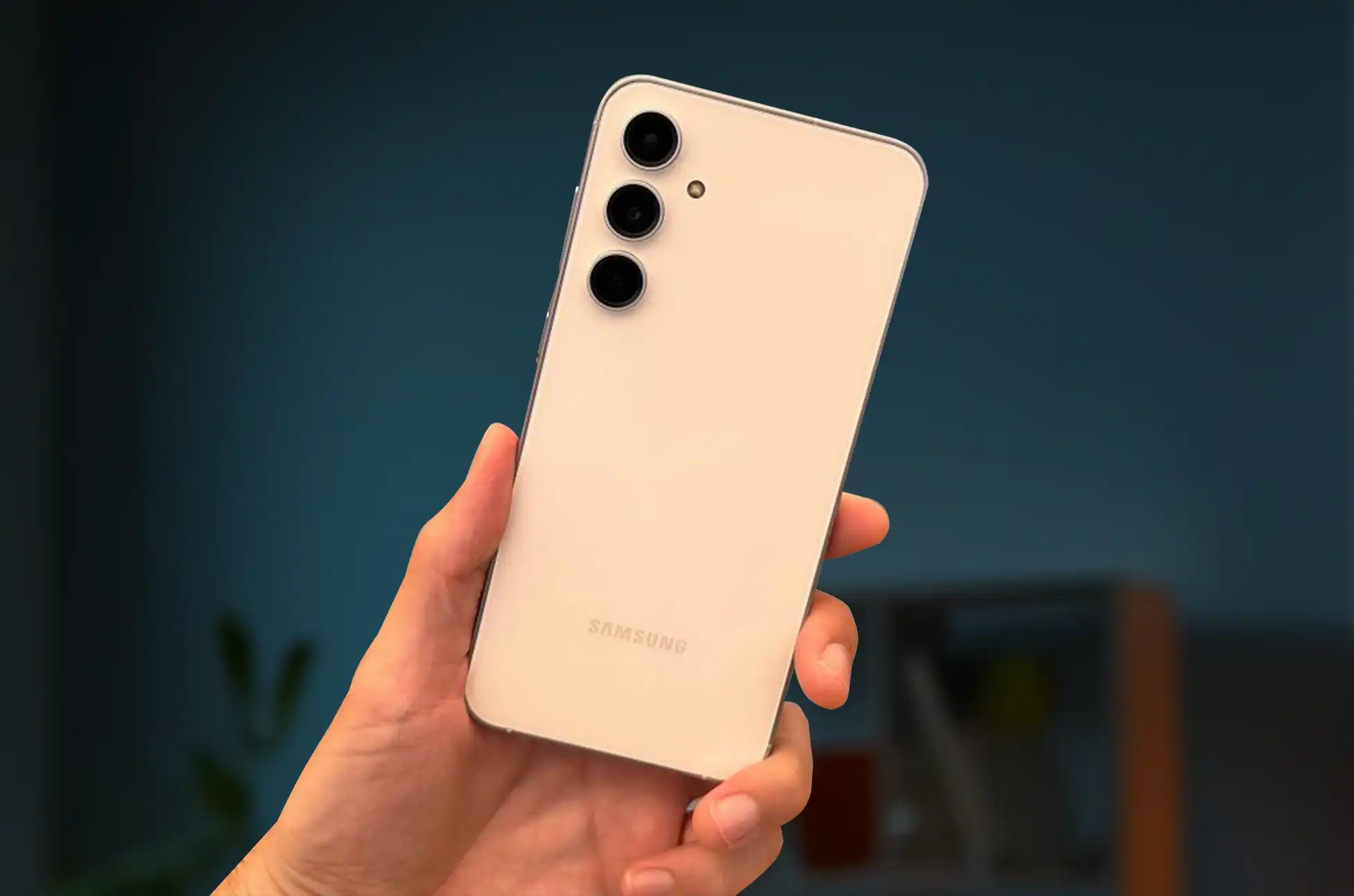
Don’t hold your breath expecting a fancy design because Samsung’s new phone also borrows certain styling ideas from the less expensive Galaxy A series. But the durability you receive is comforting.
Camera: Capturing Moments with Precision
The 50 MP main camera is a significant leap from the 12MP predecessors, promising crisp, detailed, and vibrant images. Samsung’s “Nightography” ensures that low-light conditions are no barrier to capturing mesmerizing moments. The additional 12MP ultrawide and 8MP 3x telephoto lenses, though reminiscent of the earlier versions, promise reliability and versatility.
Performance: A Harmonious Blend of Power and Efficiency
Equipped with the Exynos 2200 or Snapdragon 8 Gen 1, depending on the region, the S23 FE is not the epitome of cutting-edge performance but a balanced offering for those seeking reliable functionality without the flagship price tag. A detailed review awaits to explore its sustained performance capabilities in real-world usage.
Aesthetic and Durability: Functionality Meets Design
While aesthetics aren’t the headline for the S23 FE, the phone’s build quality is a silent promise of resilience. The presence of IP68 and Gorilla Glass 5 is a nod towards a design that’s meant to endure the rigors of daily use while maintaining an air of elegance.
Battery and Charging: The Reliable Companion
The 4,500mAh battery might elicit a sense of déjà vu but is still a commendable feature, ensuring the device stays alive through extensive use. With 25W wired charging and the reintroduction of wireless charging, the S23 FE promises both longevity and convenience.
Where can you buy the Samsung Galaxy S23 FE?
Want to get the Galaxy S23 FE? Beginning on October 26, the phone will be accessible in the US. In North America and Europe, we anticipate that the phone will be sold on websites like Samsung.com and Amazon.com. Additionally, it makes sense that carriers from all around the world will stock the phone. As soon as we have more information, we’ll update this section.
Conclusion
The Samsung Galaxy S23 FE stands as a beacon for those navigating the waters between exorbitant flagship prices and the desire for innovative features. It encapsulates a harmonious blend of affordability, reliability, and sophistication. In the world of smartphones, where the tussle between cost and innovation is perennial, the S23 FE emerges as a testament to Samsung’s prowess in striking a delicate balance.
All products, and company names, logos, and service marks (collectively the "Trademarks") displayed are registered® and/or unregistered
trademarks™ of their respective owners.
The authors of this web site are not sponsored by or affiliated with any of the third-party trade mark or third-party registered trade mark owners,
and make no representations about them, their owners, their products or services.
You may have more freedom to transfer between phone carriers and take advantage of better offers if you unlock your Motorola Tracfone. Even if your carrier won’t unlock your Motorola Tracfone for you, we’ll show you how to do it yourself in this simple instruction. In addition, we’ll introduce you to UnlockBase, a simple choice in case your carrier is uncooperative.
How to Unlock a Motorola Tracfone: Unlocking Your Motorola Tracfone: Step-by-Step Guide
Step 1: Check If Your Phone Is Eligible
Before we begin, let’s find out if your Motorola Tracfone is eligible for unlocking through your carrier. Here’s what to do:
Give Your Carrier a Call: Dial 1-800-867-7183 and speak to a friendly customer service representative at Tracfone.
Share Some Info: You might need to provide your phone’s IMEI number. You can find this in your phone’s settings or by dialing *#06#.
Step 2: Get an Unlock Code
If your carrier says yes to unlocking, follow these simple steps:
Contact Tracfone’s Customer Service: Reach out to Tracfone’s customer service again, and ask for an unlock code.
Follow Their Guidance: The customer service rep will guide you through the process and give you instructions on what to do next.
How to Unlock a Motorola Tracfone: Unlocking Through UnlockBase
If your carrier won’t cooperate, don’t worry; there’s another solution called UnlockBase:
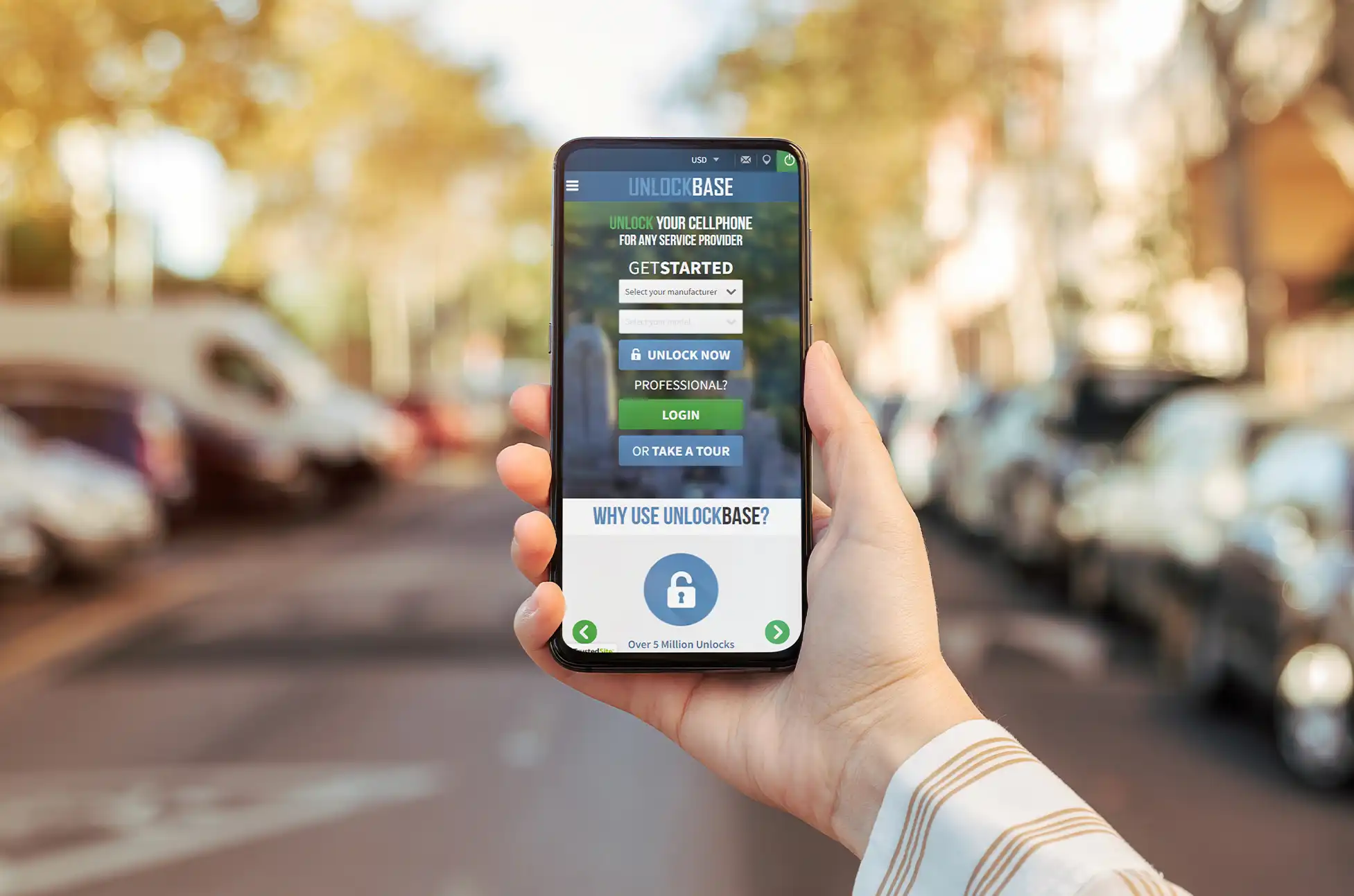
1. Visit the UnlockBase Website
To begin the unlocking process with UnlockBase, head over to their user-friendly website. You can find it by typing “UnlockBase” into your preferred search engine.
2. Find Your Motorola Tracfone Model
UnlockBase supports a wide range of phone models, so take a moment to locate your specific Motorola Tracfone model from their list.
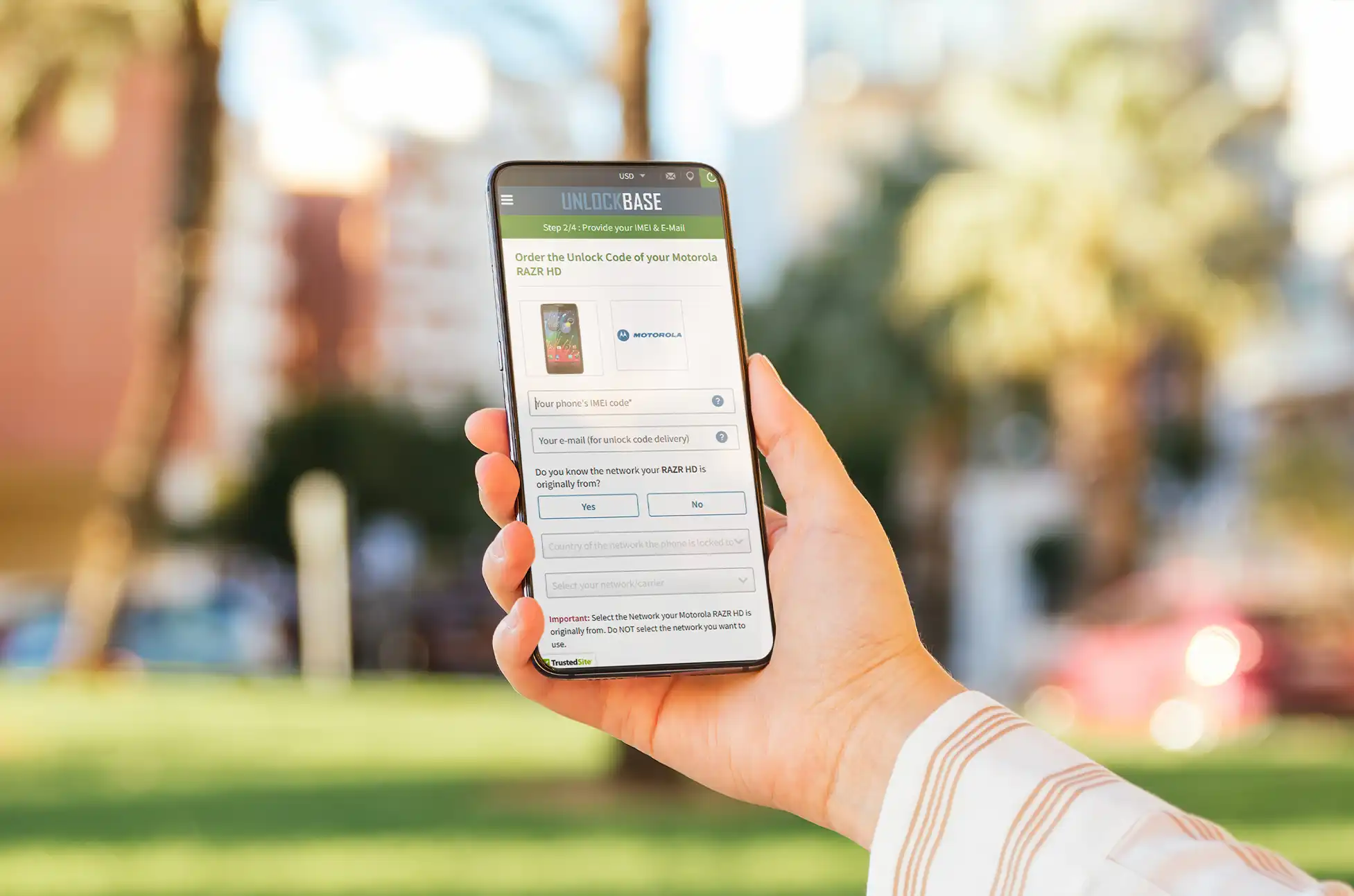
3. Provide Your Phone’s IMEI Number
The next step involves sharing your phone’s IMEI number. This unique identifier can typically be found in your phone’s settings or by dialing *#06# on your device. Once you’ve got this number handy, enter it on the UnlockBase website.
4. Provide Your Email Address
UnlockBase will need a way to reach out to you, so be prepared to provide your email address. Rest assured that this information will be kept private and secure.
5. Make the Payment
UnlockBase offers competitive pricing for their unlocking service. Follow the instructions on their website to make your payment securely. They accept various payment methods to accommodate your preferences.
6. Receive Your Unlock Code
After your payment is confirmed, UnlockBase will swiftly process your request. You’ll receive an email containing the unlock code you need to unlock your Motorola Tracfone. Keep an eye on your inbox for this important message.
7. Unlock Your Phone
Now that you have your unlock code, it’s time to free your Motorola Tracfone:
Power off your phone.
Insert a non-Tracfone SIM card into your device (from a different carrier).
Power your phone back on.
You’ll see a message prompt to enter the unlock code you received from UnlockBase. Simply type it in.
Press “OK” or “Enter.”
Enjoy Your Unlocked Phone
Congratulations! Your Motorola Tracfone is now unlocked and ready to be used with a variety of carriers. This newfound flexibility can lead to better deals and coverage options, giving you more control over your mobile experience.
Conclusion
Making the most of your Motorola Tracfone is easy with UnlockBase’s hassle-free unlocking service. Say good-bye to carrier limitations and hello to the opportunity to select the mobile service that best suits your needs. UnlockBase makes the procedure simple and accessible, whether you’re transferring carriers or just looking into your alternatives. Get your Motorola Tracfone unlocked immediately to start enjoying the advantages of an actual unlocked phone.
All products, and company names, logos, and service marks (collectively the "Trademarks") displayed are registered® and/or unregistered
trademarks™ of their respective owners.
The authors of this web site are not sponsored by or affiliated with any of the third-party trade mark or third-party registered trade mark owners,
and make no representations about them, their owners, their products or services.
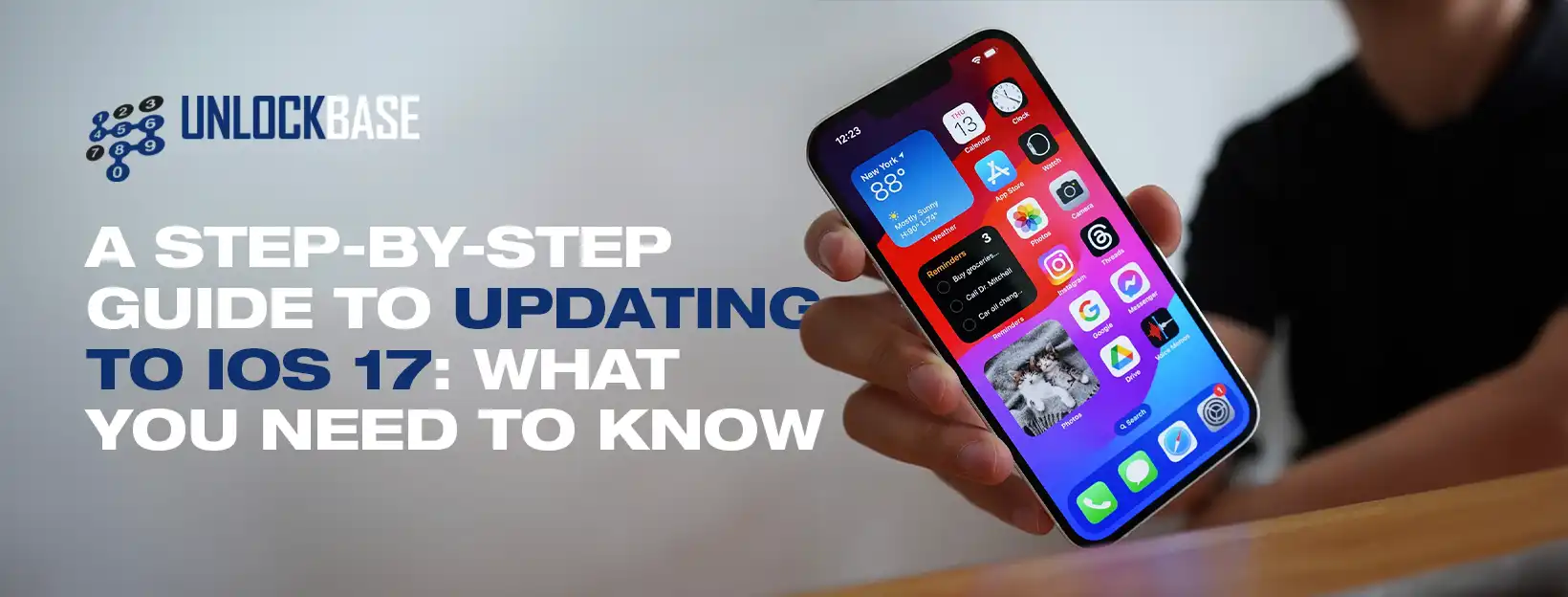
The game is on to swiftly update and take use of new features with each iOS release. This time, iOS 17 elevates your iPhone experience with interactive widgets, intelligent text prediction, the Check-In feature in Messages, and other features. However, before you hit the download button, follow our step-by-step instructions to ensure a smooth transition to update to iOS 17.
How to Update to iOS 17: Things to Preparing for the Update
There are a few things to keep in mind before you upgrade to iOS 17. We’ve laid them out for you so you can get started right away when you upgrade.
Check Compatibility
Before beginning the update process, make sure your device is compatible with iOS 17. Not all older devices can run the most recent software. To check compatibility, go to Apple’s official website and make sure your device is on the list.
iPhone 15
iPhone 13
iPhone 11
iPhone 15 Plus
iPhone 13 mini
iPhone 11 Pro
iPhone 15 Pro
iPhone 13 Pro
iPhone 11 Pro Max
iPhone 15 Pro Max
iPhone 13 Pro Max
iPhone XS
iPhone 14
iPhone 12
iPhone XS Max
iPhone 14 Plus
iPhone 12 mini
iPhone XR
iPhone 14 Pro
iPhone 12 Pro
iPhone SE (2nd generation or later)
iPhone 14 Pro Max
iPhone 12 Pro Max
The list of supported devices with iPadOS 17 is likewise amazing, spanning numerous device generations:
iPad Pro 12.9-inch (2nd generation and later)
iPad Air (3rd generation and later)
iPad Pro 10.5-inch
iPad (6th generation and later)
iPad Pro 11-inch (1st generation and later)
iPad mini (5th generation and later)
Clear Out your Storage Space
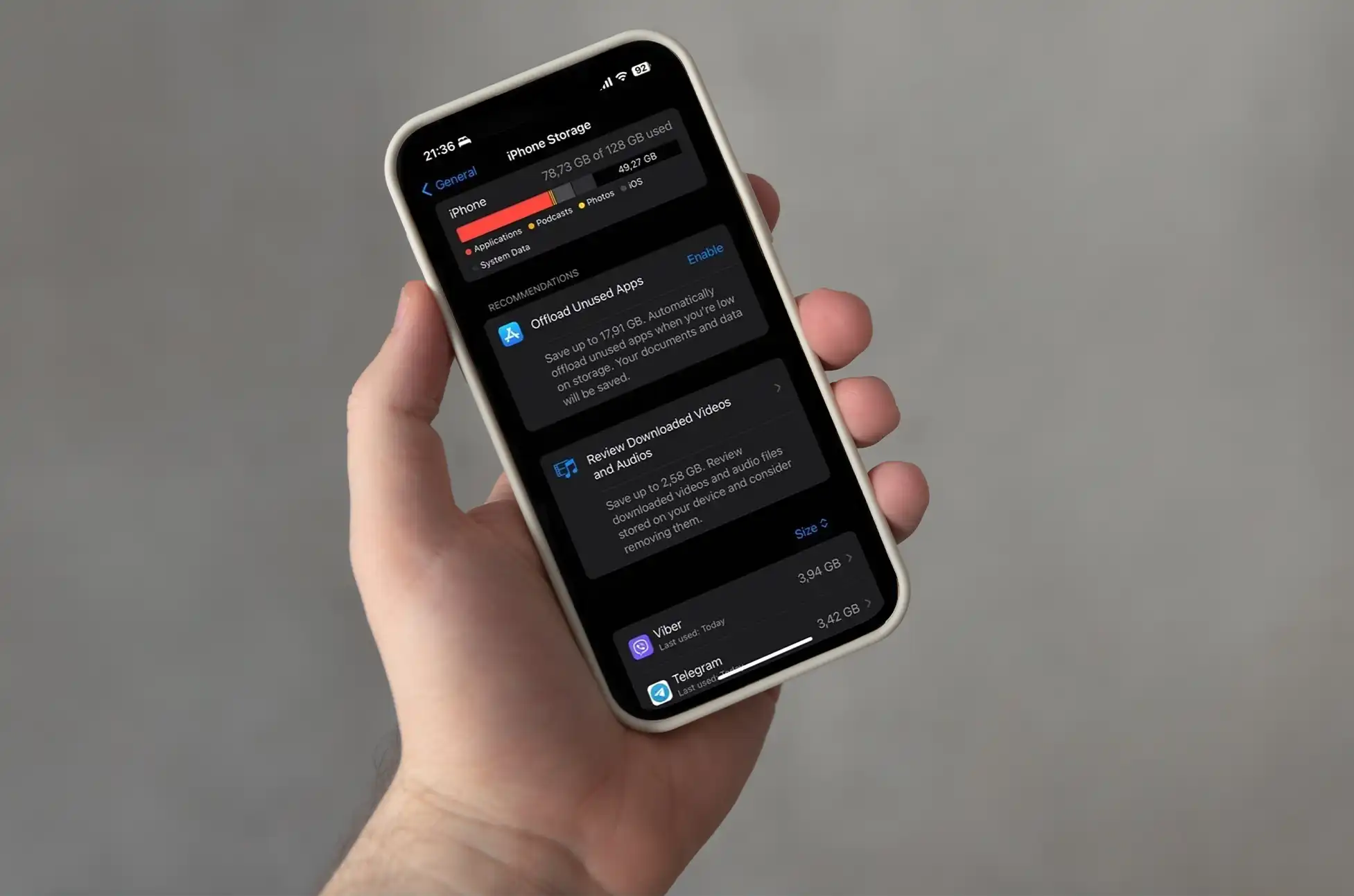
Knowing that you know your device is eligible for the update, it’s time to purge unused apps and free up some space on your device. Open “Settings -> General -> iPhone Storage” to see how much free space you have. Swipe right to delete any app you no longer use.
The iOS/iPadOS 17 update requires approximately 8GB of free space.To free up more storage space, delete outdated mails and clear browser caches. You may also go through the photos and delete old pictures and videos that are taking up space. Backup these to iCloud, Dropbox, or Google Photos before deleting them from your iPhone or iPad.
Backup your Data
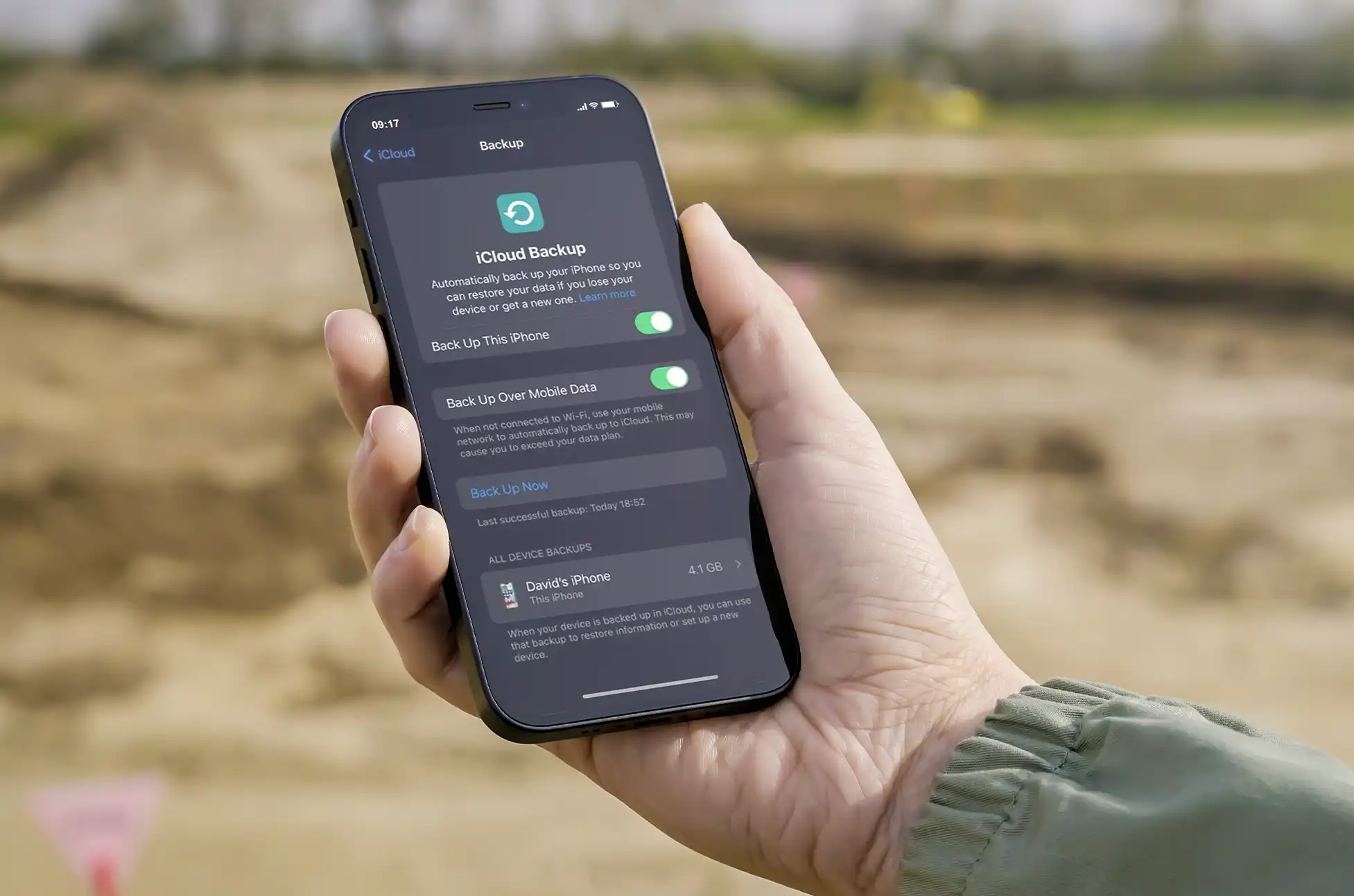
The update procedure can occasionally result in unanticipated data loss. Backing up your device is important for securing your treasured pictures, contacts, and apps. You have a choice between using iCloud or iTunes. Here’s how to go about it:
iCloud Backup
Connect your device to Wi-Fi.
Go to Settings > [Your Name] > iCloud > iCloud Backup.
Tap “Back Up Now.”
iTunes Backup
Connect your device to your computer and open iTunes (or Finder if you’re using macOS Catalina or later).
Select your device.
Click “Back Up Now.”
How to Update to iOS 17: Easy Steps
Before getting into how to update to iOS 17, make sure you followed the steps mentioned above to avoid update errors, and that your device is connected to WiFi and has enough battery power during the update.
Update via Settings
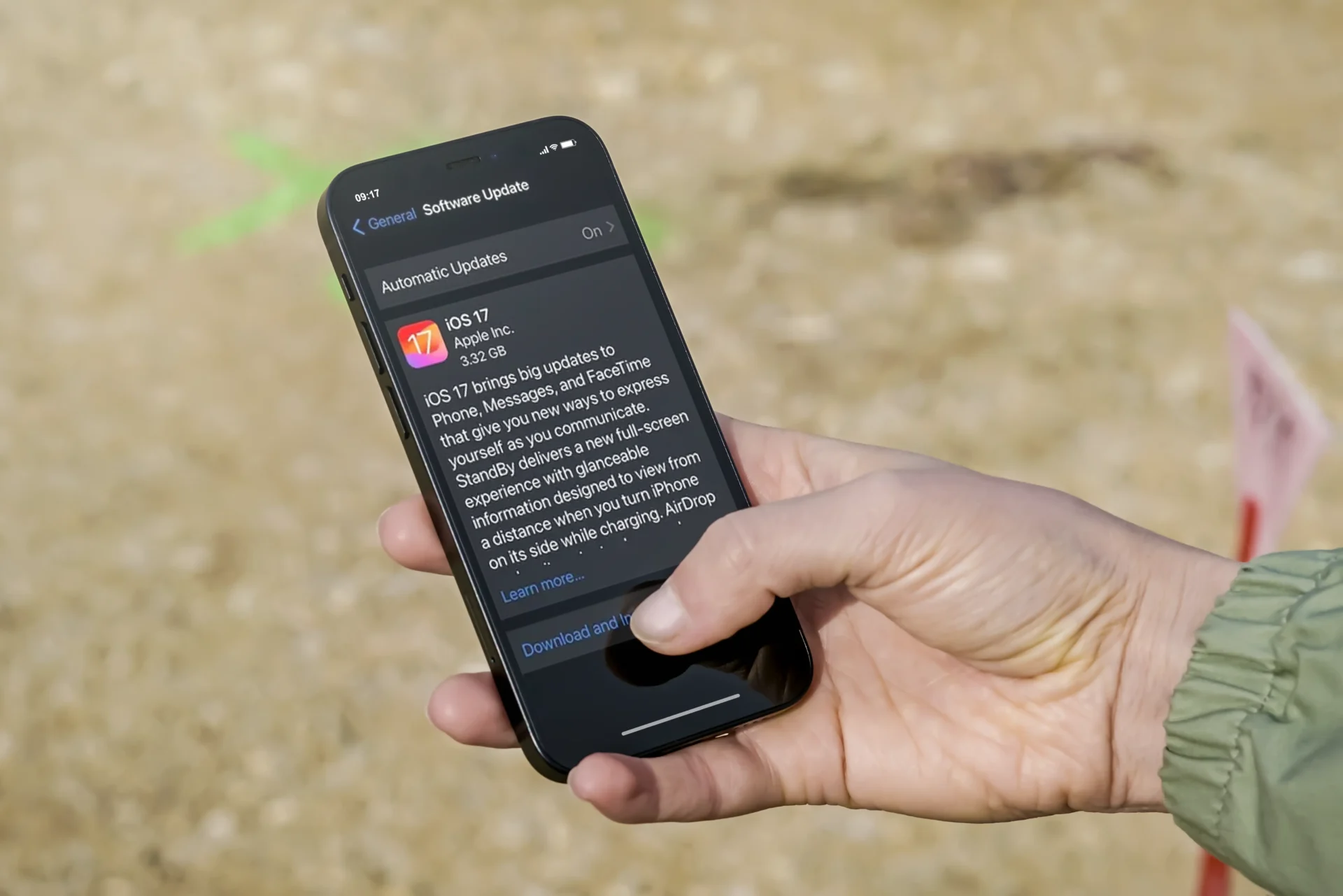
The most basic option is to update using the device’s settings:
Go to Settings > General > Software Update.
If iOS 17 is available, tap “Download and Install.”
Follow the on-screen instructions to complete the update.
Update via iTunes/Finder
If you prefer to update your device using a computer, proceed as follows:
Connect your device to your computer.
Open iTunes (or Finder on macOS Catalina or later).
Select your device.
Click “Check for Update.”
If iOS 17 is available, click “Download and Update.”
How to Update to iOS 17: Common Update Problems
Not Enough Storage
While iOS updates are usually smooth, you may encounter common issues, such as insufficient storage. Here’s how to address them:
Delete unnecessary apps or files to free up space.
Consider updating via iTunes/Finder if you don’t have enough space on your device.
Error 14, Error 9, etc.
Don’t be alarmed if you see error messages throughout the upgrade. Common errors frequently have simple solutions:
Restart your device and try the update again.
Update iTunes (or Finder) to the latest version.
If the problem persists, contact Apple Support.
Conclusion
Updating your iOS device to iOS 17 is a simple process that keeps you up to speed on the latest features and improvements. You can confidently manage the upgrade procedure if you follow this step-by-step guide. Remember to back up your data, solve frequent issues, and discover the exciting new features in iOS 17.
Now, enjoy the improved experience that iOS 17 has to offer!
All products, and company names, logos, and service marks (collectively the "Trademarks") displayed are registered® and/or unregistered
trademarks™ of their respective owners.
The authors of this web site are not sponsored by or affiliated with any of the third-party trade mark or third-party registered trade mark owners,
and make no representations about them, their owners, their products or services.
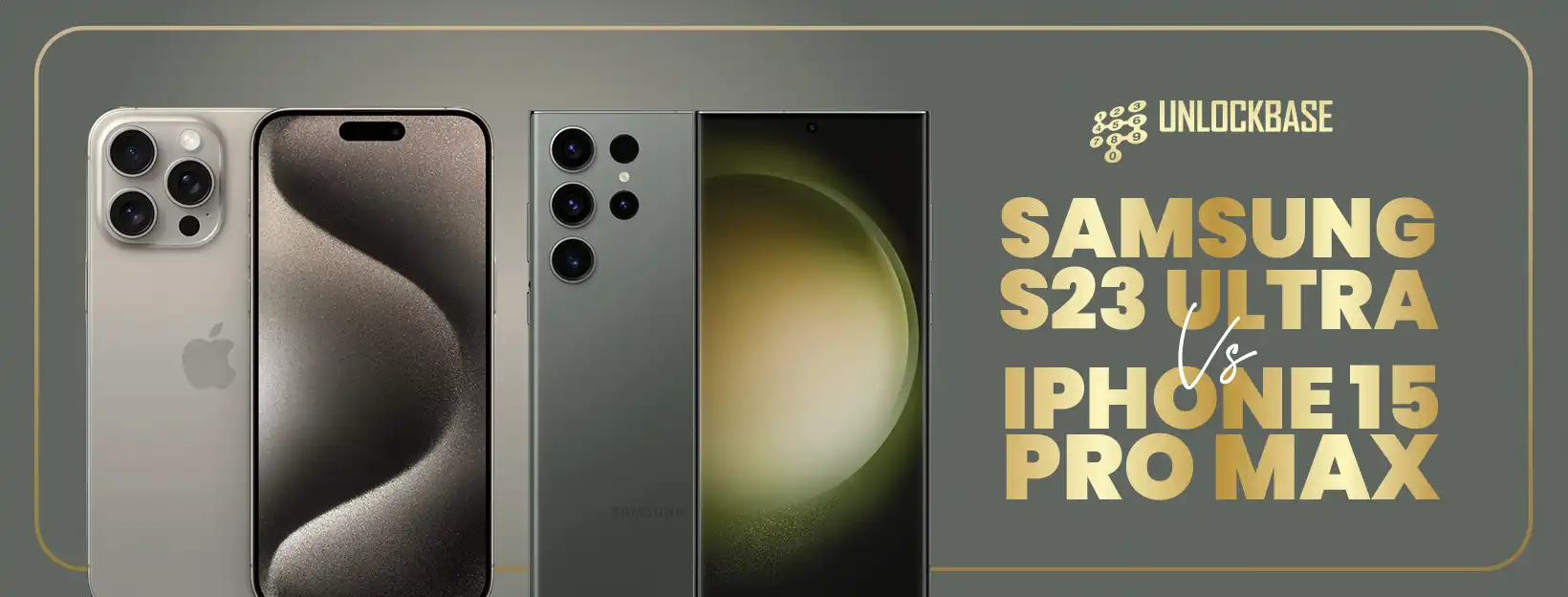
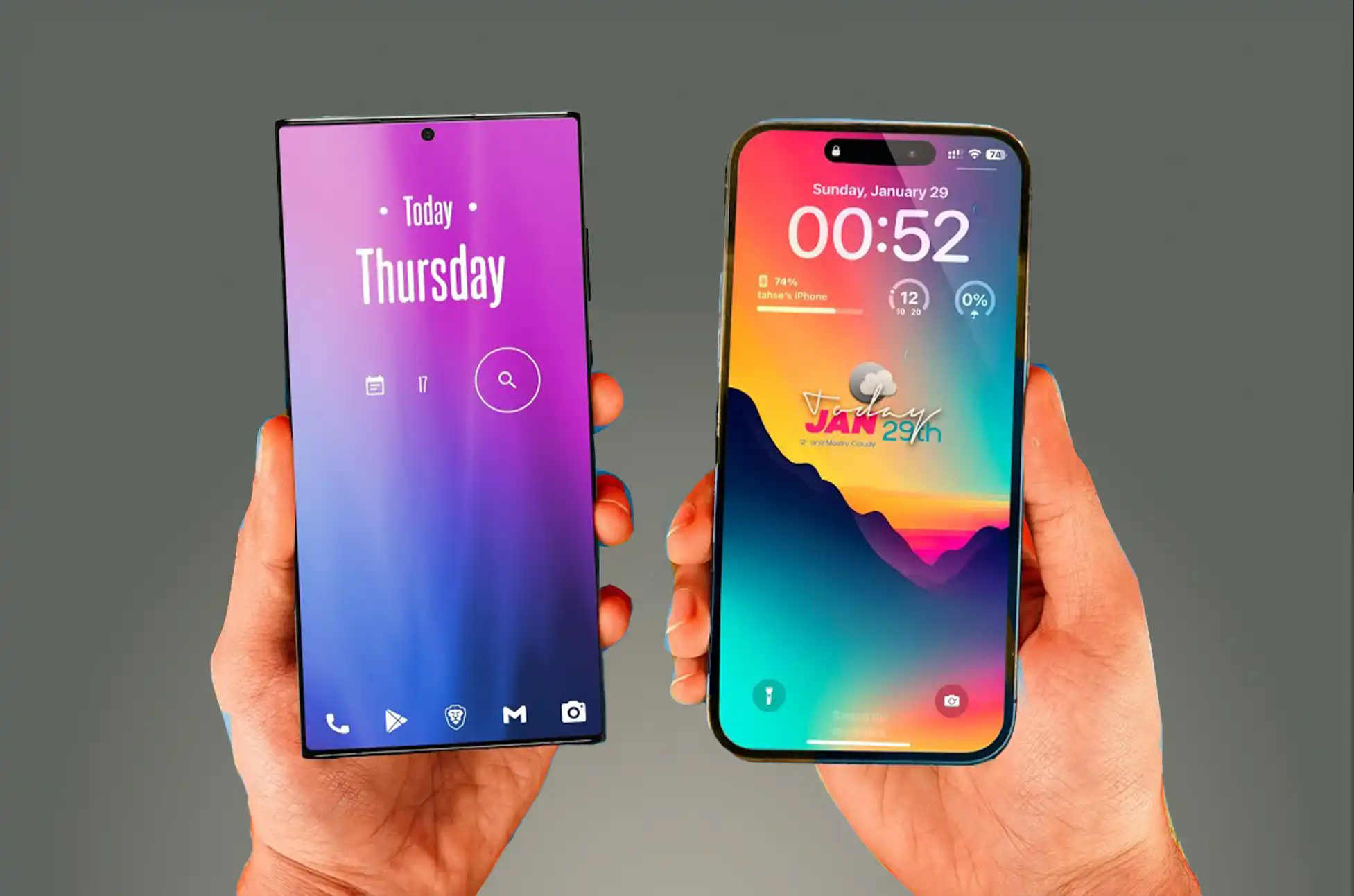
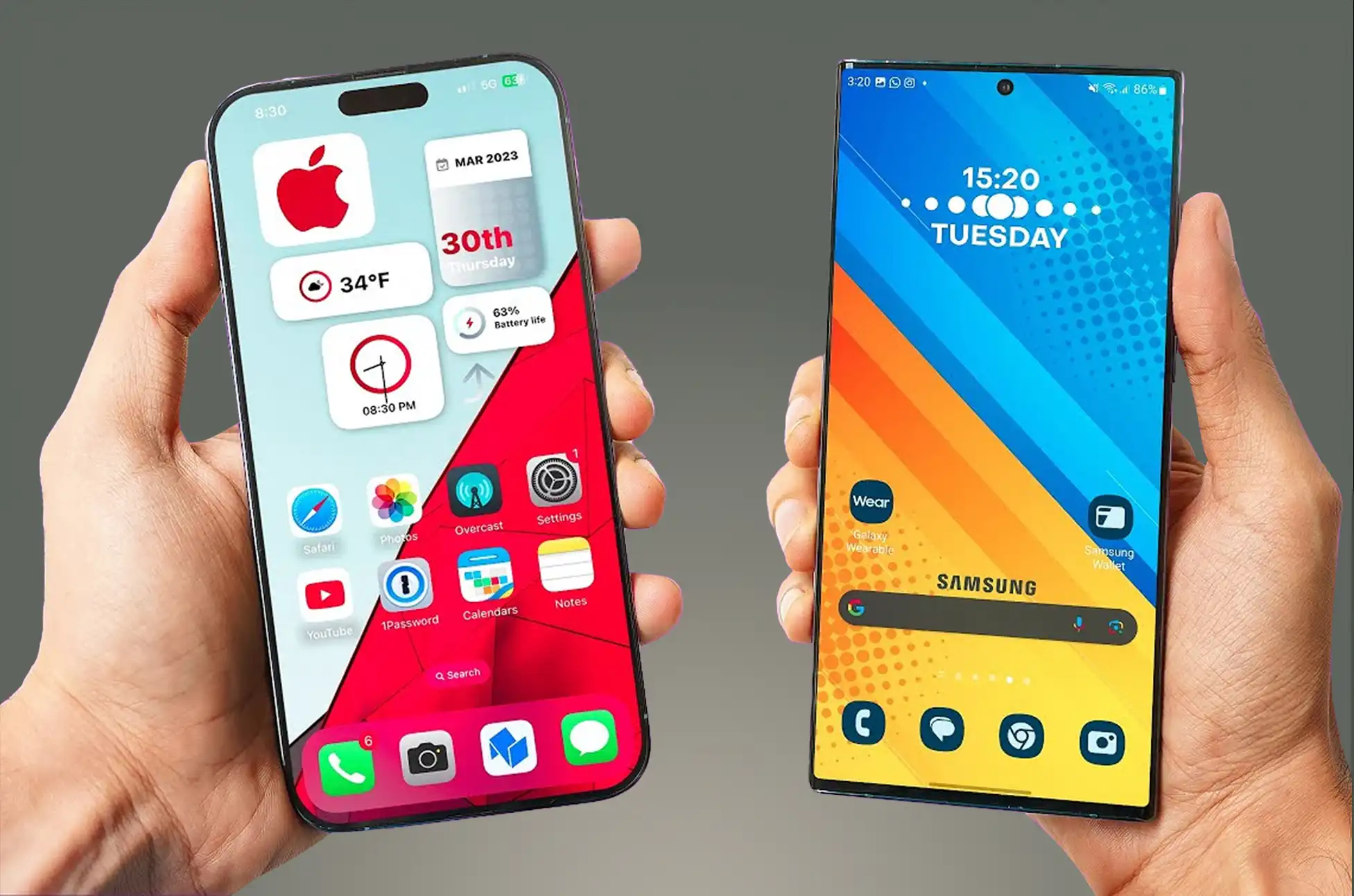
Samsung S23 Ultra vs iPhone 15 Pro Max? Two heavyweight candidates in the world of smartphones have emerged to redefine perfection in mobile technology: the Samsung Galaxy S23 Ultra and the iPhone 15 Pro Max. These flagship products are proof of the pinnacle of innovation, but selecting amongst them can be difficult. In this comparison, we’ll look at both of their strengths and weaknesses to help you determine which one best meets your preferences and needs.
S23 Ultra vs iPhone 15 Pro Max: Display
Samsung Galaxy S23 Ultra:
The S23 Ultra offers an immersive visual experience with a huge 6.8-inch Dynamic AMOLED display and a buttery-smooth 1~120Hz refresh, 240Hz touch sampling, making it a multimedia powerhouse.
iPhone 15 Pro Max:
The 6.7-inch Super Retina XDR display with 120Hz on the iPhone 15 Pro Max provides a breathtaking visual feast with deep blacks and bright colors.
S23 Ultra vs iPhone 15 Pro Max: Performance
Samsung Galaxy S23 Ultra:
The S23 Ultra boasts top-tier performance, effortlessly handling multitasking and demanding programs, thanks to its Snapdragon 8 Gen 2 processor and abundant 8GB or 12GB RAM. It also includes Android 13 and will be updated to Android 17, as well as five years of security patches.
The S23 Ultra benefits from One UI, Samsung’s software package that offers a lot of extra features that other Android devices don’t have. This has its own attractive environment that rivals Apple’s, as well as significant enhancements to multitasking and getting things done. This includes Samsung DeX, which turns your phone into a desktop PC when plugged into a display.
iPhone 15 Pro Max:
The iPhone 15 Pro Max includes the A17 Bionic processor and iOS 17. Apple hasn’t specified a software support period for the new models, but past history with iPhones suggests it’ll be at least five years, if not seven.
The ecosystem is a significant factor in Apple’s advantage. Because all of Apple’s products operate together, if you already have an iPad and a Mac, the iPhone will fit right in. Combine that with the capabilities currently available in iOS, such as Focus modes and the new StandBy mode, which may have rendered the Pixel Tablet obsolete, and you have a solid package.
S23 Ultra vs iPhone 15 Pro Max: Camera
Samsung Galaxy S23 Ultra:
The S23 Ultra’s quad-camera system, which includes a 200MP main sensor, a 12MP ultrawide lens, and a 10MP periscope telephoto lens, ensures excellent photography and video capabilities. Its 100x Space Zoom is an impressive feature.
iPhone 15 Pro Max:
The iPhone 15 Pro Max is a game changer in this department. It has a new and enhanced version of last year’s 48MP camera, the same 12MP ultrawide as previously, and a completely new 12MP, 5X telephoto lens. This is Apple’s first use of a periscope system, and it will be interesting to see how well it works.
S23 Ultra vs iPhone 15 Pro Max: Design and Colors
Design
Samsung Galaxy S23 Ultra:
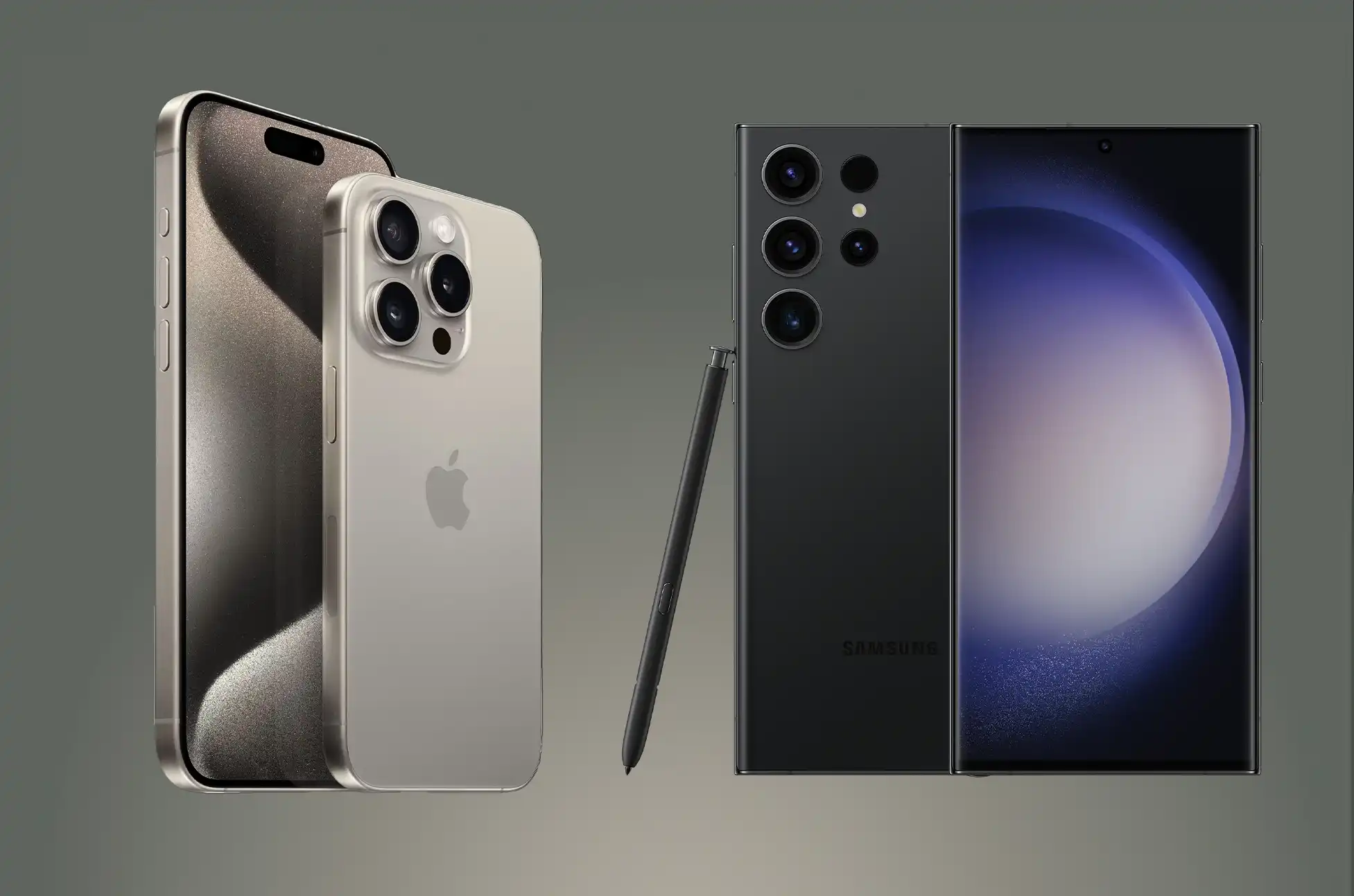
The Samsung Galaxy S23 Ultra boasts a squared-off design featuring aesthetically pleasing corners, although they can sometimes feel a bit sharp when holding the phone. The display extends beyond the edges, offering minimal bezels, with the only interruption being a small camera cutout. Furthermore, the S23 Ultra is constructed using Armored Aluminum and Gorilla Glass Victus 2, ensuring durability and strength.
iPhone 15 Pro Max:
The iPhone 15 Pro Max retains the iconic iPhone design, featuring square edges, a flat display with rounded corners, and the Dynamic Island at the screen’s center. Notably, this year’s model incorporates a titanium metal frame instead of stainless steel. However, the most significant shift is the switch from a Lightning port to a USB-C port. Whether due to external influences or not, this change benefits all users by ensuring that all new non-budget smartphones will utilize the same charging cable, as well as USB-C and PPS chargers.
Color
Pro and Ultra phones have been notorious for their somewhat muted color options, and the iPhone 15 Pro Max continues this trend. The standout choice is the Natural Titanium variant, which keeps the titanium frame in its original state, complemented by a glass back in a matching metallic gray shade. The available white, blue, and black models, while not unattractive, don’t quite capture the same attention.
Samsung’s previous Ultra models faced a similar issue, but the S23 Ultra has introduced a breath of fresh air. It offers four standard colors: black, cream, green, and lavender. While the cream and lavender options add some vibrancy, it’s the Samsung-exclusive colors that truly stand out. These colors have been part of Samsung’s lineup for a few generations, but the S23 Ultra elevates them. Our favorite among these exclusives is the striking red variant. Featuring a contrasting black frame that sets it apart from the rest. If red isn’t to your liking, there are also options like gunmetal gray, blue, and lime. While it may seem like a minor detail, lively color choices can significantly enhance the excitement of a phone. It’s commendable to see Samsung putting effort into this aspect.
Conclusion
The decision between the S23 Ultra vs iPhone 15 Pro Max comes down to personal tastes. If you value Android customization and camera versatility, the S23 Ultra could be the perfect fit for you. The iPhone 15 Pro Max is an excellent pick if you enjoy the simplicity of iOS and the seamless Apple ecosystem.
Finally, both of these premium smartphones provide amazing performance, gorgeous screens, and outstanding cameras. Your choice should be influenced by brand loyalty, operating system preference, and feature preferences. Whichever option you choose, you’ll get a cutting-edge device that represents the pinnacle of mobile technology.
All products, and company names, logos, and service marks (collectively the "Trademarks") displayed are registered® and/or unregistered
trademarks™ of their respective owners.
The authors of this web site are not sponsored by or affiliated with any of the third-party trade mark or third-party registered trade mark owners,
and make no representations about them, their owners, their products or services.
Best phone carriers in 2023? In today’s hyper-connected world, choosing the right phone carrier is crucial. With the evolution of technology and the ever-growing demand for reliable mobile service, selecting a carrier that aligns with your needs and preferences can make a significant difference in your mobile experience.
This 2023, the competition among phone carriers has never been fiercer, resulting in better coverage, faster speeds, and more enticing plans for consumers. In this blog, we’ll explore the best phone carriers in 2023, helping you make an informed choice for your mobile communication needs.
Here are some of the Best phone carriers 2023
1. T-Mobile
T-Mobile stands out as the leading 5G provider and one of the Best phone carriers in 2023, offering extensive coverage through its mid-band Ultra Capacity 5G network that serves the majority of the American population. You have the option to begin with a simple Essentials plan or advance to Go5G Plus, which allows for a phone upgrade every two years, or Go5G Next, where you can get a new phone annually.
Advantages:
Extensive 5G network coverage.
Multi-line discounts, including the benefit of a third line at no additional cost.
Go5G plans come with taxes and fees included.
Disadvantages:
Device upgrade perks are restricted to the more expensive plans.
Rural coverage doesn’t match up to Verizon and AT&T.
2. Verizon
Verizon has been actively extending its Ultra Wideband 5G network, narrowing the distance to T-Mobile but not quite catching up yet. Verizon’s recent offerings emphasize flexibility, letting customers customize their bundles by adding $10 features and subscription services to their plans.
Advantages:
Extensive coverage for both LTE and 5G.
Flexibility to personalize plans with myPlan.
Savings available through multi-line discounts.
Disadvantages:
Additional taxes and fees apply.
Plans can be costly for individual lines.
3. AT&T
AT&T boasts robust LTE coverage and an expanding 5G+ presence in numerous cities nationwide. Their plans are straightforward, featuring unlimited data and 5G access across all tiers. AT&T offers a variety of discounts, including the Signature Program and essential worker discounts.
Advantages:
Strong LTE and 5G coverage.
Attractive multi-line discounts.
Numerous discount options available.
Disadvantages:
Plans can be costly for individual lines.
Streaming quality is limited to SD on all plans except the top-tier one.
4. Visible
Visible is all about unlimited data without high-speed data cap, it also includes unlimited hotspot data with both of its plans, so you can keep your laptop or tablet online in a pinch. If you get Visible+, you even get fast 5G access with 50GB of premium data.
Advantages:
Totally unlimited data on both plans
Taxes and fees are included
Unlimited hotspot data
Disadvantages:
Lower priority data than Verizon
No multi-line savings
5. Mint Mobile
Mint Mobile operates as a prepaid carrier, specializing in offering discounts to customers who commit to several months of service at once. While the most significant savings come with an annual payment, you can also enjoy Mint’s favorable rates for the initial three months to test the service.
Advantages:
Full access to T-Mobile’s 5G network.
Substantial savings when purchasing a year of service.
Smaller, budget-friendly payments available with Mint Family plans.
Disadvantages:
Minimum purchase of at least three months required.
The unlimited plan is effectively capped at 40GB.
Weaker rural coverage compared to Verizon or AT&T.
6. US Mobile
US Mobile provides customers with the flexibility to choose between Verizon or T-Mobile coverage and even tailor their own custom plans. However, many users opt for the unlimited plans, which offer premium data and discounts for multiple lines.
Advantages:
Option to select either Verizon or T-Mobile coverage.
Taxes and fees are now included in the plans.
Both Verizon and T-Mobile SIMs provide the same amount of high-speed data.
Disadvantages:
US Mobile does not yet support all international features.
A frustrating 1Mbps speed limit is imposed after exhausting high-speed data.
7. Metro by T-Mobile
Best Prepaid Unlimited Plans
Advantages:
Strong 5G coverage on the T-Mobile network
Taxes and fees are included
No high-speed data cap
Disadvantages:
First month costs more on most plans
Rural coverage is weaker than Verizon or AT&T
8. Google Fi
Google Fi is a prepaid mobile carrier tailored for Android users, offering extensive coverage and features. It distinguishes itself with outstanding international roaming capabilities and competitive pricing for multi-line users. Google Fi harnesses multiple cell networks to provide robust 5G and Wi-Fi coverage in urban and rural settings.
Advantages:
Exceptional 5G coverage through the T-Mobile network.
Multi-line discounts available across all plans.
Free international roaming included in Flexible and Unlimited Plus plans.
Disadvantages:
Data costs are relatively high on the Flexible plan.
Additional setup is required for iPhone users.
Rural coverage is not as strong as Verizon or AT&T.
9. Boost Infinite
Boost Infinite is a postpaid mobile service owned by Dish, featuring two unlimited plans and various add-ons. The base Infinite plan starts at just $15 per month and provides 30GB of high-speed data on the AT&T and Dish Wireless networks.
Advantages:
Remarkably affordable for a postpaid plan.
Premium plan includes an iPhone 14 as part of the bundle.
International add-ons are available at budget-friendly prices.
Extensive coverage, backed by AT&T infrastructure.
Disadvantages:
5G coverage lags behind T-Mobile.
No priority data is offered.
Hotspot add-on shares data usage.
Best phone carriers 2023: Ready to Switch Carriers?
Are you considering switching carriers but find yourself locked into a contract with your current provider? We’ve got you covered! Visit UnlockBase.com, select your phone’s model number, and unlock your device today. By doing so, you can explore a wide range of promotions and offers from various carriers, giving you the freedom to choose the plan that suits you best.
Unlocking your phone on UnlockBase is a straightforward and secure process. We understand that everyone’s needs are unique, and that’s why we offer this service, ensuring that you have the flexibility to make the switch hassle-free.
Unlock your phone now and unlock a world of carrier options that cater to your preferences. Say goodbye to carrier restrictions and hello to choice!
Conclusion
Choosing the best phone carrier in 2023 depends on your specific needs, location, and budget. Each carrier mentioned here has its strengths and caters to different types of users. It’s essential to consider factors like coverage, data speeds, plan options, and additional perks when making your decision. By researching and comparing these carriers, you can find the one that best suits your mobile communication requirements, ensuring a seamless and satisfying experience in the year ahead.
All products, and company names, logos, and service marks (collectively the "Trademarks") displayed are registered® and/or unregistered
trademarks™ of their respective owners.
The authors of this web site are not sponsored by or affiliated with any of the third-party trade mark or third-party registered trade mark owners,
and make no representations about them, their owners, their products or services.
Apple’s iPhone 15 lineup has made a huge step by eliminating traditional SIM cards in favor of eSIM technology. This means that these gadgets no longer accept standard SIM cards. While this may appear to be a tiny modification, it has significant ramifications for unlocking your smartphone.
Having your iPhone 15 unlocked allows you to do things like swap providers and use local SIM cards while abroad. We’ll walk you through the steps, giving you the flexibility to select how you use your device.
What is eSim?
eSIMs are all the rage these days because they’re super convenient. You don’t need a physical SIM card anymore to get your phone up and running with a cellular plan. These digital SIMs follow the rules everyone agrees on, and your carrier can help you set them up. Plus, if you have an iPhone that can handle multiple eSIMs, you can use two phone numbers at the same time. Cool, right?
Why unlock your iPhone 15?
There are various reasons why you would want to have your iPhone 15 unlock:
To change carriers
If you’re unhappy with your current carrier’s service or pricing, unlocking your iPhone 15 will allow you to move carriers without purchasing a new phone.
When traveling, you can utilize local SIM cards
When traveling internationally, utilizing a local SIM card can help you save money on roaming charges. However, you must have your iPhone 15 unlock to do so.
To sell your iPhone 15 for a greater price
Unlocked iPhones are more valuable than locked iPhones, thus unlocking your iPhone 15 will boost its worth if you plan to sell it in the future.
How to Unlock your iPhone 15?
Having your iPhone 15 unlock that is tied to a particular carrier involves reaching out to your carrier and making an unlock request. You can kickstart this process by heading over to your carrier’s website. Additionally, it’s a good idea to explore the device unlocking information provided by major carriers like AT&T, T-Mobile, and Verizon for more guidance. Remember, the unlocking procedure may not be immediate, and you must meet specific eligibility requirements set by your carrier. This includes being an active customer, having no unpaid bills or device payments, and not flagging the device as lost or stolen.
How to unlock iPhone 15 using Unlock Base?
UnlockBase is a service that can help you to unlock your iPhone 15 if you are unable to meet your carrier’s unlocking requirements. UnlockBase will whitelist your IMEI in Apple’s database if you follow their instructions, which include entering your device’s IMEI number and completing the payment process. This unlock ensures that your warranty remains valid and allows you to update to the most recent version of iOS indefinitely.
To unlock the iPhone 15 with UnlockBase, simply follow these steps:
Confirm the successful payment processing and wait for a confirmation email.
To complete the unlocking process, follow these steps:
Remove your current cellular plan from the iPhone.
Set up a new cellular plan with your desired carrier.
The iPhone will automatically activate with the new eSIM card.
Once activated, you can use your iPhone with any network carrier worldwide.
Conclusion
Having your iPhone 15 unlock allows you to do everything from swap providers to use local SIM cards when abroad. If you’re thinking about having your iPhone 15 unlock, do your research and select a reliable unlocking provider. By unlocking your iPhone 15, you’re taking the first step toward realizing its full potential, which will allow you to use it in ways that best suit your needs and tastes. Take advantage of your newfound independence!
All products, and company names, logos, and service marks (collectively the "Trademarks") displayed are registered® and/or unregistered
trademarks™ of their respective owners.
The authors of this web site are not sponsored by or affiliated with any of the third-party trade mark or third-party registered trade mark owners,
and make no representations about them, their owners, their products or services.
If you’re seeking an answer to SIM unlocking an HTC phone, you’ve come to the perfect place. In this blog post, we’ll walk you through the procedures of SIM unlock HTC phone so you can use it with any carrier you want.
What is SIM unlocking?
SIM unlocking is the process of removing your phone’s network lock. You will be able to use any SIM card from any carrier once your phone has been SIM unlocked. This is useful if you are traveling internationally or if you wish to change carriers.
Why should I unlock my HTC phone?
When you SIM unlock HTC phone, you can use any network provider’s SIM card in your HTC phone. This is accomplished through the use of a “unlock code,” which is a string of numbers that you can enter into your phone’s keypad to remove network restrictions and allow you to utilize other domestic and foreign networks.
Advantages of Having a SIM Unlock HTC Phone
As previously said, SIM unlocking is the process of removing the network lock from your phone. This means you can use your phone with any SIM card from any provider. This is advantageous for a variety of reasons, including:
Freedom to choose your carrier
With a SIM unlock HTC phone, you are not restricted to a single carrier. This means you may search around for the greatest mobile plan deals and change providers whenever you want.
Save money on roaming charges
If you travel internationally frequently, a SIM unlock HTC phone might save you a lot of money on roaming fees. Simply buy a local SIM card when you reach at your destination and use your phone as usual.
Sell your phone for a higher price
SIM unlock htc phones are in higher demand than locked phones, thus you can usually sell them for a better price.
How to SIM Unlock HTC Phone?
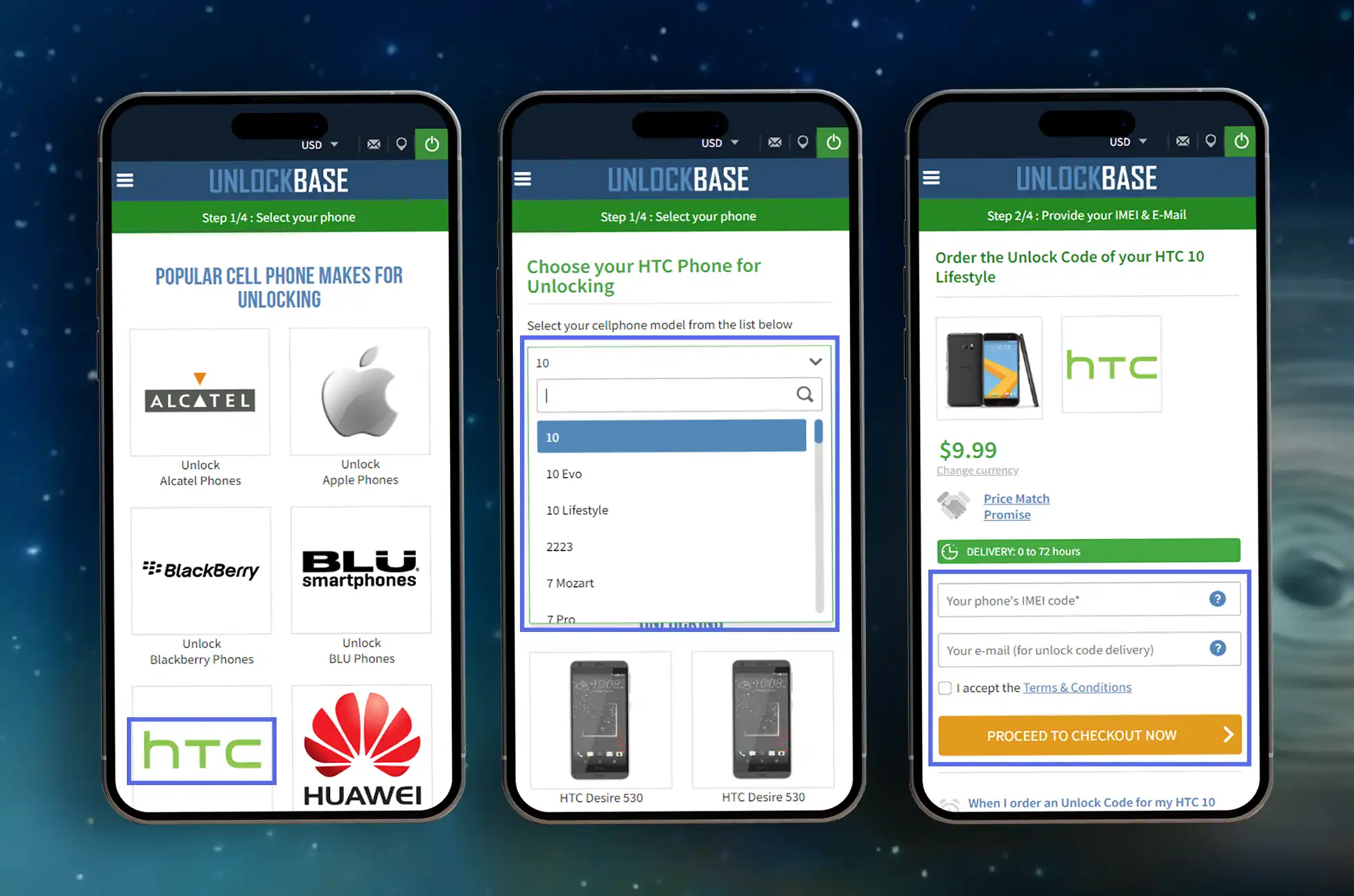
Unlocking your HTC phone through UnlockBase is a straightforward process, and I’m here to encourage you every step of the way. While the specific steps may vary slightly based on your device and carrier, here’s a general overview of how the process typically unfolds:
Confirm your payment and wait for an email confirmation
Next Step For Unlocking
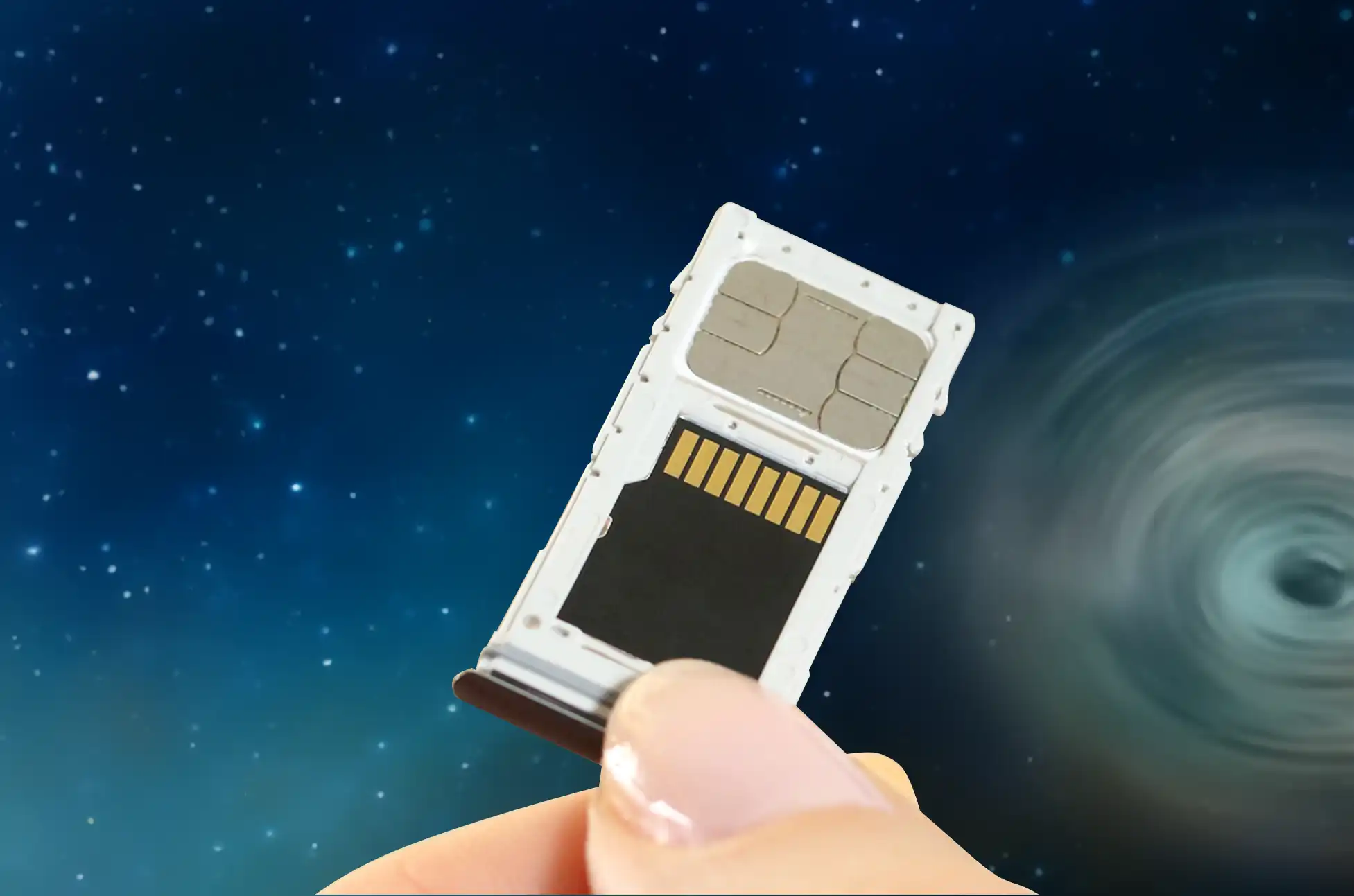
Insert a New SIM Card – Turn off your phone, and insert a SIM card from a different carrier.
Finish the unlocking process – After inserting the new SIM card, your phone should prompt you for an unlock code. This code can be found in the confirmation email from UnlockBase.
After unlocking your phone, test it with SIM cards from several carriers to ensure the process was successful. You must be able to make calls, send texts, and access data on numerous networks.
Unlock HTC phone with UnlockBase is a simple and secure process, offering peace of mind and ensuring that your device remains in good standing. Plus, it’s a step towards truly owning your device and using it the way you want.
Conclusion
Unlocking HTC phone means saying goodbye to carrier restrictions and hello to a wide range of benefits. Whether you’re a frequent traveler, looking for better deals, or just seeking the ability to choose your carrier, SIM unlocking is the key. So, if you’ve been thinking whether to unlock your HTC phone, take the plunge and open up a world of possibilities. Embrace the independence, appreciate the versatility, and personalize your device. Unlock your HTC phone today and take the first step toward a more dynamic and personalized mobile experience.
All products, and company names, logos, and service marks (collectively the "Trademarks") displayed are registered® and/or unregistered
trademarks™ of their respective owners.
The authors of this web site are not sponsored by or affiliated with any of the third-party trade mark or third-party registered trade mark owners,
and make no representations about them, their owners, their products or services.
iPhone 15 release date? The iPhone 15 is on its way. Apple has made it a tradition for years to introduce its latest iPhones in September, shipping immediately after a press event, and we don’t expect anything different this year. Here’s all you need to know about the iPhone 15’s release date, press event, and other goods Apple plans to unveil.
What we currently know about the iPhone 15
Apple iPhone 15? You can count on Apple to release a new version of the iPhone with a spectacular launch event and eye-catching advertising, even if the phones themselves haven’t changed significantly. The leaks and rumors surrounding the iPhone 15 series show that 2023 will be no different. When the iPhone 15 series debuts this 2023, will it provide more than simply cosmetic upgrades to get more people to make the switch?
In keeping with the company’s regular fall schedule, Apple has announced a ‘Wanderlust’ event for September 12 at 10:00 AM PT (1:00 PM ET) at its Apple Park headquarters. Preorders are expected to go live the following Friday (September 15), with general availability a week later (September 22).
The iPhone 15 will be available in four different models: the iPhone 15, iPhone 15 Plus, iPhone 15 Pro, and iPhone 15 Pro Max. It’s likely that the top-tier iPhone 15 Pro Max — which could alternatively be branded the iPhone 15 Ultra — will arrive later. According to 9to5Mac, citing a “major equity analyst note,” Sony may not be able to supply enough image sensors in time, putting the Pro Max/Ultra’s delivery out three to four weeks. This could imply a debut between October 6 and October 13.
Will the iPhone 15 be available during launch?
Probably not, if by “launch” you mean “announcement.” Apple has a habit of delaying availability, establishing preorders for the Friday following its press event, with delivery around a week later (assuming no production hiccups). Shipping on the same day would be chaotic, and it would most likely reduce the chances of average shoppers getting their hands on a smartphone.
Key Features of iPhone 15
The iPhone 15 is said to offer several new features, including:
A new A16 Bionic processor
A new design that features a smaller notch and a larger camera bump.
A rear camera system with three lenses, including a 48-megapixel primary sensor, a periscope zoom lens, and a LiDAR scanner.
A ProMotion display with a refresh rate configurable up to 120Hz.
Increased battery life
iPhone 15 Release date: Pre-Order and Availability
If you want to buy the iPhone 15, you can start pre-ordering it on September 15, 2023. On September 22, 2023, the iPhone 15 will be available for purchase.
Conclusion
Apple projects that the iPhone 15 will offer a significant improvement over the iPhone 14. It will have a fresh look, new features, and a new processor. If you’re in the market for a new iPhone, the iPhone 15 is definitely worth considering. However, you should do your research before purchasing the iPhone 15 so that you can make an informed decision. You may discover more about the phone by reading reviews, comparing costs, and watching videos.
All products, and company names, logos, and service marks (collectively the "Trademarks") displayed are registered® and/or unregistered
trademarks™ of their respective owners.
The authors of this web site are not sponsored by or affiliated with any of the third-party trade mark or third-party registered trade mark owners,
and make no representations about them, their owners, their products or services.