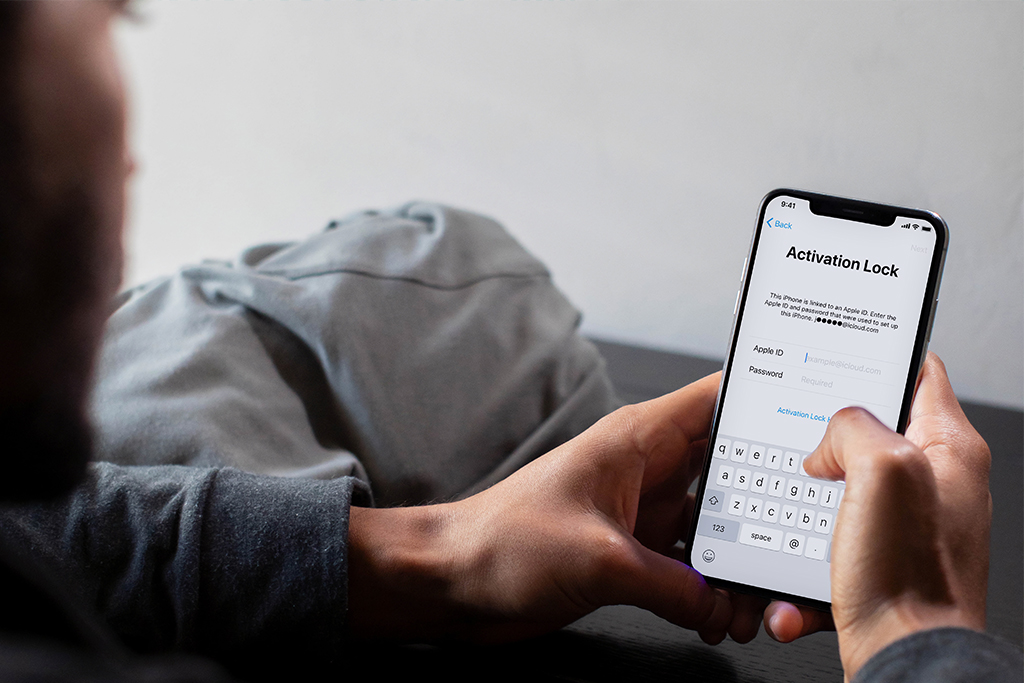
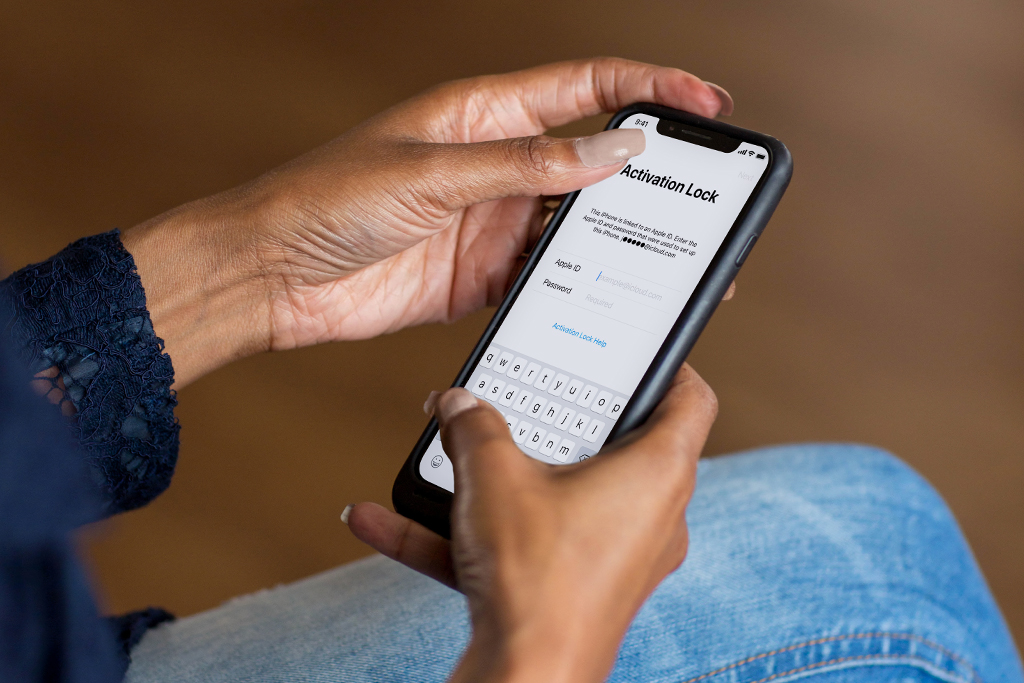
In case of theft, an iCloud Activation Lock is meant to keep your information safe and secure. It lets users of iPhones, iPods, Apple Watches, and Macs safeguard their devices by wiping or locking them remotely through the iCloud website.
While this is an excellent security feature for iPhone owners, it has an unexpected effect on those who acquire used phones. After erasing a device, the iCloud account typically stays on the device, preventing access to the home screen.
Why did iCloud Activation Lock Appear?
If your iPhone, iPad, or iPod touch is ever lost or stolen, Find My features Activation Lock, a function that prevents anybody else from using it. When you enable Find My on your smartphone, Activation Lock is enabled immediately.
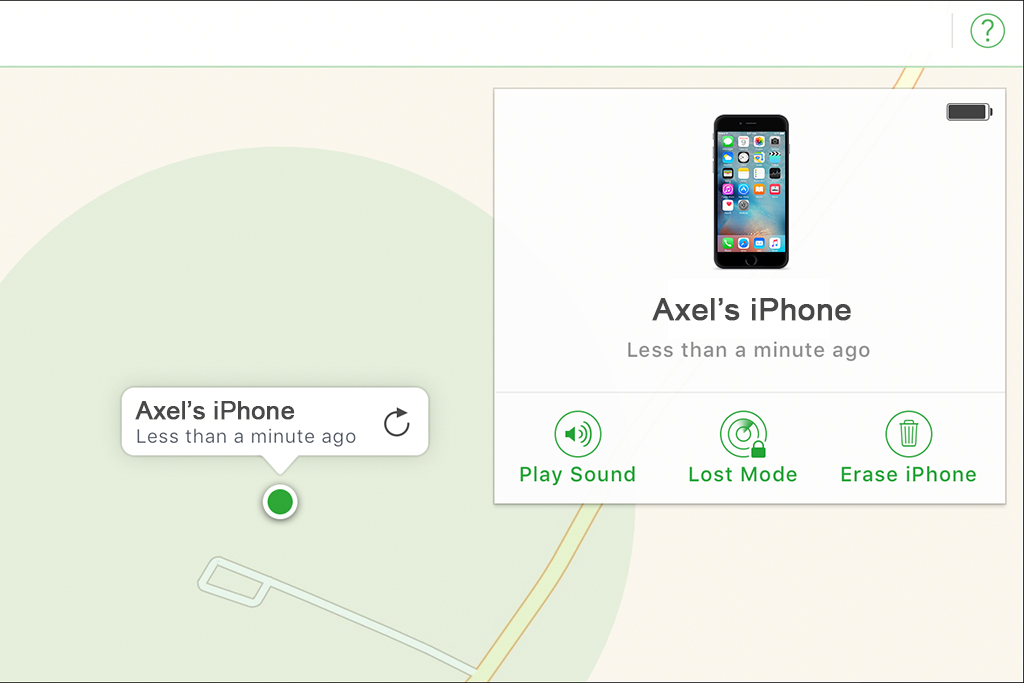
If you ever lose your device, whether it’s misplaced or you suspect it’s been stolen, mark it as lost in the Find My app right away. Mark As Lost uses a passcode to lock your screen and displays a personalized message with your phone number to help you find it. If necessary, you may even remotely wipe your device.
Even when the gadget is wiped, your personalized message remains visible. While Activation Lock works in the background to make it more difficult for someone to use or sell your lost device, Lost Mode makes it plain to anybody who discovers that it is still yours and cannot be revived without your password.
Removing iCloud Activation
Bypass the Activation Lock with an Apple ID or passcode
You simply put your Apple ID and password to that you used on that device to use your phone and get rid of Activation Lock.
If you can’t remember your Apple ID email, Click Here. If you can’t remember your Apple ID password, Click Here.
Bypass the Activation Lock remotely using Find My
Learn what to do if your smartphone displays the Activation Lock screen or if you’re requested to deactivate Activation Lock on a device that isn’t in your control.
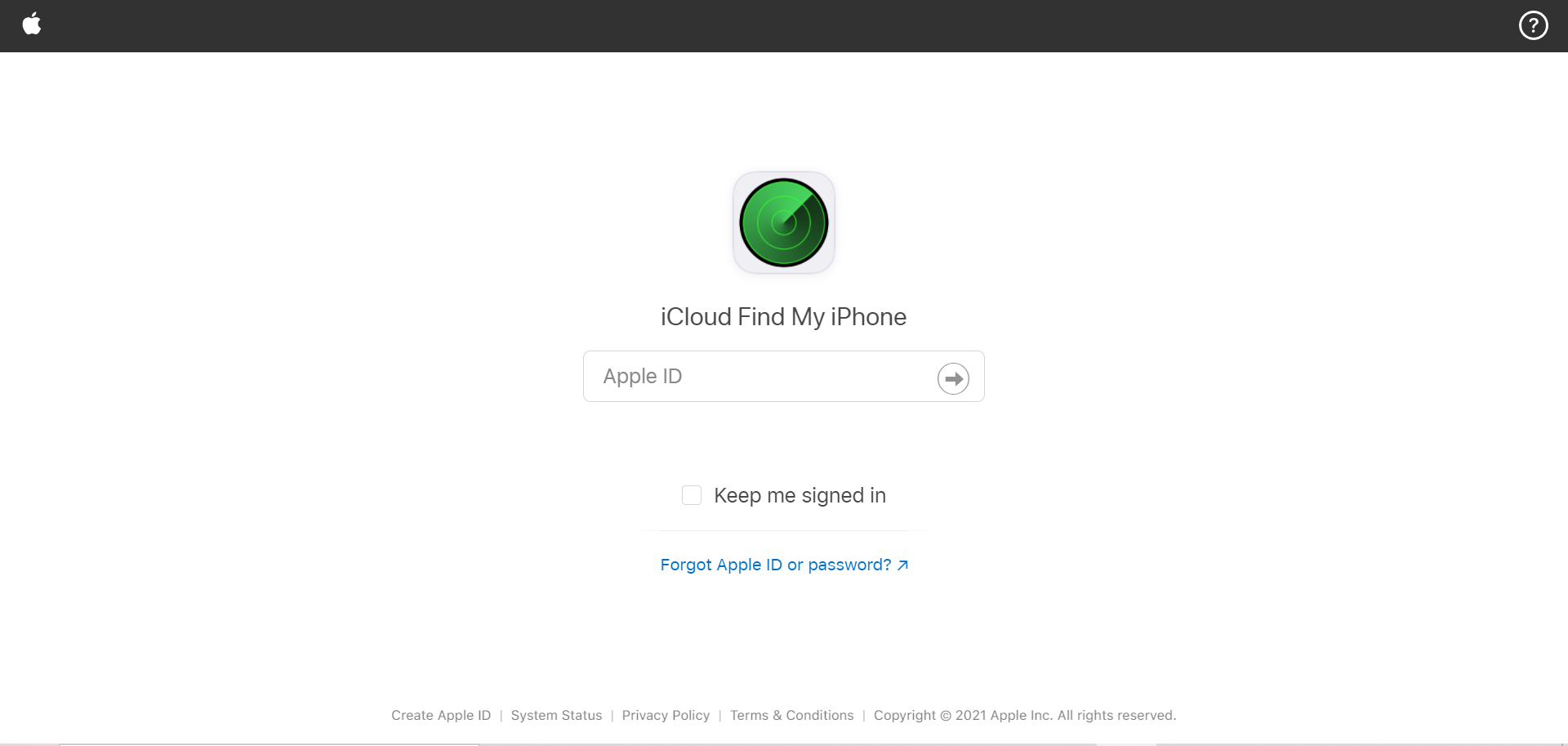
1. Go to iCloud.com/find 2. Use your Apple ID and password to get started. 3. At the top, click All Devices. 4. Select the device from iCloud that you wish to remove. 5. Click Remove from Account.
Bypass the Activation Lock through Apple
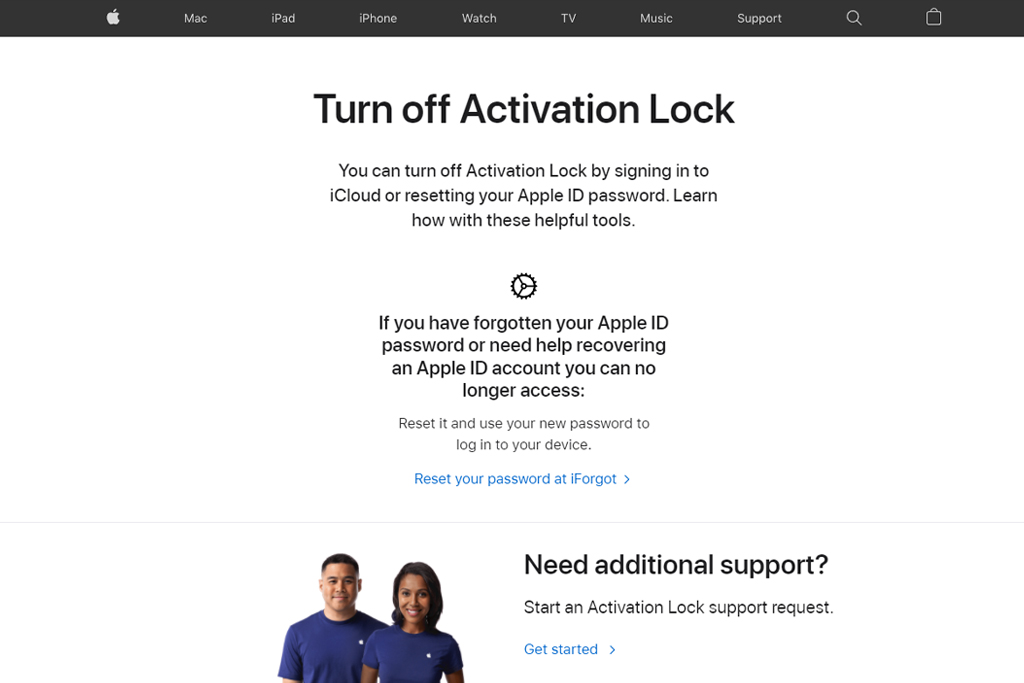
If you can’t remember your Apple ID password, there aren’t many other alternatives available to you.
It’s conceivable that Apple will assist you in wiping the device and unlocking it. You’ll need documentation that you’re the legal owner of the device, which should contain the serial number, IMEI, or MEID of the device.
Fill out the forms on their Activation Lock help website if you have the paperwork and are ready to delete the device. Just keep in mind that even if you complete all of the forms correctly, there’s no assurance that they’ll assist you.
You go to this website: https://al-support.apple.com/#/kbase if you need assistance removing the Activation Lock and have proof of purchase documents.
Unlock iCloud Account Phone Unlocking
Removing iCloud Activation Lock and Phone Unlocking is a different thing. If you removed your iCloud Activation, your phone wouldn’t be unlocked from your current carrier; you just removed the iCloud activation. If you need Unlocking Service, click the link: https://www.unlockbase.com/unlock-phone/.
Conclusion
Before giving your gadget away or bringing it in for repair, make sure Find My is turned off. Otherwise, your device is locked, and anybody you give it to won’t be able to use it, and Apple specialists won’t be able to fix it. Simply sign out of iCloud and delete all of your data and preferences. This wipes your smartphone clean, disconnects it from your Apple ID, and disables Find My iPhone. If you have any questions, let us know in the comments below.
All products, and company names, logos, and service marks (collectively the "Trademarks") displayed are registered® and/or unregistered
trademarks™ of their respective owners.
The authors of this web site are not sponsored by or affiliated with any of the third-party trade mark or third-party registered trade mark owners,
and make no representations about them, their owners, their products or services.
You may have heard that an iPhone can be unlocked. This means that you can open an iPhone that is locked to a certain carrier. Unlocking your iPhone is a good thing because it gives you more options. The phone is called a SIM-free or contract-free phone because it doesn’t have a SIM card or a contract. There may be a good reason to unlock your iPhone, but does your iPhone need to be switched on while waiting for the unlock?
If you found out that your phone is locked and If you are not 100% which network your iPhone is originally from, then please order first an iPhone GSX Network Check report.
This means that if you travel outside of the United States, you can’t just swap out your AT&T SIM card for a local one. It won’t work. Then, you’ll be charged a fee by AT&T if you want to use your phone outside of the United States through one of its partners. Most of the time, this costs more than buying a cheap SIM card. This is because most of the world’s mobile service is much cheaper than in the United States, and because carrier partnerships cost the end-user a lot of money, which makes it hard to get cheap service.
It Lets You Switch Carriers
Angry with your cell phone provider? In the old days, this wasn’t a problem. You could cancel the service, get the right SIM card, and sign up for a new service plan with a different carrier to get a new phone. Today, because of contracts and locking, it’s not so easy to do that.
It Makes the Phone More Valuable In the end, we all have to sell or give away our old phones, but if they’re tied to a single wireless provider, they’re worthless. It’s best to unlock your phone if you want to get the most money for your old phone, or if you want to give it to someone who isn’t on the same carrier.
How To Unlock iPhone
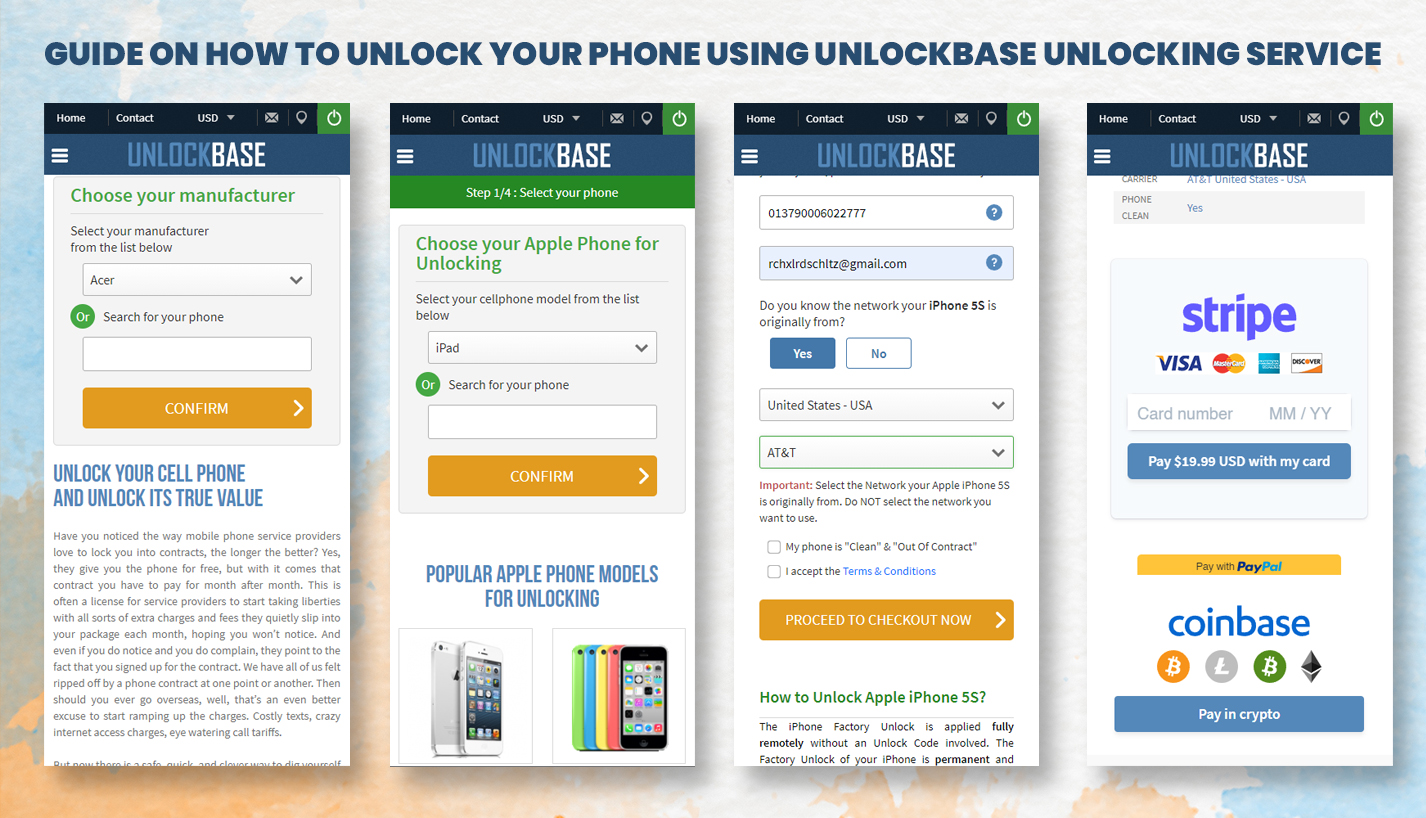
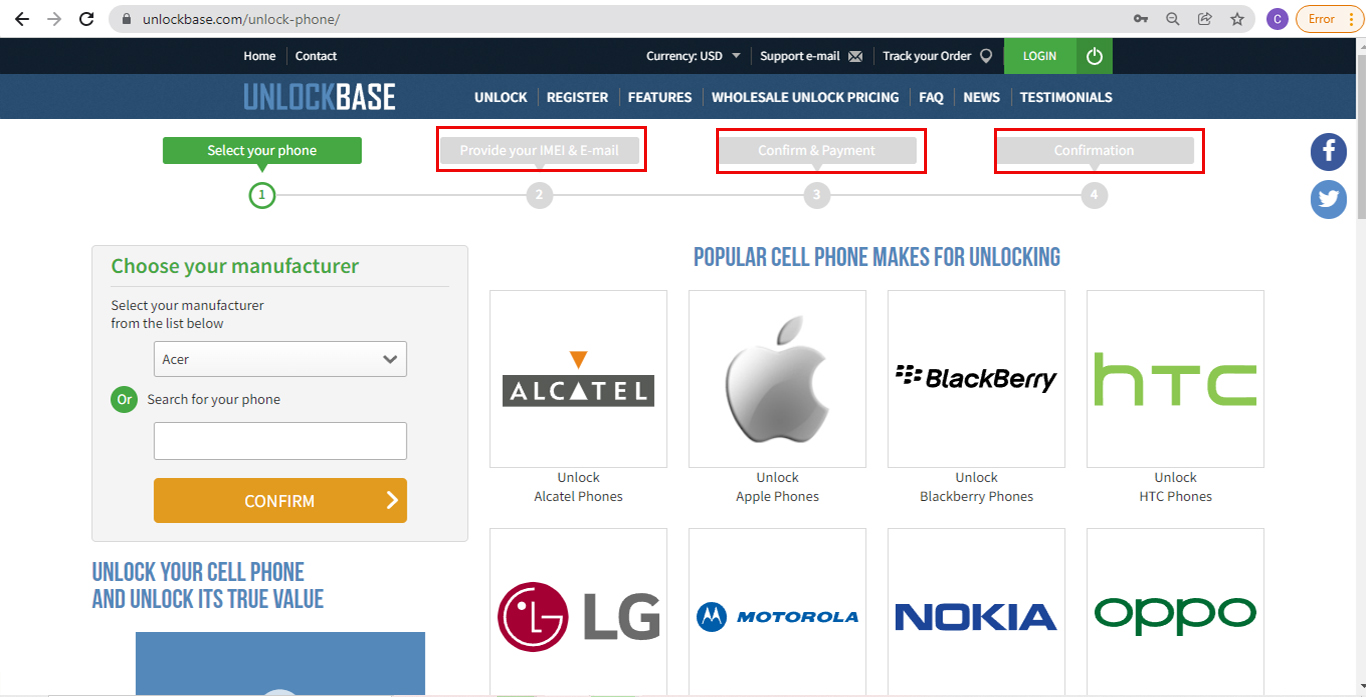
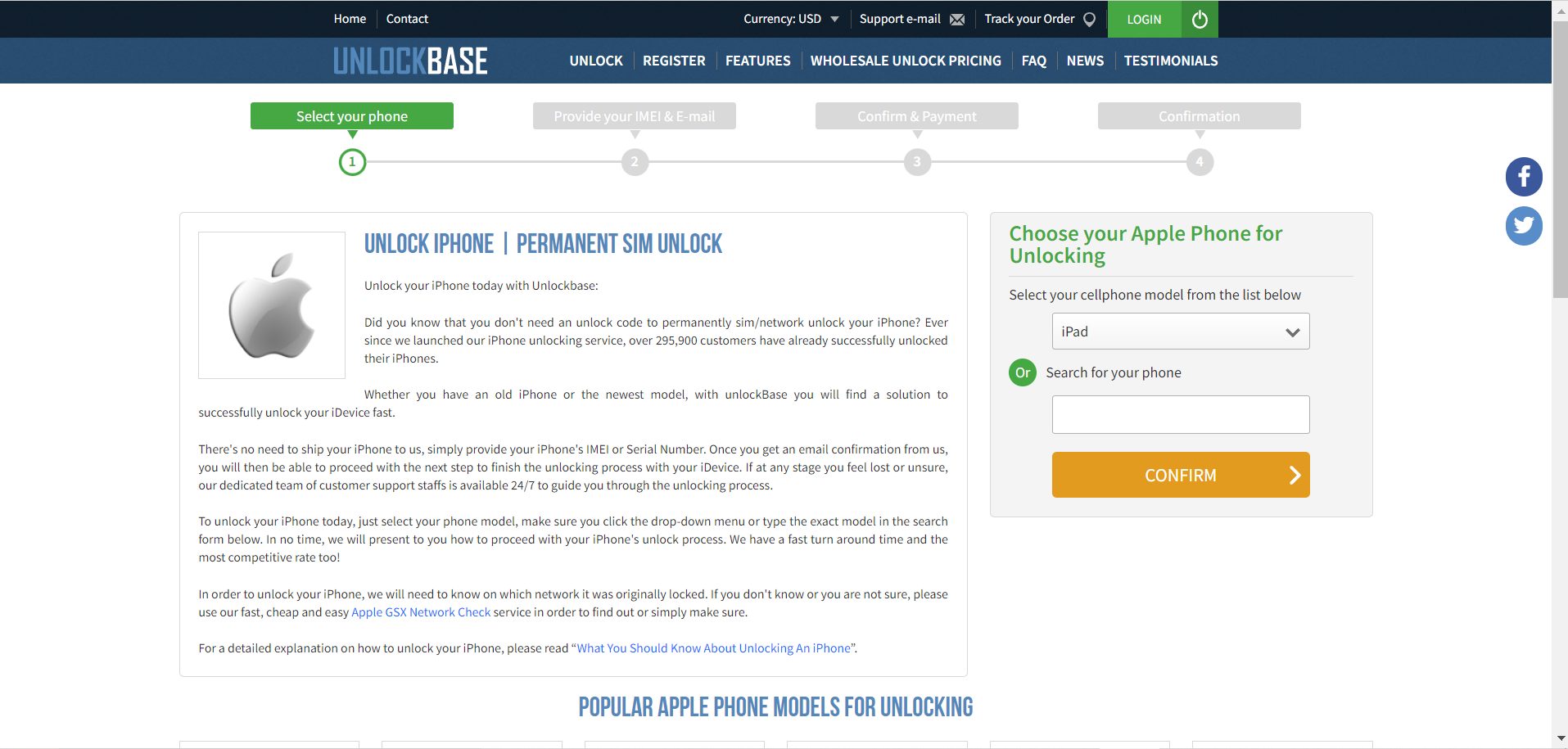
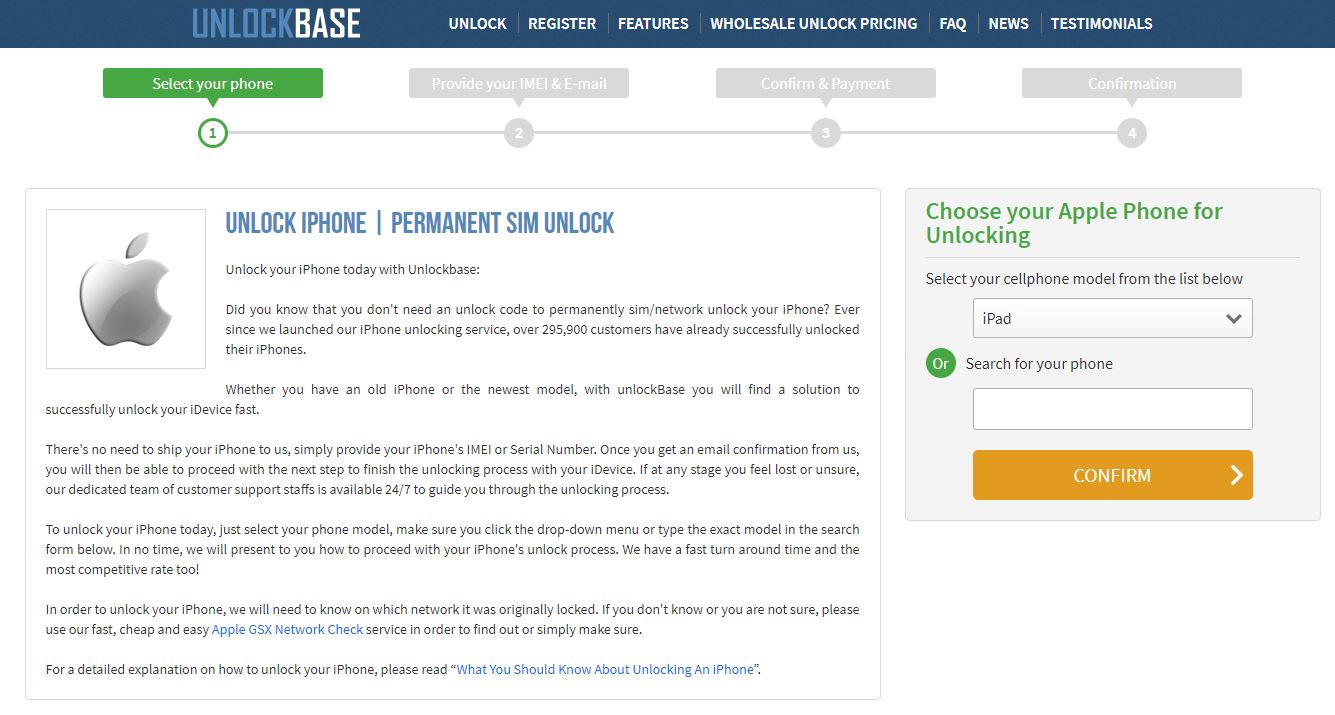
UnlockBase Service is an excellent tool to utilize if you want to unlock your iPhone. The genuinely unique and fantastic aspect of this instrument is its simplicity of use and convenience compared to other alternatives now available on the market. It is secure, legal, and most importantly, can be completed independently using a basic step approach. It’s also a permanent solution, meaning that once you’ve broken the carrier lock, you’ll never have to do it again.
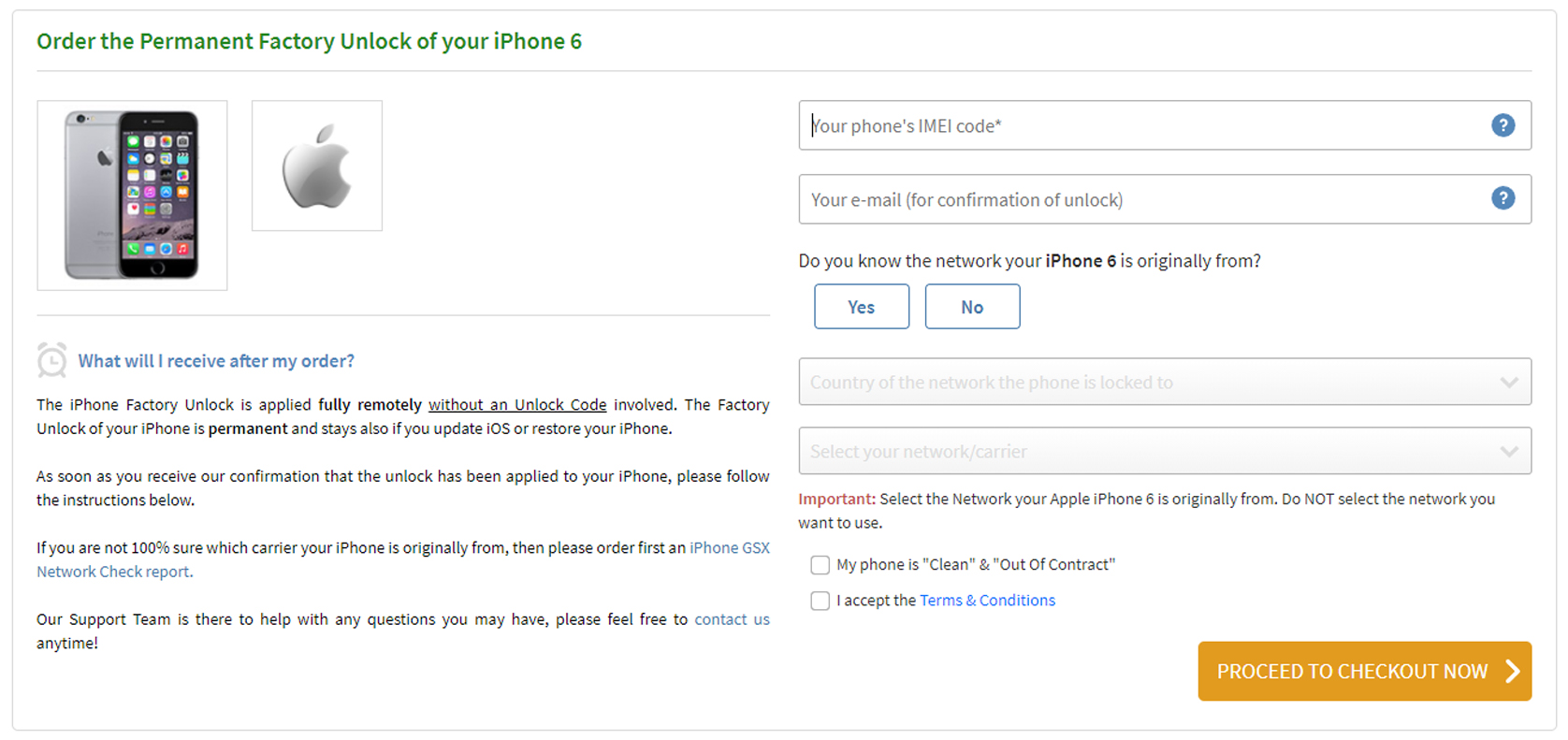
Select your Phone brand
Type your phone’s IMEI Code
Type your email for confirmation
Select the country of the network the phone is locked to
Select your network/carrier
Confirm your payment and wait for an email confirmation
Without the use of an Unlock Code, the iPhone Factory Unlock can be completed completely remotely. Your iPhone’s Factory Unlock is permanent, and it will remain so even if you upgrade iOS or restore it.
Please follow the instructions below as soon as you receive confirmation that the unlock has been applied to your iPhone:
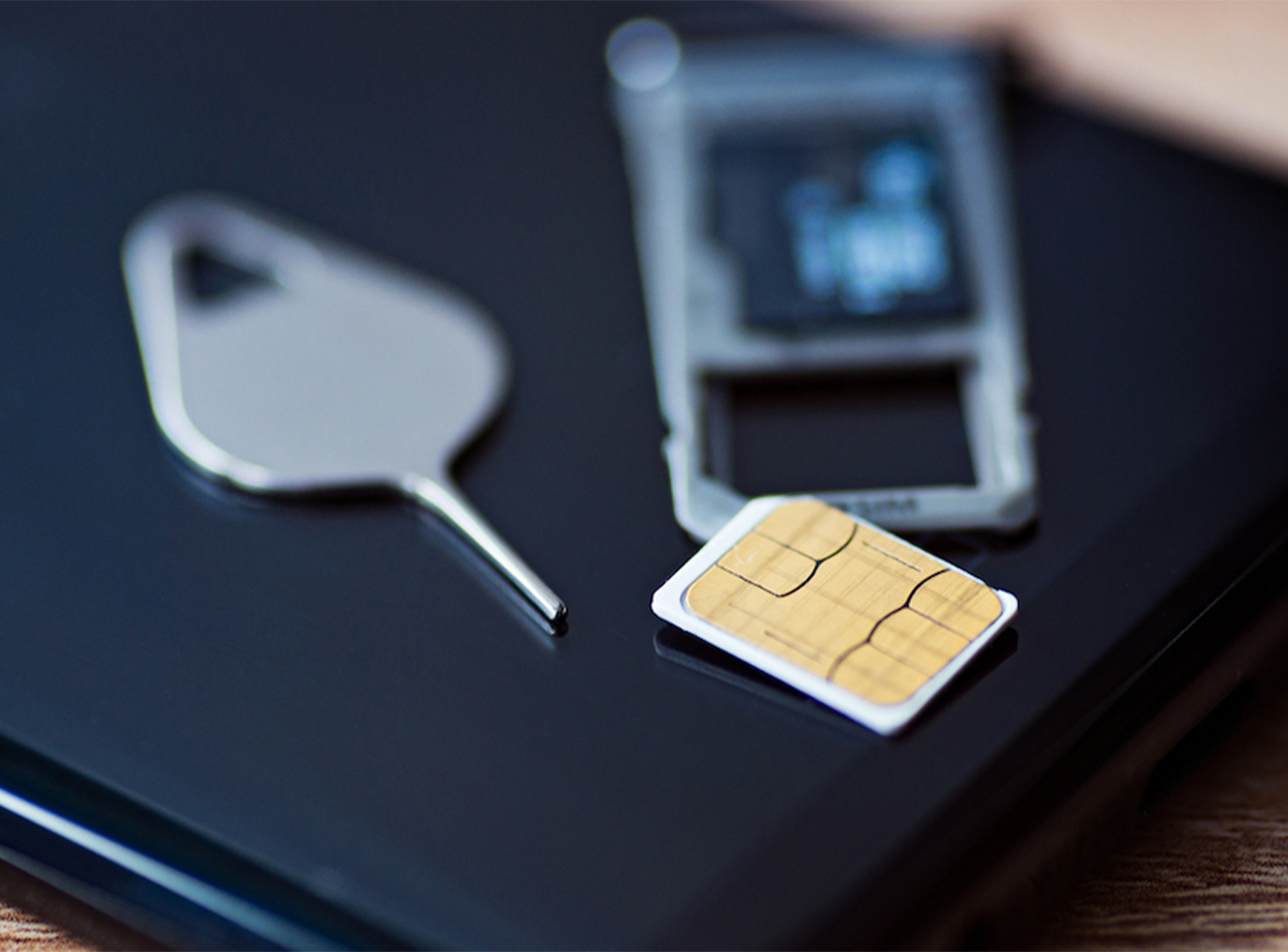
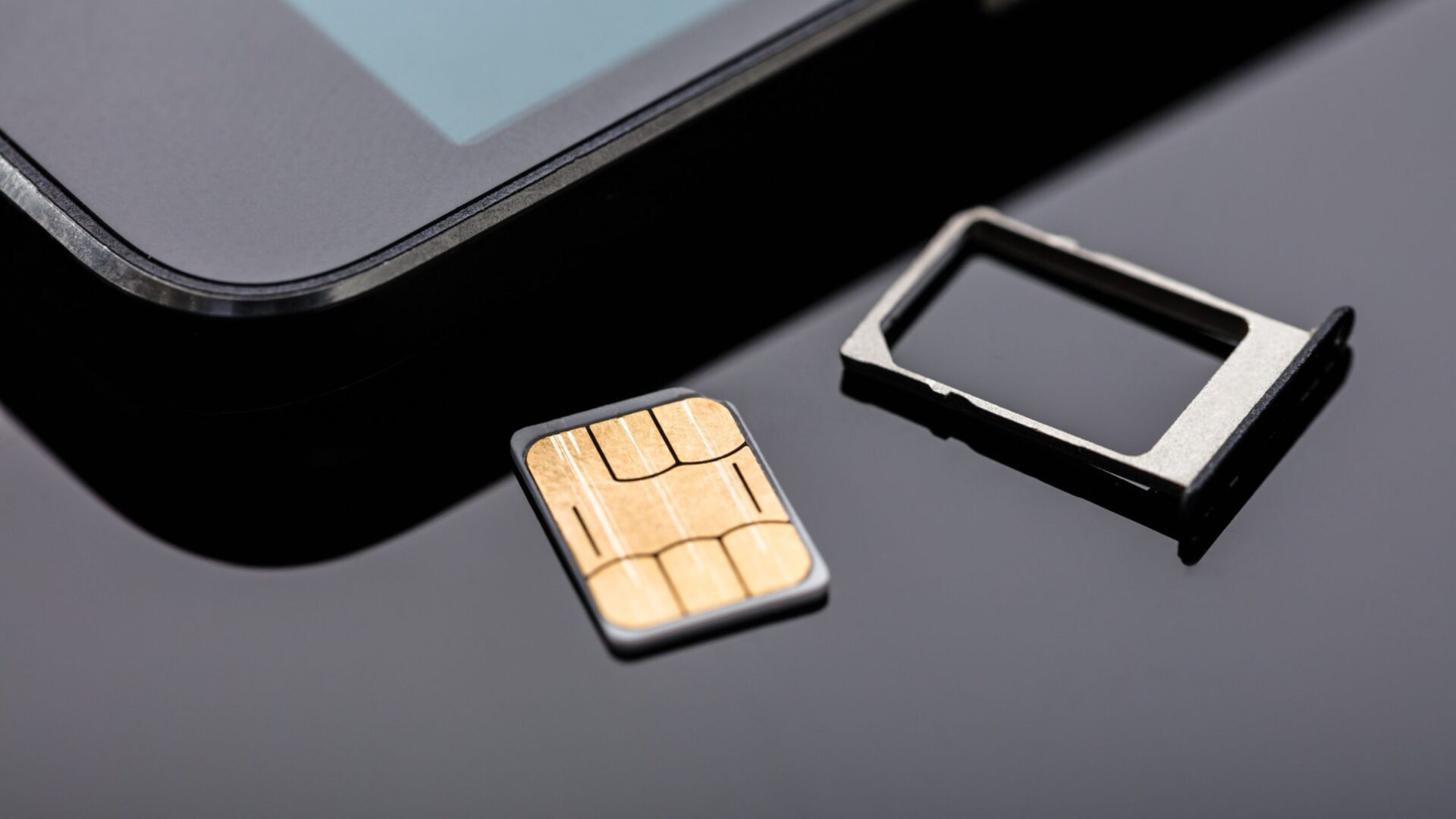
1. Insert a SIM card that your iPhone doesn’t accept into it.
This means that you don’t need to switch on your iPhone while waiting for the unlock and you just need to wait for the confirmation that the unlock has been applied to your iPhone
SIM cards that don’t come from the network your iPhone was locked to will be marked as “non-acceptable” if you try to use them. From any network carrier in the world, you can get a SIM card. It doesn’t have to be the same SIM card you’ll use in the future.
2. When you get a new SIM card, you’ll be able to use your iPhone with it right away. That means that your iPhone has been completely unlocked now.
3. This means that your iPhone can now be used on any network anywhere in the world.
Conclusion
The iPhone Factory Unlock is applied fully remotely without an Unlock Code involved and you don’t need to switch on your iPhone while waiting for the unlock and insert a Sim Card that your phone doesn’t accept, by doing that you’ll unlock your iPhone completely. If you have any questions, let us know in the comments below.
All products, and company names, logos, and service marks (collectively the "Trademarks") displayed are registered® and/or unregistered
trademarks™ of their respective owners.
The authors of this web site are not sponsored by or affiliated with any of the third-party trade mark or third-party registered trade mark owners,
and make no representations about them, their owners, their products or services.
You may have heard that an iPhone may be unlocked or that it can be unlocked from its carrier. This implies you can unlock an iPhone that is locked to a certain carrier and use it with multiple carriers. Unlocking your iPhone AT&T is advantageous since it allows you to have more options. The phone is often referred to as a SIM-free or contract-free phone as a result of this. Because an AT&T iPhone unlock may be freeing, this pretty much sums it up.
Thing to Know Before Unlocking :
First, you must be a current or former AT&T subscriber, however there are exceptions for people who did not fit this requirement but acquired an AT&T phone privately.
Of course, the cellphone we’re unlocking isn’t one of the unlocked phones. You can’t unlock a Verizon smartphone with AT&T.
Third, if you are a subscriber, you must pay off your payment plan, but AT&T may give you some leniency based on your loyalty. If you are not an AT&T subscriber, you must pay else the phone will be blacklisted and cannot be unlocked.
The device should not be blacklisted from AT&T’s network due to loss, theft, or fraud.
Unlocking AT&T iPhone Without Sim Card Using UnlockBase
UnlockBase Service is an excellent tool to utilize if you want to unlock your iPhone AT&T without a SIM card. The genuinely unique and fantastic aspect of this instrument is its simplicity of use and convenience in comparison to other alternatives now available on the market. It is secure, legal, and most importantly, it can be completed independently using a basic step approach. It’s also a permanent solution, meaning that once you’ve broken the carrier lock, you’ll never have to do it again.
Select your Phone brand
Type your phone’s IMEI Code
Type your email for confirmation
Select the country of the network the phone is locked to
Select your network/carrier
Confirm your payment and wait for Email confirmation
There’s no need to ship your iPhone to us, simply provide your iPhone’s IMEI or Serial Number. Once you get an email confirmation from us, you will then be able to proceed with the next step to finish the unlocking process with your iDevice. If at any stage you feel lost or unsure, our dedicated team of customer support staff is available 24/7 to guide you through the unlocking process.
Unlock Att Phone Without Sim Card By Hardware Unlock
Without a Sim Card, it is possible to unlock an AT&T phone by altering the phone’s hardware. There are several approaches available for this plan, but you will nearly always need to call an expert, or you can use a sim card and a module that can be inserted into your phone if it is an iPhone. When the ICCID Code is set in ICCID mode, the chip included in the hardware bypasses the carrier lock. However, you should be aware that tampering with your phone’s hardware in any manner would invalidate your warranty. It is not a permanent solution, as banned phones cannot be unlocked. The hardware unlock approach is much riskier than the majority of the other methods.
Finding out how to unlock an AT&T iPhone may be a nightmare if you don’t know where to search, all the more so since the unlock is critical for many individuals in order to utilize other carriers.
Both of the aforementioned methods are acceptable ways to unlock your iPhone from AT&T, whether without a SIM card or by altering the hardware
There is an alternate method for AT&T iPhone unlocking. It is a little more inconvenient and may take a little longer, but it is another acceptable method you can use if you so desire. This is accomplished by directly contacting your Carrier. If you are already aware of your carrier being AT&T, you can contact them directly to have your iPhone unlocked
Conclusion
According to my experience, unlocking AT&T through UnlockBase is an easier, more efficient, and faster process. Additionally, it is more secure, since if you go via the carrier without a SIM card, you will need to back up your iPhone, then erase and reinstall it. Not only is this a time-consuming operation, but it may also be dangerous. Additionally, AT&T has several checks and requisites in place that might prevent your iPhone from getting unlocked, and even if you pass the requisites, the procedure is still lengthy and may be refused due to AT&T’s ultimate say. In UnlockBase effortlessly unlocks your iPhone without erasing any data through a straightforward easy step procedure.
All products, and company names, logos, and service marks (collectively the "Trademarks") displayed are registered® and/or unregistered
trademarks™ of their respective owners.
The authors of this web site are not sponsored by or affiliated with any of the third-party trade mark or third-party registered trade mark owners,
and make no representations about them, their owners, their products or services.
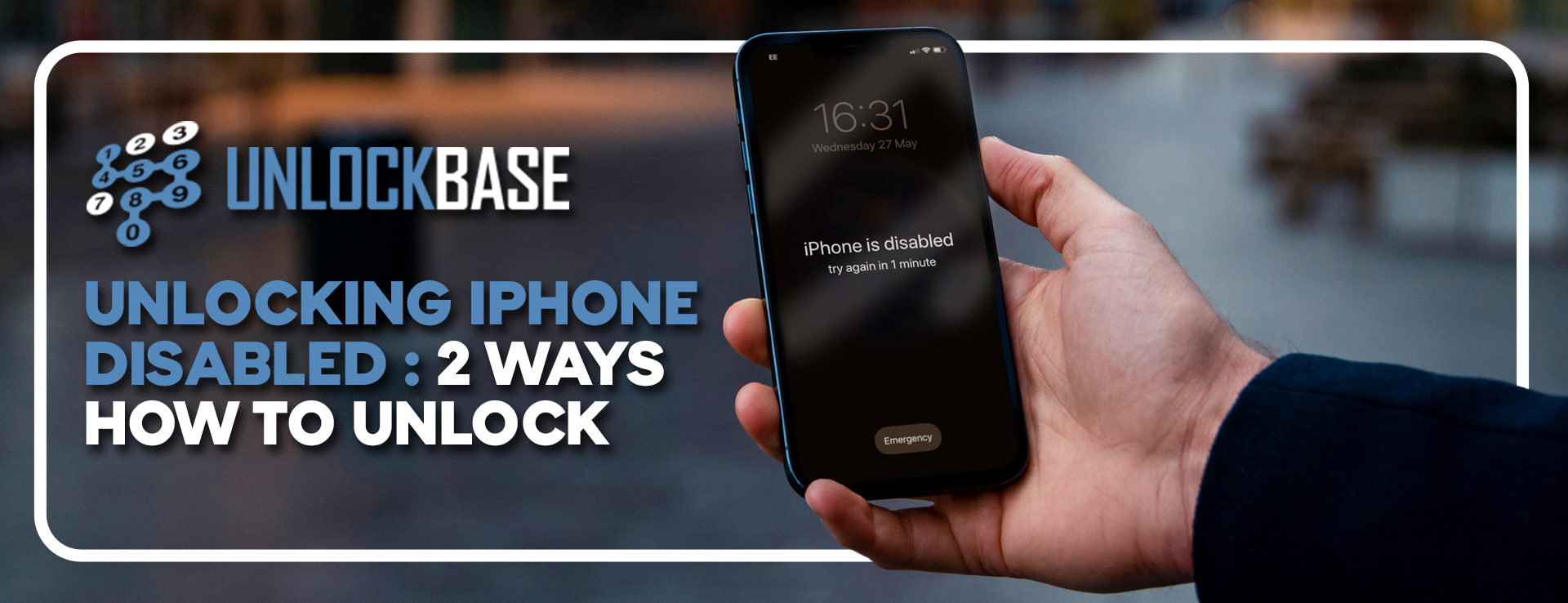
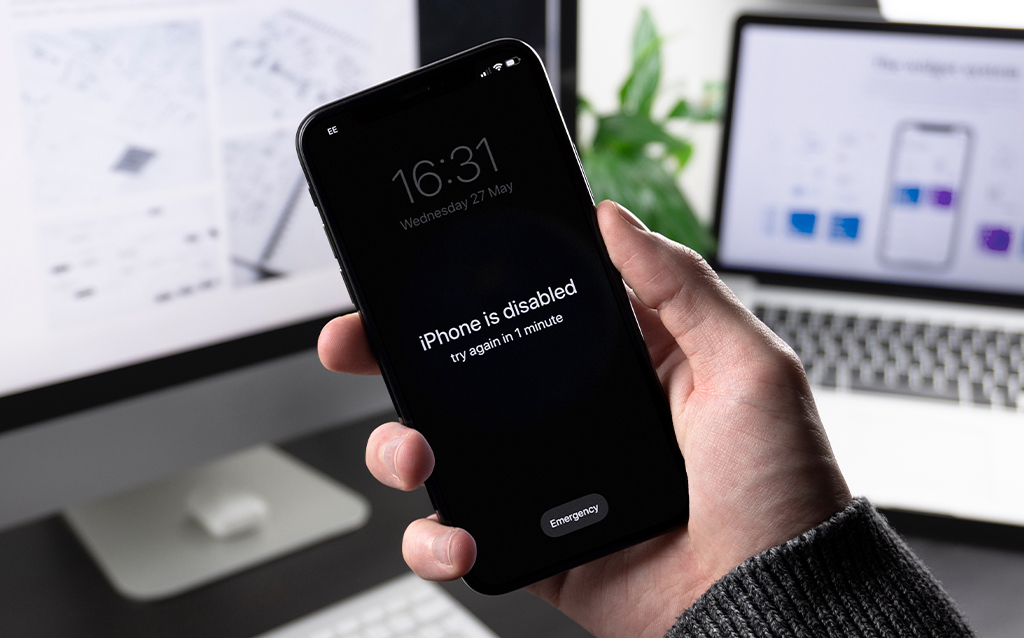
If someone tries to unlock an iPhone or iPad too many times without success, the warning “iPhone is Disabled” will appear. If you forget your iPhone passcode, you can make too many incorrect tries and wind up with an iPhone that is disabled, the notification will indicate how long you must wait before attempting to unlock it again:
If you enter the wrong passcode five times in a row, your iPhone will be deactivated for one minute.
If you enter the wrong passcode seven times in a row, your iPhone will be deactivated for five minutes.
If you enter the wrong passcode eight times in a row, your iPhone will be deactivated for fifteen minutes.
If you enter the wrong passcode nine times in a row, your iPhone will be deactivated for sixty minutes.
If you enter the wrong passcode ten times in a row, your iPhone will be deactivated forever.
Thing you’ll need before restoring your iPhone :
A computer, If you don’t have access to a Mac or PC, you might be able to borrow one from an Apple Retail Store or a Mac reseller.
A lightning to USB cable will be required as well. If your Mac only has USB-C ports and your iPhone cord only has USB-A ports, this might be an issue… You’ll need an adapter or a USB-C to lightning cord in that scenario.
Restoring your iPhone using iTunes – iPhone Disabled
Instead, you’ll need to reinstall your applications and data from a backup after restoring the iPhone to factory settings. It’s worth mentioning that this is one of the reasons why you should always have a current backup.
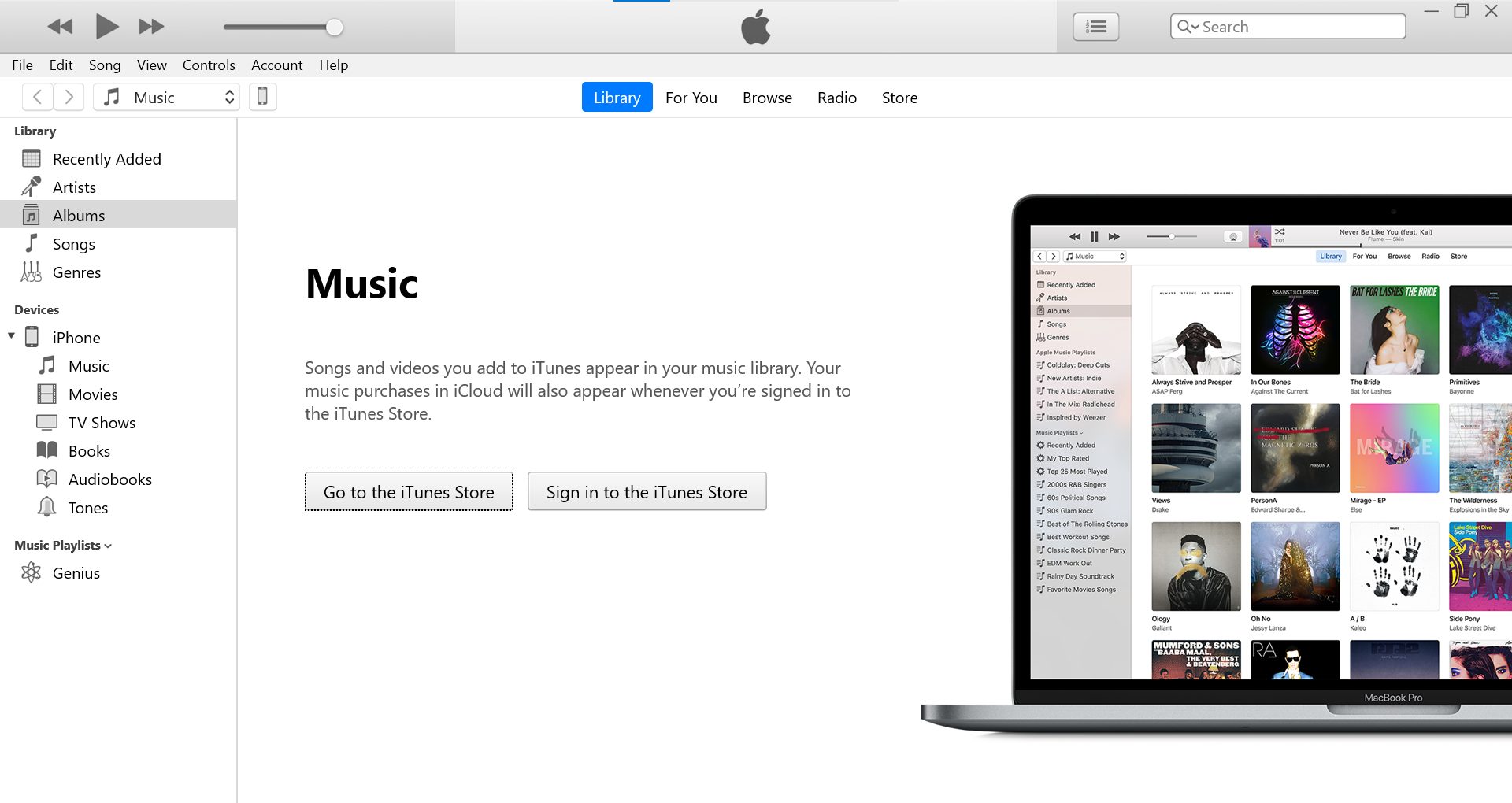
Start iTunes on your computer and connect your iPhone using a USB cord.
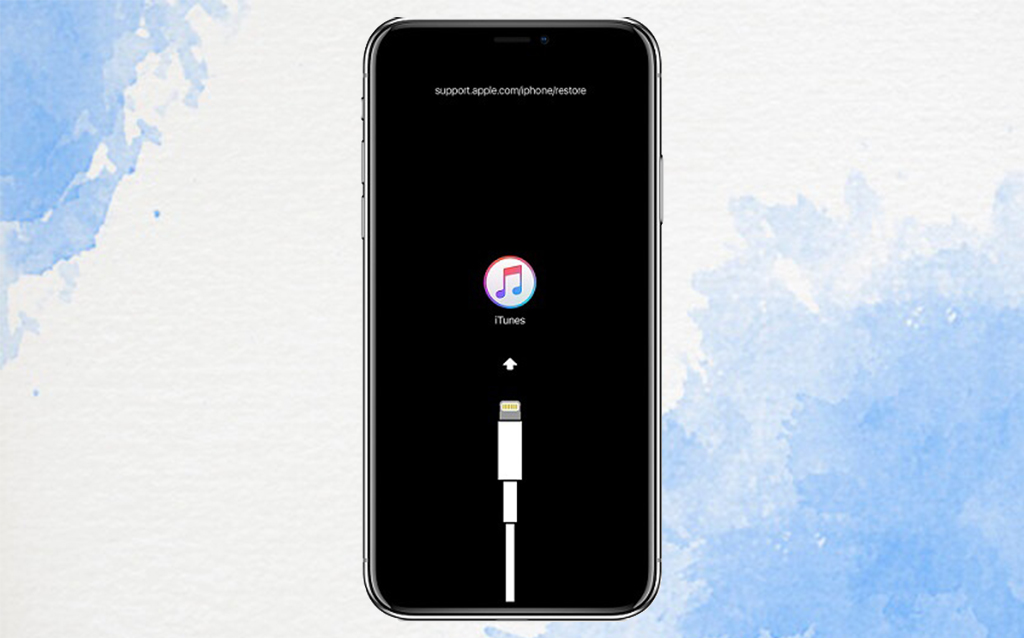
Enter Recovery Mode
Connect your iPhone to your computer and enter recovery mode as the first step. Whatever method you use will be determined on the iPhone model you have.
If you have an iPhone 8 or later, press and hold the Volume Up and Volume Down buttons until you see the “connect to iTunes” screen, then press and hold the Power button.
Press and hold the Power button for three seconds on an iPhone 7, then swipe the “Power off” slider to the right. Finally, hold down the Volume Down button until the “connect to iTunes” screen appears.
Press and hold the Power button for three seconds on an iPhone 6s or older, then swipe the “Power off” slider to the right. Then hold down the Home button until the “link to iTunes” screen appears.
Once your iPhone or iPad has entered recovery mode, go to iTunes or the Finder and locate your device. You’ll be asked if you wish to Restore or Update your device. Choose Restore.
It may take awhile for your iPhone’s repaired iOS software to download. If your download takes more than 15 minutes and you depart the recovery mode display, let it finish, then force reboot and enter recovery mode again.
After you’ve restored your device, it’ll boot up like any other new iPhone or iPad. Follow the on-screen instructions to complete the setup. When it’s time to restore a backup, go to the Finder, iTunes, or iCloud and choose the most recent backup you have.
Restoring your iPhone using iCloud -iPhone Disabled
If your iPhone is disabled, it’s likely that it won’t connect to iTunes, making it difficult to restore it using the instructions above. In this instance, you’ll need to use iCloud to restore your iPhone.
This approach will only work if you have already set up Find My iPhone and the disabled iPhone has internet access. Otherwise, we recommend going to an Apple Store or contacting customer service.
1. In any web browser, go to the Find My iPhone page.
2. Find and choose your iPhone from the list of devices in the drop-down menu at the top of the screen.
3. To confirm, click “Erase iPhone” and then “Erase.” You’ll still need to enter your Apple ID password, but the iPhone’s passcode isn’t required.
After completing these steps, you may restore your data from an iTunes backup or an iCloud backup.
Sim not Supported after Restoring your iPhone? -iPhone Disabled
The moment you try to enter a sim card it keeps saying ‘Sim not valid’ or ‘Sim not supported’, and now you’re stuck with a phone that you can’t use at all, at least for voice calling. In this article, we’ll walk you through why you get this error and the possible ways and workarounds on how to fix this kind of error.
Or you can directly unlock your phone here: https://www.unlockbase.com/unlock-phone/iphone/
Conclusion
We hope this post was able to assist you in unlocking a locked iPhone. Keep a note of your passcode in the future to guarantee that your phone does not become disabled again. Did you encounter this problem in the past? How did you resolve it? If you have any other questions , Let us know in the comments below!
All products, and company names, logos, and service marks (collectively the "Trademarks") displayed are registered® and/or unregistered
trademarks™ of their respective owners.
The authors of this web site are not sponsored by or affiliated with any of the third-party trade mark or third-party registered trade mark owners,
and make no representations about them, their owners, their products or services.
You think that you’ve misplaced your iPhone or, even worse, believe it’s been stolen? The good news is that Apple offers software that can help you track down a misplaced iPhone and delete and lock it down if it has been stolen, ensuring that your data is safe.
This article will teach you all you need to know how to track your phone.
But first, make sure you’ve set up a passcode. That way, if your phone is stolen, they won’t have access to your personal information. Let’s also take a few minutes to make sure the Find My service is turned on so you can get your device back as quickly as possible.
Here’s how to get started if you’re new to the iPhone or have never used the Find My app
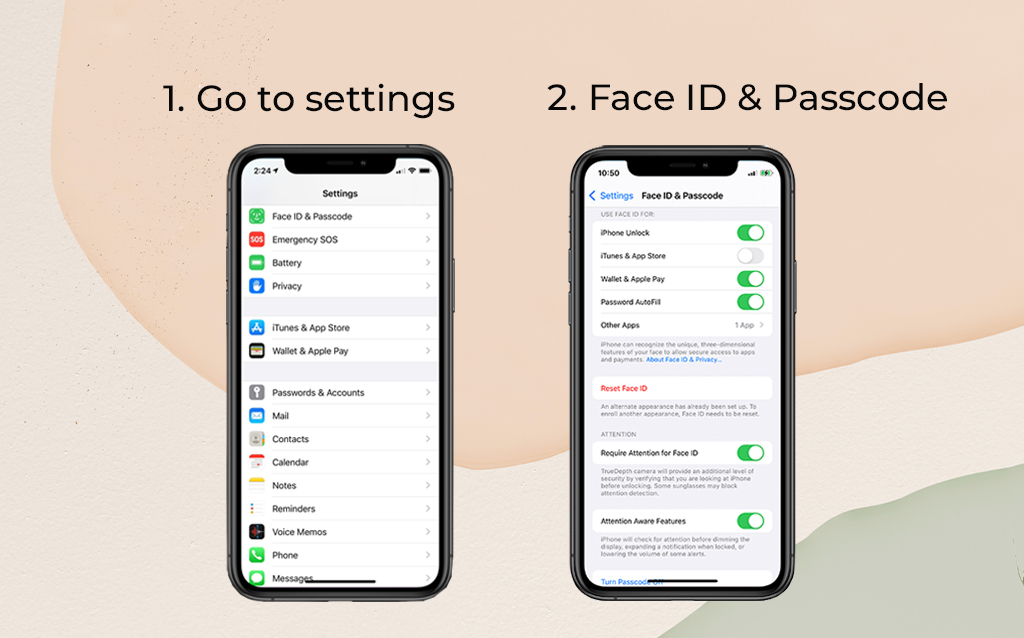
Set a passcode
Open Settings > Face ID (or Touch ID) & Passcode and follow the steps to secure your smartphone. It’s a slight annoyance to scan your finger or let Face ID do its thing. After a few days, the extra step will become second nature to you, and you won’t even realize it.
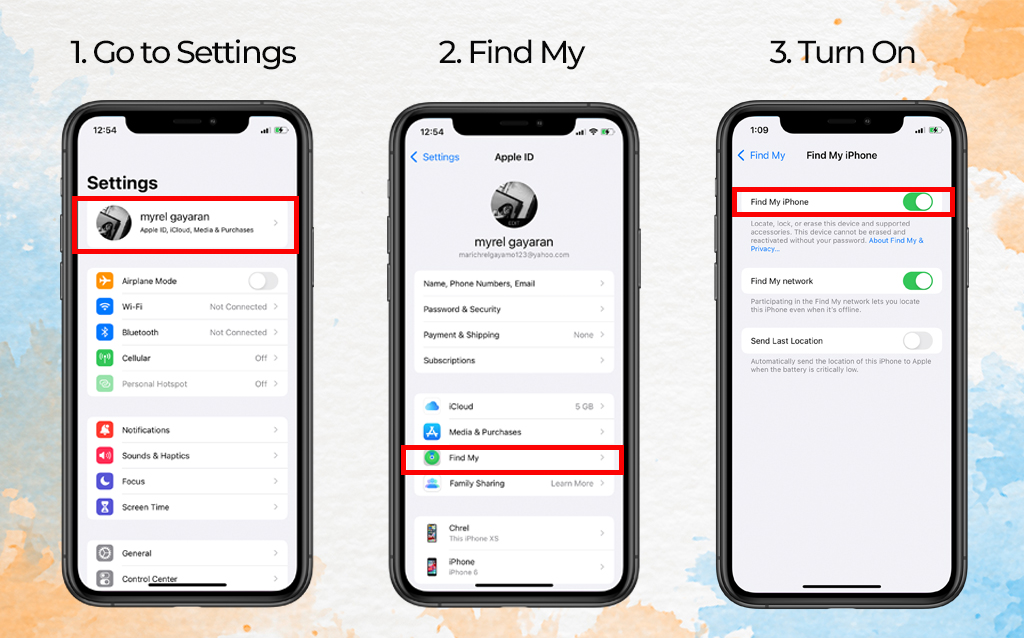
Activate Find My iPhone
To locate yourself, go to your settings, touch on your name, and then “Find My.”
Select “Find My iPhone.”
Turn on “Find My iPhone.” If you’ve upgraded to iOS 15, you can also enable “Find My Network,” which allows you to locate your phone even while it’s turned off. When your iPhone’s battery is close to dying, “Communicate Last Location” will send the location of your iPhone to your Apple account.
Track your lost iPhone
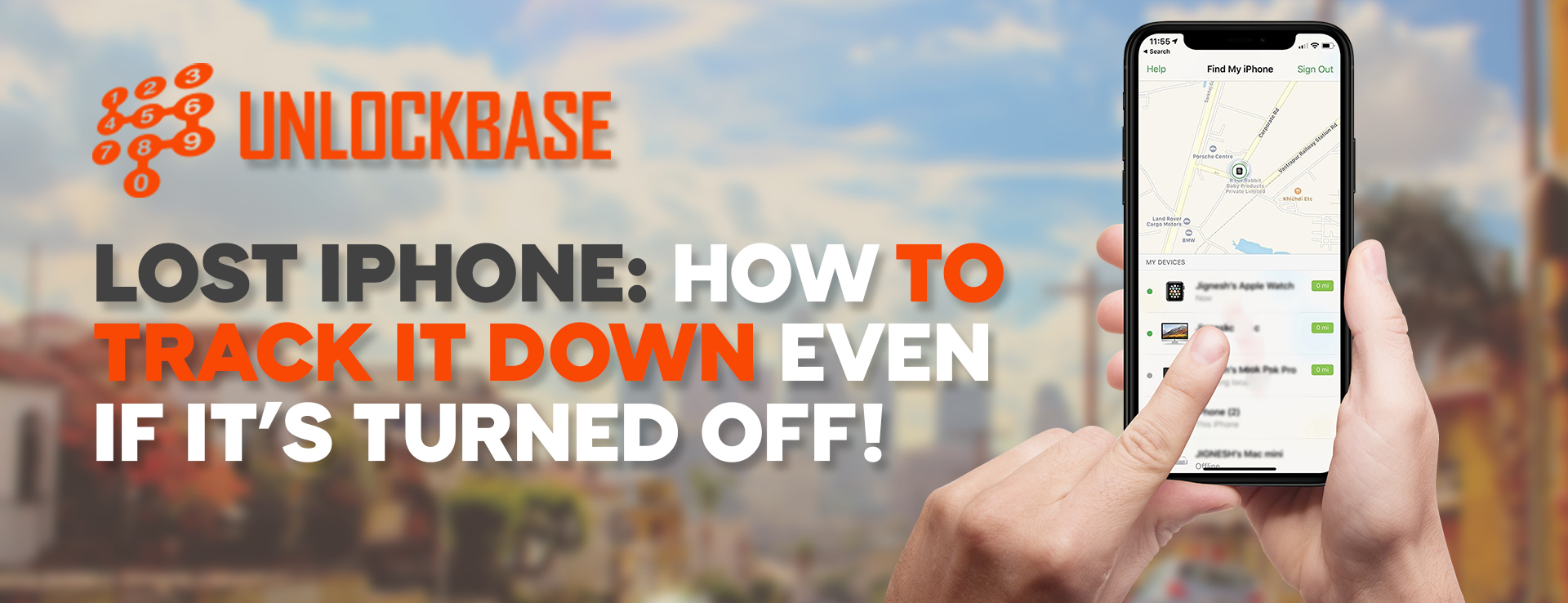
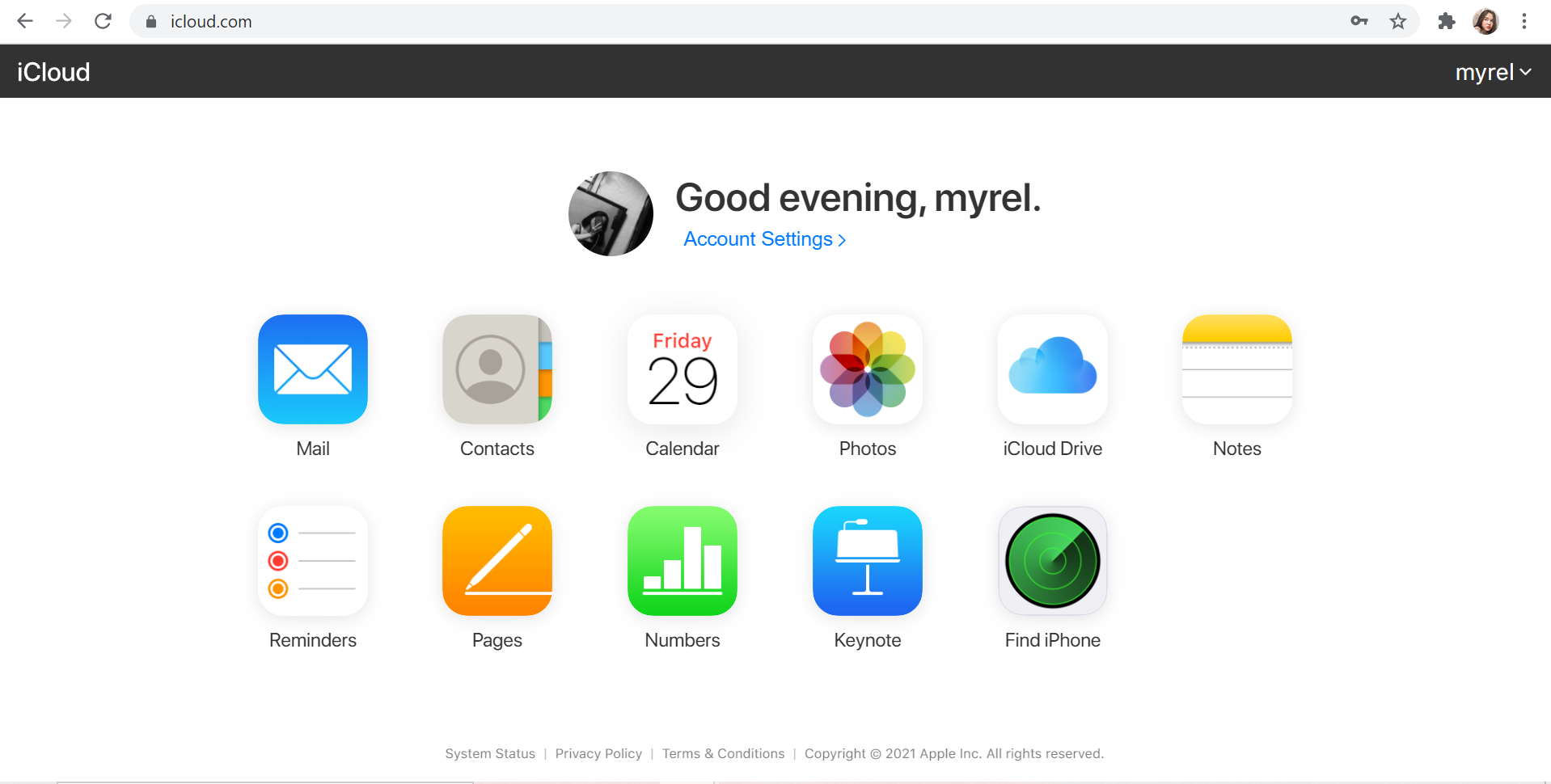
The first thing you should do if you lose your phone is go to icloud.com/find on a computer, open the Find My app on another Apple device, You may also login in with your Apple ID and utilize the Find My app on another Apple device.
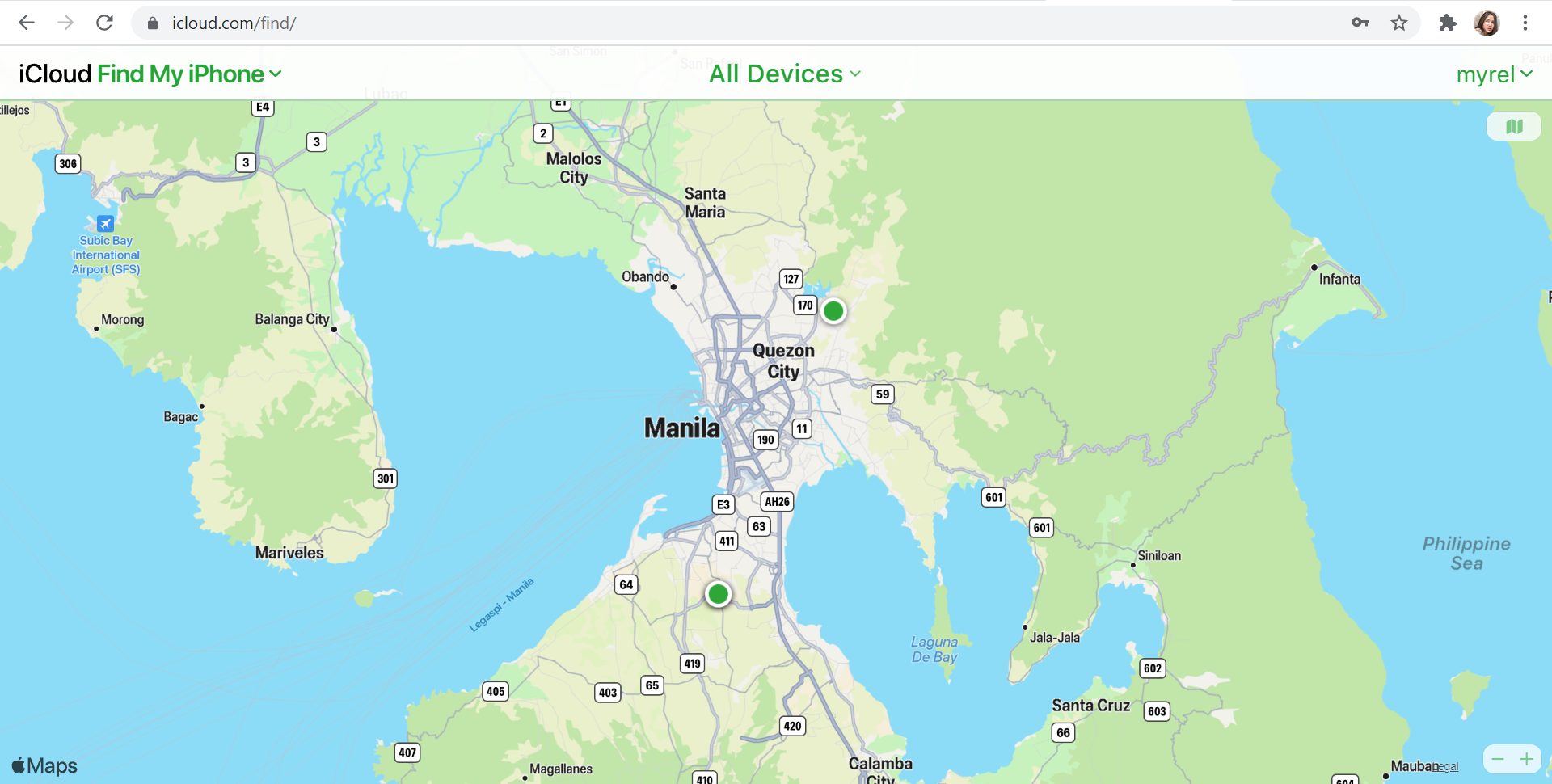
If you’re using the web version, you’ll notice a green dot that indicates where your iPhone is located. You may choose to have your phone make a sound, erase it, or put it on “Lost Mode” by selecting the dot and then the circled I (for details). You may input a phone number where you can be reached as well as a message (“Please return this phone immediately!”) in “Lost Mode.” The phone will then be locked until you input the passcode again. The iOS 15 release provides a significant enhancement to Find My, allowing you to track down your missing iPhone even if it has been switched off or the battery has drained. As long as your iPhone is connected to the Find My network, this feature will operate automatically. That means that whether or not your iPhone is turned on, its location will be accessible in Find My on your other devices
Found your phone but not activated? Unlock you phone here! Unlocked but the Sim is not supported? Read here : https://www.unlockbase.com/blog/how-to-fix-sim-not-supported-iphone-error/
Conclusion
The easiest method to keep your phone safe, especially when traveling or in new places, is to keep a careful check on it and never let it go. Take precautions. Even too cautious. Don’t leave your phone out in the open where it might be grabbed and taken. Don’t get too worked up if you misplace your phone. Remember to take a big breath and utilize Find My iPhone!
All products, and company names, logos, and service marks (collectively the "Trademarks") displayed are registered® and/or unregistered
trademarks™ of their respective owners.
The authors of this web site are not sponsored by or affiliated with any of the third-party trade mark or third-party registered trade mark owners,
and make no representations about them, their owners, their products or services.
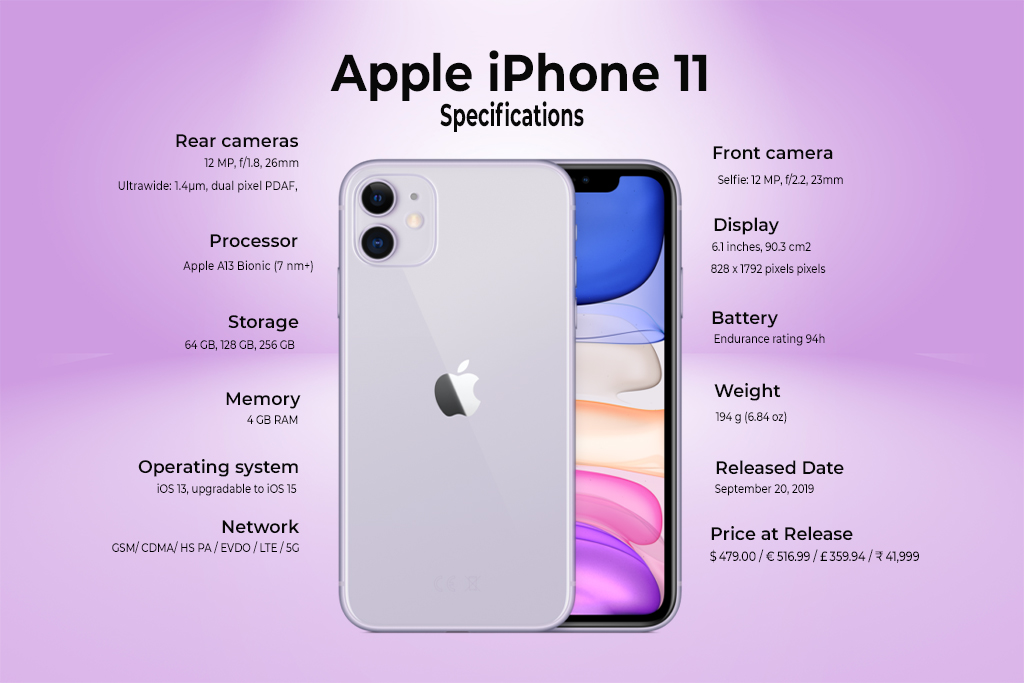
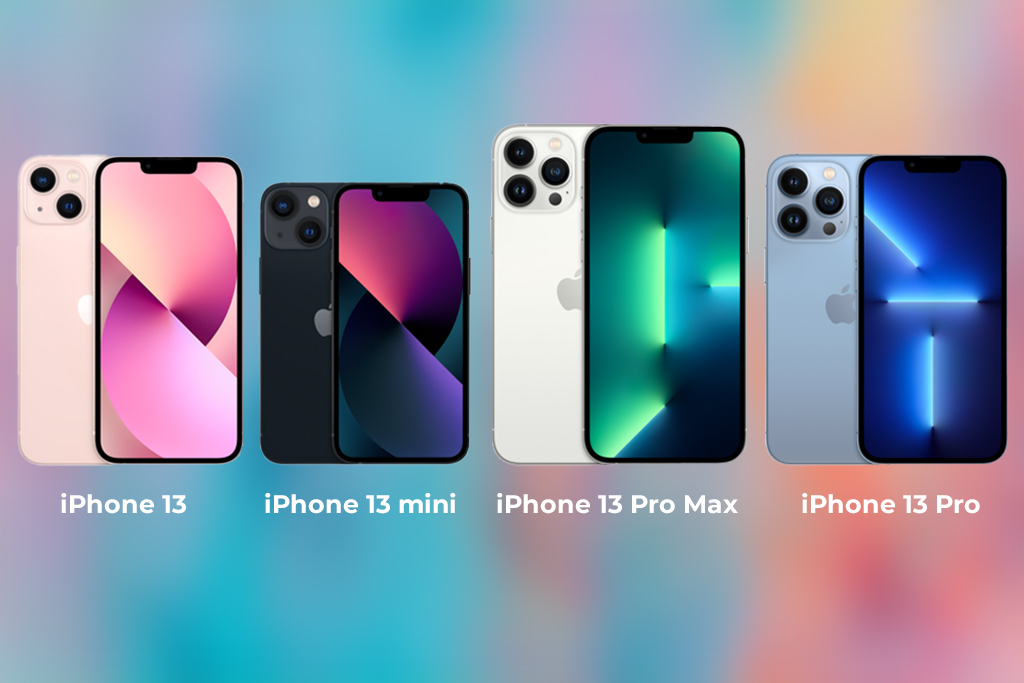
The iPhone 11 could be the ideal choice for you if you’re searching for a cheap iPhone with all of the essential features plus a few extras like a dual-lens camera. Unlocking iPhone 11 , it was released in September 2019, and while Apple’s flagship lineup has since expanded to include the iPhone 13, 13 Pro, 13 mini, and 13 Pro Max, the iPhone 11 remains a lower-cost choice with a starting price of $499.
Apple’s 2-year-old iPhone 11 should not be overlooked by consumers trying to save money. With a new beginning price of $499, the 64GB iPhone 11 is nearly $300 cheaper than the 128GB iPhone 13, which costs $800. (with a carrier activation discount).
Pros
More affordable than iPhone 12 and 13
Dual Camera System
Excellent all-day battery life.
More fun color options than most iPhone models
Cons
No upgrade in screen resolution
No telephoto lens
Ultra Wide lens lacks autofocus and Night Mode
Fast-charge adapter not included
Limited storage.
Unlocking iPhone 11: Design and Build Quality
A precision-machined 7000 series aluminum frame wraps around an all-glass casing of the iPhone 11. The iPhone 11 sits between Apple’s 5.4-inch “small” iPhone models like the iPhone 13 mini and bigger versions like the 6.7-inch iPhone 13 Pro Max in size, with a 6.1-inch display.
The iPhone 11 boasts an edge-to-edge display with tiny bezels and no Home button, with the TrueDepth camera system housed in a notch at the top. The iPhone 11 features somewhat larger bezels than Apple’s most recent OLED-based models since it employs an LCD rather than an OLED display.
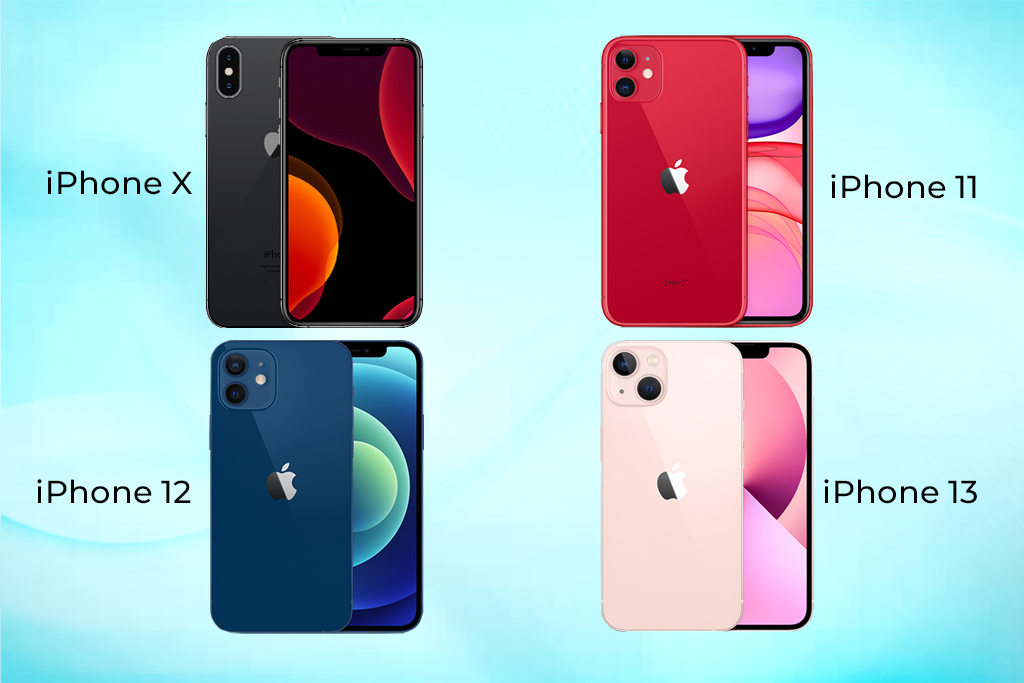
In comparison to the previous-generation iPhone X, the iPhone 11 comes in six hues, however Apple has introduced additional colors. It’s available in black, green, yellow, purple, red, and white, with the coral and blue colors from the iPhone XR no longer available.
An A13 Bionic 7-nanometer chip and a third-generation Neural Engine are found inside the iPhone 11. Apple claimed at the time of its release that the A13 Bionic was the fastest chip ever in a smartphone, having a 20% faster CPU and GPU than the A12. The A13’s Machine Learning Accelerators enable the CPU to perform over 1 trillion operations per second, and the Neural Engine is quicker than previous chips for real-time photo and video analysis.
An Intel modem chip with Gigabit-class LTE, 2×2 MIMO, and LAA, Wi-Fi 6 compatibility (802.11ax) with 2×2 MIMO, Bluetooth 5.0, Dual-SIM with eSIM, and an Apple-designed U1 Ultra Wideband chip that enhances spatial awareness and enables for improved indoor tracking are all included in the iPhone 11. The chip now supports directionally aware AirDrop suggestions in iOS 13.1, allowing you to drop files to someone you aim your iPhone at.
Is it worth the price tag?
So, is the iPhone 11 still worth buying? If you’ve got an iPhone older than the X and you’re looking to upgrade, I think the answer is yes. The camera is substantially improved, and you will get vastly better battery life than anything aside from X. That’s what most people care about, and Apple has really delivered here.
All products, and company names, logos, and service marks (collectively the "Trademarks") displayed are registered® and/or unregistered
trademarks™ of their respective owners.
The authors of this web site are not sponsored by or affiliated with any of the third-party trade mark or third-party registered trade mark owners,
and make no representations about them, their owners, their products or services.
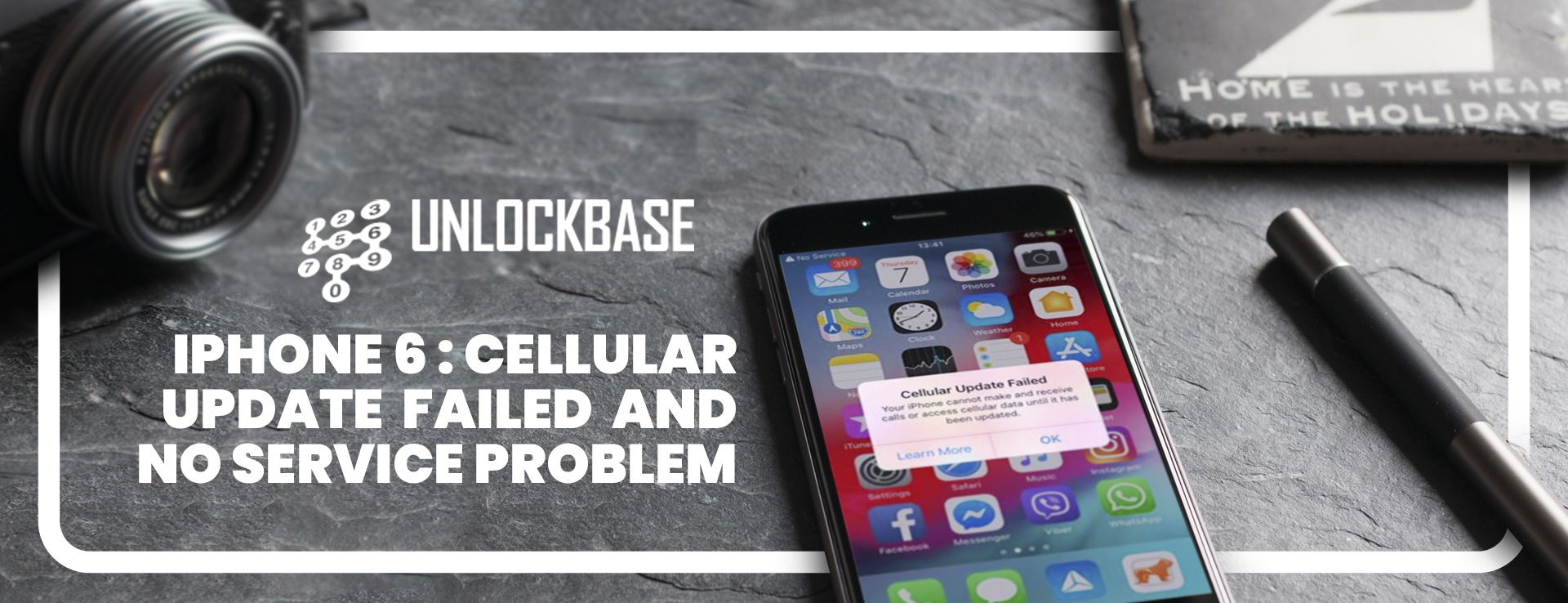
When an iPhone is unable to connect to a cell network, a “No Service” message appears in the upper left corner of the screen, where the carrier or reception signal is usually displayed, and an alert message appears on the iPhone screen that says “Cellular Update Failed – Your iPhone cannot make or receive calls or access cellular data until it has been updated.”
We’ll show you a couple solutions to try to get cellular data and cell service working again on an iPhone that’s experiencing these issues.
Ways to fix your iPhone 6 Cellular Update Failed and No Service Problem
You can use your iPhone with several carriers after you unlock it. It’s possible that your iPhone is carrier-locked. You can use your iPhone with several carriers after you unlock it.
1. Check your coverage area
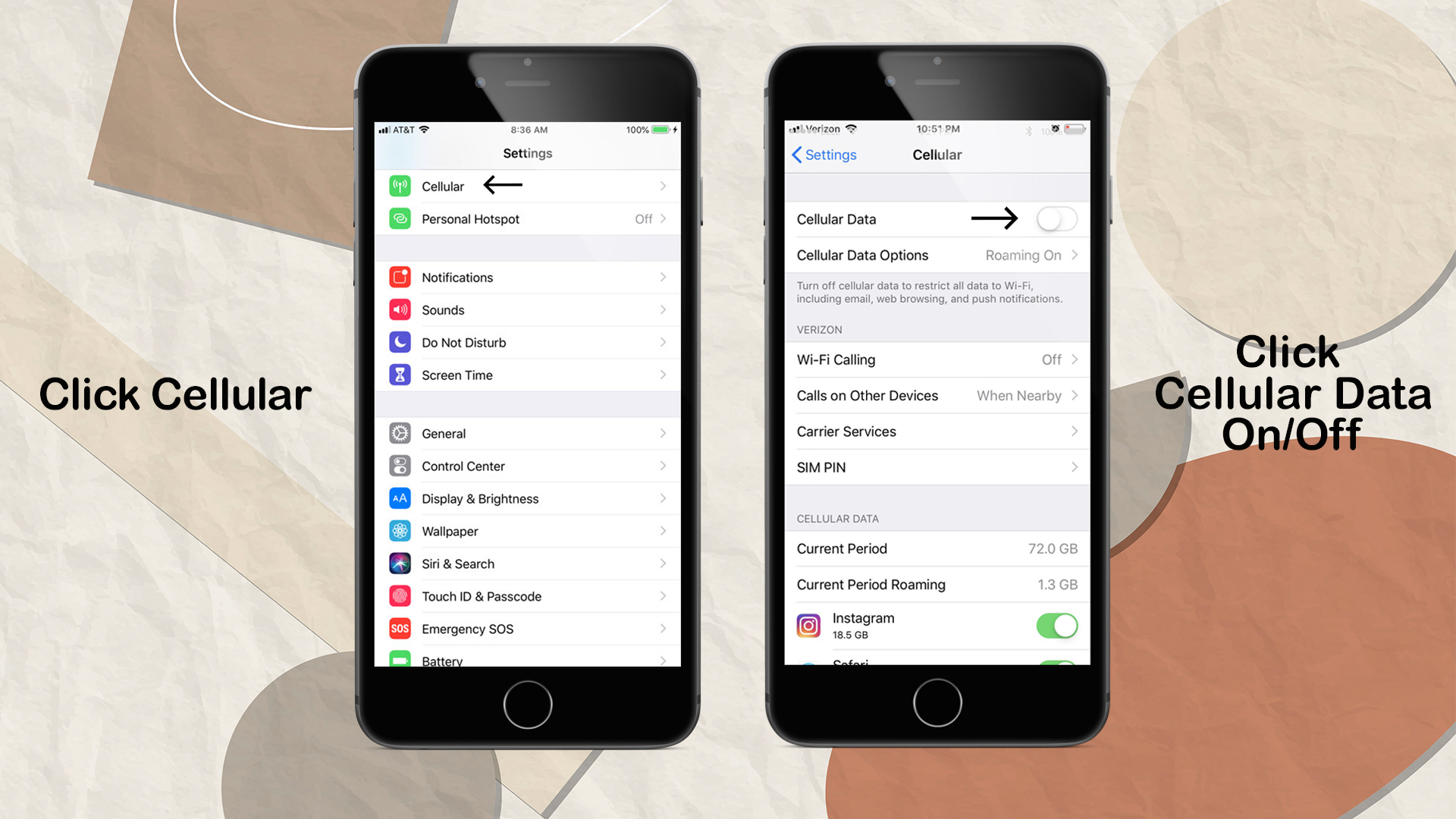
Go to Settings, then Cellular or Mobile Data to switch cellular data on or off. Settings > Cellular Data may appear if you’re using an iPad.
Make sure your smartphone is set up for data roaming if you’re traveling internationally. Data Roaming can be found under Settings > Cellular > Cellular Data Options > Data Roaming.
2. Restart your iPhone or iPad
3. Check for a Carrier Settings update
To check for and install a carrier settings update manually, follow these steps: Make sure your device is connected to the internet via Wi-Fi or cellular service.
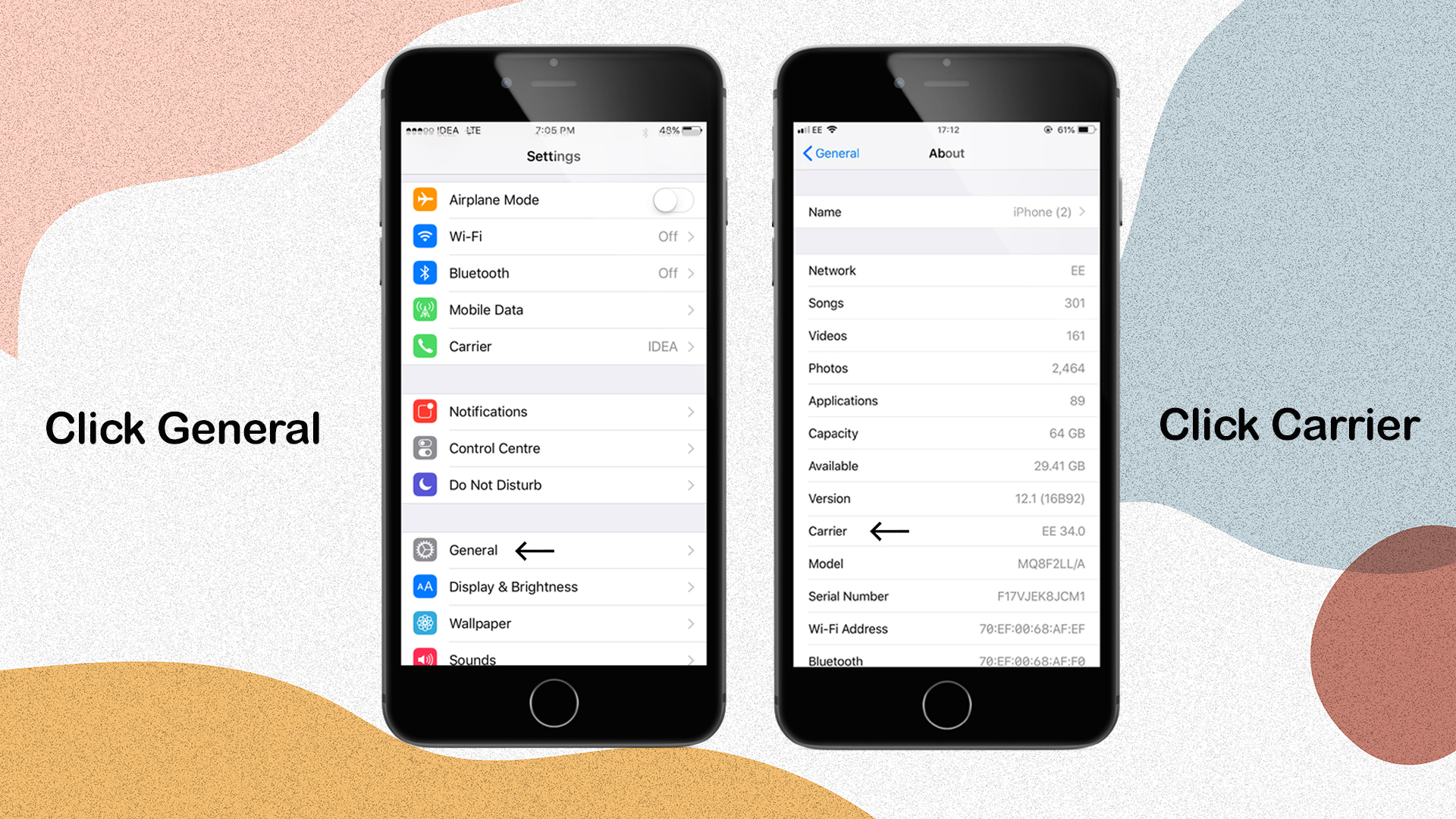
Select Settings > General > About from the drop-down menu. You’ll notice an option to update your carrier settings if an update is available.
Tap Settings > General > About and look next to Carrier to view the version of carrier settings on your device.
You must download the carrier settings for your new carrier if you insert a new SIM card into your iPhone or iPad.
4. Reset your Network Settings.
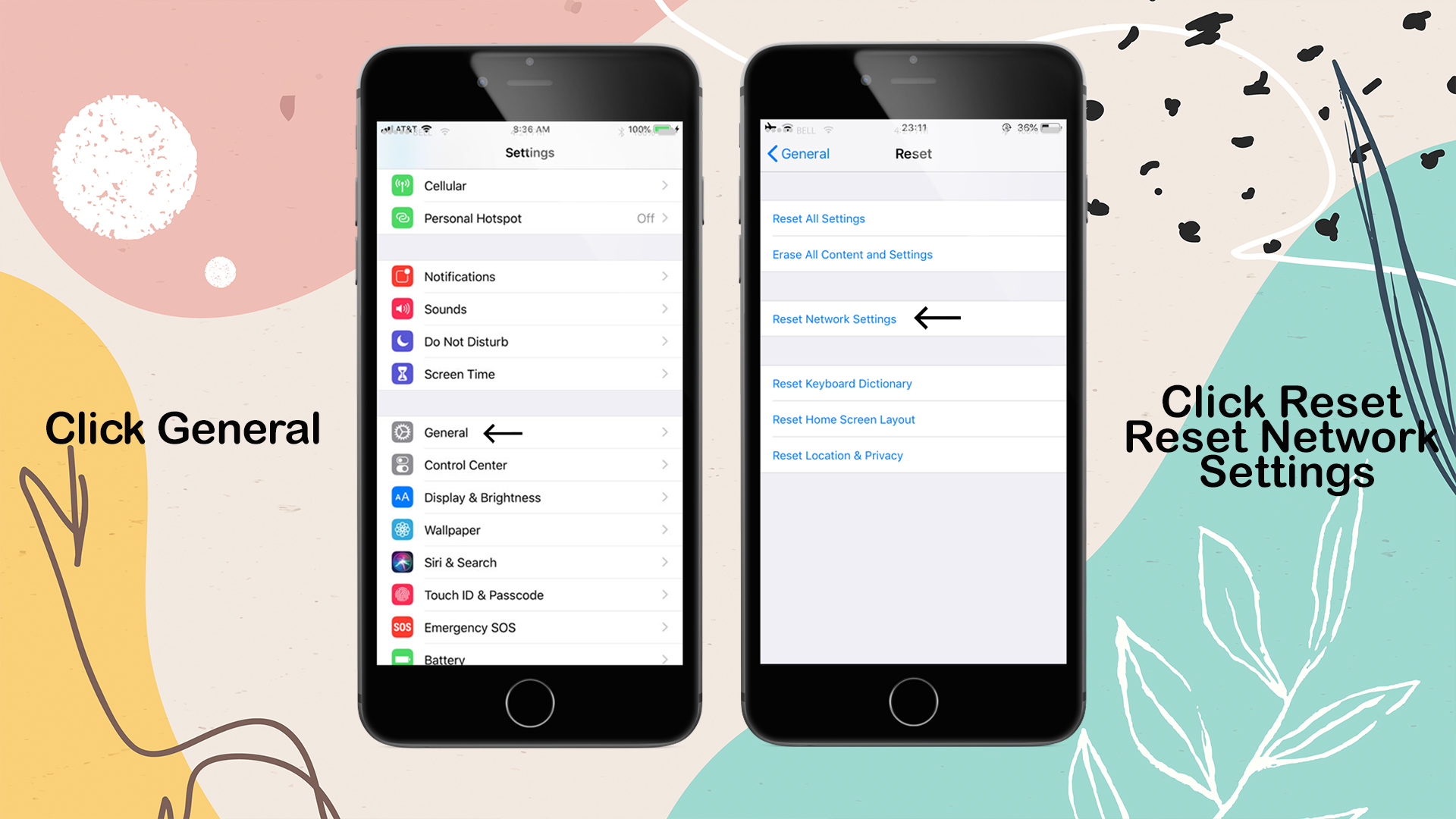
Reset Network Settings by going to Settings > General > Reset > Reset Network Settings. This also resets any previously used Wi-Fi networks and passwords, cellular settings, and VPN and APN settings.
5. Update your iPhone or iPad
Install the most recent version of iOS on your iPhone or iPad.
6. Unlock Your Phone Using UnlockBase unlocking Service
If you tried the above steps and you continue to experience iPhone Cellular Update Failed, You still Experience No service after trying all the methods above, Maybe your phone is locked by your carrier. you may want to try the following additional troubleshooting steps:
If you found out that your phone is locked and If you are not 100% which network your iPhone is originally from, then please order first an iPhone GSX Network Check report.
Without the use of an Unlock Code, the iPhone Factory Unlock can be completed completely remotely. Your iPhone’s Factory Unlock is permanent, and it will remain so even if you upgrade iOS or restore it.
Please follow the instructions below as soon as you receive confirmation that the unlock has been applied to your iPhone:
1. Insert a non-accepted SIM card into your iPhone and turn it on. If the SIM card you’re using isn’t from the initial network your iPhone was locked to, it’ll be marked as “non-acceptable.” The SIM card can be from any network carrier in the world, and it doesn’t have to be the same SIM card you’ll use in the future.
2. Your iPhone will be activated with your new SIM Card automatically. That indicates that your iPhone is now completely unlocked.
3. Your iPhone can now be used on any network carrier in the world!
Conclusion
If you take the safe and legal route, you can fix your iPhone 6 Cellular Update Failed Problem for smoother communication. You may have to pay a little money, but it will be for the benefit of your phone, and you will be able to take advantage of the convenience that an unlocked handset may bring you on your most exciting vacations abroad.
Did the preceding tips help you reactivate your iPhone’s cellular data and cellular connectivity? Did this fix your iPhone’s “No Service” issues and the “Carrier Update Failed” error messages? Is there another way for you to fix these issues with your iPhone service? Please let us know in the comments section below.
All products, and company names, logos, and service marks (collectively the "Trademarks") displayed are registered® and/or unregistered
trademarks™ of their respective owners.
The authors of this web site are not sponsored by or affiliated with any of the third-party trade mark or third-party registered trade mark owners,
and make no representations about them, their owners, their products or services.
Each year Apple releases a new iPhone series, we know that it only gets more expensive. However, this year is an exception. This year’s entry-level iPhone 13 in the series is priced just the same as the iPhone 12 and iPhone 12 Mini, and Apple dropped heir prices dropped so people are encouraged to buy the latest iPhones this year.
That should make you think just how fast the iPhone depreciates in value. The iPhone 12 and iPhone 13 only differ by $100, which makes the latter, being the latest, the more viable option for many. But is it really?
Before you upgrade to the iPhone 13, let’s take a look at what you’re actually buying and discuss any new features or new design upgrades versus the iPhones before it and the flagship Android devices within its price range.
Pros
Ceramic Shield for better protection
IP68 water and dust resistance
Updated 6-Core CPU and Chipset
Added new camera sensors
Better Camera stabilizers
Long battery life
Cons
The design didn’t change from last year’s iPhones
The new camera alignment didn’t offer any new value
No power brick in the box
No plastic shrink wrap for added protection
The camera bump is still there and thicker
It is heavier than the iPhone 12
Unlocking iPhone 13: Design and Build Quality
There is a good reason why the iPhone 13’s price is just the same as the iPhone 12’s. It’s because they hardly changed anything on the outside. The design of the phone is just the same as the iPhone 12, even the build materials used are the same.
Can be argued, but we dare say the iPhone 13’s design is recycled from that of the iPhone 12.
Moreover, the aluminum frame and the corning glass front and back cover are just the same. Apple says there is a 1mm difference between the two, but you can hardly see that when both are laid flat on a surface.
The notorious camera bump in the back is still there, albeit with a little difference in the arrangement. The cameras are of the same quality.
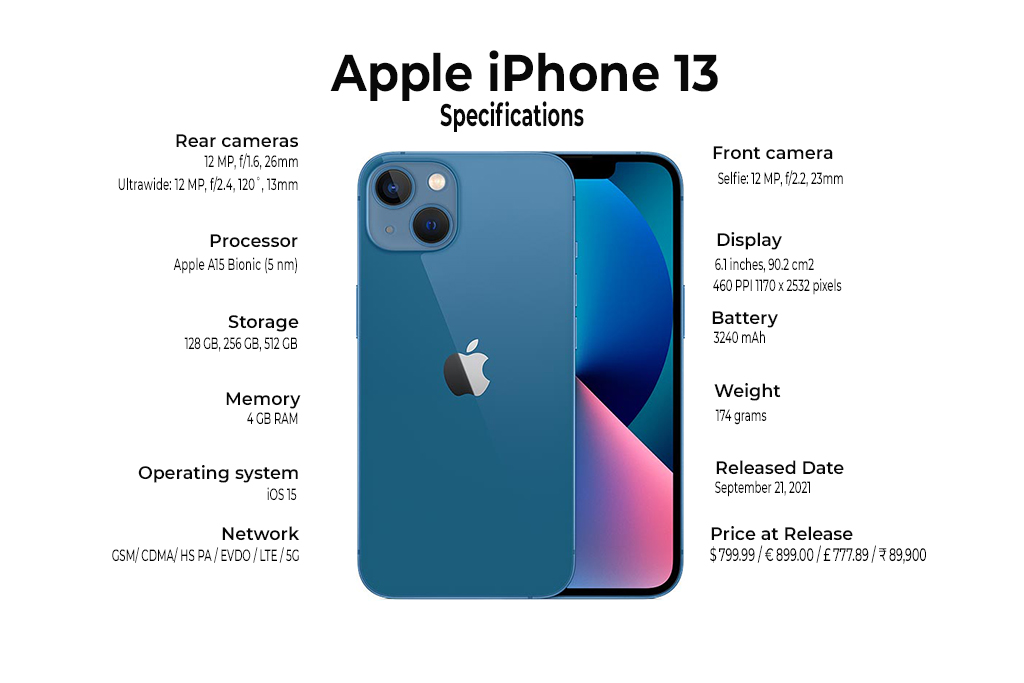
There is a substantial difference in the weight of the two phones because the iPhone 13 packs a bigger battery than that of the iPhone 12, which of course, explains why the iPhone 13 has longer battery life. The iPhone 13 has 3,227 mAh.
On the other hand, the iPhone 13 is sitting on Apple’s fastest and latest chipset and with a faster RAM and bigger internal memory.
iPhone 13 Tech Specs vs Iphone 12 vs Android Flagships
iPhone 12
iPhone 13
iPhone 13 Pro
Samsung Galaxy S21 5G
Battery life
2815 mAh
3,227 mAh
3,095 mAh
4,000mAh
RAM
4GB
6GB
6GB
12GB
ROM
64GB
128GB
128GB
128GB
Front Cam
12 MP, f/2.2
12 MP (f/2.2)
12 MP (f/2.2)
10 MP, f/2.2
Rear Cam
12-megapixel (f/1.6) + 12-megapixel (f/2.4)
12-megapixel (f/1.6) + 12-megapixel (f/2.4)
12 MP, f/1.5 + 12 MP, f/2.8 + 12 MP, f/1.8
12 MP, f/1.8 + 64 MP, f/2.0 + 12 MP, f/2.2
Build
Gorilla Glass Front & Back, Aluminum Frame
Gorilla Glass Front & Back, Aluminum Frame
Gorilla Glass Front & Back, Stainless Steel Frame
Glass front , plastic back, Aluminum Frame
Protection
IP68 dust/water resistant
IP68 dust/water resistant
IP68 dust/water resistant
IP68 dust/water resistant
Screen Size
6.1” OLED
6.1” OLED
6.1” OLED
6.2” AMOLED
Price
$729.99
$799.99
$999.99
$799.99
When it comes to the price and the features, it’s clear that the iPhone 13 is just so-so compared to the iPhone 12 and its Android competition. For the same price, Samsung Galaxy S21 has 3 high-powered cameras at the back with better aperture and higher megapixels than that of the iPhone 13.
Compared to iPhone 12’s memory capacity, iPhone 13 has more RAM and more internal memory, and with a faster chipset, there will be a huge difference when it comes to speed and real-time user experience.
Compared to its predecessor, the iPhone 13 does have features that might make it worth the consideration to upgrading. If you’re looking for a faster experience or better memory, it does hold a lot more power and memory than the iPhone 12.
Is it worth the $100 price difference? What do you think?
Let us know in the comments section!
All products, and company names, logos, and service marks (collectively the "Trademarks") displayed are registered® and/or unregistered
trademarks™ of their respective owners.
The authors of this web site are not sponsored by or affiliated with any of the third-party trade mark or third-party registered trade mark owners,
and make no representations about them, their owners, their products or services.
Wondering if you have a blacklisted iPhone? Unsure if you could use or sell it? If you’re stuck with a blacklisted iPhone, don’t worry, we’ll help you figure out how to activate and unlock it in this article.
We’ll discuss how to know if you own a blacklisted iPhone, how to unlock it, and how to sell it legally.
What exactly is a blacklisted iPhone?
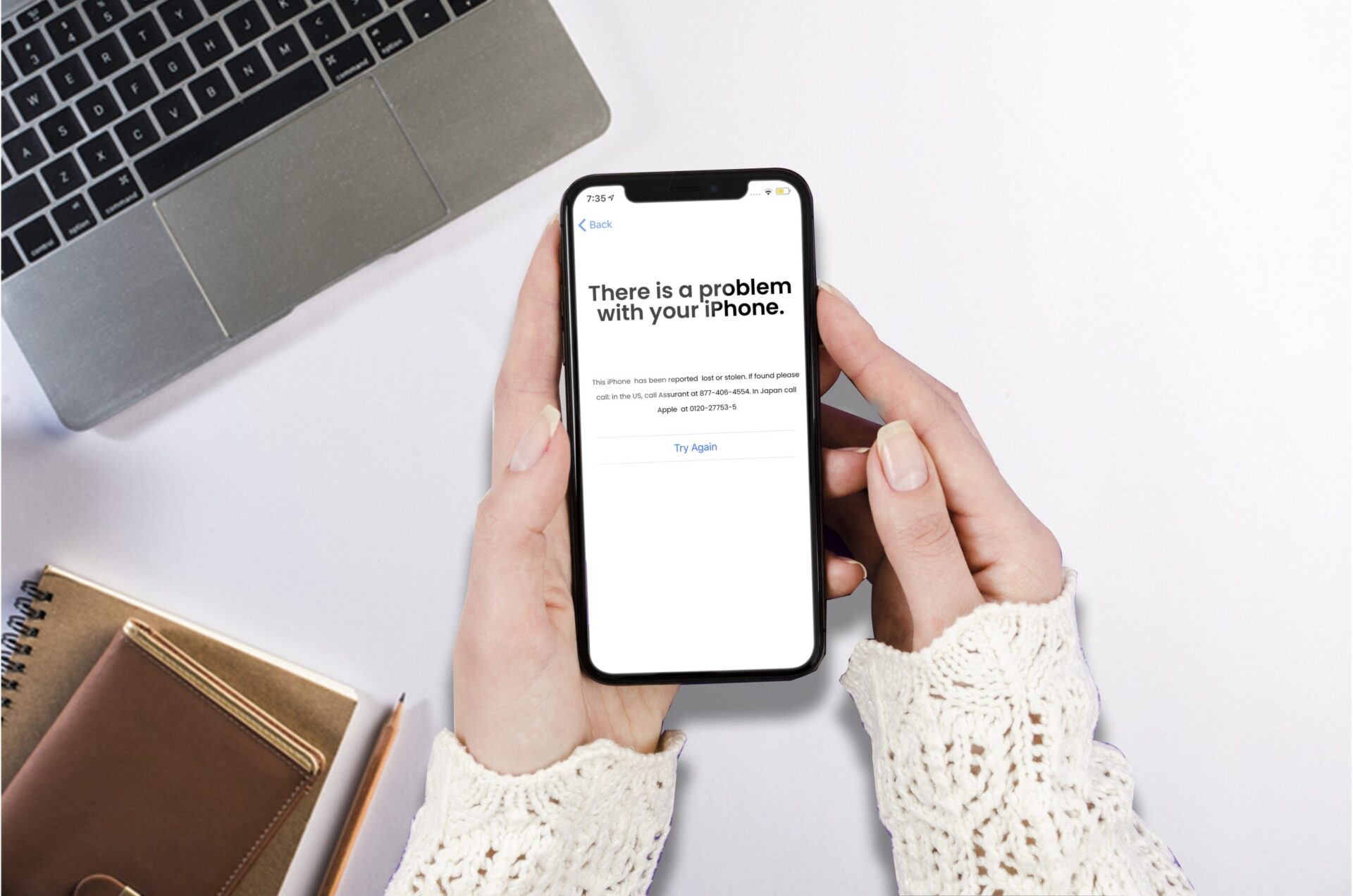
A blacklisted iPhone is an iPhone that has been reported as stolen, lost, or outside of the carrier’s coverage area. There are only two reasons why an iPhone is blacklisted: (1) it was reported lost or stolen, and (2) it was canceled due to non-payment. With the first one, you’re likely stuck with an illegally sold iPhone that you can’t use, but if your case is the latter, then there’s definitely a way to use the iPhone again.
Who controls the blacklist?
You might believe that Apple can blacklist an iPhone, but only the wireless carriers are in charge of doing so. Wireless carriers create their databases using the iPhone’s IMEI (International Mobile Equipment Identity) number. A stolen or lost iPhone can result in the device being placed on the blacklist using this unique IMEI or serial number.
And as earlier mentioned, blacklisting can also happen if the owner of a device is unable to pay their contract or if it was acquired fraudulently.
How to Know if Your iPhone is Blacklisted
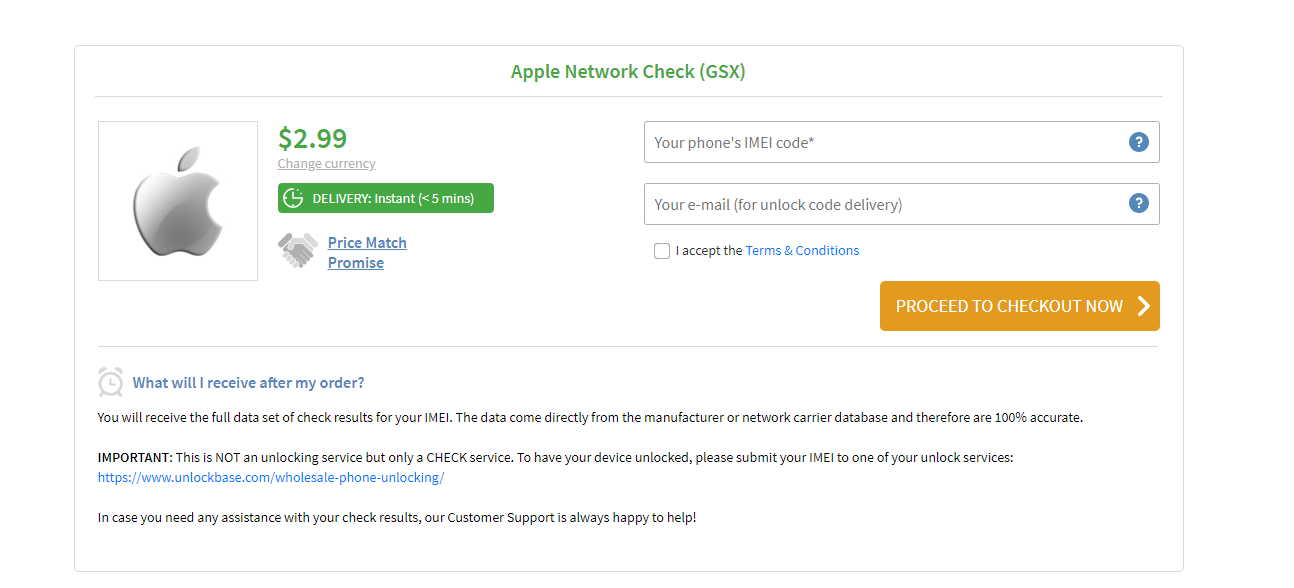
How do you know whether or not you have a blacklisted iPhone if you don’t know its origin? An easy way to find out whether your iPhone is blacklisted is by purchasing an IMEI check or Apple Network Check (GSX). We offer this service and you can get the results in as fast as 5 minutes.
Through our Apple Network Check, you will know your iPhone’s complete origin details such as the carrier/network and country where it came from. And you will need this information, later on, to proceed with the unlock process.
Suppose you receive confirmation that there isn’t anything wrong with your iPhone, then great! But what should happen when your device comes back as being on the blacklist? You don’t have to worry because there are ways around this.
How to activate or unlock a blacklisted iPhone?
If there is an issue such as someone reporting the phone lost/stolen, any wireless company won’t activate your device. And although we can unlock blacklisted iPhones, we don’t do it for lost or stolen ones.
There are two parts to activating and unlocking a blacklisted iPhone: (1) we get your iPhone’s origin information, and (2) we unlock it remotely using its IMEI.
In order for us to know whether your device can be unlocked, we need to know the ‘Blacklist Status’ and ‘Current Owner Info’ from Apple’s database, and it is something that our Apple GSX Check Service can do for you.
To permanently unlock your iPhone, all we need is the iPhone’s carrier and country of origin, and the IMEI number. Once it is unlocked, you can use your phone on any carrier that supports it!
How to Sell Blacklisted iPhone Legally
Selling an iPhone that is blacklisted can be a tough decision to make, especially since it has the potential of coming back on you in some way. If your device is still under warranty, Apple may refuse to service it if they find out you are the current owner, but what about when this isn’t an option? Don’t worry because you still have options!
One thing worth noting here is that while iPhones are typically sold through third-party channels (such as eBay or Craigslist), certain services are available that will allow you to sell your phone directly to them without having any issues with blacklisting. These companies specialize in buying used devices and reselling them at retail prices for profit, so they don’t care whether or not yours is blacklisted-they just want to sell it quickly.
While there are many reputable services out there, be sure that you do your research before committing any transactions so you can avoid being scammed. Always check the company’s background and customer reviews online if possible and their refund policy if things don’t go according to plan.
For this service provider to purchase your device from you without issues, they will usually need more information than what is provided on an IMEI number alone. In some cases, all that may be needed is a photo or scan of both sides of the phone and its serial or IMEI number, which will allow them to determine whether or not the iPhone can be legally sold.
Conclusion
Purchasing a used iPhone is an excellent option to save money on the most recent Apple devices. Even though your iPhone is blacklisted, it doesn’t mean that you can’t use it. Blacklist removal services are sought by people who want to use an iPhone that is blacklisted but there’s no guarantee.
If you can’t unlock it or want to save the effort, you can still sell the locked iPhone. However, you won’t make as much cash from a locked iPhone compared to an unlocked one.
All products, and company names, logos, and service marks (collectively the "Trademarks") displayed are registered® and/or unregistered
trademarks™ of their respective owners.
The authors of this web site are not sponsored by or affiliated with any of the third-party trade mark or third-party registered trade mark owners,
and make no representations about them, their owners, their products or services.
You are here because you got a new iPhone but can’t use it. The moment you try to enter a sim card it keeps saying ‘Sim not valid’ or ‘Sim not supported, and now you’re stuck with a phone that you can’t use at all, at least for voice calling. In this article, we’ll walk you through why you get this error and the possible ways and workarounds on how to fix this kind of error.
Sim not supported iphone error – what does it mean?
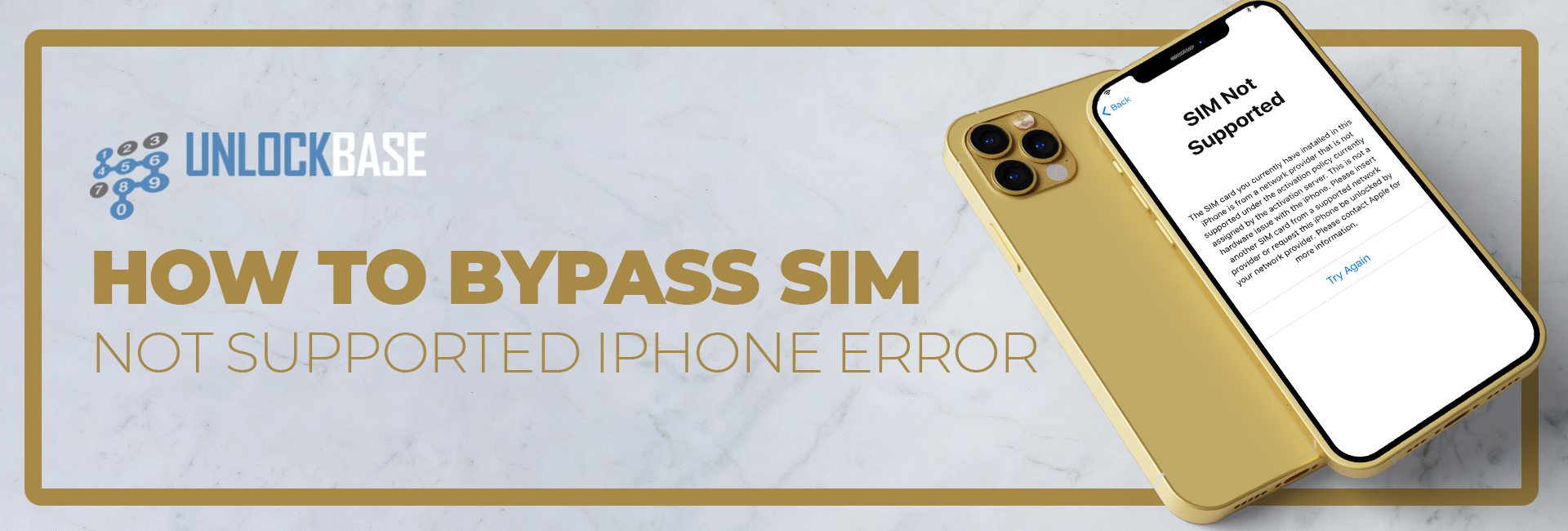
Sim not supported iPhone error only appears for two reasons: (1) your phone is locked to its carrier, or (2) you’re having software issues. But the most common reason would be the first one, your phone is locked to its carrier.
You might be wondering, ‘why would my carrier lock my device, when I already paid for it?’ This is a common misconception among many postpaid users, but your phone is locked to them simply because they want you to keep using their service whilst your phone is still not fully paid.
When you get a new iPhone from T-Mobile, AT&T, or any other service provider for postpaid service, you are essentially paying for the subsidized price of the phone added to your monthly bill.
When you are done paying your phone, it will NOT be automatically unlocked, you have to request from your service provider/carrier that you want to use the phone elsewhere or you’re moving to another network. Some carriers offer it free, but in most cases, you still have to pay them a service fee for unlocking your phone.
On the other hand, if the phone is still locked into them (usually 24-36 months), they might deny your request for unlocking unless of course, you are willing to pay for the remaining subsidized price of the phone.
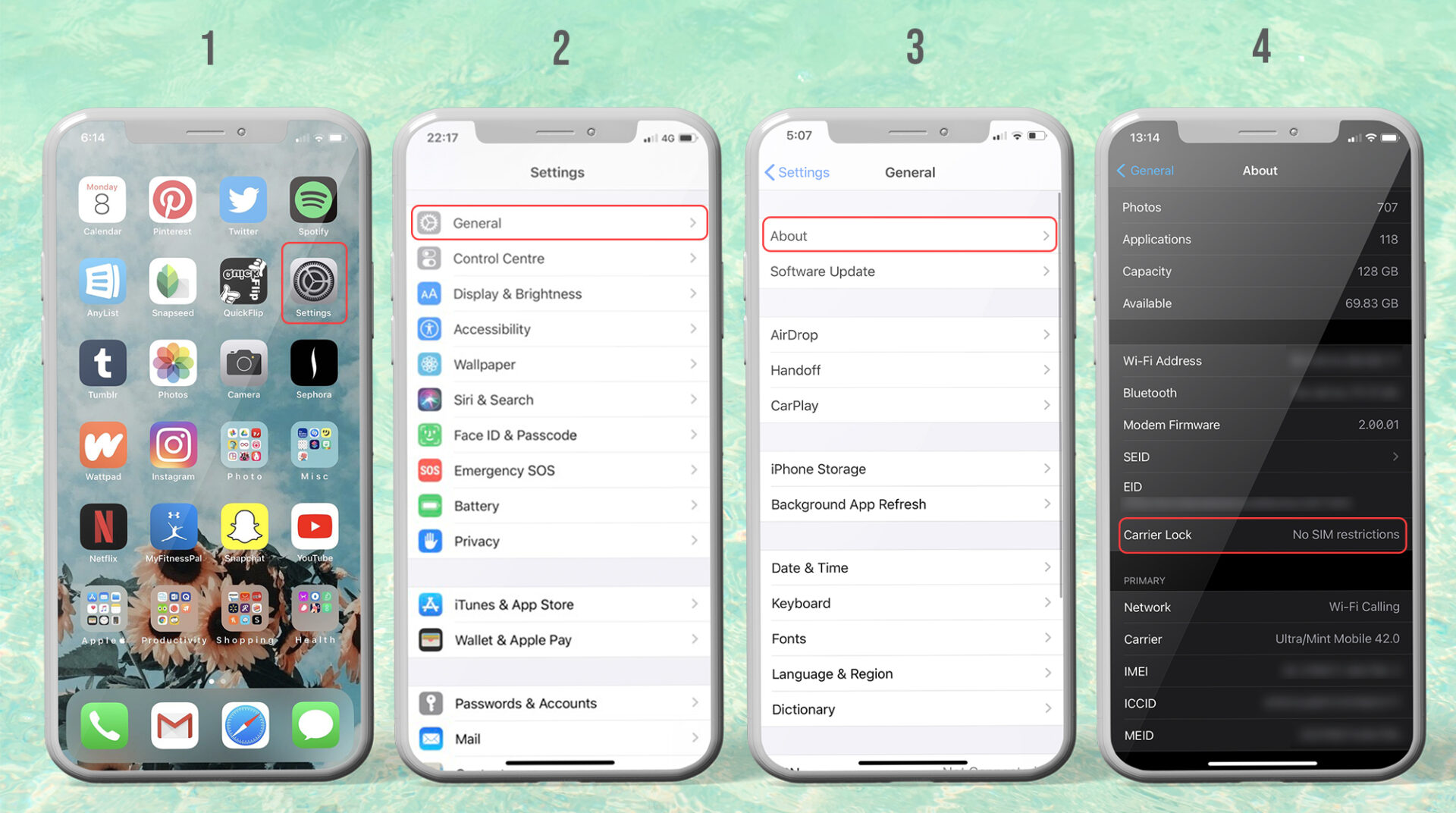
The only way to know whether or not the ‘sim not valid’ or ‘sim not supported’ error on your phone is caused by your carrier is to check its settings. Here’s how to do it:
Go to Settings > About > Carrier Lock > No SIM restrictions
If that is what it says then your phone is already unlocked- otherwise, it is still locked to its carrier.
Unlocked iPhone: How To Bypass Sim Not Supported Error
The ‘sim invalid’ error on already unlocked iPhones is easier to deal with because the issue can be easily solved without much technical knowledge. Oftentimes, the issue can be solved by a simple iOS update or a restart.
Here are the possible fixes you can do:
Confirm if your SIM card is activated by your new carrier.
If it’s not activated on their end, that’s the reason why you get that error. Make sure to have the SIM card and your phone number activated on your new carrier.
If it is activated on their end, try to restart your iPhone.
If that doesn’t work, try to eject and re-inject the sim card on your iPhone.
Try calling emergency numbers on it.
Try updating your iPhone’s iOS.
Although it is rare, bugs on older iOS versions could be the reason why you are getting that error on your phone. But it is always a standard procedure in troubleshooting to update the iOS.
Try to reset all settings.
Some changes in the firmware or a possible hiccup in the software could be the reason why your phone is not accepting the SIM card. Resetting the settings on your iPhone will refresh the system settings
Fix SIM not supported iphone error by unlock
The easiest, most convenient way for you to get it unlocked is through an unlocking service provider like UnlockBase. No codes, no device settings tweaks, and no hassle. Our process of unlocking iPhones only needs its IMEI number.
The process does NOT involve you tweaking some settings or even taking out multiple sim cards. We’ll show you how it’s done below.
Unlock an iPhone with Unknown Carrier
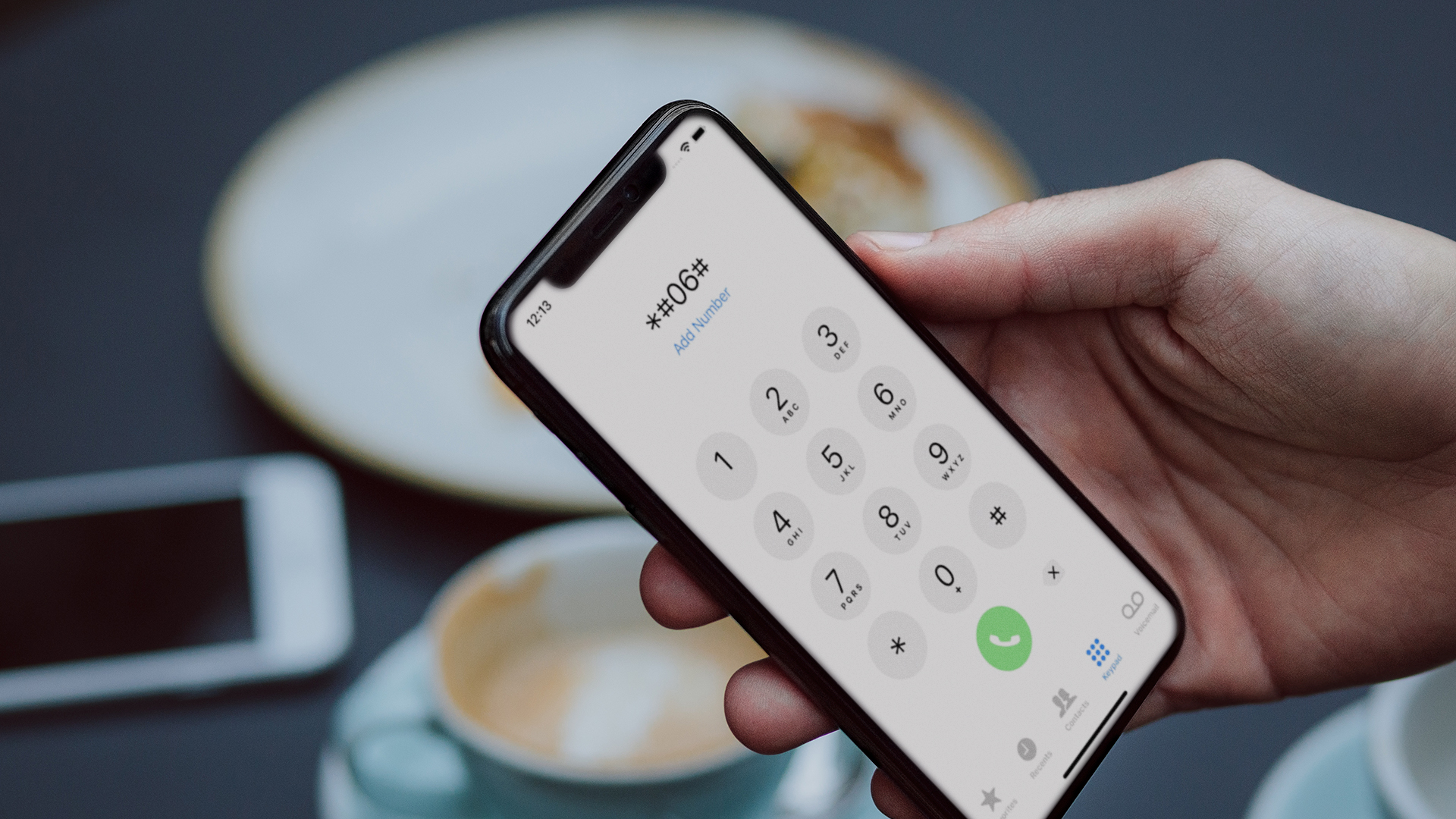
One of our qualifying questions before unlocking a phone is the carrier name and location. If you are not sure where your iPhone came from, you have to check first if it’s ‘ clean ‘ and not blacklisted/stolen. We do not unlock blacklisted and stolen iPhones. To get your iPhone’s full data instantly you may try our trusted Apple Network Check. All we need is your IMEI.
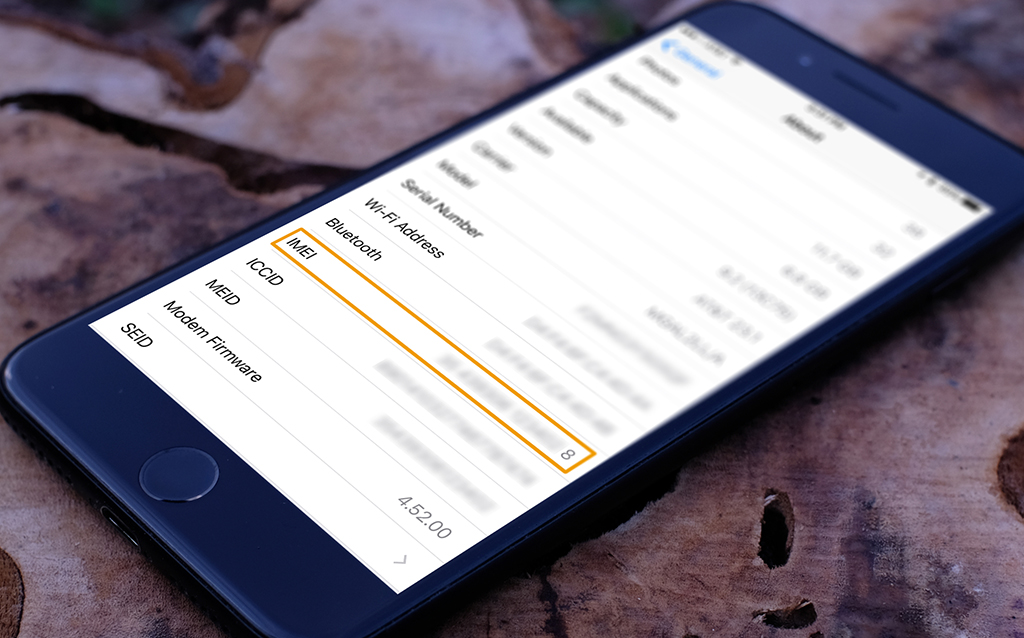
The easiest way to get the IMEI is to simply dial *#06#
Unlock an iPhone with Known Carrier
If you already know where your phone came from or its original carrier/network service provider, then you’re ready for the unlock process.
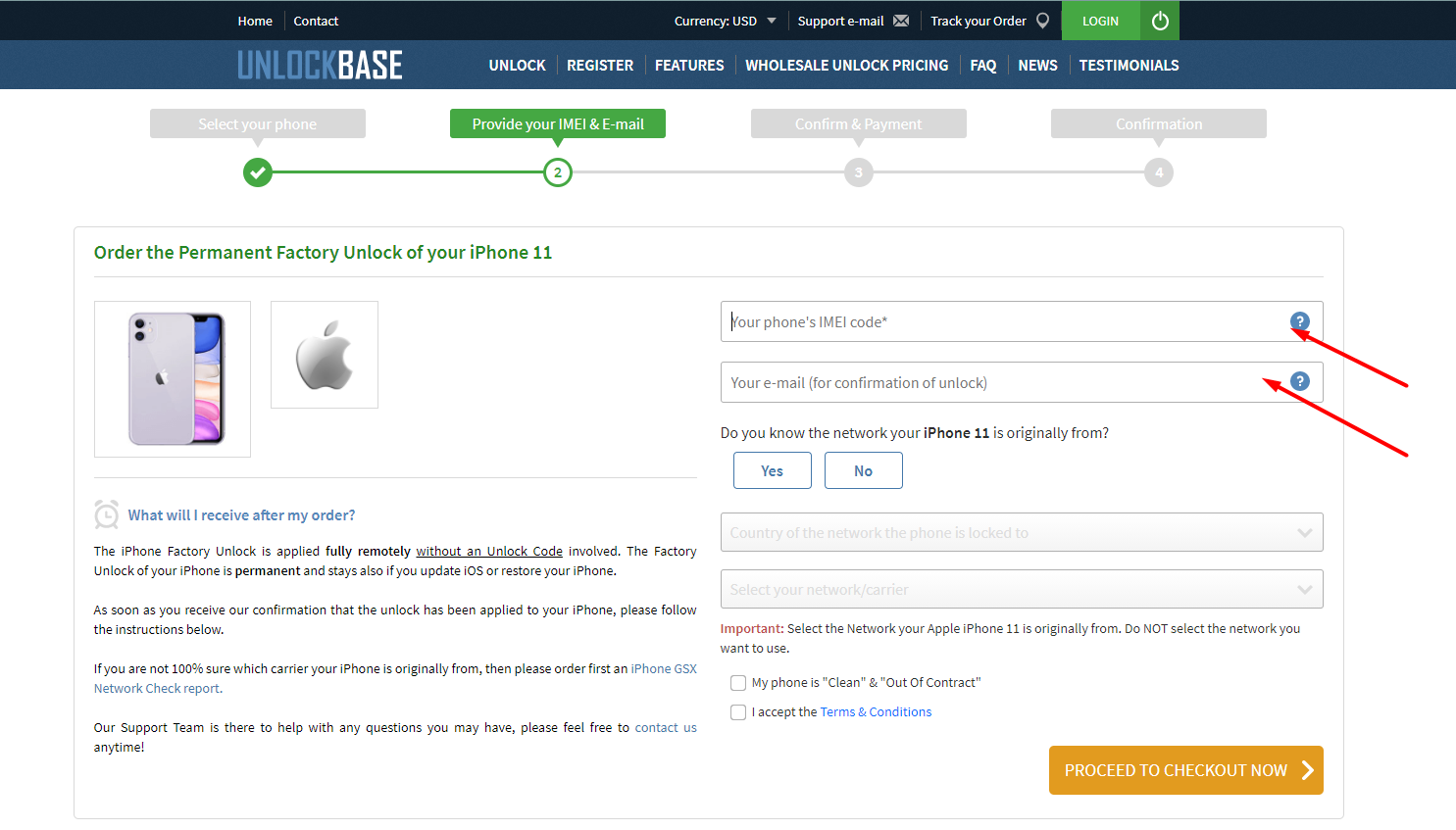
Choose Apple, then choose your iPhone’s model number.
Step 2: Next, enter your iPhone’s IMEI number and Email. Then choose the country and the carrier where it came from.
Step 3: Wait for an email confirmation from us that your phone is unlocked.
Step 4: And finally, once you receive the confirmation email, all you have to do is ensure you have the latest versions of iOS and iTunes on your phone. Insert a compatible sim card from the carrier you want to use, and then connect your phone to your computer using its original USB cable.
Launch iTunes and wait for your iPhone to be detected by it, disconnect and reconnect after 10 seconds and voila! Your iPhone is now unlocked!
Conclusion
We hope that this article has helped you resolve the SIM not activated or SIM not supported error on your iPhone. If you need our services or if you want to inquire, feel free to chat with our team anytime. Did you encounter this problem in the past? How did you resolve it?
Let us know in the comments!
All products, and company names, logos, and service marks (collectively the "Trademarks") displayed are registered® and/or unregistered
trademarks™ of their respective owners.
The authors of this web site are not sponsored by or affiliated with any of the third-party trade mark or third-party registered trade mark owners,
and make no representations about them, their owners, their products or services.