
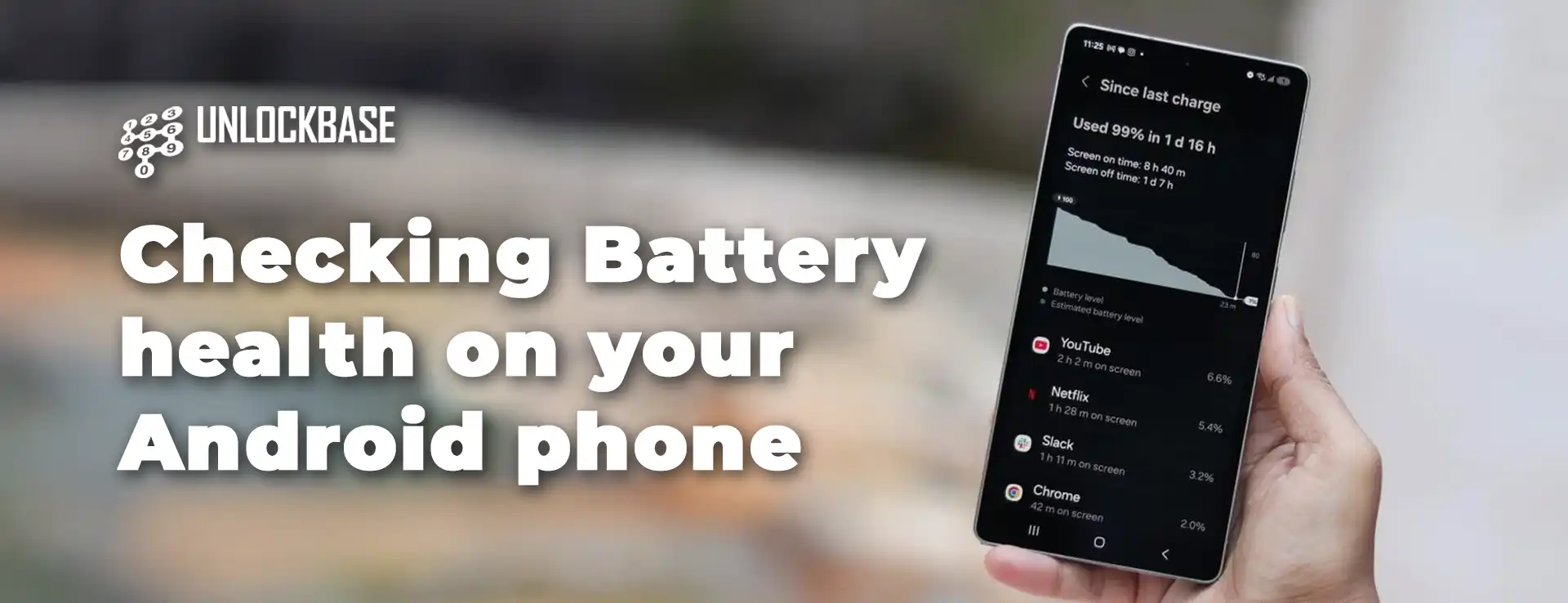
Android Battery Health? Is your Android phone dying too fast? Unfortunately, this happens to all phones over time. Moreover, your battery gets weaker as you use it more.
However, the good news is that checking your battery health is easy. Additionally, you can find out if you need a new battery or just better settings.
Android Battery Health : Why Check Your Android Battery Health?
First, your battery health shows important info about your phone. Furthermore, here’s what you can learn:
• How much power your battery has lost • If your phone gets too hot • Which apps drain your battery most • How many times you’ve charged your phone
Meanwhile, most Android phones show basic battery info. However, some methods give you more details.
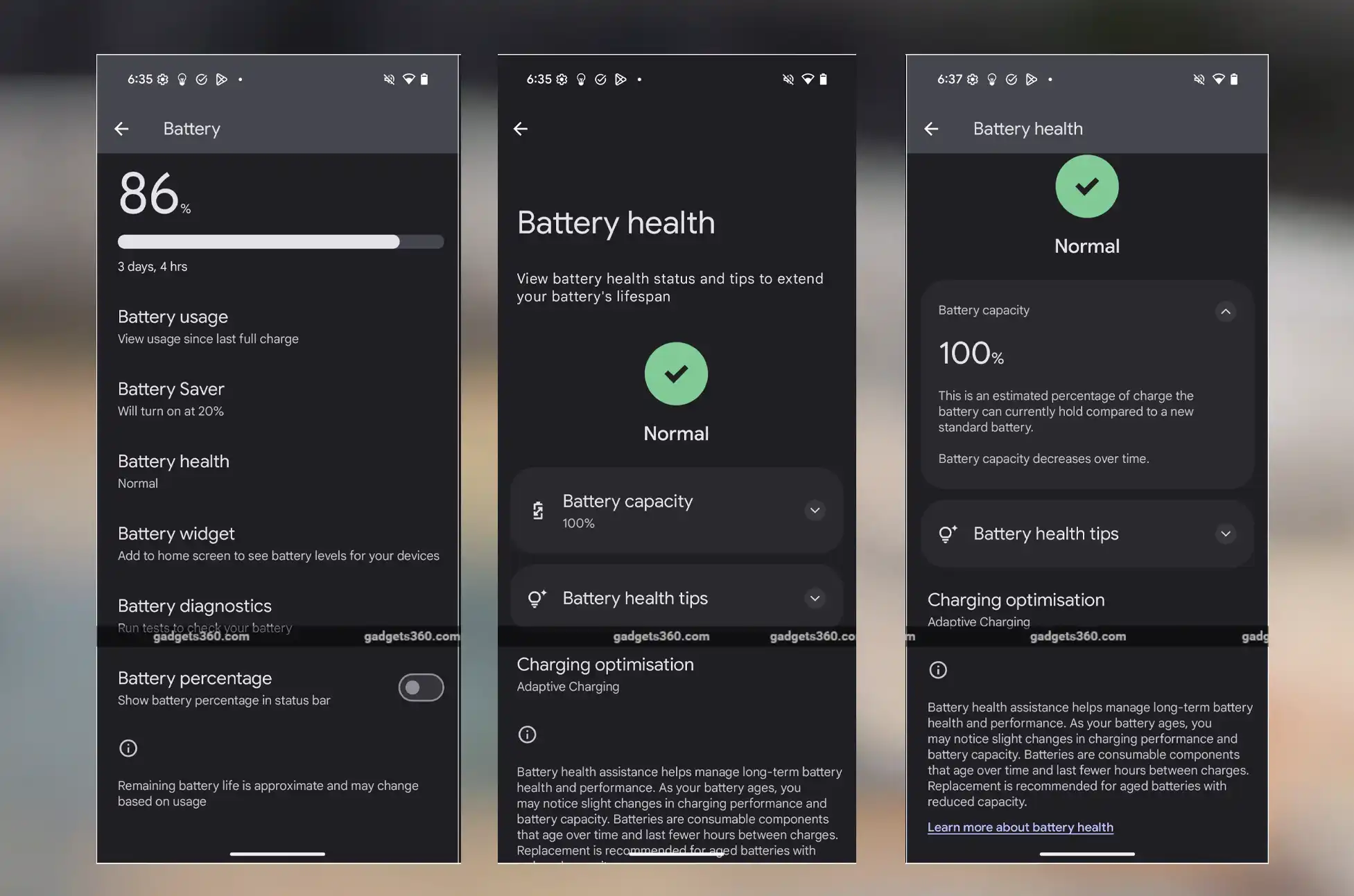
Method 1: Check Through Phone Settings
Initially, this is the easiest way to see your battery info. In fact, every Android phone has this feature.
Here’s how to do it:
- First, open Settings on your phone
- Next, tap Battery
- Then, choose Battery usage
- After that, tap any app to see how much power it uses
- Finally, look at usage since your last charge
Quick tip: Similarly, apps that use lots of power in the background might mean battery problems.
Method 2: Use Android’s Secret Menu
Alternatively, Android has a hidden menu with battery details. However, this doesn’t work on all phones.
Try these steps:
- First, open your Phone app
- Next, type *#*#4636#*#*
- Then, look for Battery information
- Finally, check your battery health and temperature
Note: On the other hand, if you don’t see battery info, try the next method instead.
Method 3: Samsung Phone Users Only
Meanwhile, Samsung phones have a special app for checking battery health. Additionally, this app comes with most Samsung phones.
Steps for Samsung phones:
- First, open Samsung Members app
- Next, tap Diagnostics
- Then, choose Phone diagnostics
- After that, tap Battery status
- Finally, see your battery health details
What to look for: In contrast, your battery should say “Normal.” However, if it says “Bad” or “Weak,” you need a new battery.
Method 4: Use Special Apps
On the other hand, some apps give you the best battery info. Furthermore, they show details that your phone’s built-in tools might miss.
AccuBattery – Best Overall
First of all, AccuBattery is the most popular battery app. Moreover, it tracks your battery over time.
What it does: • Shows real-time charging info • Tracks how fast your battery drains • Shows battery wear and health • Keeps history of your charging
Cost: Initially free with ads, but paid version removes ads.
CPU-Z – Shows Everything
Similarly, CPU-Z shows battery info plus other phone details. Therefore, it’s great for tech lovers.
Features: • Battery level and health • Temperature tracking • Full phone specifications • Free to use
Battery Guru – Advanced Tracking
Likewise, Battery Guru is great for watching battery patterns. Additionally, it sends helpful alerts.
What you get: • Charts of charging and draining • 24-hour usage stats • Alerts for low battery • Warnings for high temperature
Remember: However, these apps need permissions to work. Therefore, only download from Google Play Store.
Android Battery Health : When to Replace Your Phone Battery
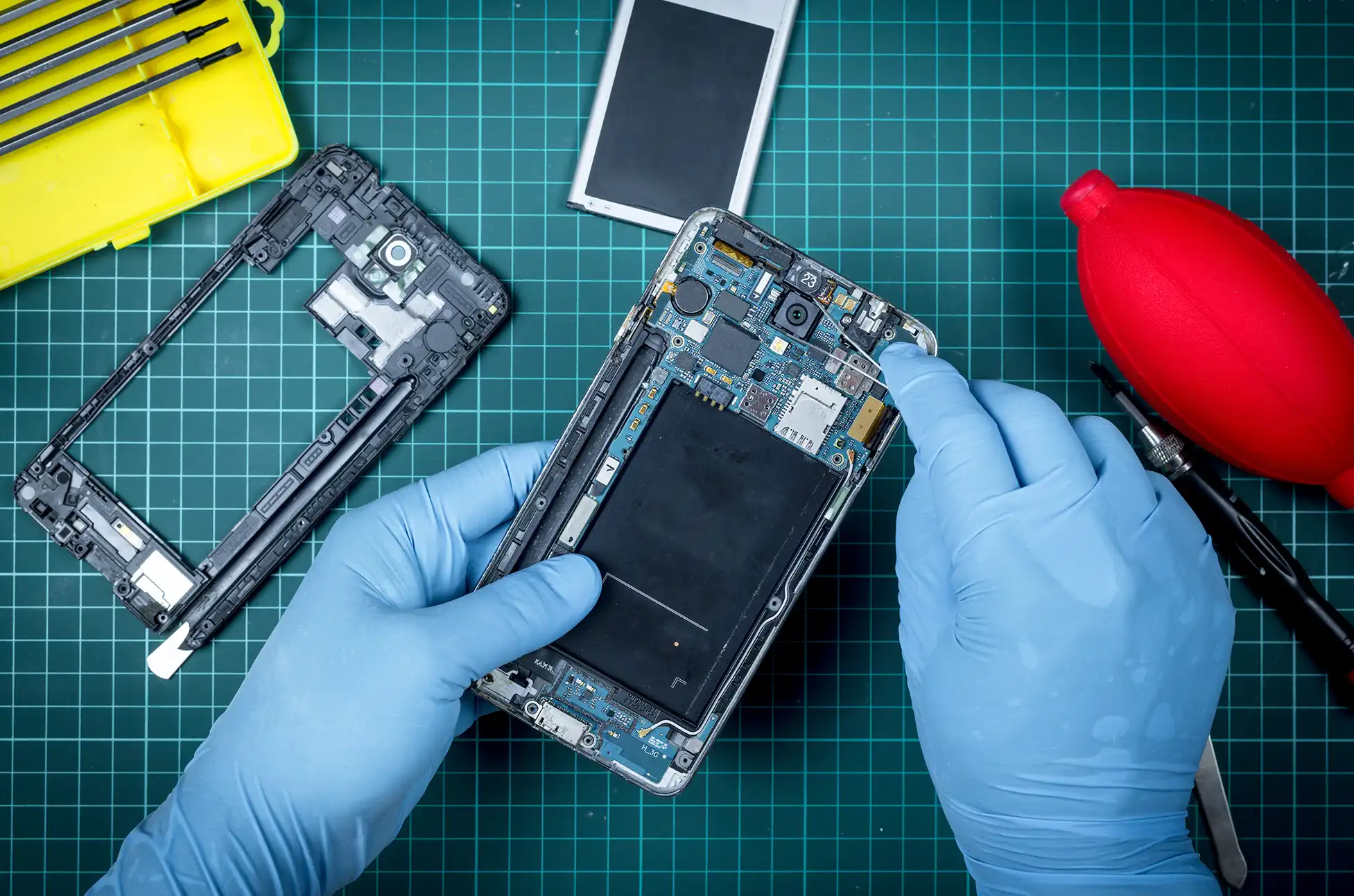
Unfortunately, all phone batteries wear out over time. However, here are signs you need a new one:
Replace your battery if: • Phone turns off suddenly • Phone runs very slowly • Battery dies in just a few hours • Phone gets very hot during normal use
Consequently, if these happen often, get a new battery or upgrade your phone.
How to Make Your Battery Last Longer
Although you can’t stop battery aging, you can slow it down a lot.
- Always Use Your Phone’s Charger
First, only use the charger that came with your phone. Otherwise, other chargers can hurt your battery. Furthermore, your original charger works best and safest.
- Keep Your Phone Cool
Similarly, heat damages batteries fast. Therefore: • Don’t leave phone in hot cars • Avoid using phone while charging • Keep phone out of direct sunlight
- Don’t Let Battery Die Completely
Instead, never let your phone reach 0% battery. Rather, charge it at 10-20%. As a result, this helps your battery last much longer.
- Delete Apps You Don’t Use
Meanwhile, too many apps drain your battery all the time. Therefore: • Remove apps you never use • Turn off apps running in background • Check which apps use most power
Android Battery Health : Make Your Current Battery Work Better
Furthermore, even old batteries can work better with simple changes:
Easy battery tips: • Turn down screen brightness • Use dark mode • Turn off apps you’re not using • Use battery saver mode • Let screen turn off faster
Consequently, these small changes help your phone last all day.
Android Battery Health : Final Thoughts
Checking your Android battery health is important. Moreover, it helps you know when to get a new battery or phone. Additionally, all batteries get worse over time. However, that’s normal. Still, with good care and regular checks, your battery will last longer. Therefore, try these methods today. Then, see how healthy your battery is. Finally, use our tips to keep it working well.
All products, and company names, logos, and service marks (collectively the "Trademarks") displayed are registered® and/or unregistered trademarks™ of their respective owners. The authors of this web site are not sponsored by or affiliated with any of the third-party trade mark or third-party registered trade mark owners, and make no representations about them, their owners, their products or services.


Comments are closed.