
2025
How to Disable RTT Calling on Your Phone
Tips
How to Disable RTT Calling? Getting unwanted RTT prompts during calls? Here’s your step-by-step guide to switching it off.
Real-Time Text (RTT) calling serves an important purpose for accessibility, but not everyone needs this feature active on their device. Whether you accidentally enabled it or simply don’t require RTT functionality, turning it off is straightforward once you know where to look.
How to Disable RTT Calling : What exactly is RTT Calling?
RTT calling transforms your phone conversations by displaying text in real-time as you speak. Picture live captions appearing on your screen during a phone call – that’s essentially what RTT does. This technology bridges communication gaps for people with hearing difficulties, allowing them to read conversations as they happen rather than relying solely on audio.
In the United States, your phone automatically accepts incoming RTT calls. However, making outgoing RTT calls requires manual activation through your device’s accessibility settings.
Turning Off RTT on Android Devices
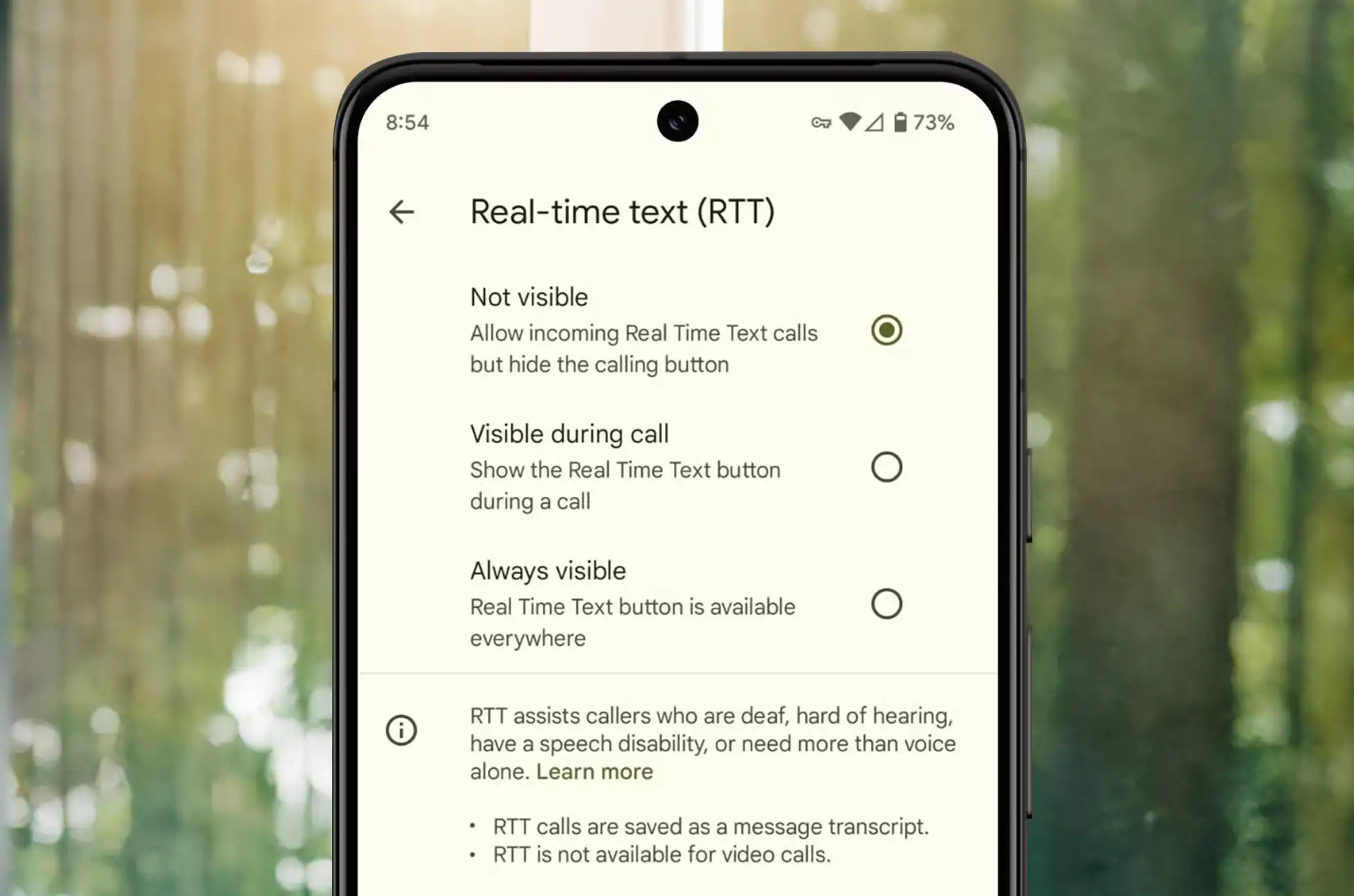
When RTT is disabled, neither you nor the person you’re calling will have access to the real-time text feature during your conversation. Keep this in mind if you regularly communicate with someone who benefits from RTT functionality.
Follow these steps to disable RTT:
- Open your Phone app
- Tap the three dots (⋮) in the top search bar
- Select Settings from the dropdown menu
- Navigate to Accessibility
- Find Real-time text (RTT) and choose Not visible
Alternative method: Return to the Accessibility menu, select TTY Mode, and choose TTY Off.
How to Disable RTT Calling : Disabling RTT on iPhone
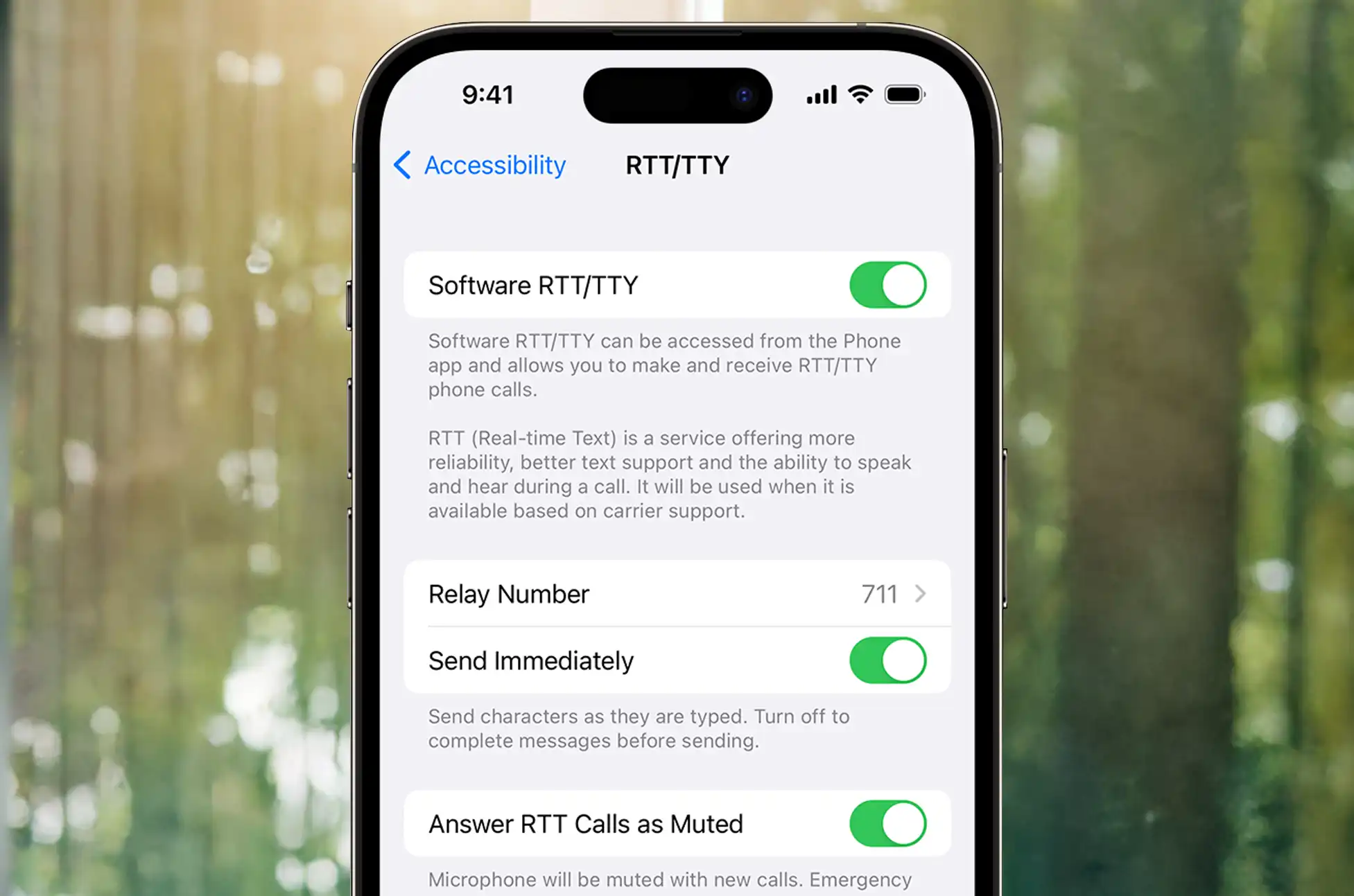
iPhone users have a slightly different path to disable RTT calling. Apple combines both RTT and TTY settings in one convenient location.
Here’s how to turn it off:
- Open Settings
- Scroll down and tap Accessibility
- Select RTT/TTY
- Toggle both Software RTT and Hardware TTY to the off position
Should You Keep RTT Enabled?
Before permanently disabling RTT, consider your communication needs. If you frequently call family members, friends, or colleagues who have hearing difficulties, leaving RTT active ensures seamless communication when needed. The feature doesn’t interfere with regular calls – it simply remains available as an option.
However, if RTT prompts are interrupting your calls or you never use the feature, turning it off makes perfect sense. You can always re-enable it later if your circumstances change.
How to Disable RTT Calling : Quick Troubleshooting Tips
Sometimes RTT settings don’t save properly or revert unexpectedly. If you’re still seeing RTT options after following these steps, try restarting your phone and checking the settings again. On some Android devices, carrier-specific settings might override your preferences, so contact your mobile provider if the issue persists.
Remember, accessibility features like RTT exist to make communication more inclusive. While you might not need these tools personally, they play a crucial role in helping others stay connected.
All products, and company names, logos, and service marks (collectively the "Trademarks") displayed are registered® and/or unregistered trademarks™ of their respective owners. The authors of this web site are not sponsored by or affiliated with any of the third-party trade mark or third-party registered trade mark owners, and make no representations about them, their owners, their products or services.


Comments are closed.