
Recover Data from Android? That sinking feeling when your phone slips from your hands and hits the pavement? We’ve all been there. Whether it’s a shattered display, water damage, or a screen that simply refuses to light up, the real anxiety isn’t about the phone hardware itself. It’s about everything stored inside: your photos, messages, contacts, and years of digital memories.
The good news? If your phone’s internal components are still functioning, there’s a solid chance you can rescue your data even with a completely unresponsive screen.
Recover Data from Android : The SD Card Solution (If You Have One)
Got an SD card in your device? You’re in luck. Pop it out and plug it into your computer using a card reader. Done.
The catch? Modern flagship phones have largely abandoned expandable storage. Plus, Android keeps most critical information on internal storage anyway—things like contacts, text messages, call history, app data, and media files all live on the device itself. That means you’ll need a different approach to access your phone’s interface when the screen goes dark.
Recover Data from Android : Using an External Display to Bypass a Broken Screen
Here’s the workaround that works for many Android users: connect your phone to an external monitor or TV. This lets you completely sidestep the broken display and interact with your device as if nothing happened.

Before you get too excited, there’s a compatibility caveat. Budget smartphones often use USB 2.1, which lacks the bandwidth needed for video transmission. But if you’re using a mid-range or flagship device from recent years, chances are good that it supports USB-C video output.
Samsung, Google, and Motorola devices even offer desktop modes that transform your phone into a full computer experience when connected to a larger screen. Other manufacturers might simply mirror your phone’s display to the external monitor—which is all you need for data recovery anyway.
What You’ll Need
To pull this off, gather these items:
- A USB-C to HDMI adapter or dongle
- An HDMI cable
- If your touchscreen is also broken: a USB keyboard and mouse
- For the latter scenario, grab a multi-port USB-C hub with both HDMI and USB-A ports
Step-by-Step Process
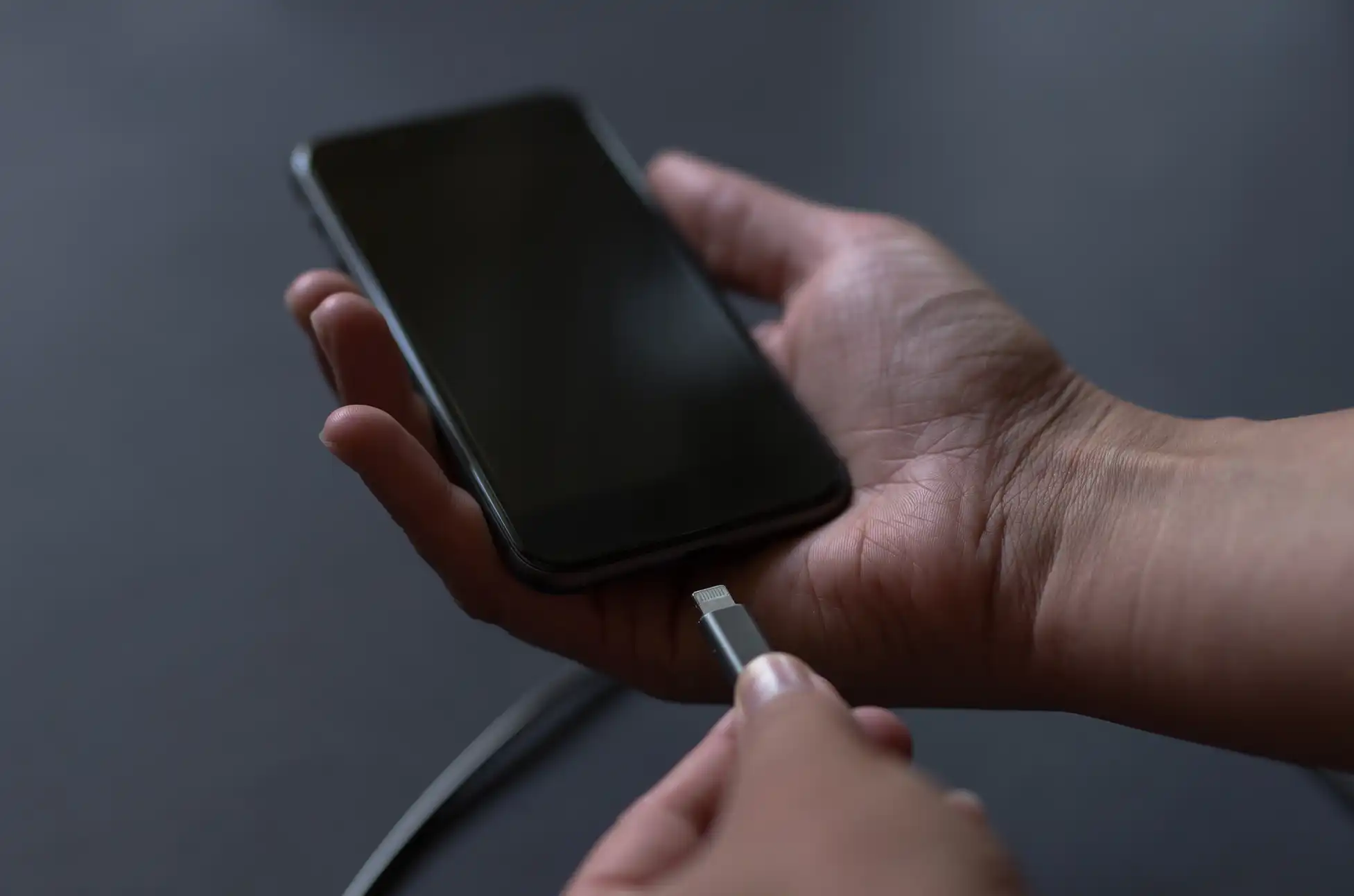
- Plug the USB-C adapter into your damaged phone
- Connect your HDMI cable between the adapter and your external display (monitor or TV). Your phone’s interface should appear on screen immediately.
- Attach peripherals like a keyboard, mouse, or USB flash drive to the adapter’s USB ports if needed.
- Unlock your device and start transferring files to external storage or uploading them to Google Drive or another cloud service.
Samsung-Specific Quirk
Samsung users might encounter a gray padlock icon when connecting to an external display. This security feature blocks pattern input on the external screen. Here’s how to work around it:
- For PIN users: Connect a keyboard, hit the spacebar, type your PIN, and press Enter.
- For pattern users: Double-press the power button to launch the camera app. Swipe down the notification panel and tap the Settings icon. This should trigger a pattern prompt on the external display that you can complete using your connected mouse.
When External Display Won’t Work
If your device doesn’t support USB-C video output, your options narrow considerably. You’ll likely need to have the screen professionally repaired before you can access your data. Yes, it’s an expense, but it’s typically cheaper than specialized data recovery services—assuming the phone still powers on and functions normally aside from the display.
Recover Data from Android : Prevention Is Better Than Recovery
To avoid this headache in the future, set up automatic backups on your Android device. Google’s built-in backup covers most essentials, but consider using additional cloud services for photos and important documents. That way, if disaster strikes, your data is already safe in the cloud before you need to scramble for recovery solutions.
The key takeaway? A broken screen doesn’t mean your data is gone forever. With the right adapter and a bit of patience, you can often rescue everything that matters without spending hundreds on professional recovery services.
All products, and company names, logos, and service marks (collectively the "Trademarks") displayed are registered® and/or unregistered trademarks™ of their respective owners. The authors of this web site are not sponsored by or affiliated with any of the third-party trade mark or third-party registered trade mark owners, and make no representations about them, their owners, their products or services.


Comments are closed.