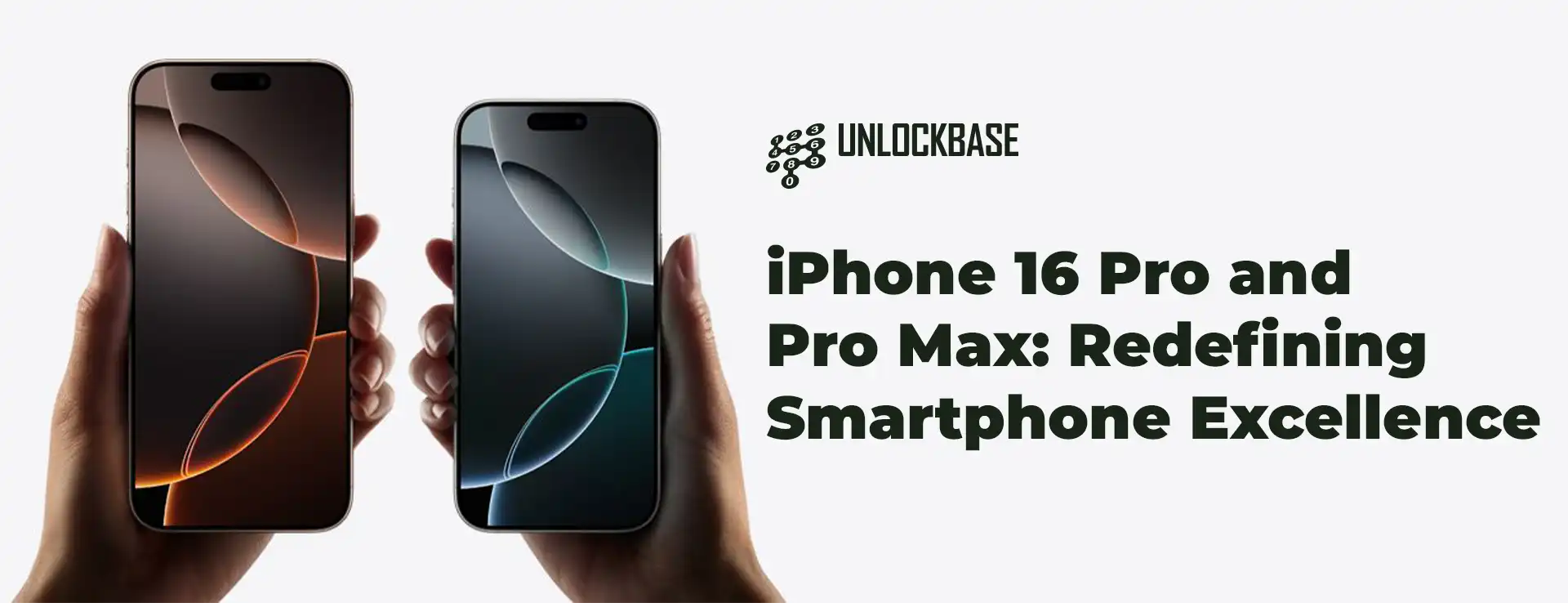
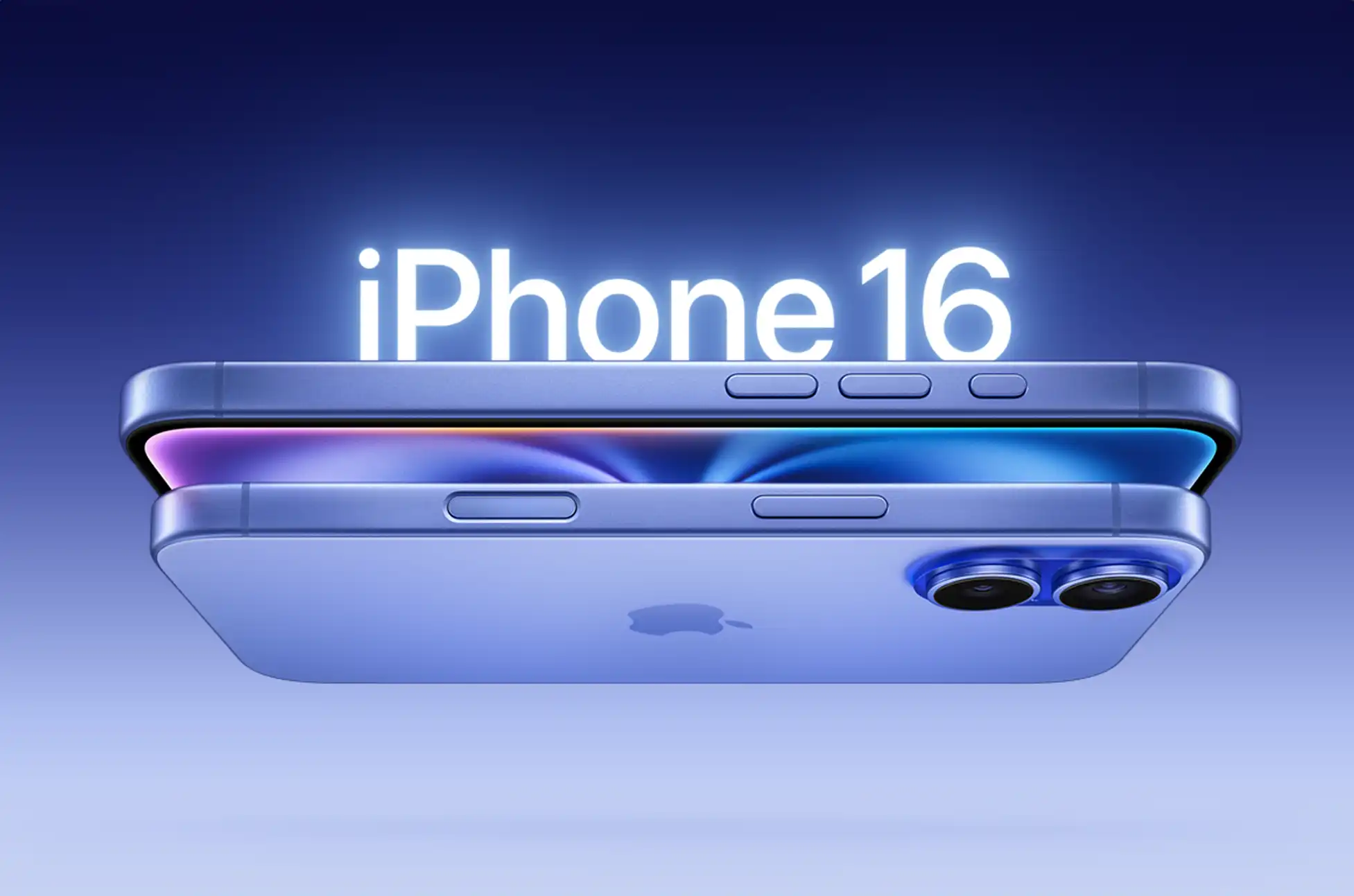
Apple has once again raised the bar in smartphone technology with the unveiling of the iPhone 16 Pro and iPhone 16 Pro Max. These cutting-edge devices combine sleek design with powerful performance, offering users an unparalleled mobile experience.
iPhone 16 Pro & Pro Max : Design and Display
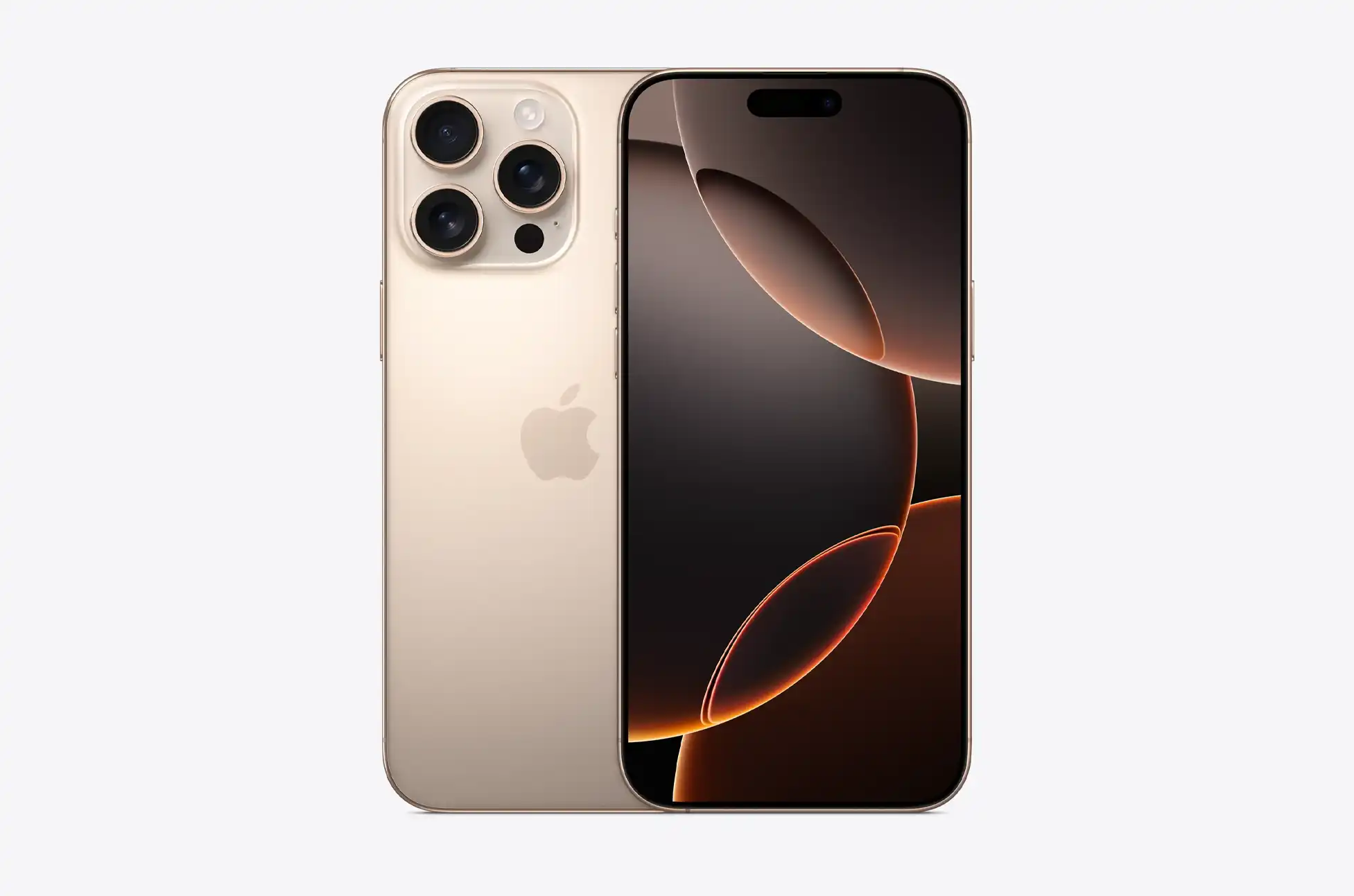
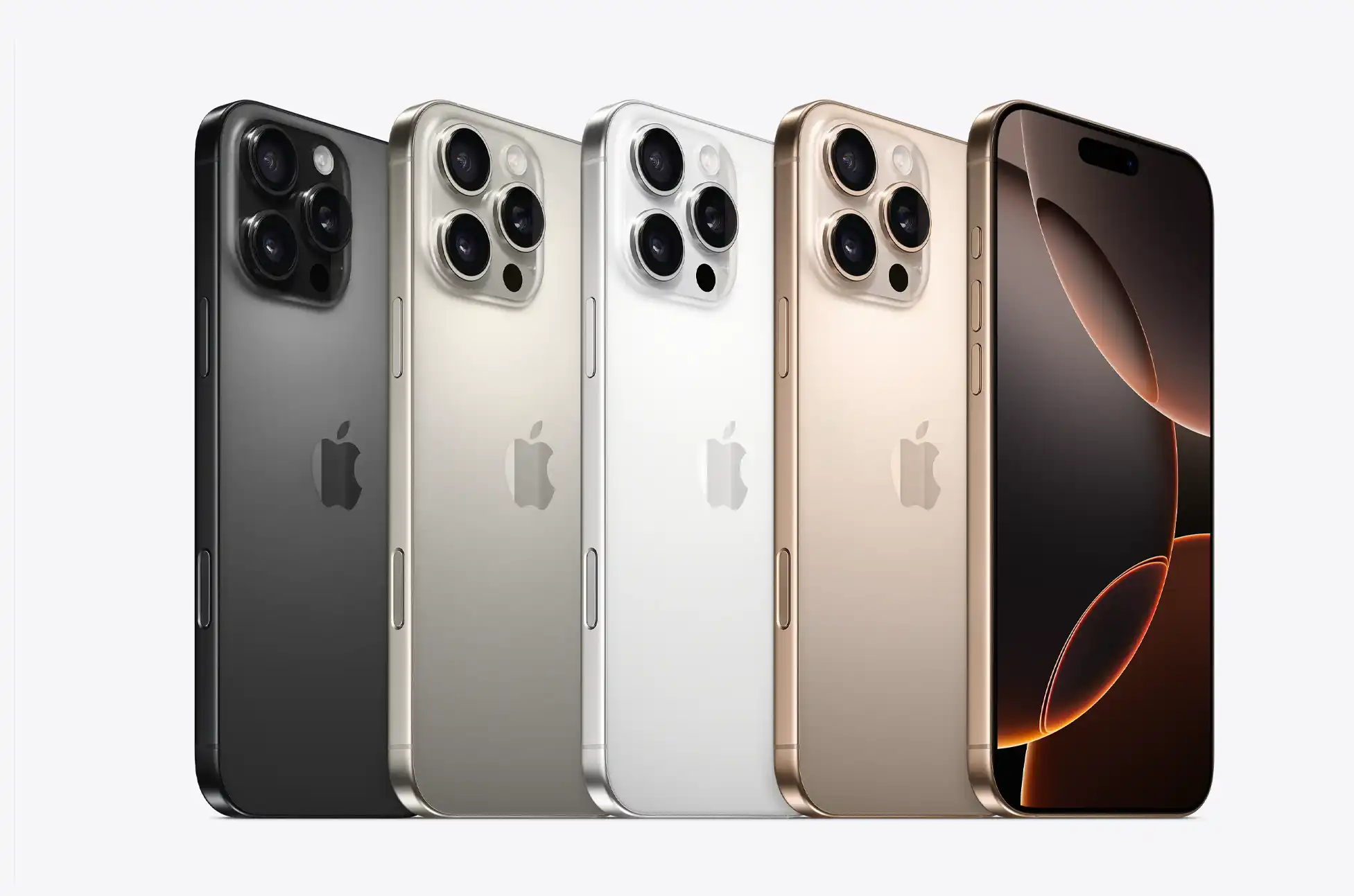
The new iPhone 16 Pro series features a Grade 5 titanium build, offering durability without compromising on style. Available in a new Desert Titanium color, alongside Natural, White, and Black Titanium, these devices exude sophistication.
Both models boast larger displays with thinner bezels:
iPhone 16 Pro: 6.3-inch Super Retina XDR OLED (2622 x 1206 pixels)
iPhone 16 Pro Max: 6.9-inch Super Retina XDR OLED (2868 x 1320 pixels)
The ProMotion technology delivers a 120Hz adaptive refresh rate, ensuring smooth scrolling and responsive interactions. With a peak brightness of 2,000 nits, content remains vivid even in bright outdoor settings.
Camera Innovations
The standout feature is the new Camera Control button, a dedicated control that allows users to quickly launch the camera app, focus on subjects, and swipe through different modes effortlessly.
The advanced camera system includes:
48MP main camera with 2nd-gen Sensor-Shift OIS
48MP ultra-wide/macro lens
12MP telephoto lens with 5x optical zoom
12MP TrueDepth front camera
Video capabilities have been significantly enhanced, with the ability to record 4K videos at 120fps with Dolby Vision support. The new Audio Mix feature, paired with four microphones, allows users to mix audio directly on their device, perfect for content creators and filmmakers.
iPhone 16 Pro & Pro Max : Performance and Battery Life
At the heart of the iPhone 16 Pro series lies the powerful A18 Pro chip:
6-core CPU (2 performance cores, 4 efficiency cores)
6-core GPU
16-core NPU for AI tasks
This chip delivers a 15% faster CPU and 20% faster GPU performance compared to its predecessor.
Battery life has also seen a significant boost:
iPhone 16 Pro: Up to 27 hours of video playback
iPhone 16 Pro Max: Up to 33 hours of video playback
This represents an increase of up to 4 hours compared to previous models.
iOS 18 and Apple Intelligence
The devices ship with iOS 18, featuring Apple Intelligence – a suite of AI-powered features designed to enhance user experience. While specific details are yet to be fully revealed, users can expect improvements in areas such as natural language processing, image recognition, and Siri capabilities.
Connectivity and Additional Features
The iPhone 16 Pro series is equipped with:
5G support
WiFi 7 compatibility
Bluetooth 5.3
2nd-gen Ultra Wideband (UWB) chip
USB-C port
MagSafe charging (up to 25W)
Qi2 wireless charging (up to 15W)
iPhone 16 Pro & Pro Max : Pricing and Availability
The new iPhone 16 Pro is now listed on the Apple website. It comes in 128GB, 256GB, 512GB, and 1TB models for a price of $999, $1099, $1299, and $1499, respectively. Meanwhile, the Pro Max starts at the 256GB model for $199, while the 512GB variant retails for $1399 and the 1TB at $1499.
Conclusion
The iPhone 16 Pro and Pro Max represent a significant leap forward in smartphone technology. With advanced camera systems, powerful performance, AI capabilities, and extended battery life, these devices set new standards in the industry. Whether you’re a professional photographer, content creator, or simply demand the best from your mobile device, the iPhone 16 Pro series offers a compelling package that pushes the boundaries of what’s possible in a smartphone.
All products, and company names, logos, and service marks (collectively the "Trademarks") displayed are registered® and/or unregistered
trademarks™ of their respective owners.
The authors of this web site are not sponsored by or affiliated with any of the third-party trade mark or third-party registered trade mark owners,
and make no representations about them, their owners, their products or services.
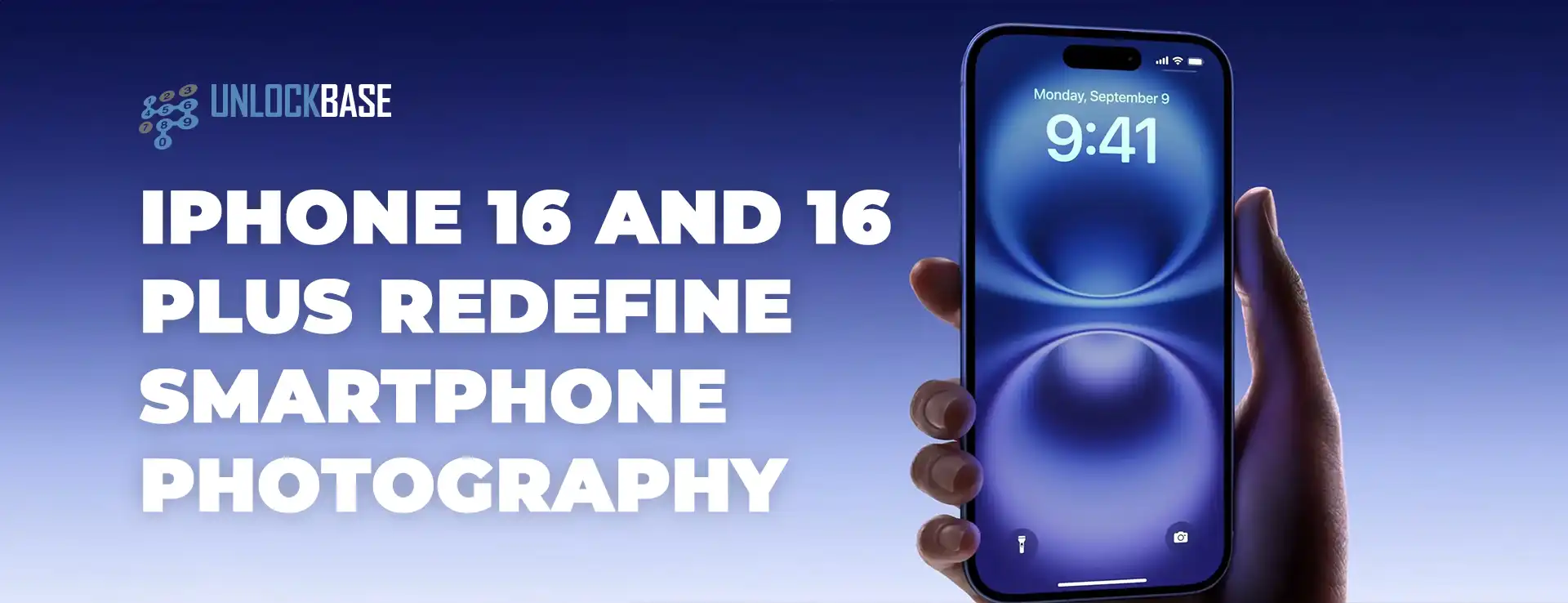
Buckle up, tech enthusiasts! Apple’s latest marvel, the iPhone 16 series, has just hit the scene, and it’s bringing a tidal wave of innovation that’ll make your tech-loving heart skip a beat. Let’s dive into the thrilling world of the iPhone 16 and 16 Plus, shall we?
A Touch of Magic: The Camera Control Button
Imagine controlling your camera with a simple touch or press, without even glancing at the screen. That’s exactly what the new Camera Control button delivers! This nifty addition is both touch and pressure-sensitive, allowing you to launch the camera, switch between lenses, and access various functions with intuitive ease. It’s like having a photography assistant right at your fingertips!
3D Revolution: A New Perspective on Memories
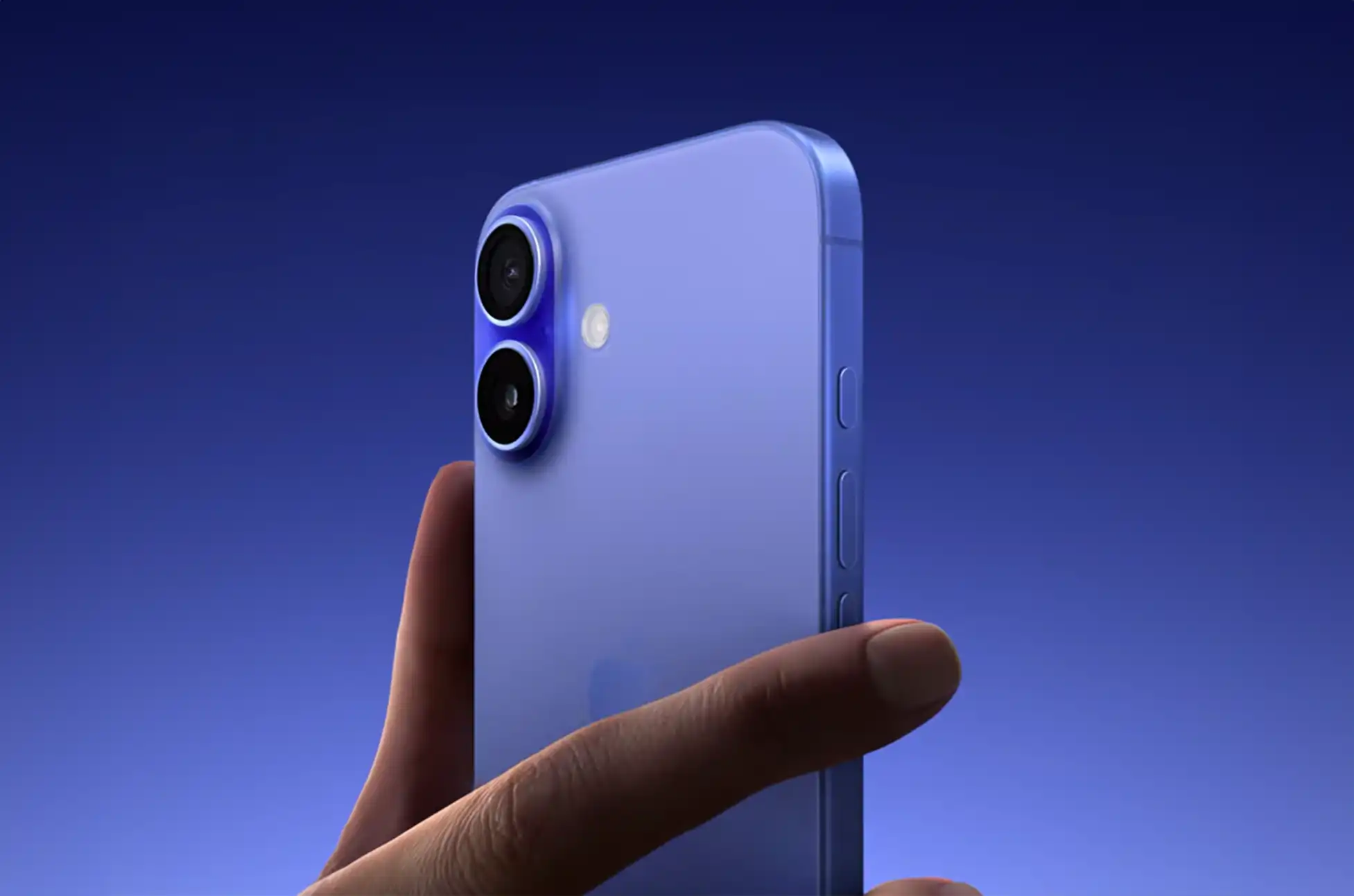
Hold onto your hats, because the iPhone 16’s camera layout has undergone a jaw-dropping transformation. The dual cameras now sit vertically, closer than ever before. But here’s the kicker – this isn’t just for show. This realignment enables users to capture stunning 3D photos and videos, perfect for viewing on devices like the Apple Vision Pro. Your memories are about to leap off the screen!
The 12-megapixel ultra-wide camera is now armed with autofocus, opening up a world of macro photography and videography. But that’s not all – it gobbles up 2.6x more light, resulting in images so crisp and clear, you’ll think you’re looking through a window. Meanwhile, the 48-megapixel main shooter pulls off an impressive trick, delivering 2x shots that rival dedicated telephoto lenses. Who needs a bulky camera kit when you’ve got this powerhouse in your pocket?
Lights, Camera, Action: Hollywood in Your Hand
Apple’s throwing in some serious cinematic flair with the new Audio Mix feature. Now you can tweak your video’s audio for that blockbuster feel. And for the Instagram crowd, new Photographic Styles let you apply filters before you even snap the shot. Your social media game is about to level up!
A18 Chip: The Heart of a Champion
Powering this beast is the all-new A18 chip, leaving its predecessor, the A16 Bionic, in the dust. We’re talking a 30% boost in CPU performance and a whopping 40% increase in GPU capabilities. With its 6-core CPU and 5-core GPU, this chip isn’t just fast – it’s lightning in a bottle!
Endurance Champion: Battery Life That Won’t Quit
Say goodbye to battery anxiety! The iPhone 16 boasts up to 22 hours of video playback, while the Plus model pushes it to an impressive 27 hours. And when you do need a top-up, the faster 25W MagSafe charging has got your back, juicing up to 50% in just half an hour.
iPhone 16 and 16 Plus : Built Tough, Styled Sharp
Wrapped in an aerospace-grade aluminum frame and protected by the new Ceramic Shield glass (twice as tough as any other smartphone glass!), the iPhone 16 is ready for anything life throws at it. And it’s not just durable – it’s a looker too, with fresh, funky colors like Ultramarine, Teal, and Pink joining a crisp new White option.
iPhone 16 and 16 Plus : Apple Intelligence Arrives
Unlike last year’s models, both the iPhone 16 and 16 Plus come equipped with Apple Intelligence, bringing cutting-edge AI features to your fingertips. The future of smartphones is here, and it’s more intelligent than ever!
The Bottom Line: iPhone 16 and 16 Plus
Ready to upgrade? The iPhone 16 starts at $799 for the 128GB model, with 256GB and 512GB options available at $899 and $1099 respectively. The iPhone 16 Plus kicks off at $899 for 128GB, climbing to $999 for 256GB and $1199 for the spacious 512GB model.
With its groundbreaking 3D capture capabilities, cinematic audio features, and the powerhouse A18 chip, the iPhone 16 and 16 Plus aren’t just smartphones – they’re portals to the future of mobile technology. Whether you’re a photography enthusiast, a power user, or just someone who appreciates cutting-edge tech, these devices are set to redefine what you expect from a smartphone. The future is calling – will you answer?
All products, and company names, logos, and service marks (collectively the "Trademarks") displayed are registered® and/or unregistered
trademarks™ of their respective owners.
The authors of this web site are not sponsored by or affiliated with any of the third-party trade mark or third-party registered trade mark owners,
and make no representations about them, their owners, their products or services.
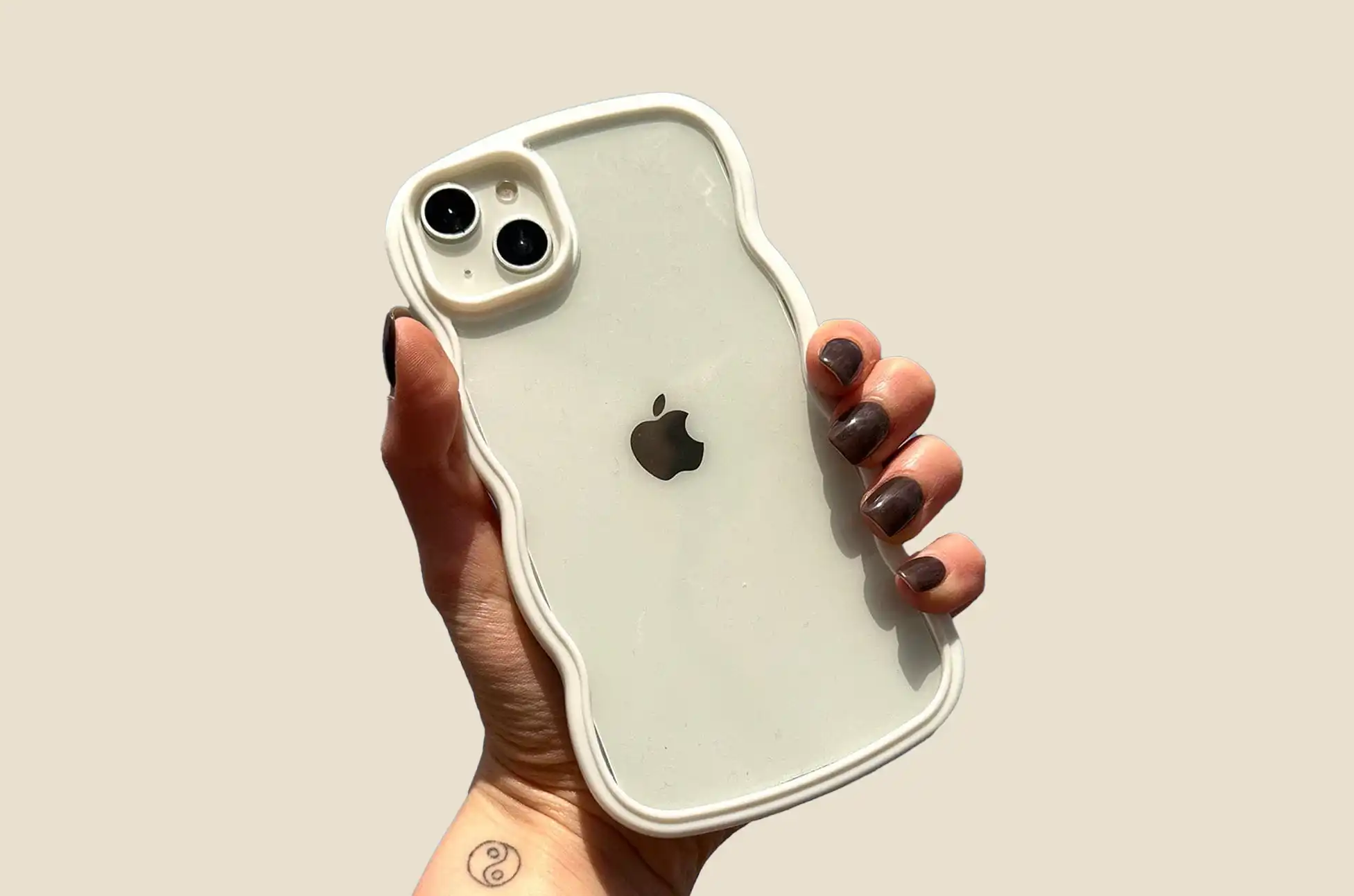
Phone case buying guide ? When it comes to protecting your precious phone, a phone case is an essential buy. But with phone cases ranging in price from $5 to $100 or more, it can be tough to know how much you should spend.
In this guide, we’ll break down the factors to consider when choosing a phone case, so you can make an informed decision about how much to invest.
Phone case buying guide : Factors to Consider When Choosing a Phone Case
Protection Level:
Minimal Protection: For those who are careful with their phones, a basic case made of silicone or TPU can offer adequate protection. These are typically priced between $5 and $20.
Moderate Protection: If you’re prone to dropping your phone, a case made of hard plastic or a combination of materials can provide better protection. These cases often have raised edges to safeguard your screen and camera. Expect to pay around $20 to $50 for this level of protection.
Maximum Protection: For those who need the highest level of protection, rugged cases with multiple layers of materials and reinforced corners are ideal. These cases can be bulkier but offer superior durability. Prices typically start at $50 and can go up to $100 or more.
Material:
Silicone: Soft, grippy, and shock-absorbent.
Hard Plastic: Slim, lightweight, and scratch-resistant.
Leather: Stylish and durable, but can be more expensive.
Metal: Provides the highest level of protection but can be heavy and bulky.
Functionality:
Wallet Cases: Combine a phone case with a wallet, allowing you to carry cards and cash.
Kickstands: Built-in kickstands provide hands-free viewing for videos and photos.
Magnetic Mounts: Compatible with magnetic car mounts for easy navigation.
Wireless Charging Compatibility: Ensure the case doesn’t interfere with wireless charging.
Style and Personal Preference:
Clear Cases: Showcase your phone’s design.
Colored Cases: Add a pop of color to your device.
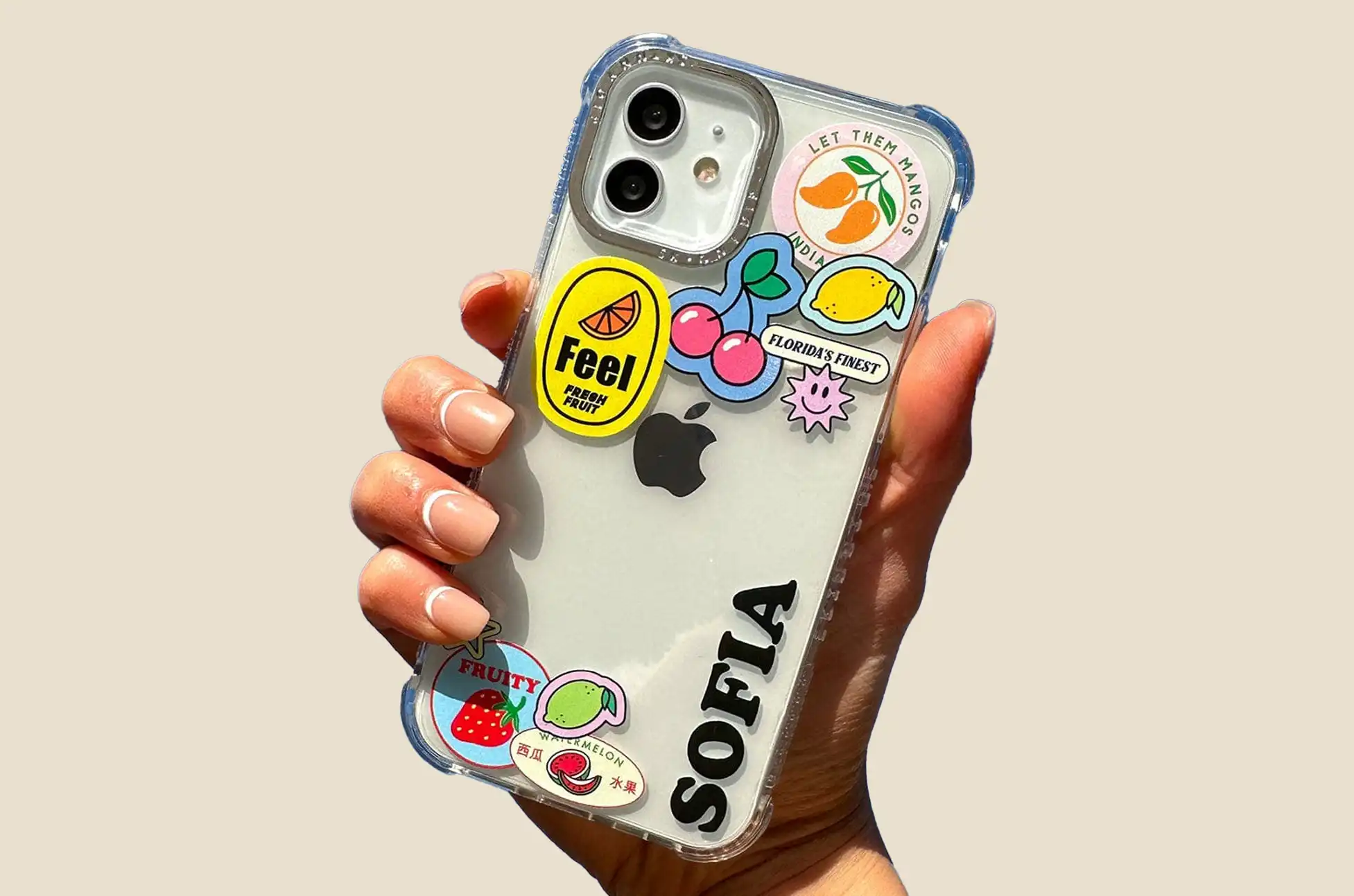
Patterned Cases: Express your personality with unique designs.
How Much Should You Spend?
Once you’ve considered the factors above, you can start to think about how much you’re willing to spend on a phone case. Here’s a general guideline:
$5-$20: This is the range for basic phone cases that offer minimal protection. These cases are typically made of silicone or TPU (thermoplastic polyurethane).
$20-$50: In this range, you’ll find more protective cases, such as those made of hard plastic or a combination of materials. These cases may also have additional features, such as a built-in kickstand or a holster clip.
$50+: At the high end, you’ll find premium phone cases made from high-quality materials, such as leather or metal. These cases offer the best possible protection and often have a stylish design.
Phone case buying guide : Conclusion
The best phone case for you depends on your specific needs, budget, and personal preferences. By carefully considering the factors mentioned above, you can make an informed decision and find the perfect case to protect your valuable smartphone.
All products, and company names, logos, and service marks (collectively the "Trademarks") displayed are registered® and/or unregistered
trademarks™ of their respective owners.
The authors of this web site are not sponsored by or affiliated with any of the third-party trade mark or third-party registered trade mark owners,
and make no representations about them, their owners, their products or services.
Unlocking a phone’s SIM card enables you to use it with any carrier, not just the one that originally sold the device. The locked or unlocked status of your Google device depends on where you purchased it. Let’s explore everything you need to know about unlocking any Google device.
What is SIM Lock?
Manufacturers build SIM lock, also known as network or carrier lock, into GSM and CDMA devices. This technology restricts your Google device to specific countries and networks, allowing service providers to limit competition. By unlocking your Google device, you remove these restrictions and gain full control over your network choices.
Google Pixel Series Phone Locked
You can only use a locked Google Pixel phone with the carrier that sold it to you. Importantly, your phone won’t automatically unlock even after your contract ends and you’ve paid your balance. Therefore, understanding how to unlock any Google device is crucial for gaining the freedom to switch carriers.
Determine if Your Google Pixel Series is Unlocked
To check if your Google Pixel is already unlocked, follow these simple steps:
Insert a SIM card from a different carrier.
If the new network’s name appears and your phone works, your device is already unlocked.
Benefits of Unlocking any Google Device
Unlocking your device offers several advantages, primarily giving you the flexibility to switch networks without restrictions.
1. Network Freedom
Typically, switching carriers requires buying a new phone. However, by unlocking your device, you can keep your current phone and save money. The unlocking process is affordable and offers long-term savings by allowing you to switch carriers at will.
2. Hassle-Free Travels
International roaming charges can quickly accumulate when traveling. Instead of worrying about these costs, unlocking your Google device allows you to use local prepaid SIM cards available at airports. This simple step helps you avoid unexpected charges while staying connected abroad.
How to Unlocking any Google Device
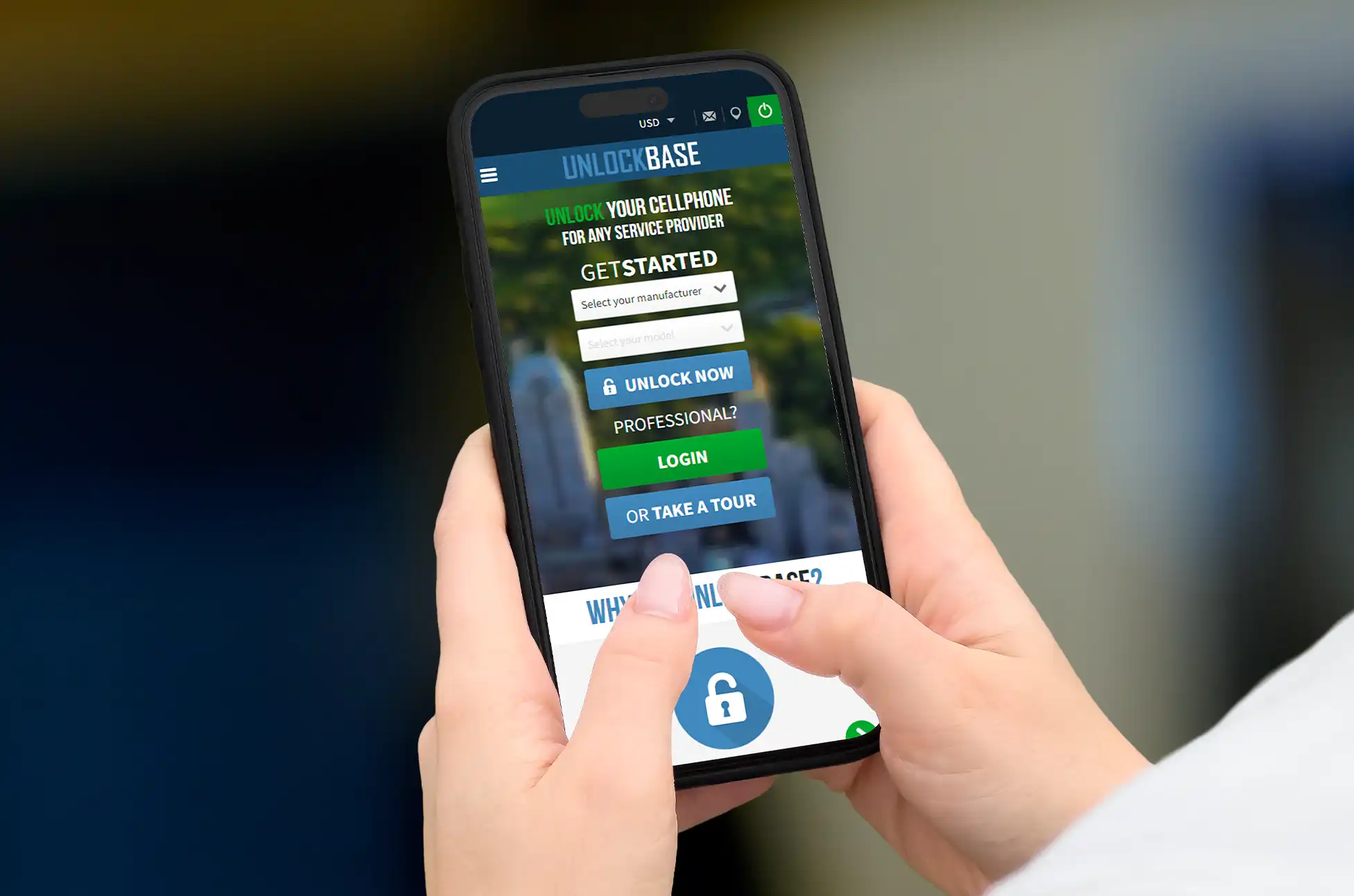
We recommend using UnlockBase. Unlike other unreliable services, UnlockBase provides a trusted, verified method for unlocking your Google Pixel Series phone.
Steps to Unlock Your Google Pixel Series with UnlockBase
Choose the country and network your phone is locked to.
Confirm your payment and wait for an email with the unlock code.
How to Use the Unlock Code
After receiving the unlock code, follow these steps:
Insert a SIM card from a different carrier.
Wait for the prompt to enter the SIM unlock pin.
Enter the unlock code provided by UnlockBase.
Congratulations! You’ve now successfully unlocked your Google Pixel, and it’s ready for use with any carrier.
Unlocking any Google Device : Conclusion
Unlocking your device, including the Google Pixel Series, grants you the freedom to use it with any carrier worldwide. Whether you want to switch to networks like AT&T, Rogers, Fido, Bell, or Vodafone, or simply avoid roaming charges, unlocking your Google device is the key to maximizing your flexibility.
All products, and company names, logos, and service marks (collectively the "Trademarks") displayed are registered® and/or unregistered
trademarks™ of their respective owners.
The authors of this web site are not sponsored by or affiliated with any of the third-party trade mark or third-party registered trade mark owners,
and make no representations about them, their owners, their products or services.
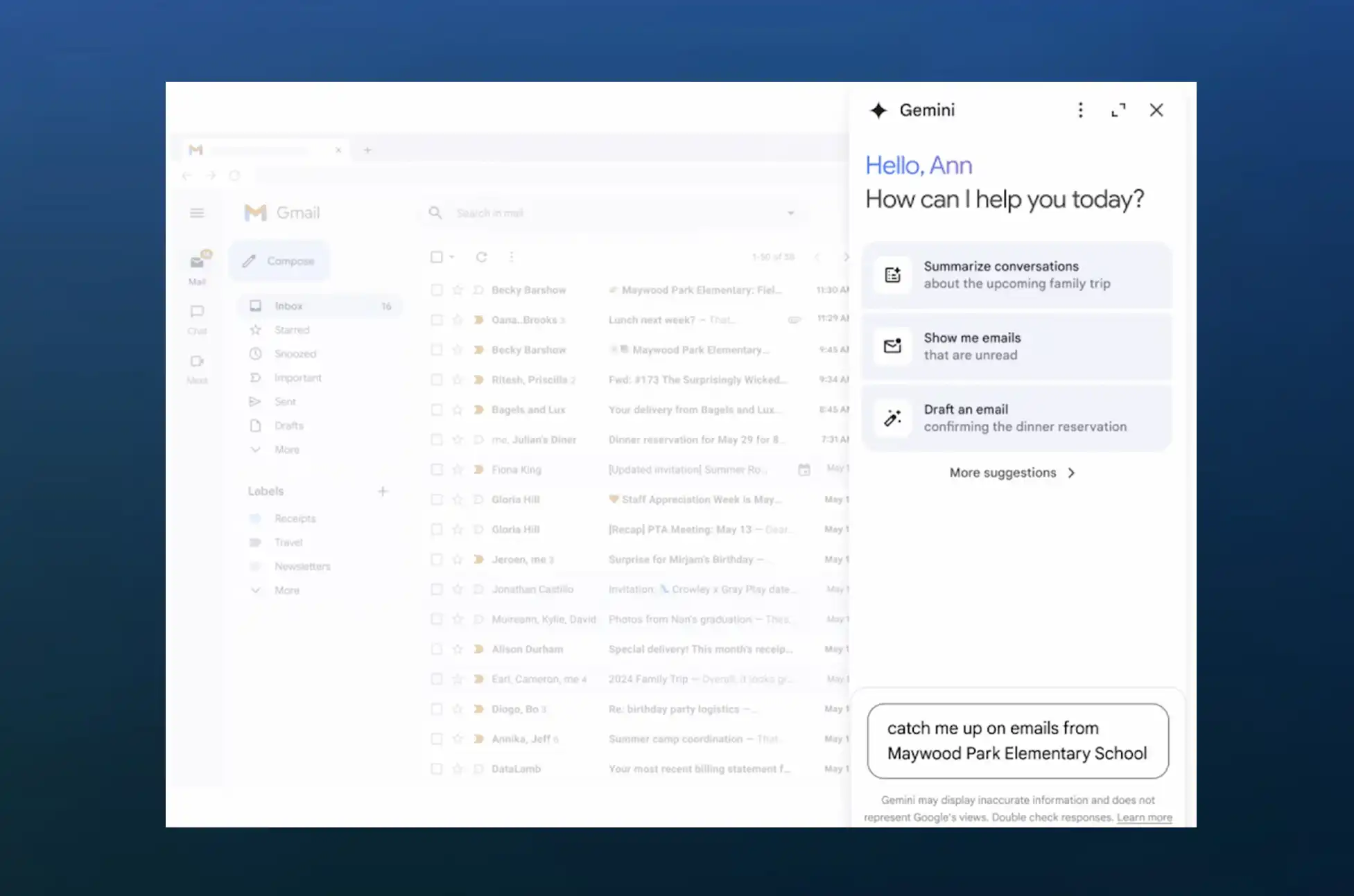
Remember that feeling when you got your first smartphone? That rush of “Wow, I can do so much more now!” Well, get ready for that feeling again, because Gmail’s about to become your new favorite AI-powered personal assistant!
Gemini on Android : The Big News
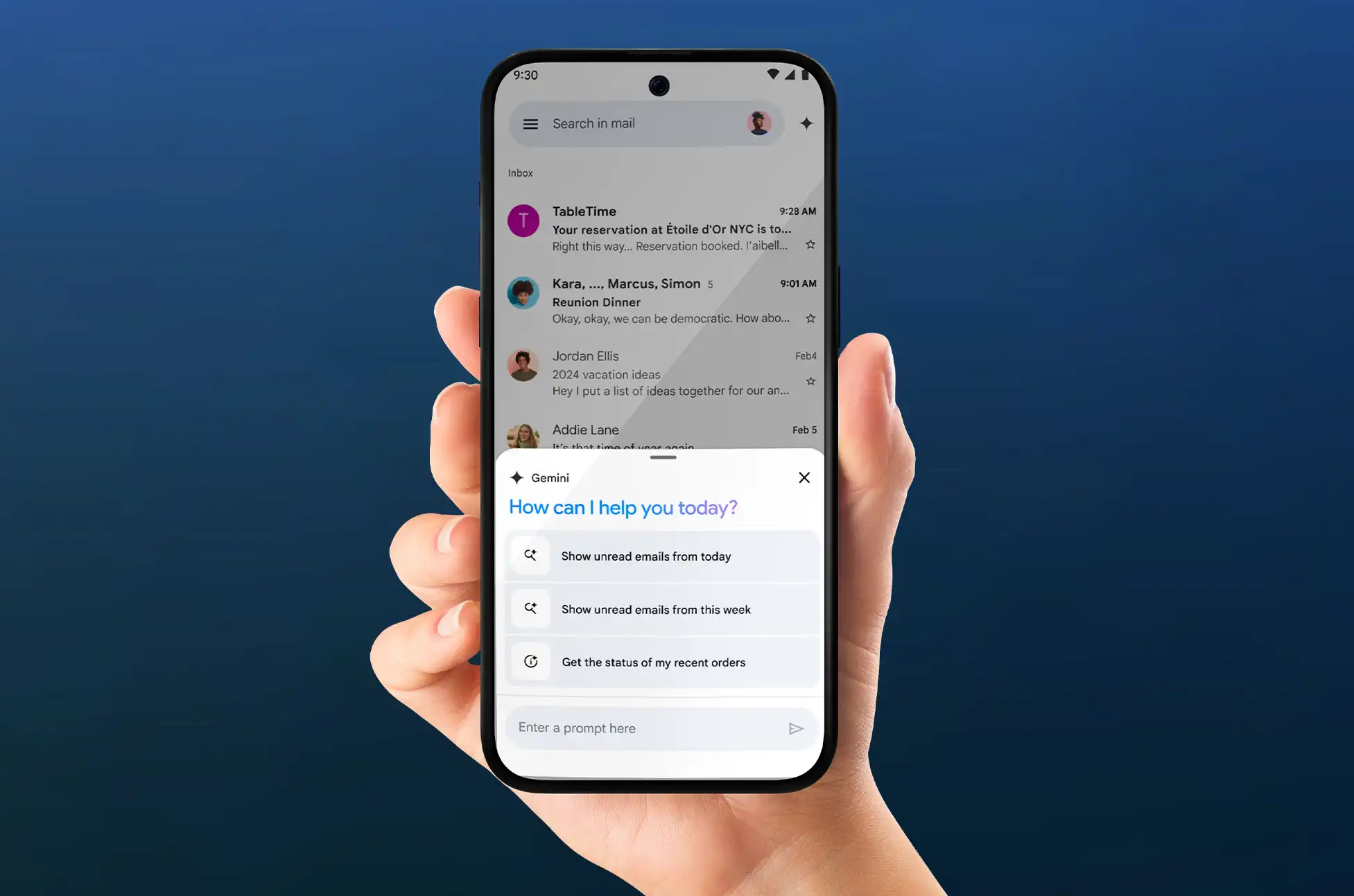
Google’s been on an AI roll lately, and now they’re bringing the magic of Gemini to your Android Gmail app. iOS users, don’t worry – your turn is coming soon!
What’s Gemini, and Why Should You Care?
Imagine having a super-smart intern who’s read every email in your inbox and can answer any question about them in seconds. That’s essentially what Gemini is for Gmail. This AI-powered side panel is like having a search function on steroids, mixed with the world’s most efficient personal assistant.
So, What Can This AI Whiz Do?
Email Archaeologist: “Hey Gemini, what was that thing Bob said about the project timeline last month?” Boom! No more endless scrolling.
Inbox Summarizer: “Catch me up on the quarterly planning emails.” Consider yourself caught up!
Draft Wizard: Need help crafting the perfect response? Gemini’s got your back.
Data Detective: It can even help you track down specific information hidden in your mountain of emails.
From Web to Pocket
Until now, this AI magic was trapped on the web version of Gmail. But Google’s breaking it free! The Gemini side panel is rolling out to Android devices as we speak. (iOS friends, hang tight – you’re next on the list!)
When Can You Get Your Hands on It?
The rollout has begun, but patience is a virtue. Google says it could take up to 15 days for everyone to see the update. So keep your eyes peeled!
Who Gets Invited to the Party?
Now, before you get too excited, there’s a bit of a VIP list:
Gemini Business users
Enterprise account holders
Education and Education Premium subscribers
Google One AI Premium plan members
If you’re on this list, congratulations! You’re about to level up your email game.
Gemini on Android : Why This is a Big Deal
For the work-from-home warriors, busy professionals, and students drowning in assignment emails, this is like throwing a life preserver into a sea of information. No more losing important details or spending hours searching for that one crucial email.
Gemini on Android : What’s Next?
While we don’t have an exact date for the iOS release, it’s on the horizon. And knowing Google, they’re probably cooking up even more AI-powered features as we speak.
So, Android users, get ready to welcome your new AI email buddy. And remember, the next time you’re staring at your inbox feeling overwhelmed, Gemini’s got your back. Happy emailing, and may your inbox always be at inbox zero (or at least feel like it)!
All products, and company names, logos, and service marks (collectively the "Trademarks") displayed are registered® and/or unregistered
trademarks™ of their respective owners.
The authors of this web site are not sponsored by or affiliated with any of the third-party trade mark or third-party registered trade mark owners,
and make no representations about them, their owners, their products or services.
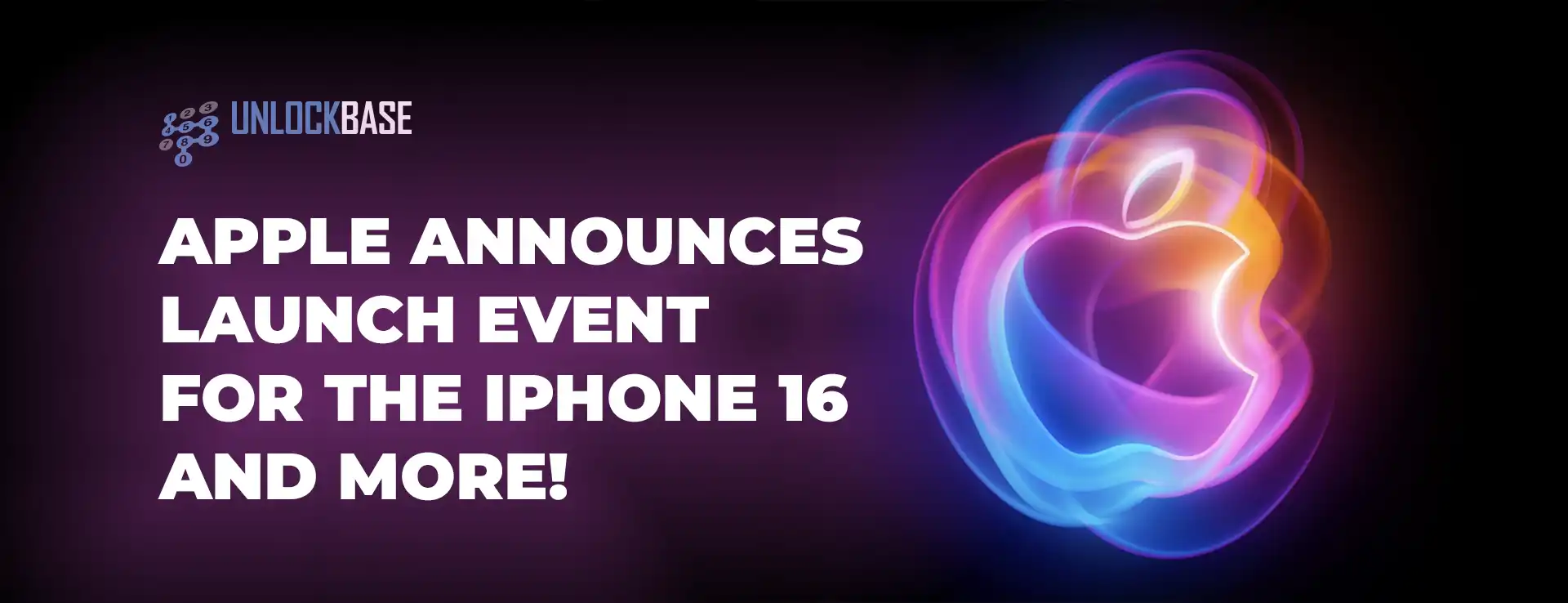
Apple Launch Event 2024? Mark your calendars, tech enthusiasts! Apple is set to dazzle the world once again with its highly anticipated fall event on Monday, September 9, 2024, at 10:00 AM PT (1:00 PM ET). As the tech giant prepares to lift the curtain on its latest innovations, let’s dive into what we can expect from this eagerly awaited showcase.
Apple Launch Event 2024 : Watch from Anywhere
Apple invites a select group of journalists to attend in person. But don’t worry – you can join the excitement too. Watch the entire keynote live on Apple’s website and YouTube channel. Witness the future of technology unfold in real-time, wherever you are.
iPhone 16 Series: The Main Attraction
Expect Revolutionary Features
The iPhone 16 series will likely steal the show. Apple plans to release four variants: iPhone 16, iPhone 16 Plus, iPhone 16 Pro, and iPhone 16 Pro Max. Here’s what rumors suggest:
New Capture Button: This dedicated hardware feature could change how we use our phones. It might offer quick camera access or work as a customizable shortcut.
Bigger Pro Models: The Pro and Pro Max might feature larger displays. This could blur the line between smartphones and tablets.
Apple Intelligence: Pro models may include new AI-powered features. These could transform the user experience.
Better Cameras: Look for improved sensors and low-light performance. Apple might also introduce new computational photography features.
Apple Launch Event 2024: AirPods 4 and AirPods Max 2
Apple plans to refresh its audio lineup with new AirPods models.
AirPods 4: Expect two versions. One for budget-conscious buyers, and a premium model with active noise cancellation.
AirPods Max 2: The over-ear headphones will likely get a USB-C port. Apple may also improve sound quality and add new smart features.
Wearable Tech: Apple Watch Updates
The Apple Watch family will expand with exciting new offerings:
Apple Watch Series 10: Apple might retire the 41mm size for a larger 49mm option. This could mean more screen space and better battery life.
Apple Watch Ultra 3: The rugged, adventure-focused line could introduce a sleek black finish. This might appeal to urban users who want advanced features in a subtle package.
Apple Watch SE 3: A possible plastic version could lower the entry price for Apple’s wearable tech.
Software and Services: Expanding the Ecosystem
Hardware often grabs attention, but software and services form the backbone of Apple’s ecosystem. Expect announcements about:
iOS 18’s official release date, possibly with surprise new features.
Updates to Apple’s services. This might include new content for Apple TV+ or features for Apple Fitness+ and Apple Arcade.
Apple Launch Event 2024 : The Future is Here
Apple’s fall 2024 event promises to be a tech milestone. Each product pushes Apple’s vision of seamless technology in our daily lives.
These innovations go beyond new features or designs. They aim to boost our productivity, creativity, and quality of life through technology. As Apple breaks new ground, we glimpse the future of human-technology interaction.
This event offers something for everyone. Die-hard fans, tech enthusiasts, and curious onlookers will all find something exciting. So, get ready for September 9. Charge your devices and prepare to be amazed. Apple stands ready to usher in a new era of digital excellence.
All products, and company names, logos, and service marks (collectively the "Trademarks") displayed are registered® and/or unregistered
trademarks™ of their respective owners.
The authors of this web site are not sponsored by or affiliated with any of the third-party trade mark or third-party registered trade mark owners,
and make no representations about them, their owners, their products or services.
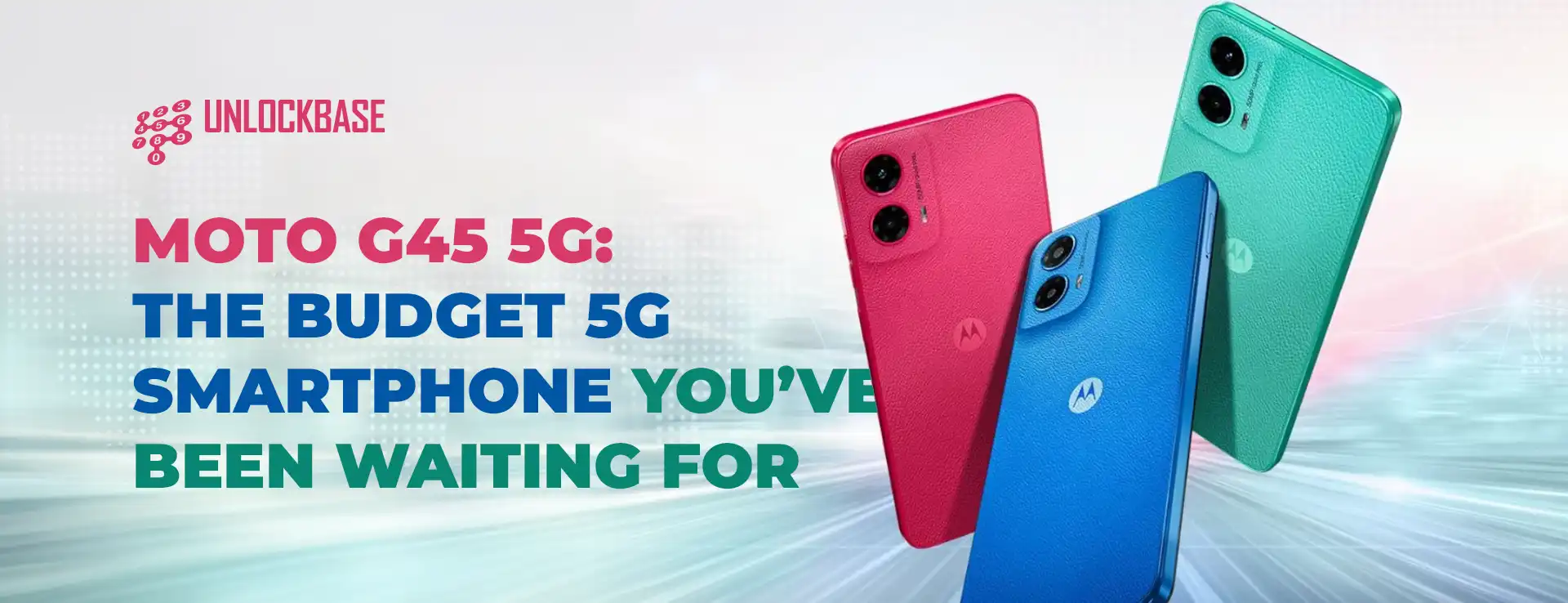
Moto G45 5G? In today’s saturated smartphone market, finding an affordable 5G device can be challenging. Fortunately, the Motorola Moto G45 emerges as a promising contender, offering next-gen connectivity and solid features without breaking the bank. Let’s explore what makes this device stand out.
Moto G45 5G : Design and Display
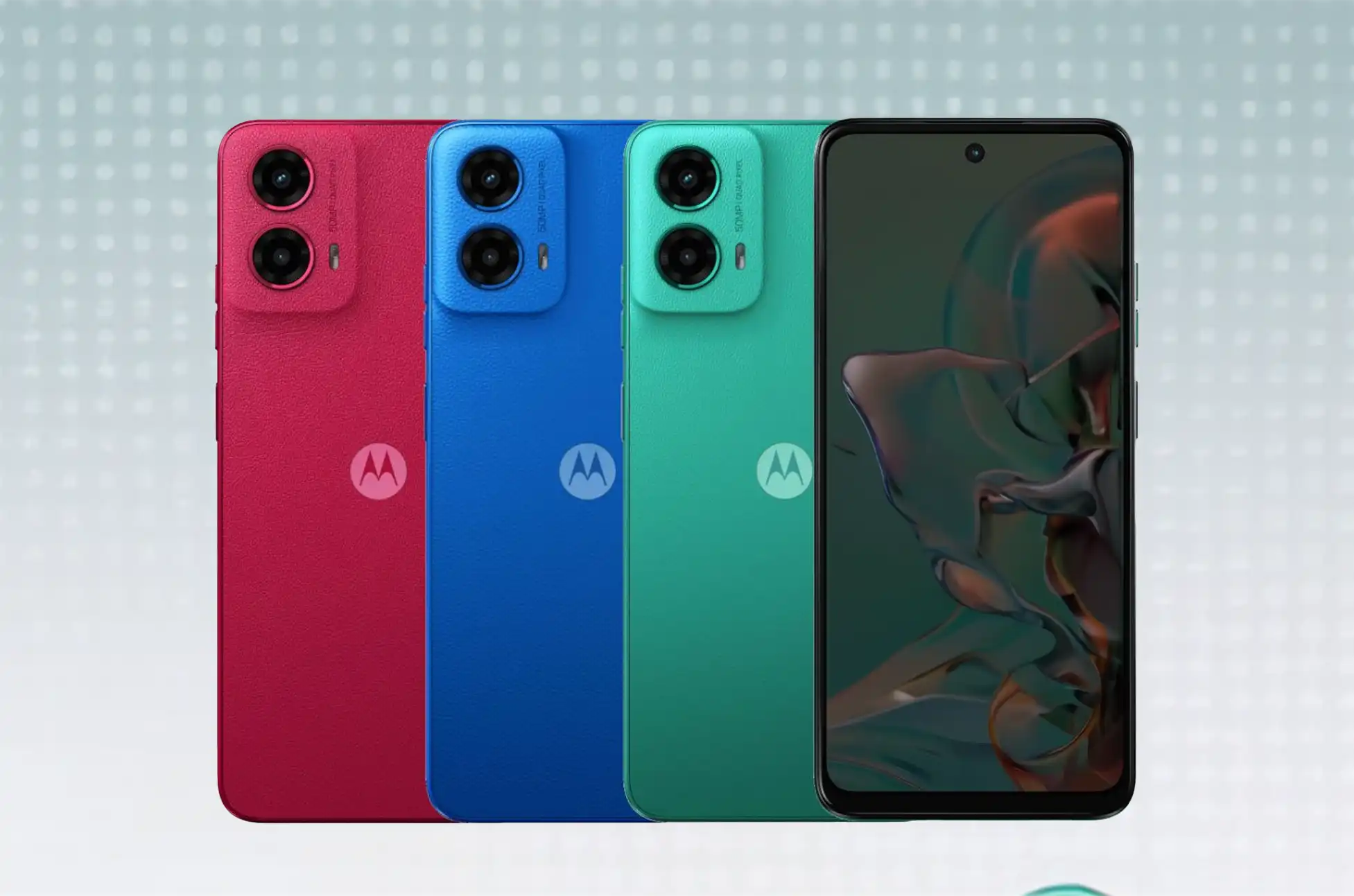
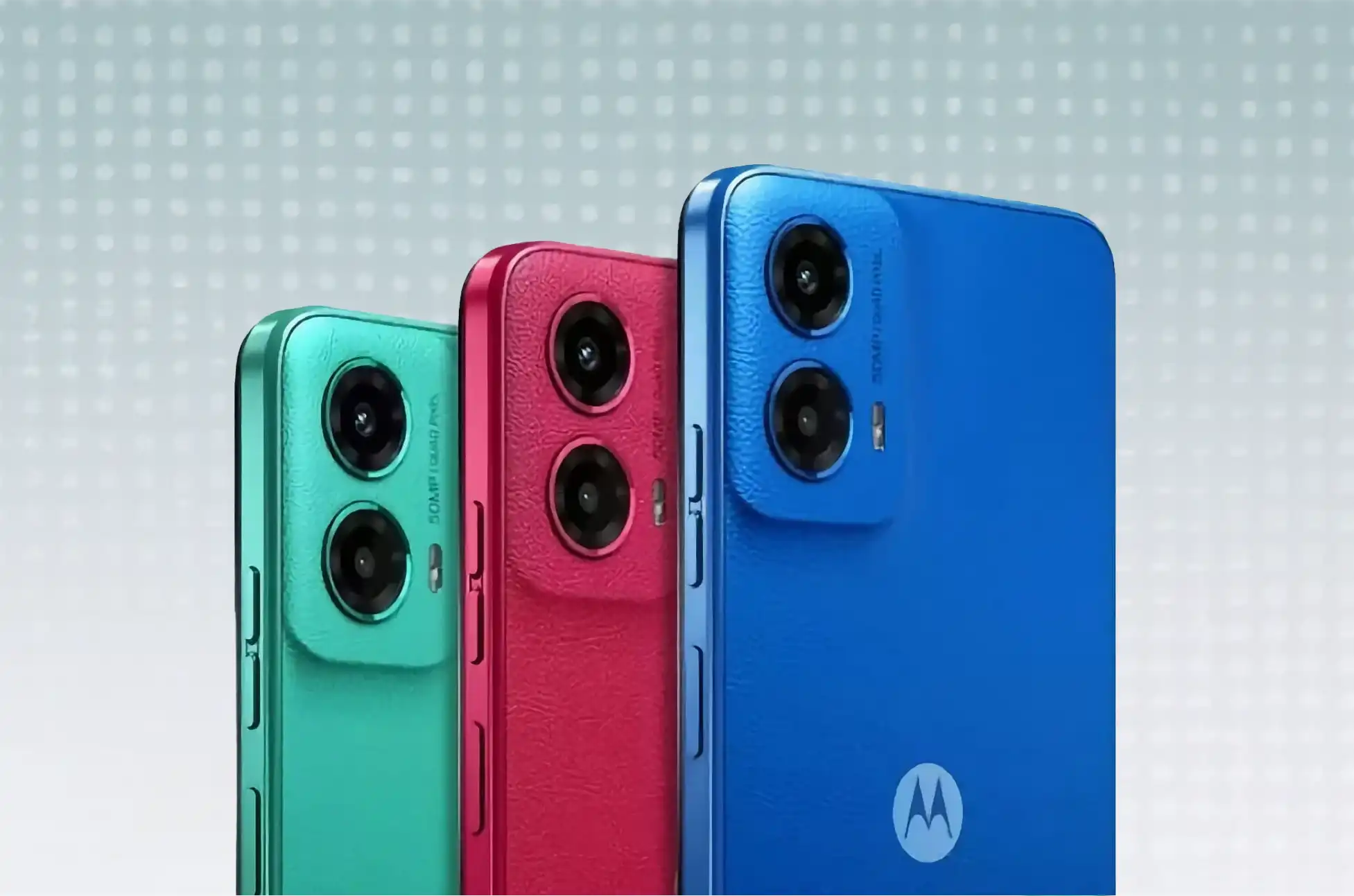
First and foremost, the Moto G45 boasts a sleek design available in three attractive colors: Brilliant Blue, Brilliant Green, and Viva Magenta. These hues are enhanced by vegan leather backs, which give the phone a premium feel. Furthermore, Motorola has built this device to last with an IP52 water-repellent design and Corning Gorilla Glass 3 protection.
Although the 6.5-inch screen offers HD+ resolution, it’s complemented by a smooth 120Hz refresh rate, ensuring fluid scrolling and swiping. In addition, the stereo speakers with Hi-Res audio and Dolby Atmos support contribute to an immersive multimedia experience.
Performance and Storage
Under the hood, this Motorola smartphone features a Qualcomm Snapdragon 6s Gen 3 octa-core processor, clocked at 2.3 GHz, alongside an Adreno 619 GPU. Consequently, this setup, built on a 6nm process, strikes a balance between performance and efficiency.
The device comes with 128GB of storage, which users can expand up to 1TB via microSD. Moreover, consumers can choose between 4GB or 8GB of RAM, depending on their multitasking needs.
Camera Capabilities
The Moto G45 features a straightforward camera setup:
A 50-megapixel main camera with Quad-Pixel technology and PDAF for fast focusing
A 2-megapixel macro lens for close-up shots
A 16-megapixel front camera for selfies and video calls
Battery and Software
A robust 5,000mAh battery powers the device, thus ensuring all-day usage. Additionally, it supports 18W charging, and Motorola includes a 20W charger in the box. The phone runs on the latest Android 14, thereby offering up-to-date features and security updates.
For added security, the smartphone incorporates a side-mounted fingerprint scanner and face unlock capabilities.
Connectivity and Extras
This Motorola device covers all connectivity bases with:
Dual SIM support
5G connectivity
WiFi and Bluetooth 5.1
NFC for mobile payments
GPS with multiple satellite system support
FM radio
The phone charges via USB-C and maintains a slim profile, weighing just 183 grams.
Unlocking Your Moto G45 5G with UnlockBase
To fully utilize your device, you might need to unlock it, especially if it’s carrier-locked. Luckily, UnlockBase offers a quick and easy solution:
Then, select “Unlock Your Phone” and enter your device details
Next, choose your payment method and complete the transaction
Shortly after, you’ll receive your unlock code via email
Subsequently, insert a new SIM card and enter the provided code
Finally, enjoy your unlocked Moto G45!
Moto G45 5G : Conclusion
In conclusion, the Motorola Moto G45 proves to be a strong contender in the budget 5G smartphone category. With its balanced performance, decent camera setup, and appealing design, it offers excellent value for money. Therefore, whether you’re upgrading or buying your first 5G phone, this Motorola device is certainly worth considering.
All products, and company names, logos, and service marks (collectively the "Trademarks") displayed are registered® and/or unregistered
trademarks™ of their respective owners.
The authors of this web site are not sponsored by or affiliated with any of the third-party trade mark or third-party registered trade mark owners,
and make no representations about them, their owners, their products or services.
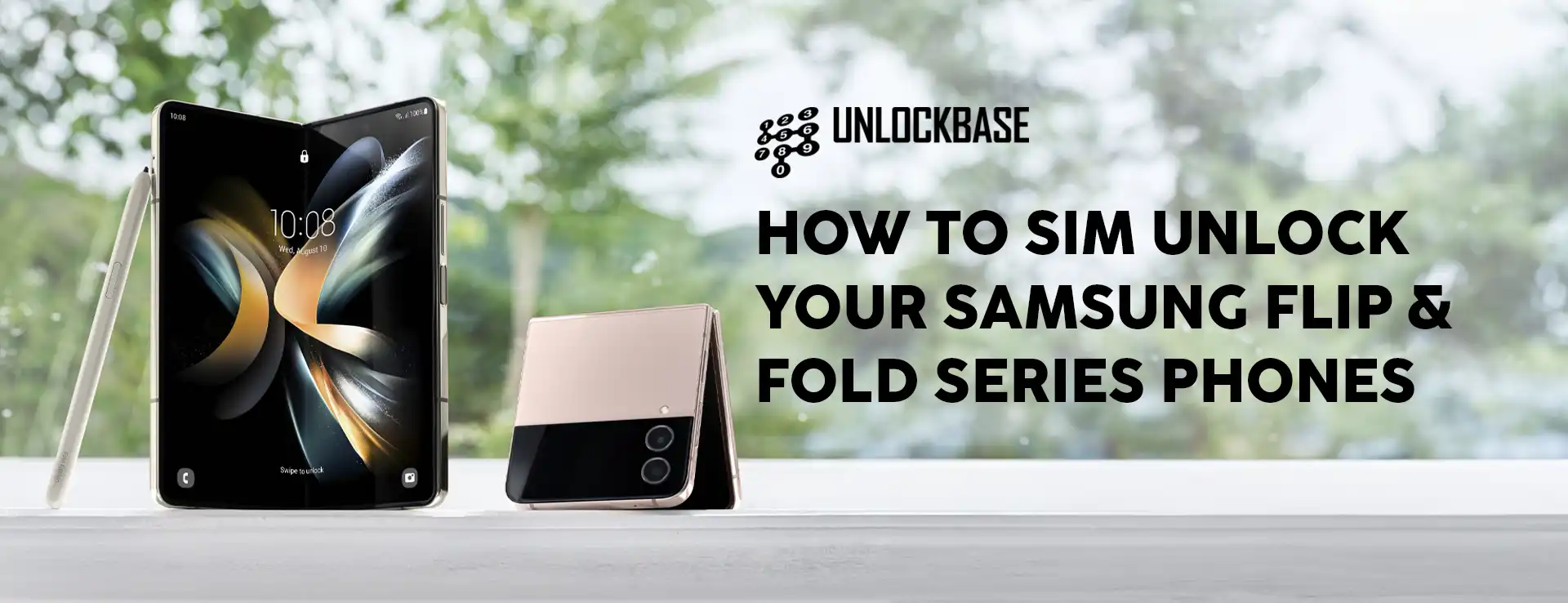
This comprehensive guide will walk you through the process on how to Unlock Your Samsung Flip & Fold series phone, explain the benefits of unlocking, and introduce you to UnlockBase, a reliable service to help you achieve this goal. Whether you’re a frequent traveler, looking to switch carriers, or simply want more flexibility with your device, this guide has you covered.
Is Your Samsung Flip or Fold Series Phone Locked?
Before unlocking, verify if your Samsung phone is locked by following these steps:
Insert an alternative SIM card from a different carrier.
Reboot the phone.
Check for messages: If you see “SIM Not Supported” or a prompt to enter an unlock code, your device is locked.
Benefits of Unlocking Your Samsung Flip/Fold Series Phone
Carrier Flexibility: Use your Samsung device with any local or international carrier.
Cost Savings: Avoid high roaming charges while traveling by switching to a local SIM card.
Increased Resale Value: Unlocked phones attract a wider range of buyers.
Better Deals: Switch to more competitive carrier plans instead of being tied to one provider.
How to Unlock Your Samsung Flip or Fold Series Phone
You have several options to unlock your Samsung device:
Carrier Unlocking: Some carriers will unlock your phone, usually for a fee and under specific conditions.
UnlockBase: This online service offers an easy and reliable unlocking process.
Why Choose UnlockBase
UnlockBase provides a reliable unlocking process with the following advantages:
Safe and Secure: Protect your private data with a secure payment system.
User-Friendly: Simple steps that users of all technical levels can follow.
Wide Model Support: Covers the latest Samsung Flip and Fold releases.
Confirm payment and wait for an email with the unlock code.
Using the Unlock Code:
Remove the original SIM card from your phone.
Insert a new SIM card from your preferred carrier.
When prompted, enter the unlock code provided by UnlockBase.
Conclusion
By following these steps, you can quickly unlock your Samsung Flip/Fold series phone. Imagine the freedom to change networks without restrictions and travel worldwide with your fully functional mobile phone. UnlockBase offers a safe and reliable unlocking procedure. Don’t delay—unlock your Samsung Flip/Fold series phone with UnlockBase today and maximize its potential!
All products, and company names, logos, and service marks (collectively the "Trademarks") displayed are registered® and/or unregistered
trademarks™ of their respective owners.
The authors of this web site are not sponsored by or affiliated with any of the third-party trade mark or third-party registered trade mark owners,
and make no representations about them, their owners, their products or services.
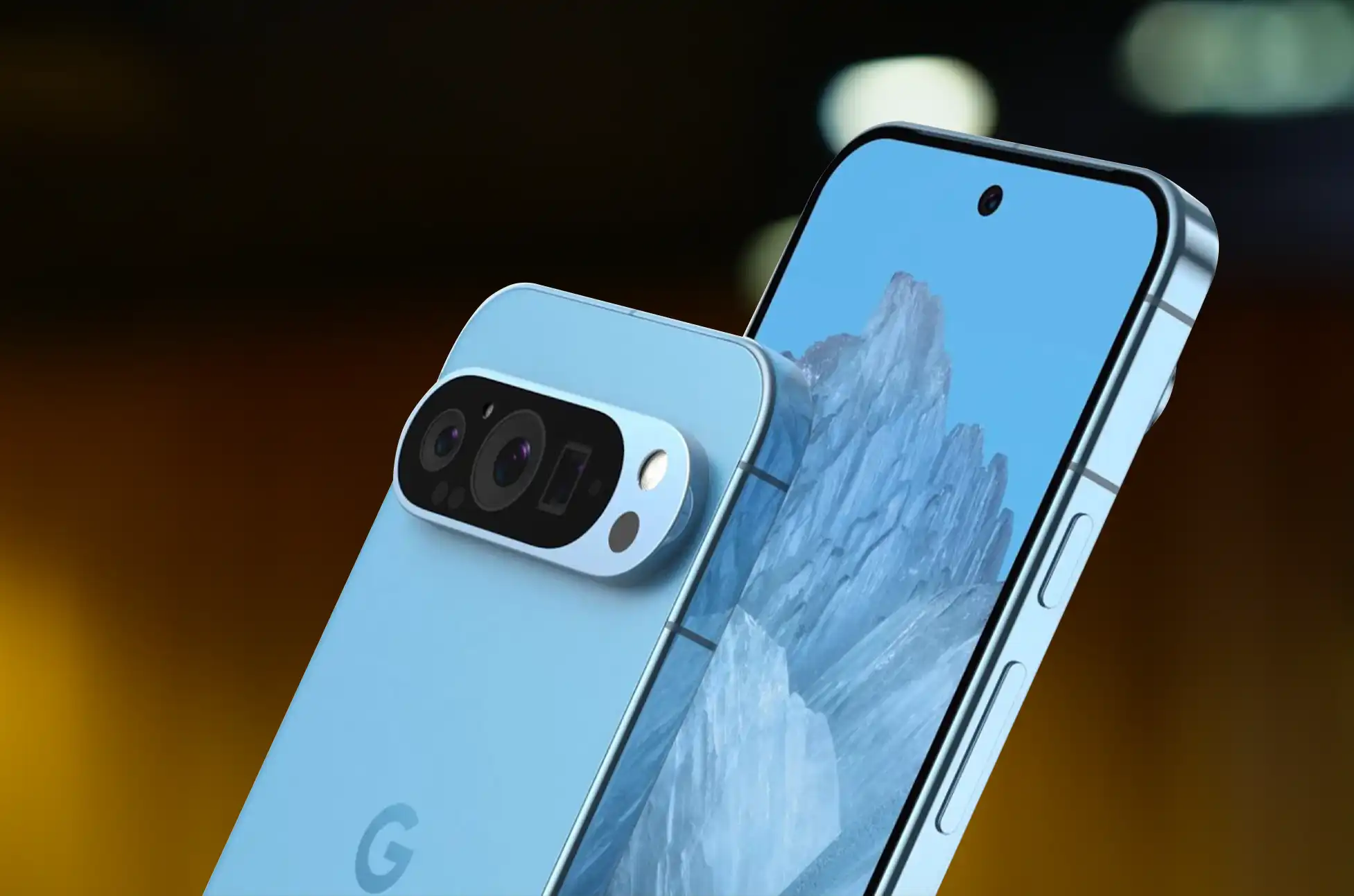
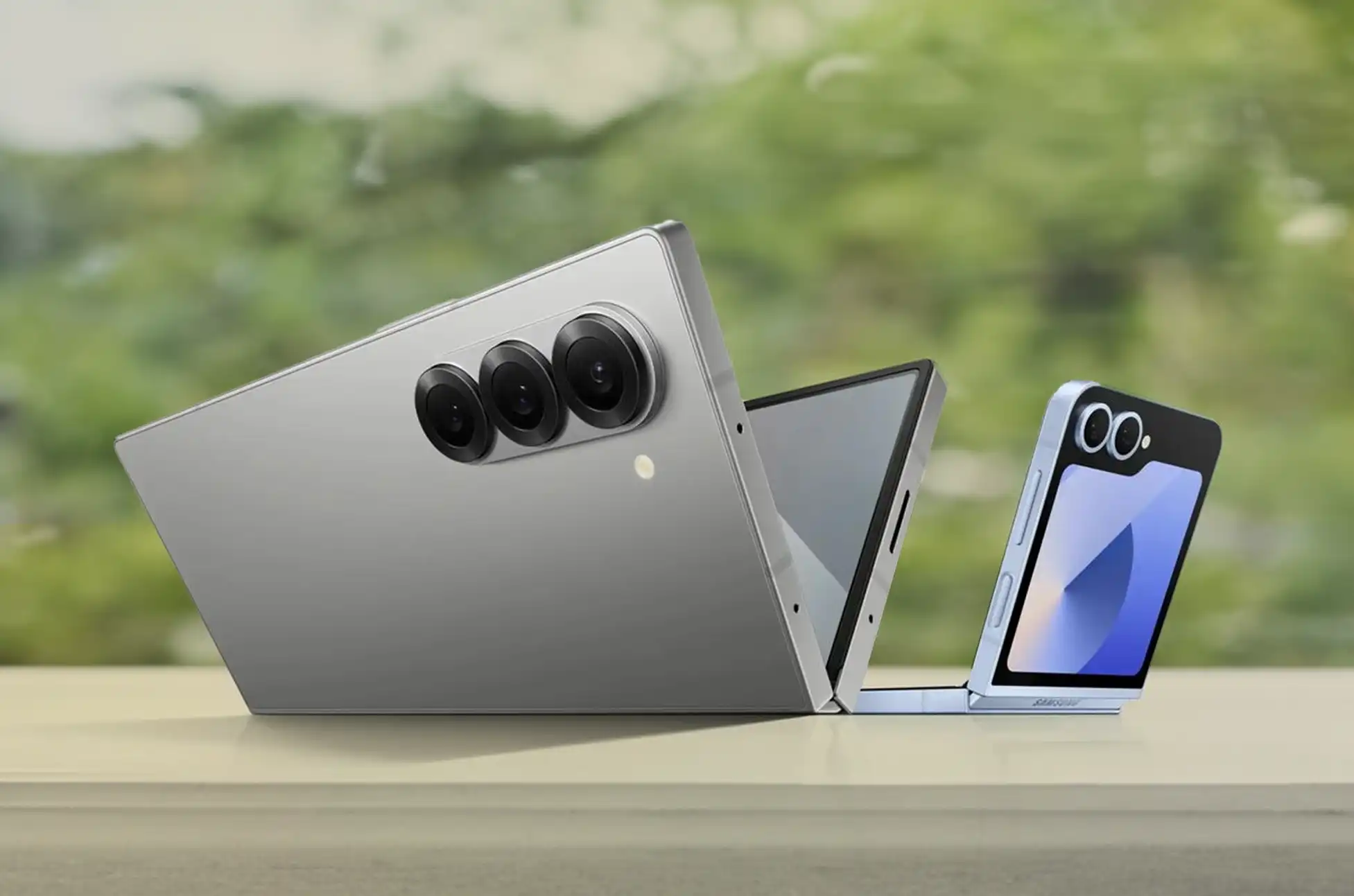
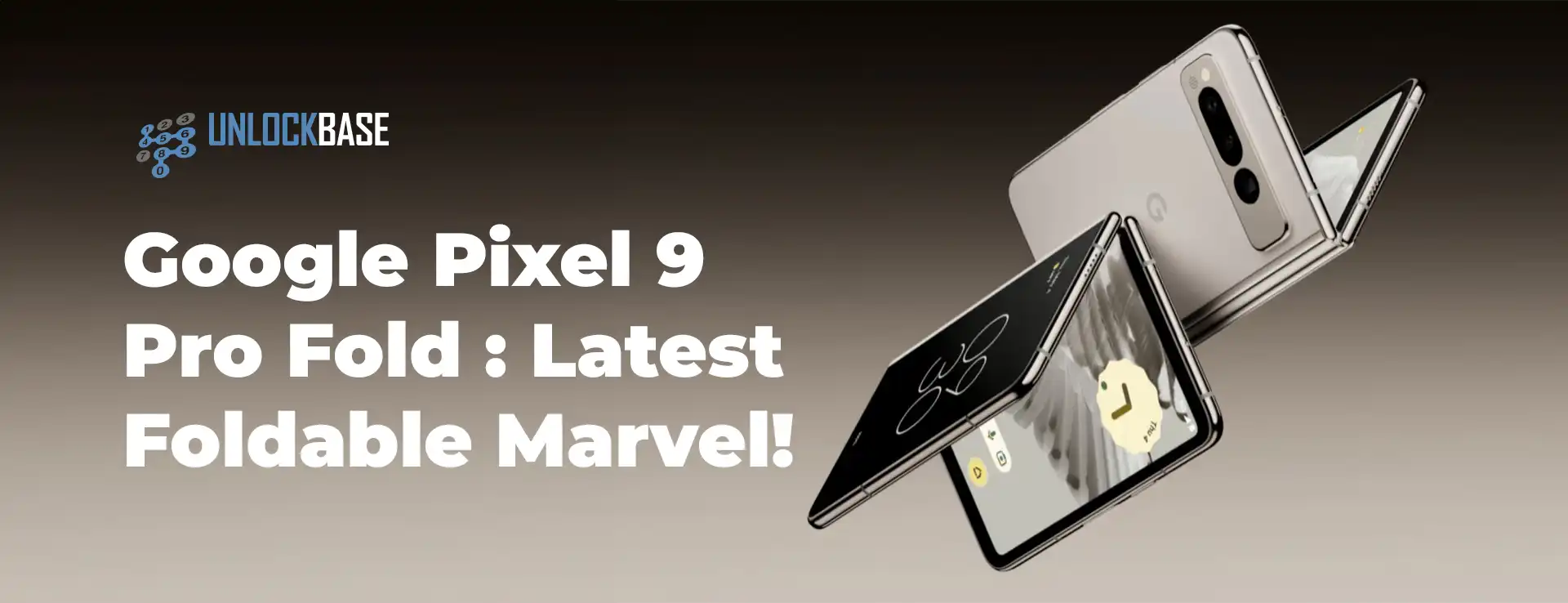
The foldable smartphone market has been evolving rapidly, and Google has taken another leap forward with the introduction of the Pixel 9 Pro Fold. This latest addition to the Pixel lineup promises to redefine the foldable experience with its cutting-edge features, sleek design, and Google’s signature software integration. Let’s dive into what makes the Google Pixel 9 Pro Fold a game-changer in the world of foldable devices.
Google Pixel 9 Pro Fold: Thinner and Lighter Design
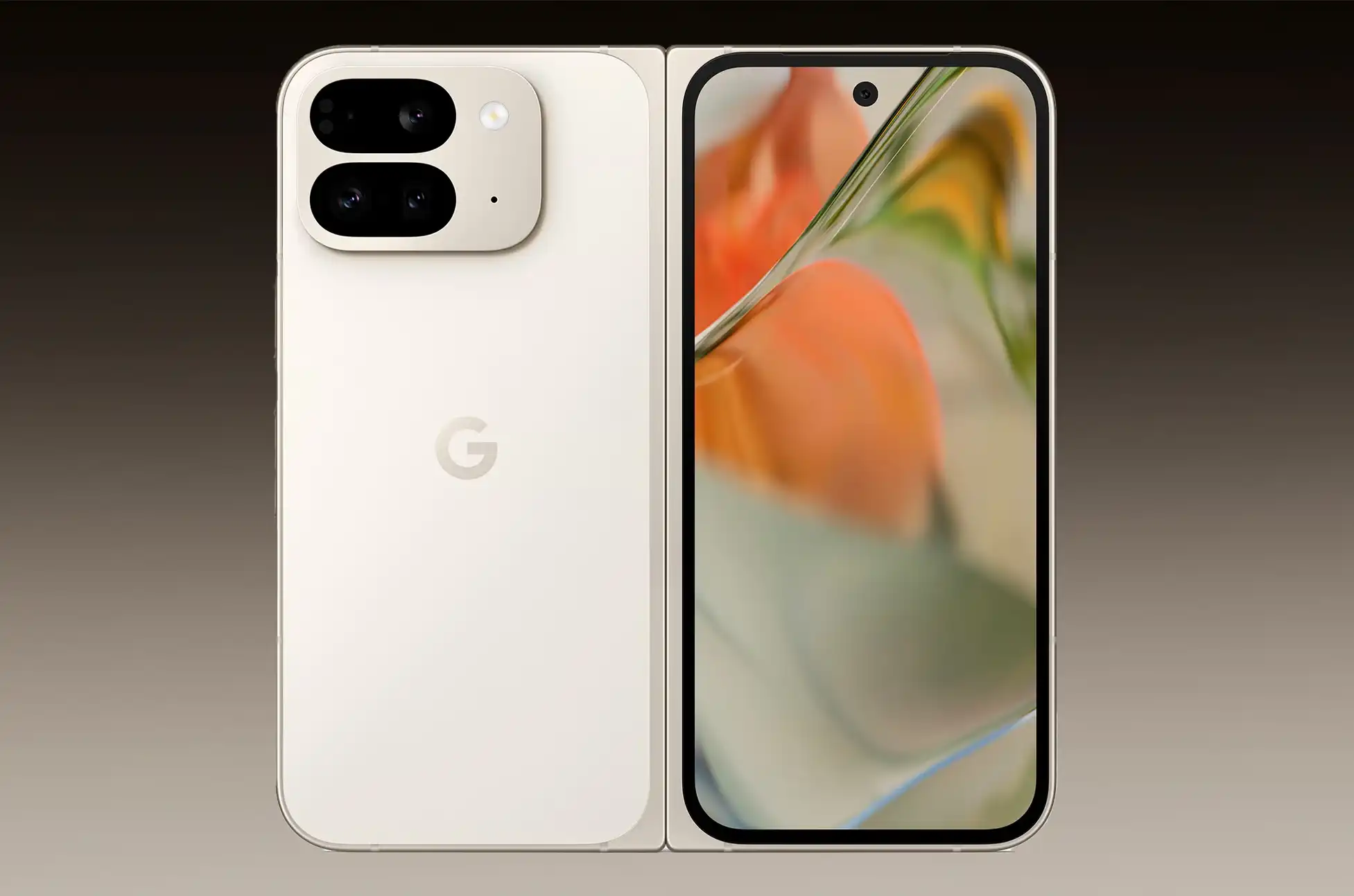
The Google Pixel Fold is lighter than its predecessor, weighing nearly an ounce less. It’s 5.1 millimeters thick, making it one of the thinnest foldables in the U.S. The cover screen has grown to 6.3 inches with a 60-120Hz variable refresh rate and peak brightness of 2,700 nits. The interior screen is now 8 inches, also boasting 2,700 nits and a 1-120Hz refresh rate, offering a better viewing experience.
Upgraded Cameras
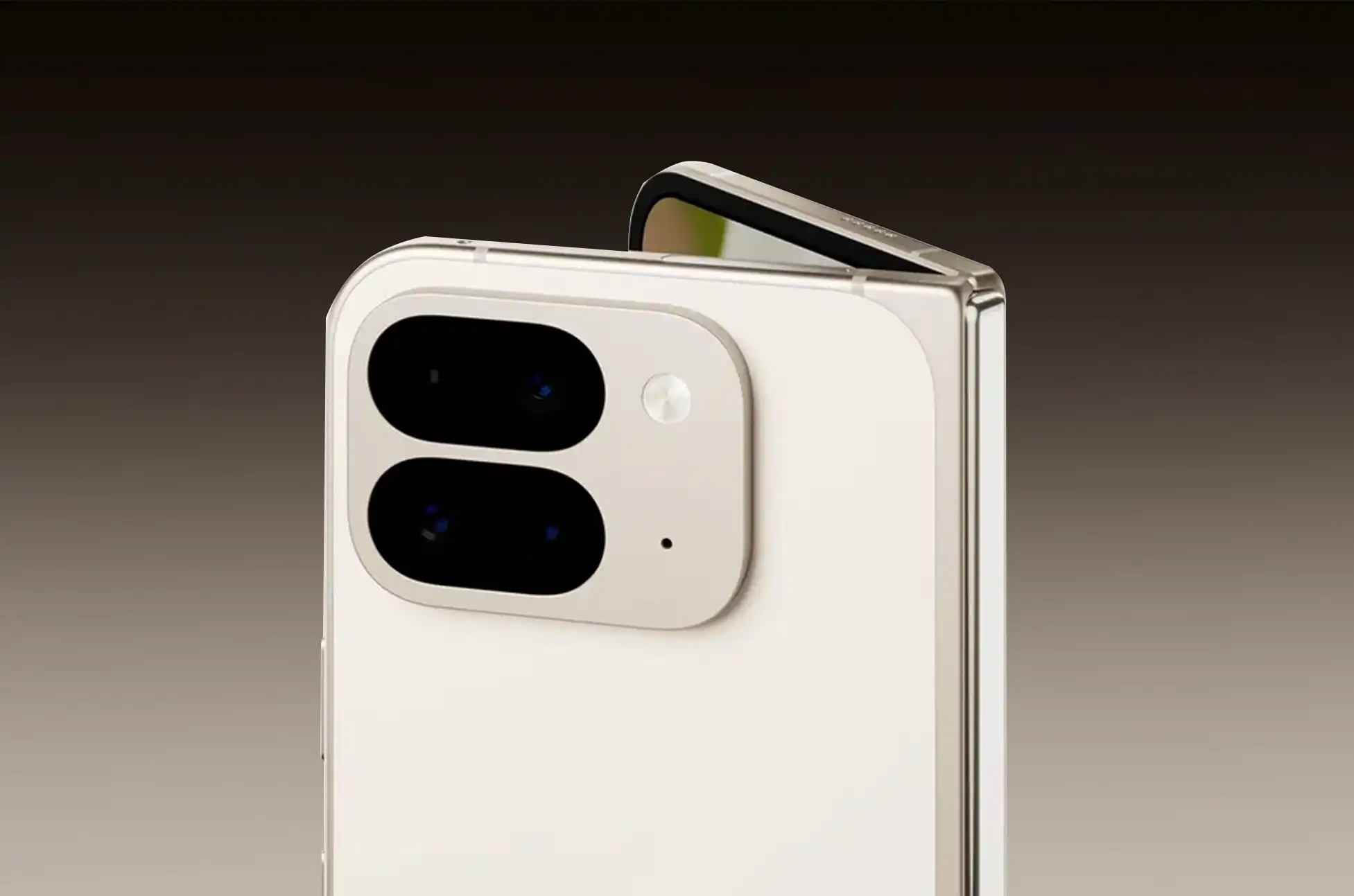
The Google Pixel Fold features a 48-megapixel main camera, a 10.8-megapixel 5x telephoto camera, and a new 10.5-megapixel ultrawide sensor. Selfie and internal cameras have been upgraded, and new modes like Made You Look and Add Me enhance photo-taking with fun animations and AR-powered group shots.
AI-Powered Feautures
AI is deeply integrated into the Google Pixel Fold. Magic Editor offers tools for expanding and reframing photos, while the Reimagine feature allows for transforming images with simple prompts. The phone also uses AI to improve low-light videos and offers AI-enhanced apps like Weather and Pixel Screenshots.
Battery Capacity
The Google Pixel Fold has a smaller 4,650 mAh battery compared to last year’s model, raising concerns about its endurance. However, the new Tensor G4 chip may offset this. Notably, the phone includes Satellite SOS and guarantees seven years of OS and security updates, ensuring it remains up-to-date until 2031.
Google Pixel 9 Pro Fold: Price
Despite all these changes, Google has kept the Google Pixel 9 Pro Fold’s price at $1,799. If the Google Pixel 9 Pro Fold is indeed a Pixel 9 Pro that folds in half, you’re essentially paying $800 for the folding capability alone.
Conclusion
The Google Pixel Fold packs impressive upgrades in design, display, and AI-driven features, all while maintaining a competitive price. With enhanced cameras, a thinner build, and future-proofing through seven years of updates, the Google Pixel Fold stands as a strong contender in the foldable market. For those seeking cutting-edge technology in a compact, foldable form, the Google Pixel Fold delivers on multiple fronts.
All products, and company names, logos, and service marks (collectively the "Trademarks") displayed are registered® and/or unregistered
trademarks™ of their respective owners.
The authors of this web site are not sponsored by or affiliated with any of the third-party trade mark or third-party registered trade mark owners,
and make no representations about them, their owners, their products or services.
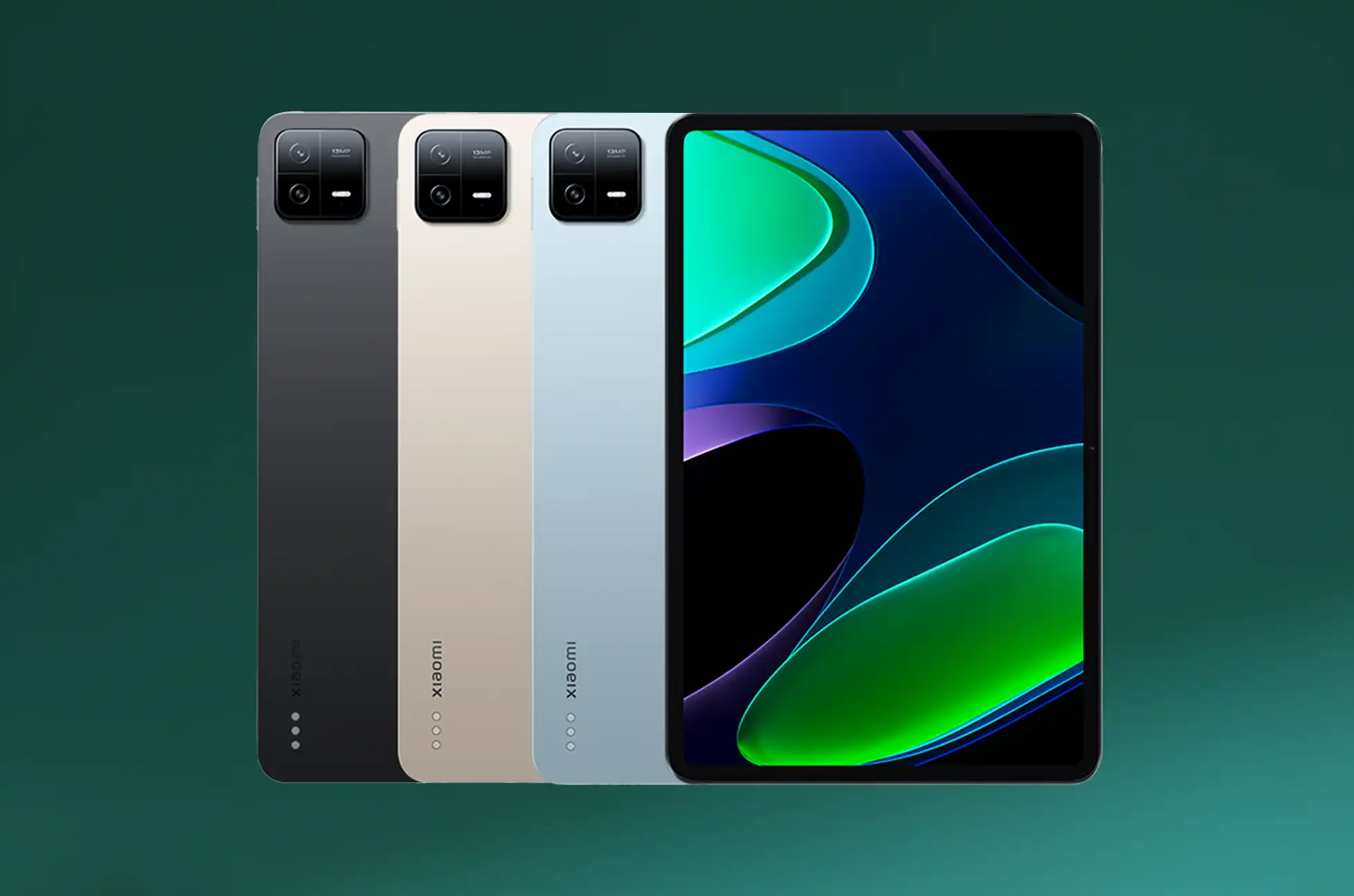
By unlocking your Xiaomi Pad, you are giving way to a number of other benefits, such as switching carriers at will and avoiding heavyweight roaming charges; this can also increase your device’s resale value.
For a person who travels a lot or needs more freedom with his service provider, an unlocked Xiaomi tablet may be of immense importance. In this article, we will look through some ways of unlocking a Xiaomi Pad, including trusted third-party services.
Why Unlock Your Xiaomi Pad?
Many benefits of unlocking your Xiaomi Pad include the following:
Global Connectivity: Use your tablet with any compatible carrier worldwide.
Increased Resale Value: With an unlocked device, the sale price can go pretty high in the secondary market.
Freedom of Choice: Break free from the control of a carrier and bloatware pre-installed on your device.
How to Unlock Your Xiaomi Pad: A Step-by-Step Guide
Official Xiaomi Unlock Method
Xiaomi has an officially approved unlock process for its devices. This holds good for tablets as well. Here’s how to do it:
Go to the Mi Unlock status page on Xiaomi’s official website.
Log in with your Mi Account, which should be the same as connected to your Pad.
Tap on request unlock permission and wait; this might take 7-14 days.
Download and install the Mi Unlock tool on your computer.
Follow the on-screen instructions through completion.
As this is free and the official method, there is a period of waiting time involved, which may not be convenient for everyone.
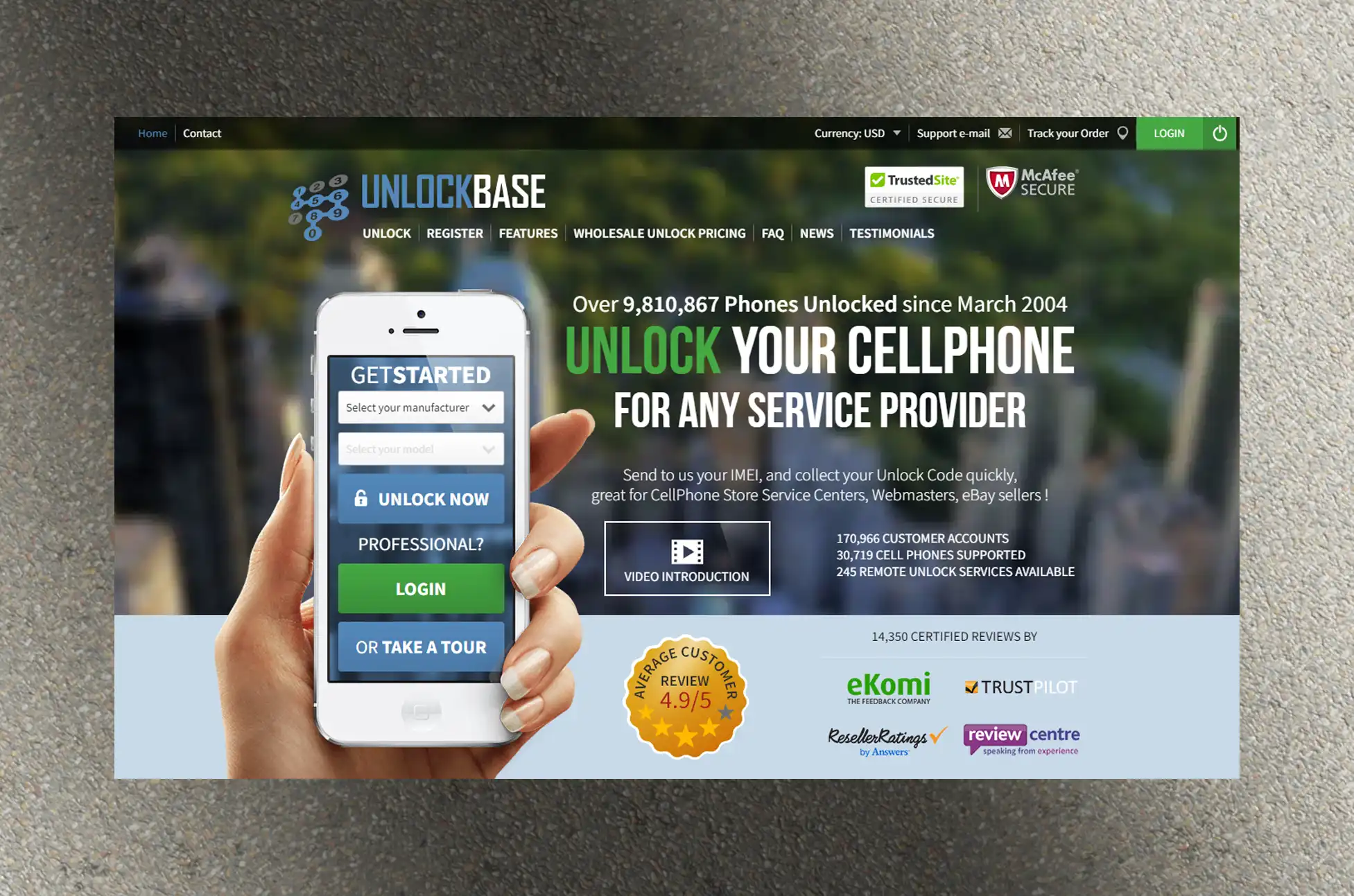
Unlocking via UnlockBase
Visit UnlockBase Website: Go to the UnlockBase website.
Select Your Device: Choose Samsung Galaxy Tab from the list.
Enter Device Details: Provide your tablet’s IMEI number.
Payment: Complete the payment process.
Receive Instructions: You’ll get detailed instructions and an unlock code via email.
Unlock Your Tablet: Insert a new SIM and follow the instructions provided.
The advanced user can unlock the bootloader. However, this method:
Voids your warranty
Requires technical knowledge
Can potentially brick your device if done incorrectly
We would only recommend this approach for advanced users who have experience in manipulating the software on their device.
Tips for a Successful Xiaomi Pad Unlock
Backup Your Data: Always create a full backup before attempting any unlock procedure.
Verify Compatibility: Ensure your desired carrier supports your Xiaomi Pad’s network bands.
Research Thoroughly: If using a third-party service, check their reputation and user reviews.
Keep Your Mi Account Active: On the official front, have an active Mi Account connected to your device.
Conclusion
Unlocking your Xiaomi Pad will manifoldly increase the functionality of the device and its value in the resale market. Be it the official way from Xiaomi or one of the very famous third-party services, it’s pretty easy and worthwhile most of the time. Enjoy freedom and flexibility with an unlocked Xiaomi Pad!
Keep in mind that an unlocked device gives you more choices, better travel options, and possibly better resale value. Now, take the plunge and unlock your Xiaomi Pad!
All products, and company names, logos, and service marks (collectively the "Trademarks") displayed are registered® and/or unregistered
trademarks™ of their respective owners.
The authors of this web site are not sponsored by or affiliated with any of the third-party trade mark or third-party registered trade mark owners,
and make no representations about them, their owners, their products or services.